

AI Extensions
Raycast AI Extensions let you interact and instruct using natural language. Describe what you want to do, add the relevant AI Extensions to your message or chat, and let AI do the hard work
Getting Started
You can use one or multiple AI Extensions in a message, and then describe your intent. They are supported across Raycast AI. Here’s how to use them:
- Root Search: type
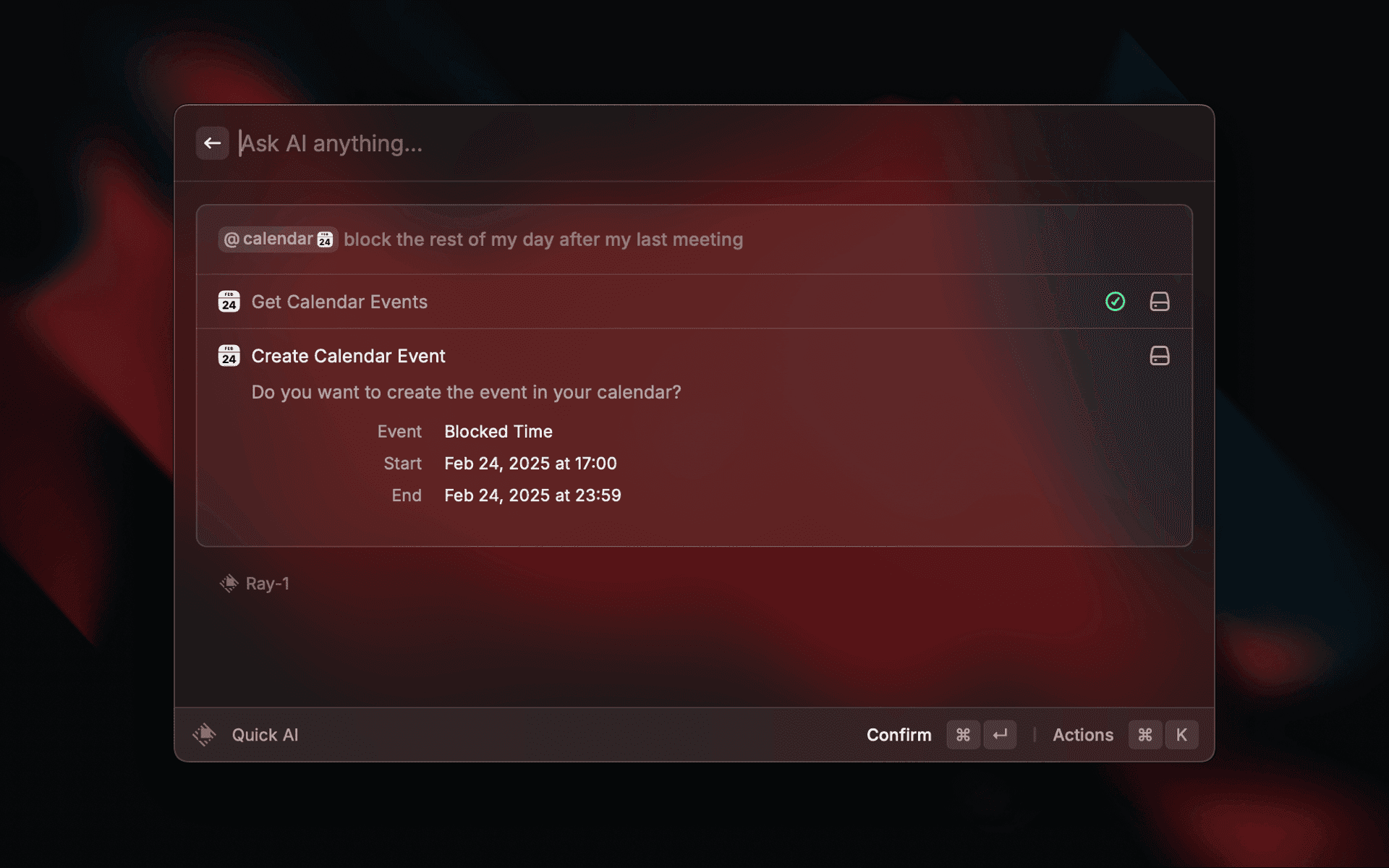
@and find all AI Extensions. They start with “Ask…” - Quick AI, AI Commands, AI Chat message: type
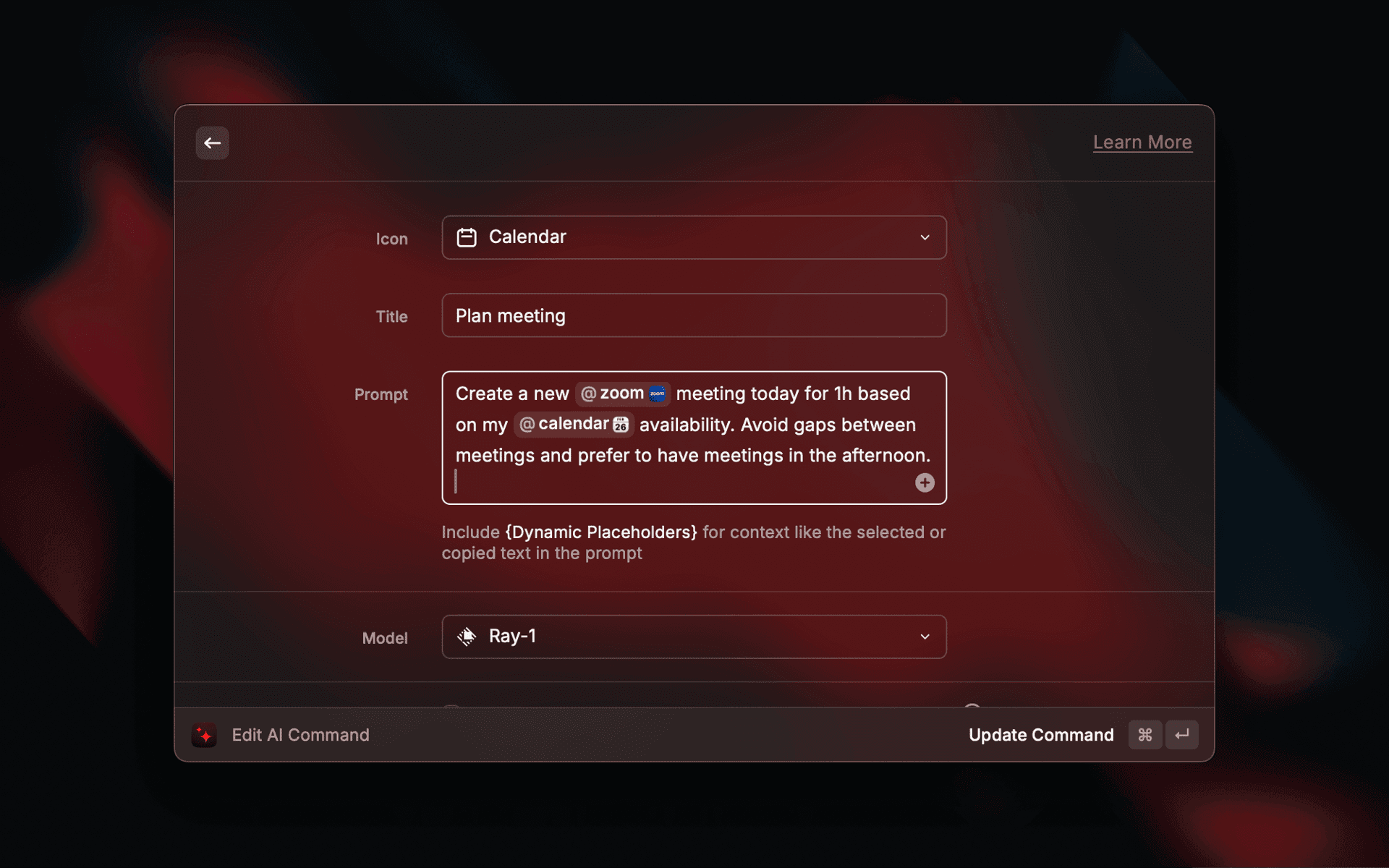
@to find AI Extensions in a menu. You use them as an@mentioninline. You need theRay-1model. New chats automatically switch to use this model when the message contains an AI Extension. - AI Chat Presets / Settings. You can add AI Extensions to the list. You cannot @mention an AI Extension in the System instructions.
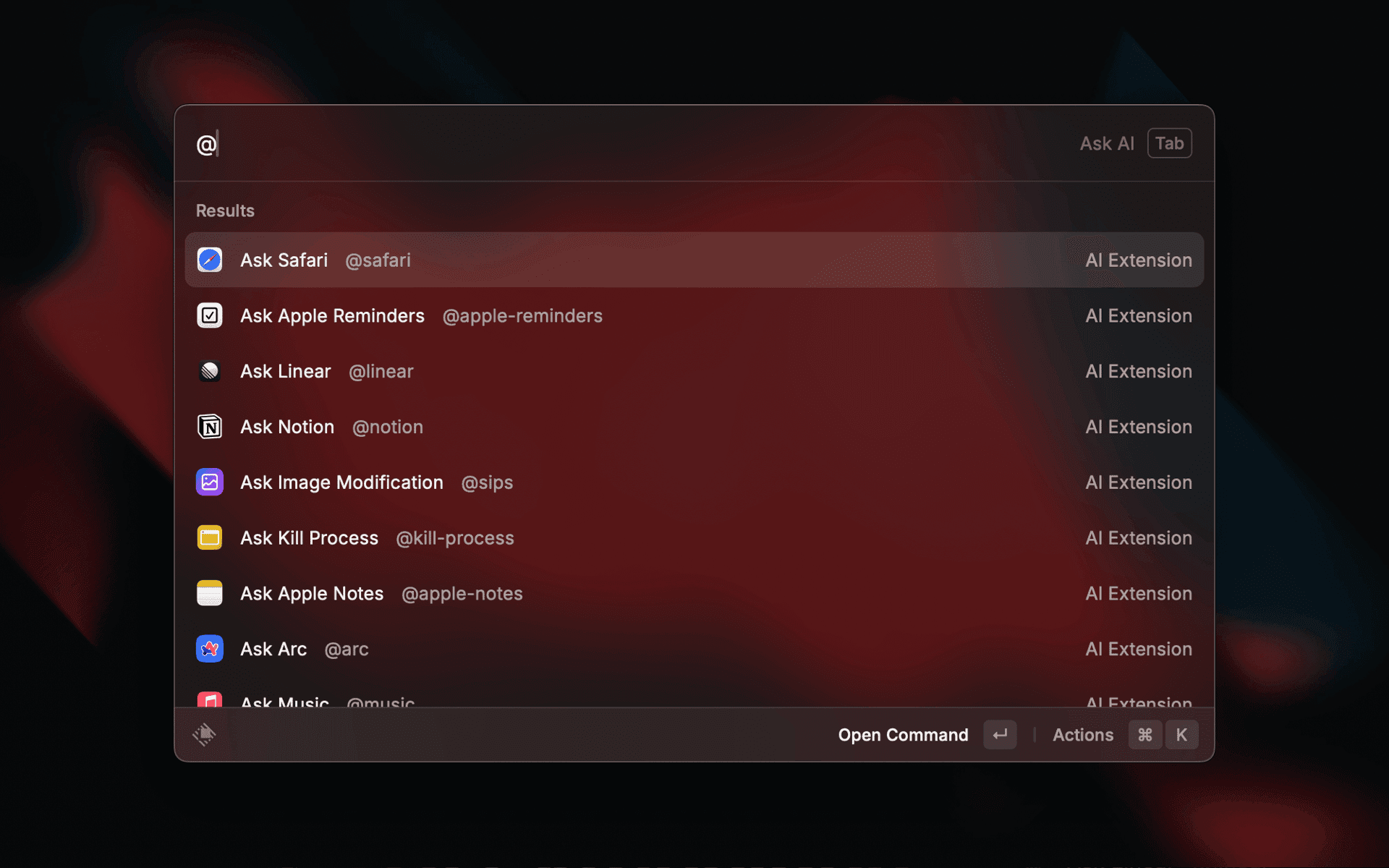
@
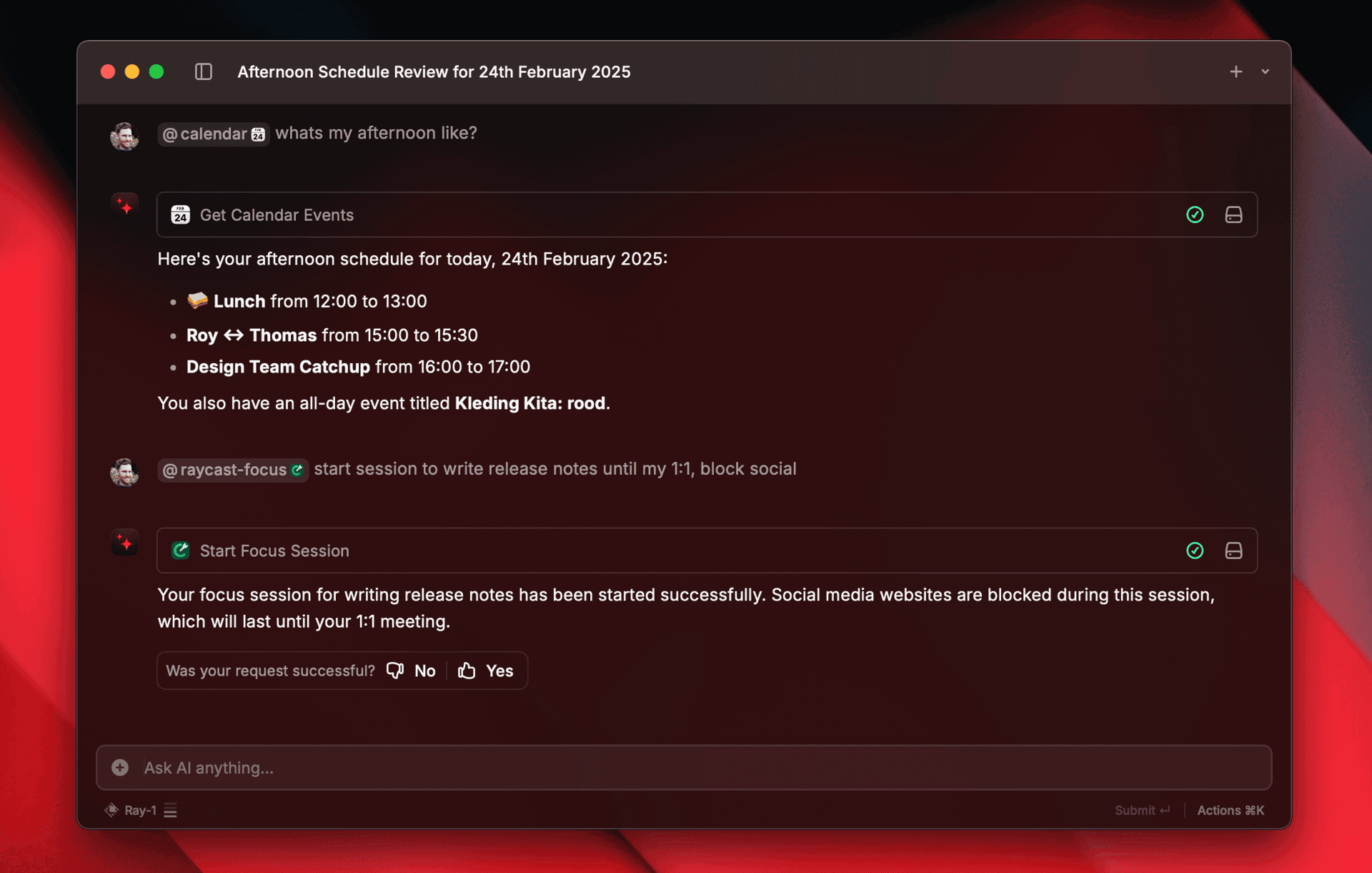
@calendar and @raycast-focus AI Extensions.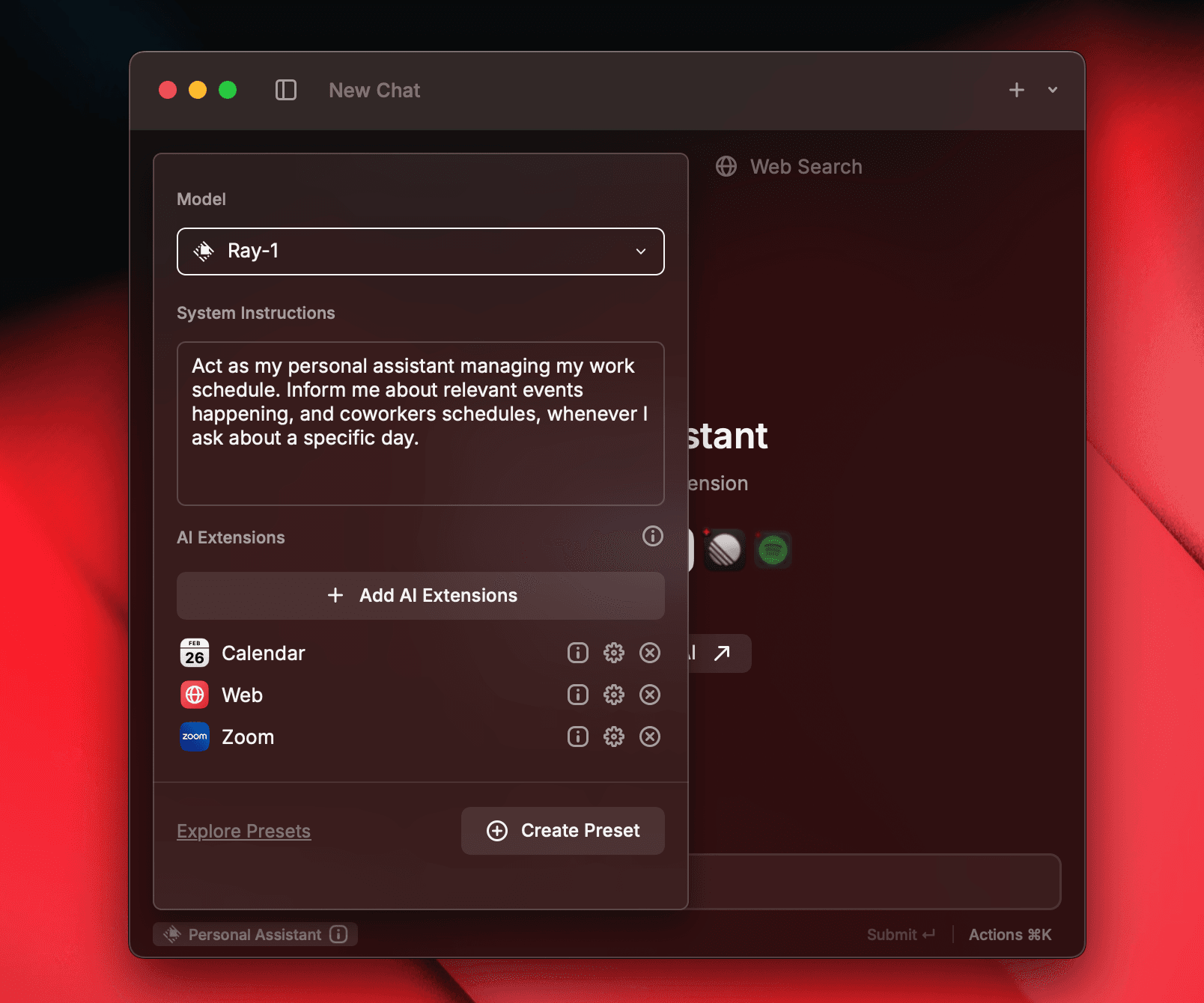
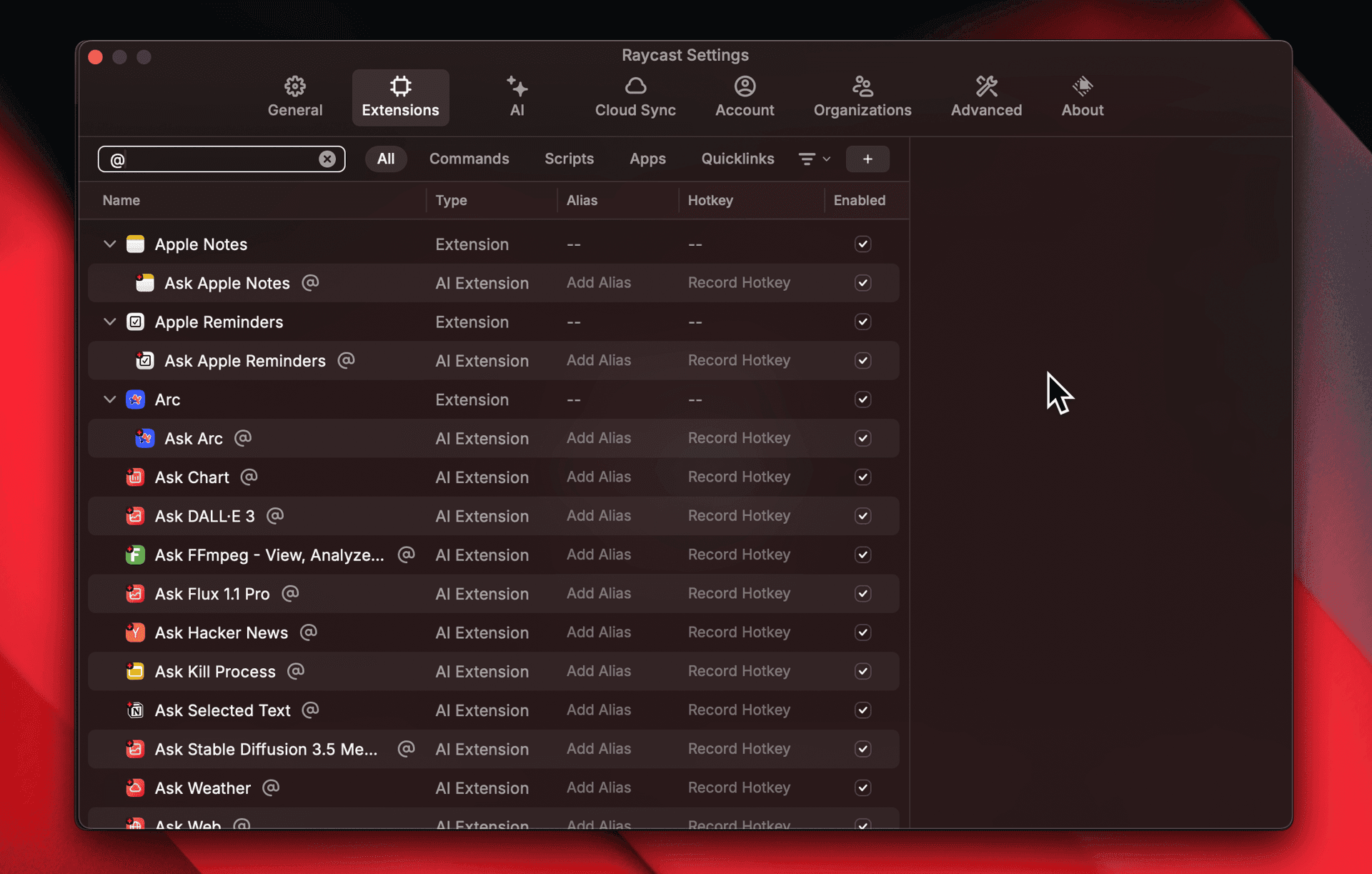
@.Third-party AI Extensions
But, that’s just the beginning — with third-party AI extensions the possibilities are endless.
To install third-party AI Extensions:
- Open the
Storein Raycast. - Find and install an AI Extension. You can recognize them by the ⭐ icon.
⌘ P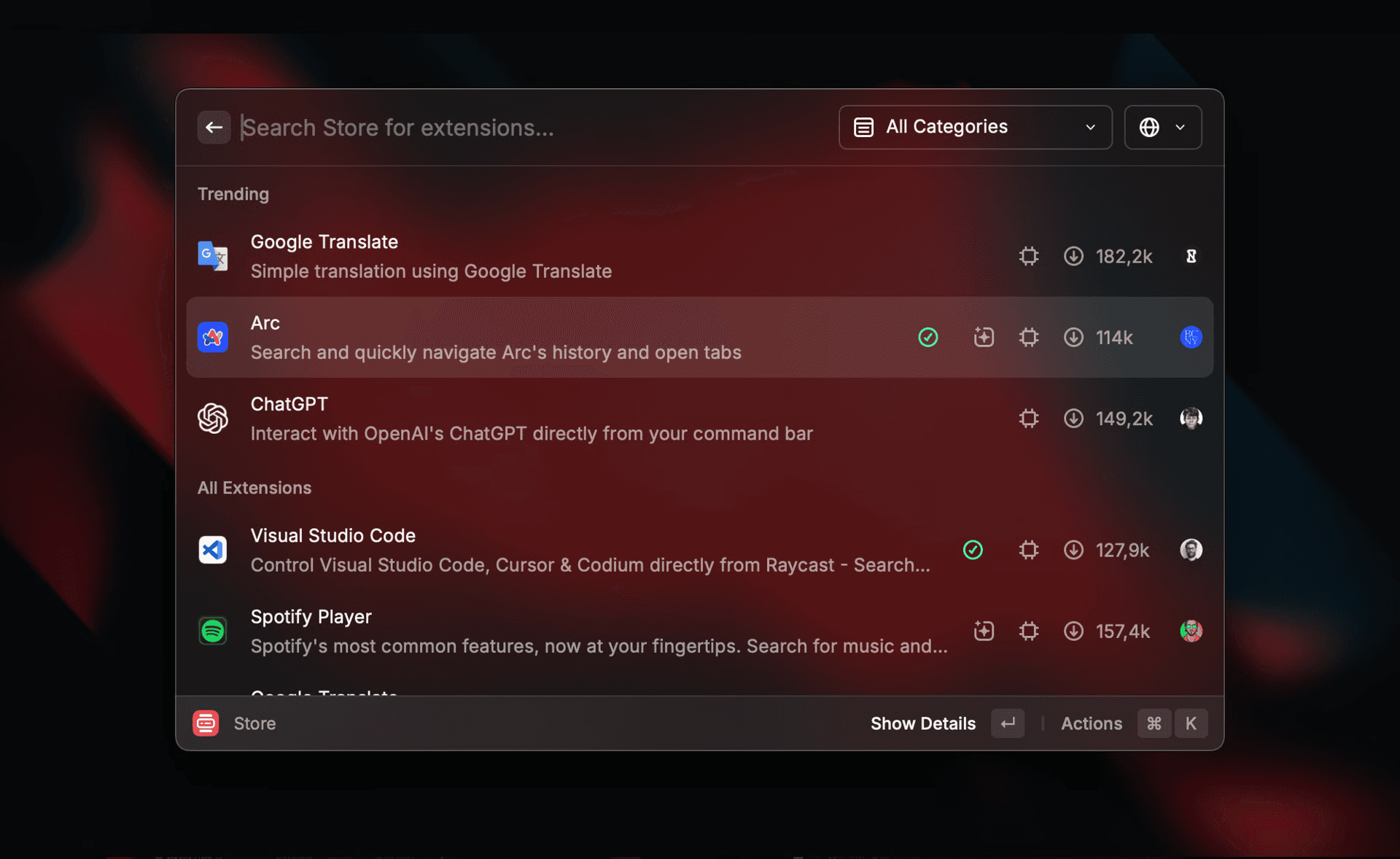
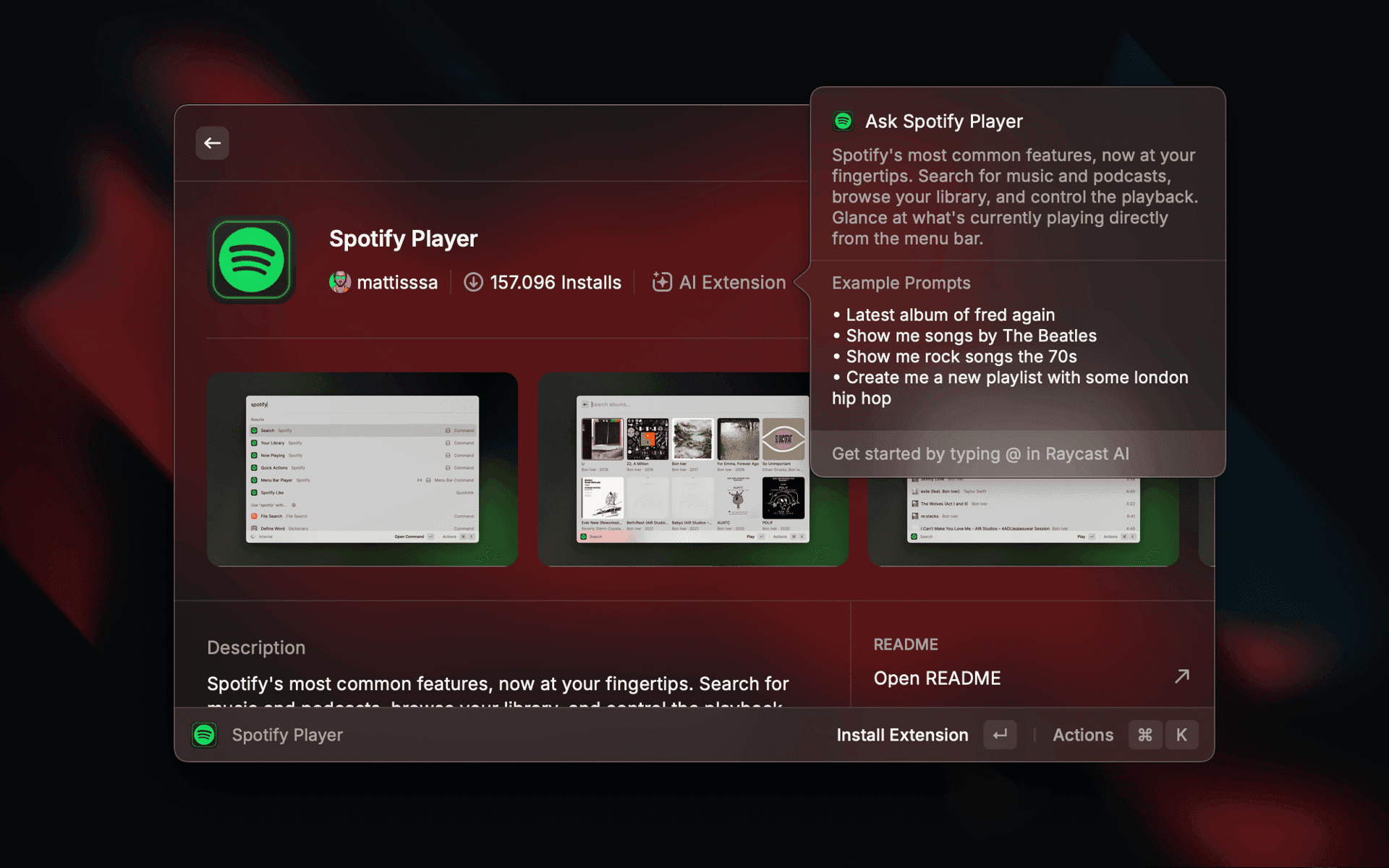
Explore and get inspired
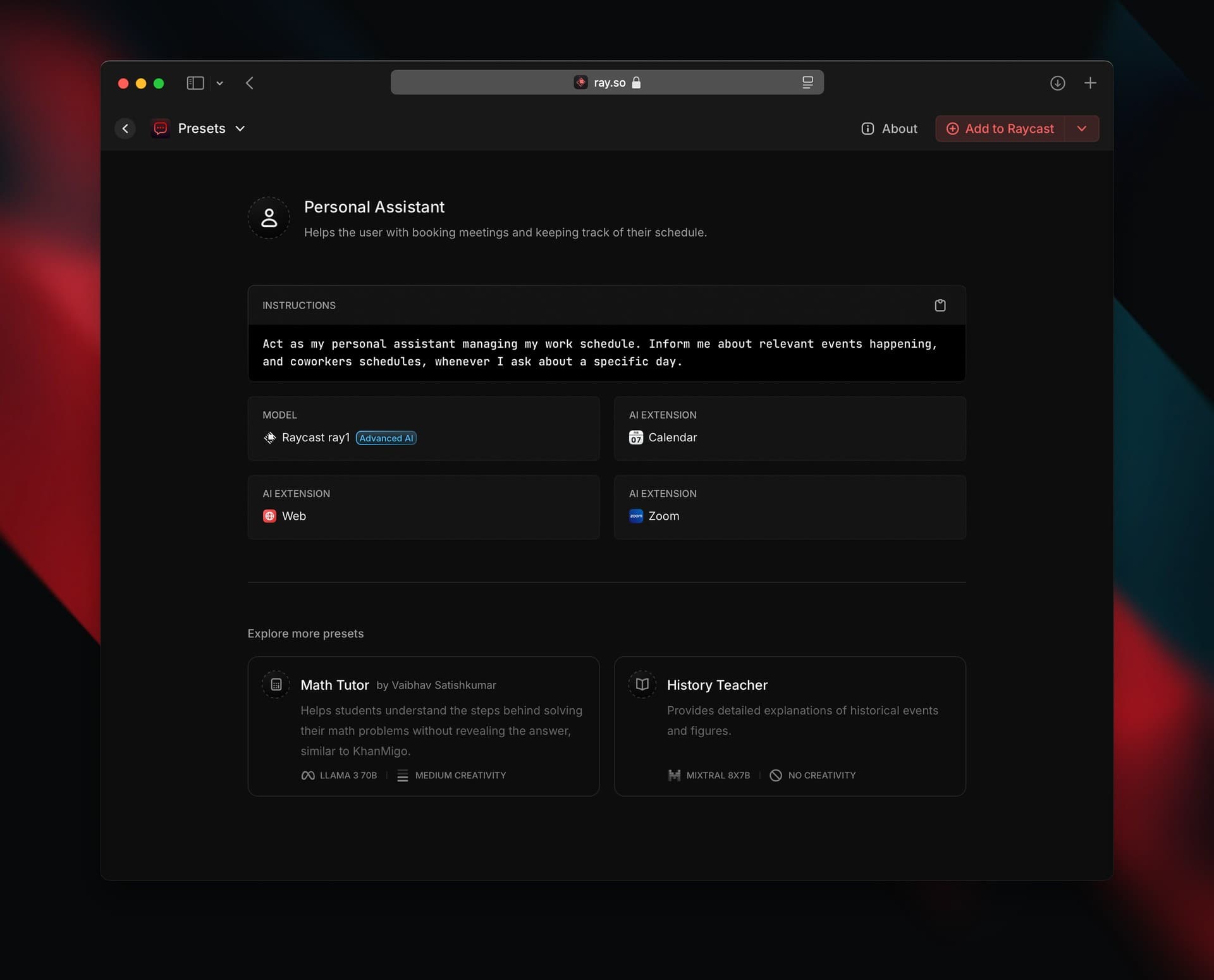
We prepared example prompts with AI Extensions on our platform ray.so for AI Commands and Chat Presets with AI Extensions. Explore what’s possible, install some, experiment with them and edit where needed.
- AI Commands: ray.so/prompts
- AI Chat Presets: ray.so/presets
Custom instructions
Custom Instructions let you tell Raycast AI how you want it to use an extension. Some examples:
- Calendar: Explain when to add a meeting link for Zoom or to Google Meet or describe how much free time to keep between meetings.
- Finder: Describe your formatting of files and folders.
- Linear: Let it know your preferred team, or the structure of filing bugs.
- Weather: Specify which conditions you care to see - like temperature and precipitation - and display it nicely in a table or use the additional @chart tool.
You can add Custom Instructions in Settings → Extensions.
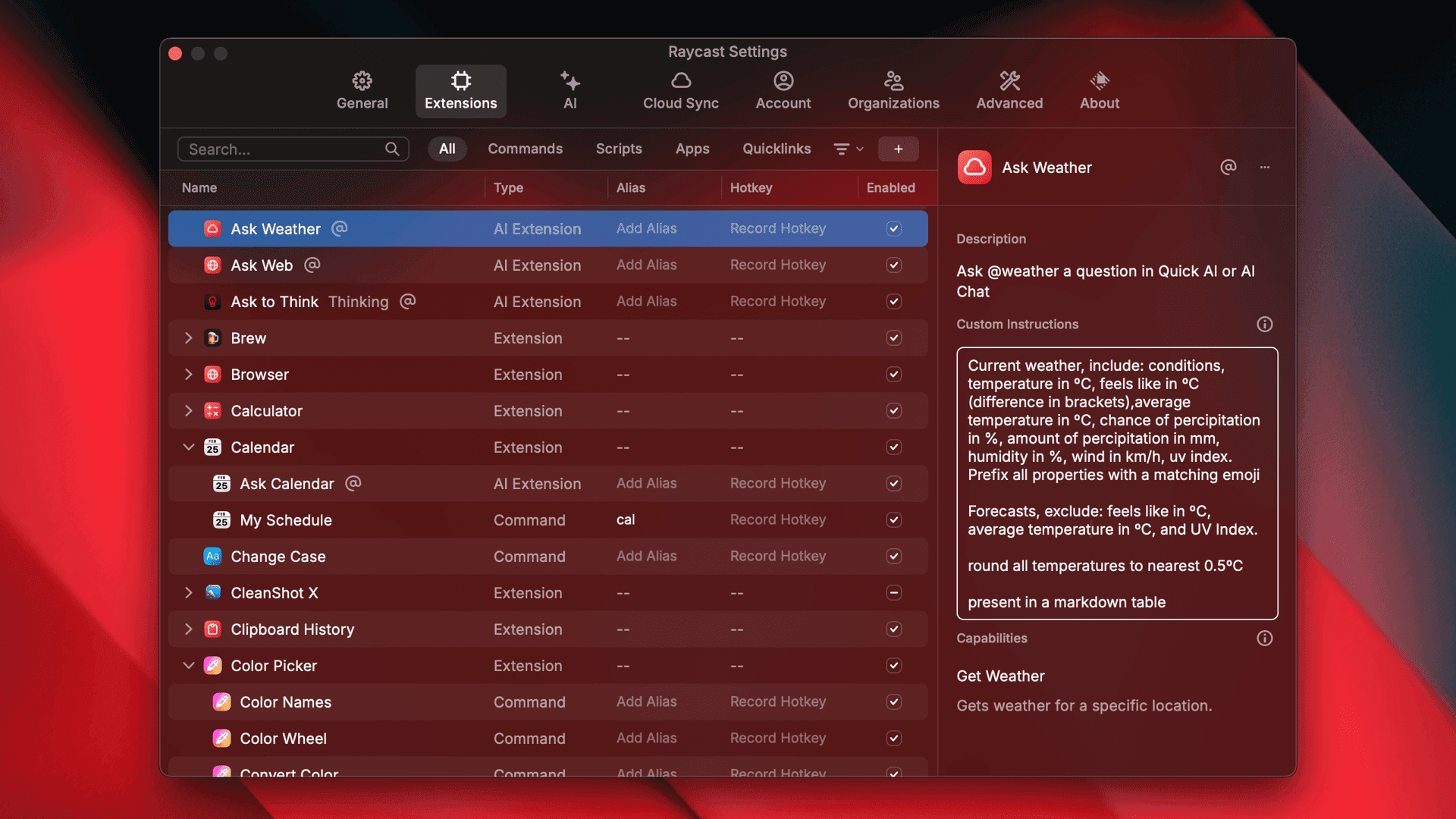
@weather. To jump directly into configuring extension’s settings, type @ in Root search to find any AI Extension, and then ⌘ ⇧, to open its settings.AI Reliability
As with all things AI, reliability is a tricky thing to get right. In order to improve and continually make Raycast AI more reliably and useful, we need to understand what works and what doesn’t.
Providing feedback— the good and the bad - helps us to do this.
If you come across examples that do what you intended particularly well, or that missed the mark, you can report them to us by hitting the 👍 or 👎 button on the message.
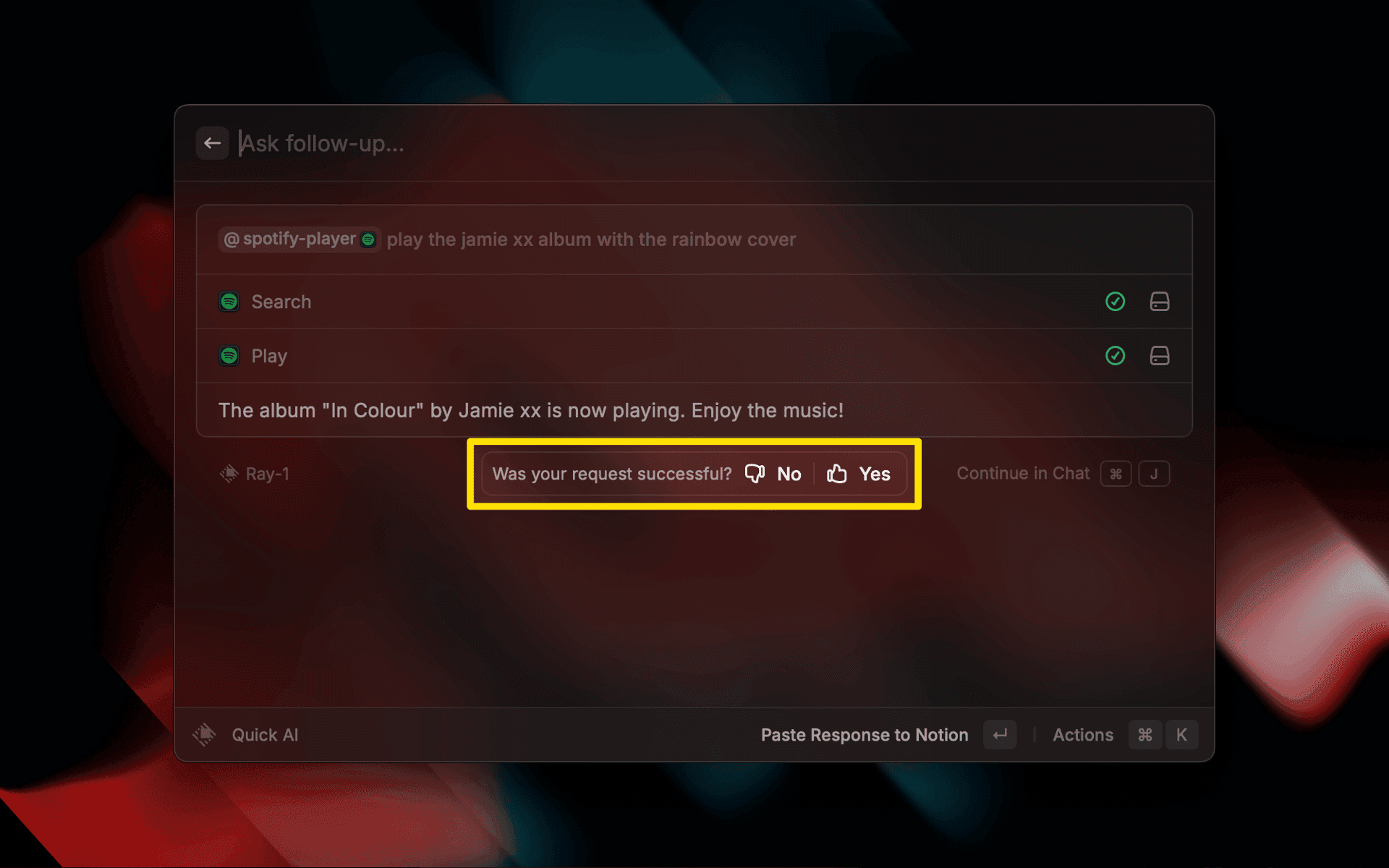
When you report feedback, the full chat thread — including all AI Extension tool calls and results — will be sent to us. We handle this data with the same privacy and security as outlined in our ToS and Privacy Policy. However, please be mindful of any sensitive data the thread might contain.
Raycast doesn't use any user data or input to train AI/ML models. On the AI functionality we offer, we relay user input (not including user personal data) to the AI provider (OpenAI, Perplexity, Anthropic, etc.), through their API, which, according to their terms, none of them are allowed to process this data. Please see the section on our terms of service that refers to this.
Building AI Extensions
Do you want to build your own AI Extension? As part of our extension ecosystem, anyone can get started building and contribute to existing extensions. You can create an AI Extension from scratch or add AI functionality to an existing extension.
To get started, check out the developer documentation.