

Store
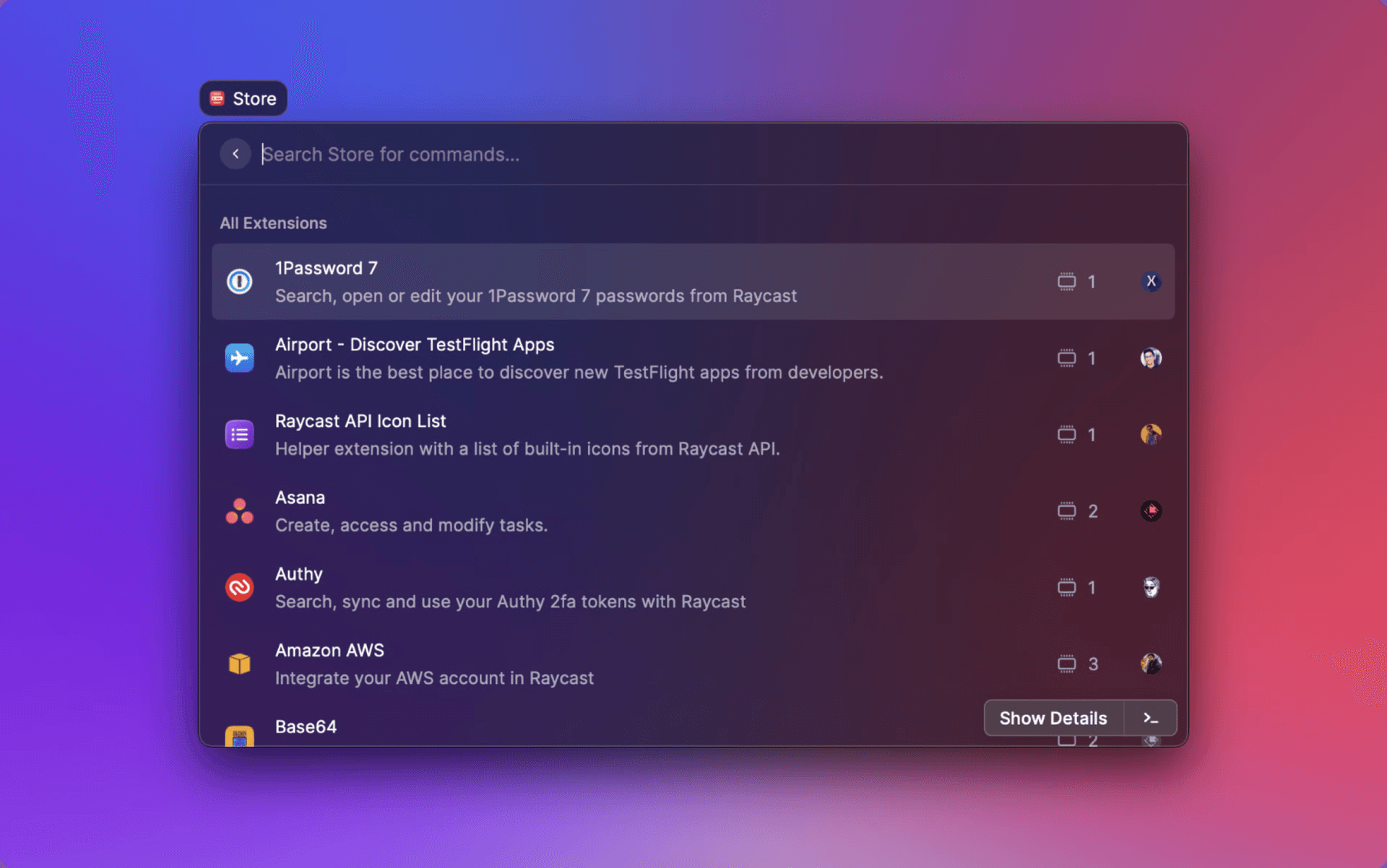
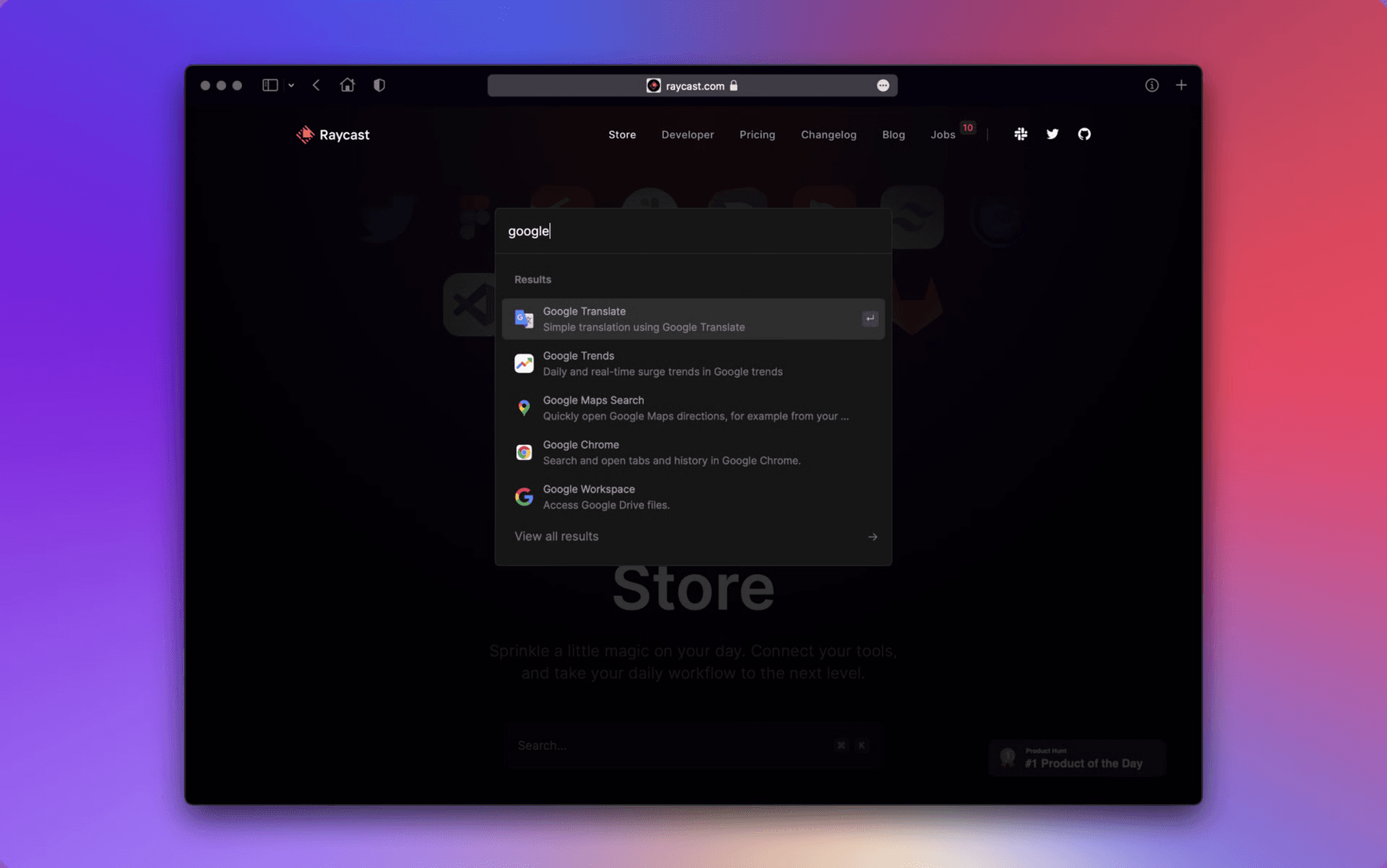
The Store is the home of all Extensions for Raycast. Search, find, and install extensions for your tools, and supercharge your productivity.
Explore a wide-range of Extensions built by our Developer community, as well as discover previously built-in Extensions by Raycast, such as Jira, GitHub, Google Workspace, and others.
Getting Started
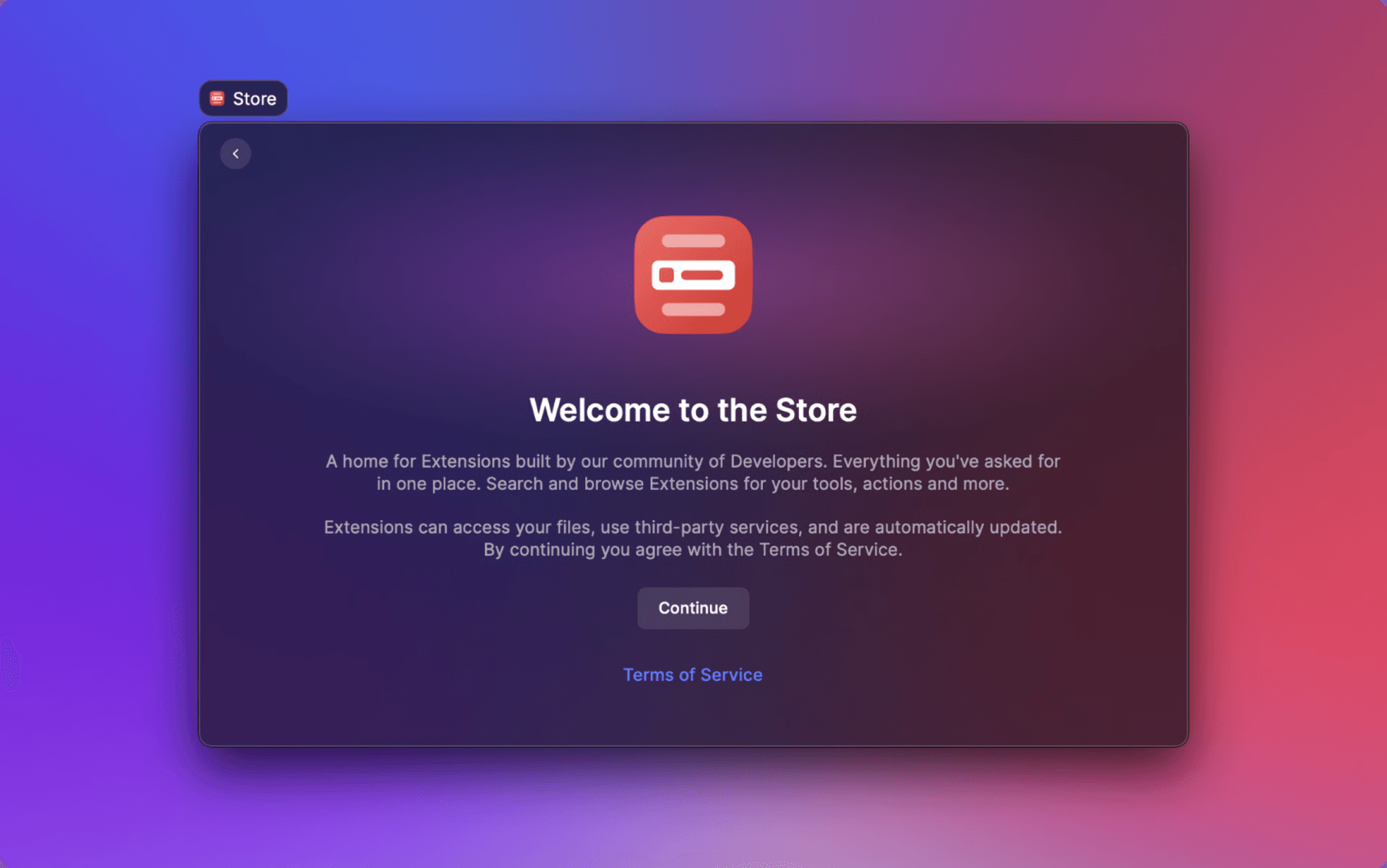
You'll need to agree to the terms and conditions and hit Continue when you open the Store command for the first time. Then you will be able to explore and install Extensions.
Exploring
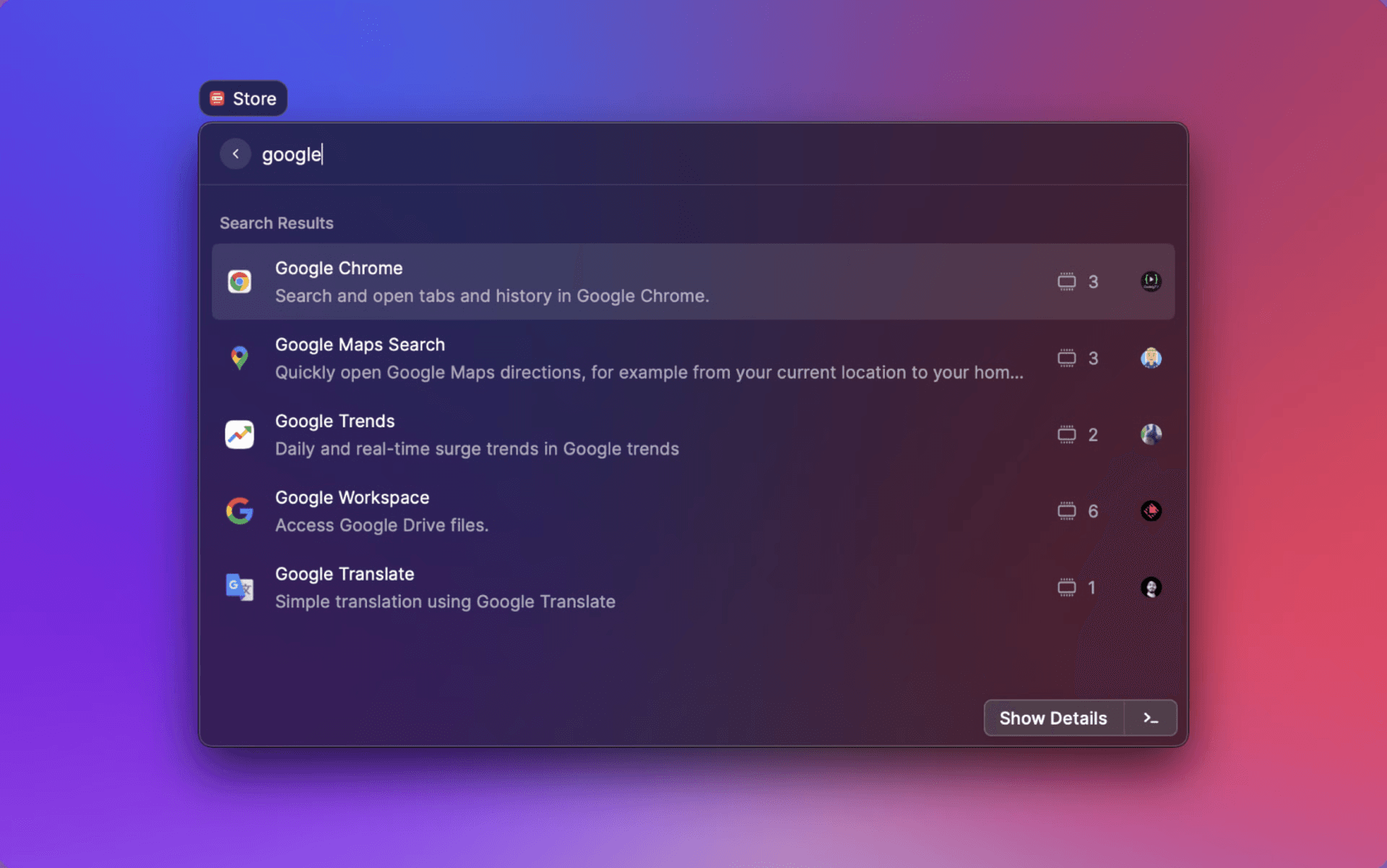
Search for Extensions using the search field at the top of the Store Command. Enter keywords to find Extensions that extend your work toolkit.
Extensions are currently indexed using the Title of the Extension, and Keywords provided by the author of the Extension.
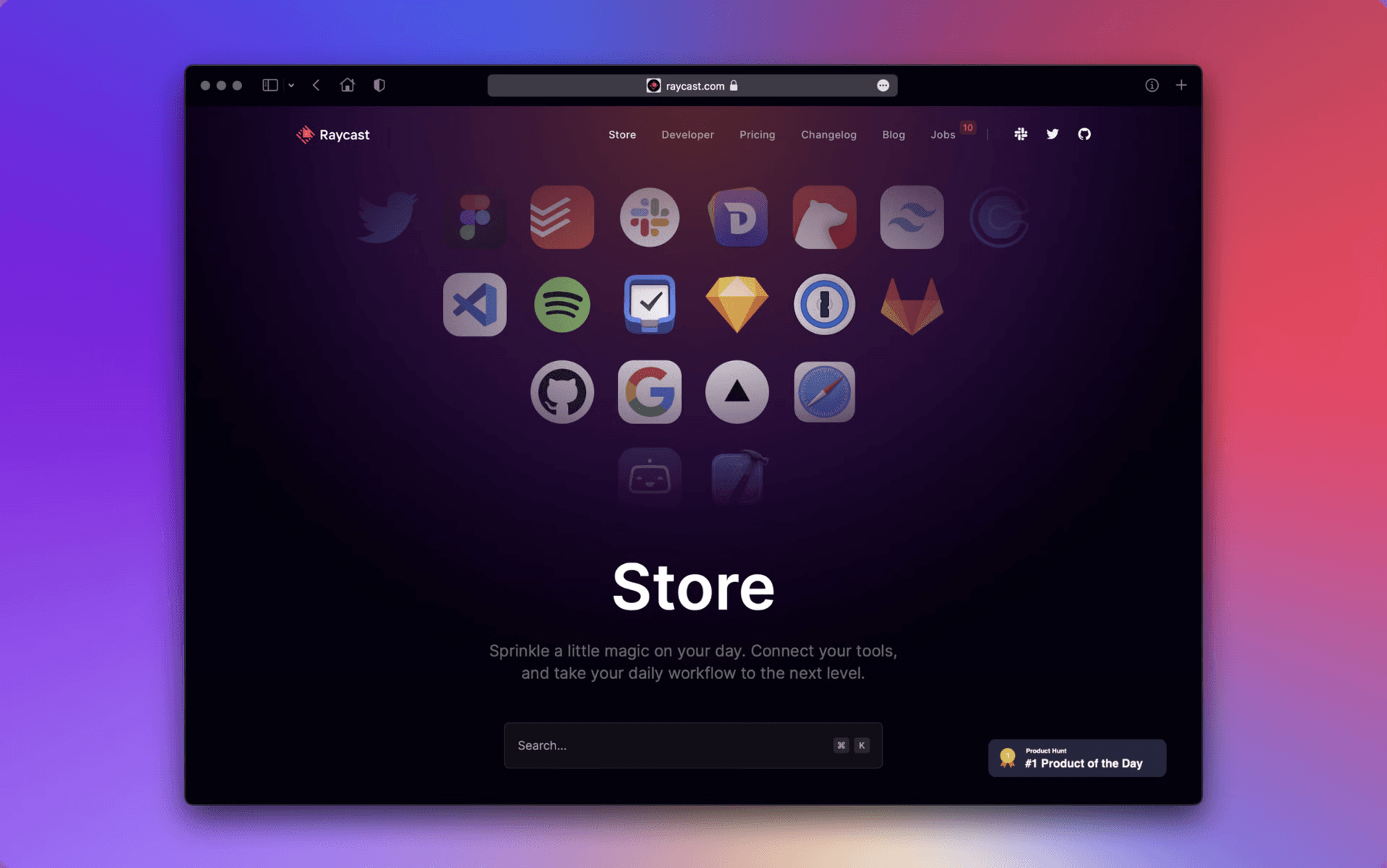
Alternatively, you can also browse Extensions on the Web store, view Extension details, see Developer profiles, and install Extensions, which take you to the Raycast app.
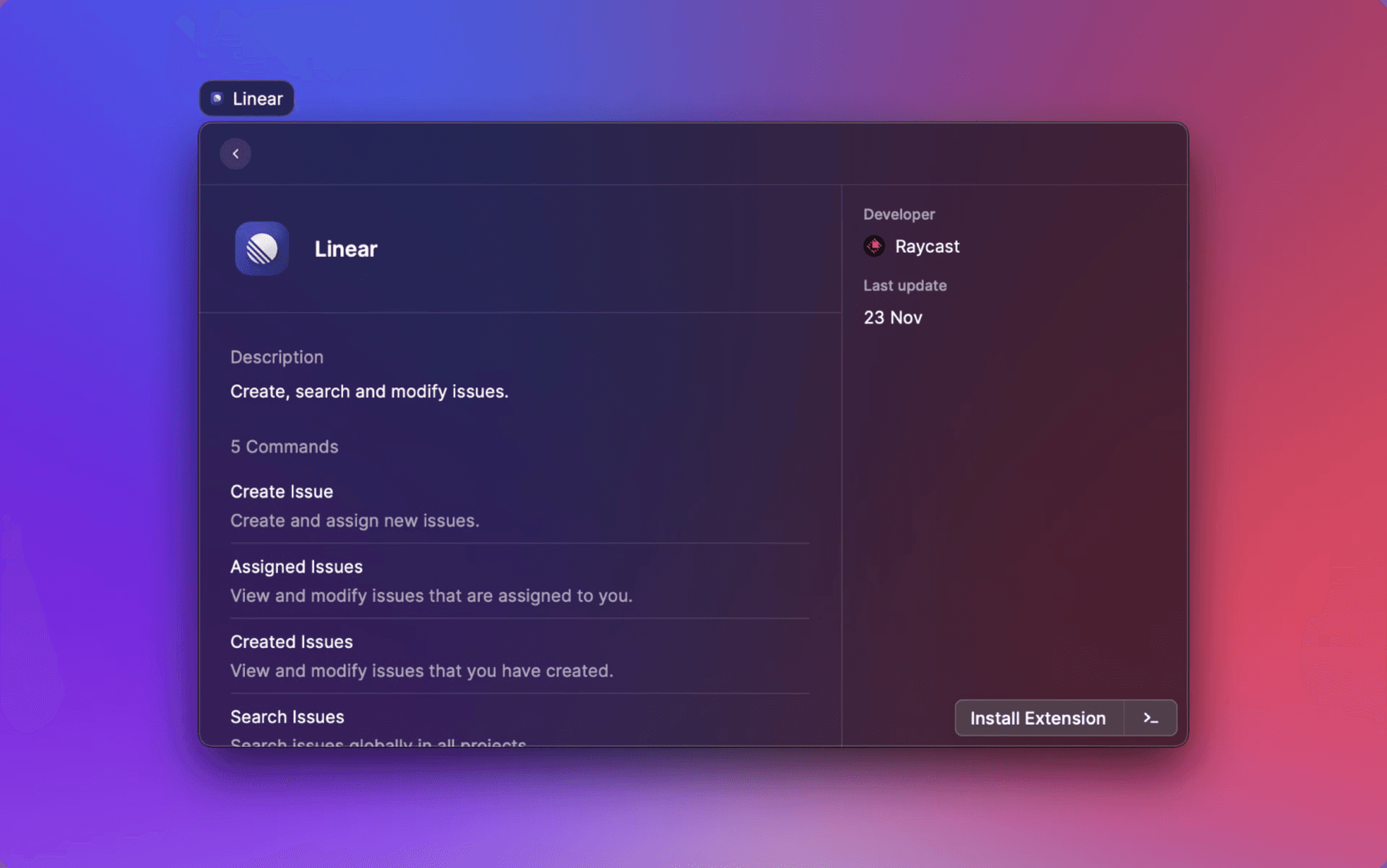
View Extension details by hitting Show Details to see a set of commands within the Extension, and information about the Developer and other metadata.
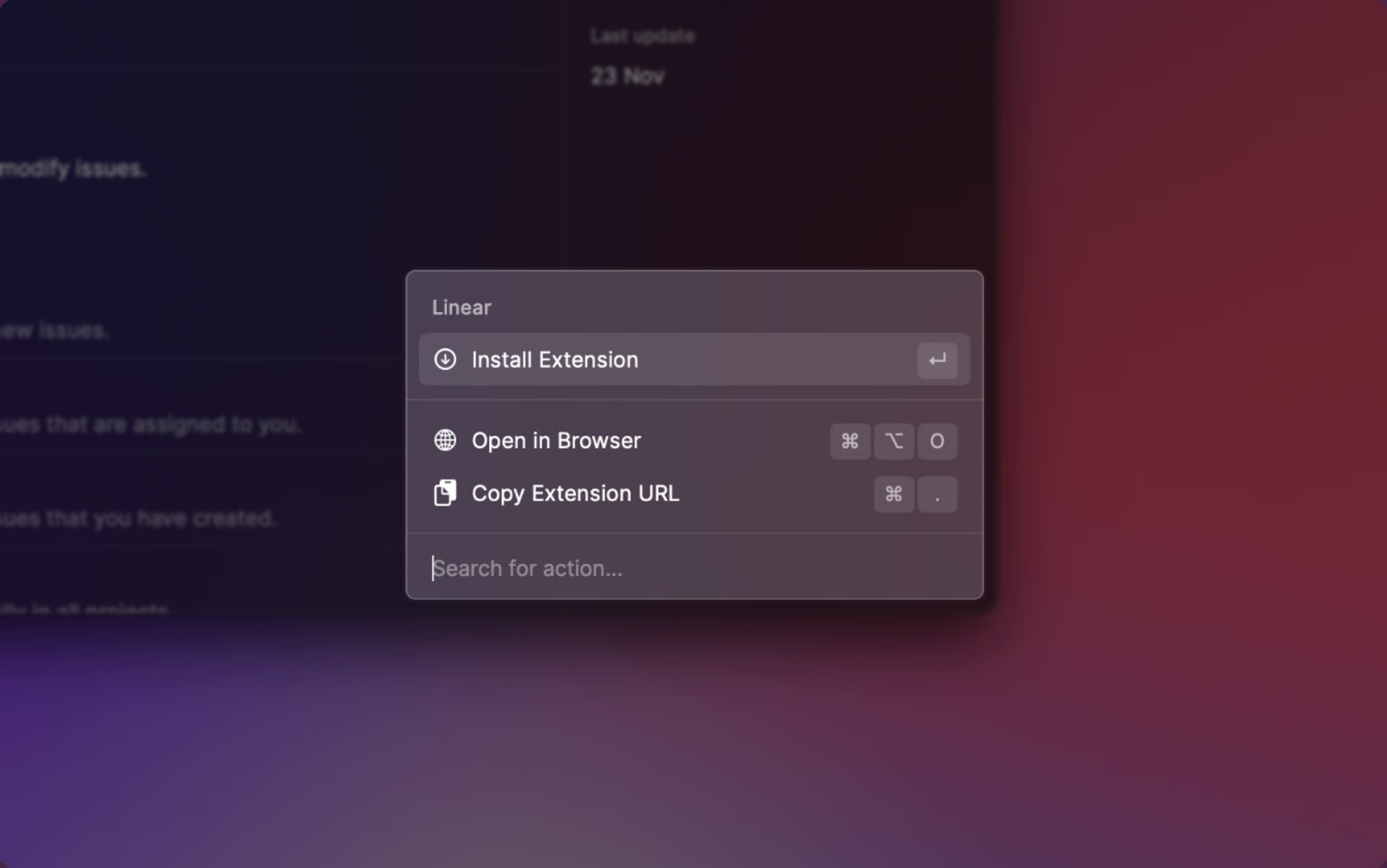
To install an Extension, simply hit ↵ on the Extension.
If the Extension is already installed, you'll find the primary action to be Open Command, which will open the Extension, or give you the option to open one of the multiple Commands within the Extension.
Uninstall Extensions
To uninstall an Extension, you can do so by going to Settings, or opening the action panel, and finding Uninstall Extension on one of the Commands.
If you're installing an Extension from the Web Store, you'll be redirected to an interstitial screen in the Raycast app before installing. Hit ↵ to install it, or click Install Extension to begin the installation.
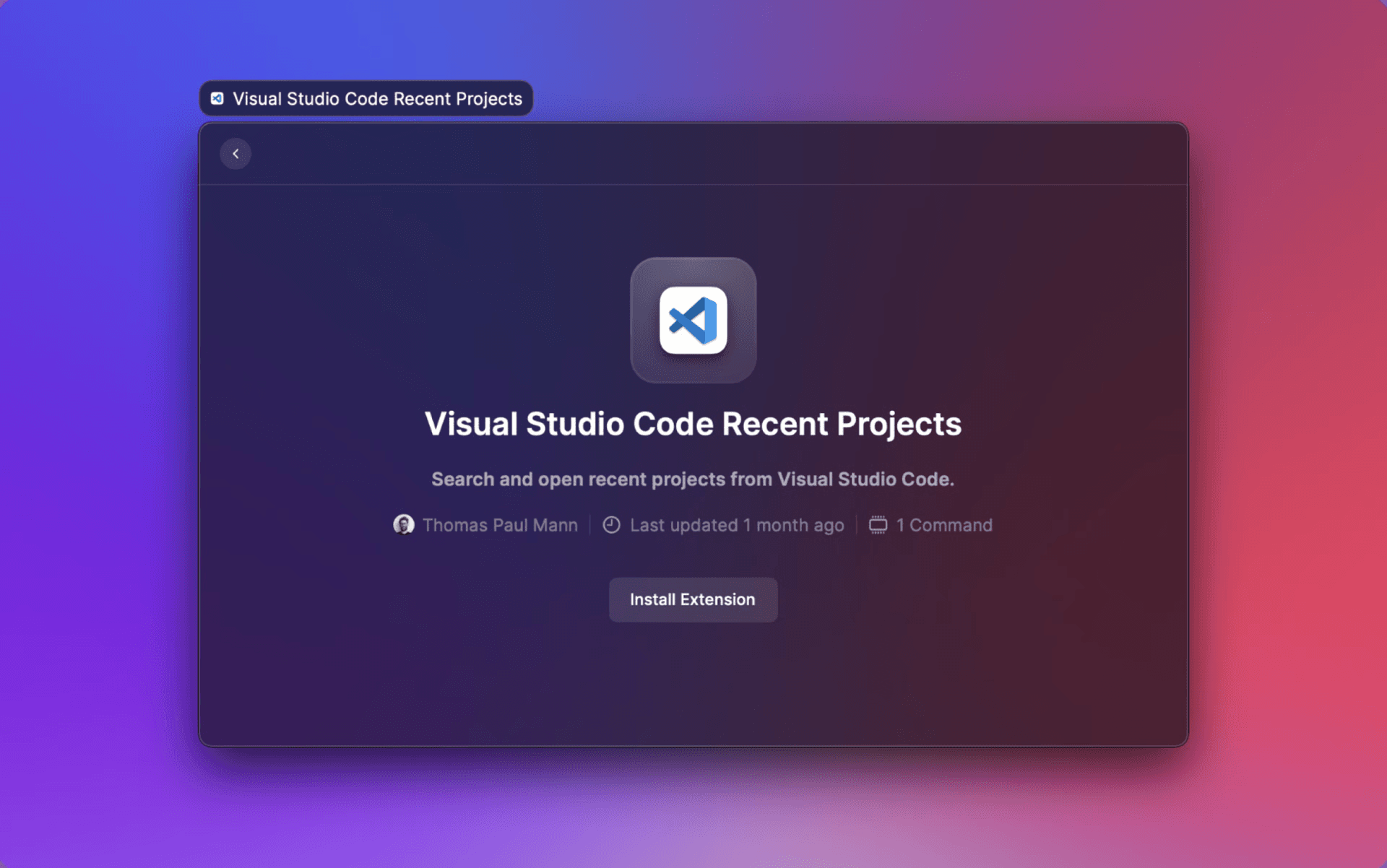
Always make sure you're using the latest version of Raycast to avoid some Extensions not working or not being installed.
Access Tokens
Some Extensions may require configuration to use them, and an access token provided by the third-party, such as Slack or Notion.
Information about how to get Access Tokens can be found in the README files provided by Developers. These can be found by clicking on the About This Extension button when you open the Command, before setting it up.
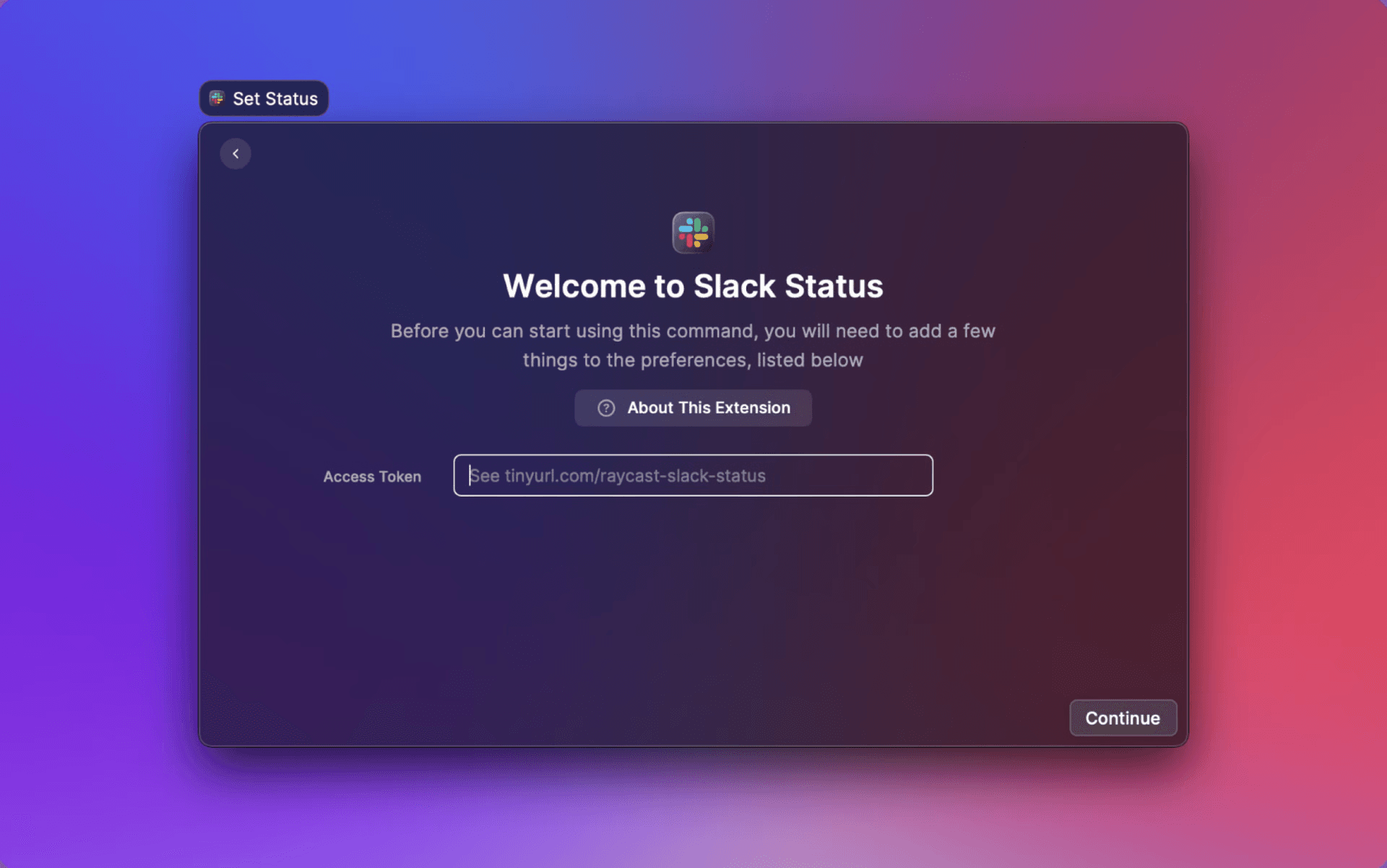
Not all Extensions provide information about how to obtain Access Tokens. Check the Extension settings in Raycast preferences to check if this is necessary.