Hotkey
You can open Raycast with a global hotkey. It overlays your current application to keep you focused.
- The default hotkey to open Raycast is
⌥Space. - We recommend to replace Apple's Spotlight (or any other application launcher). This way you only need to remember one hotkey.
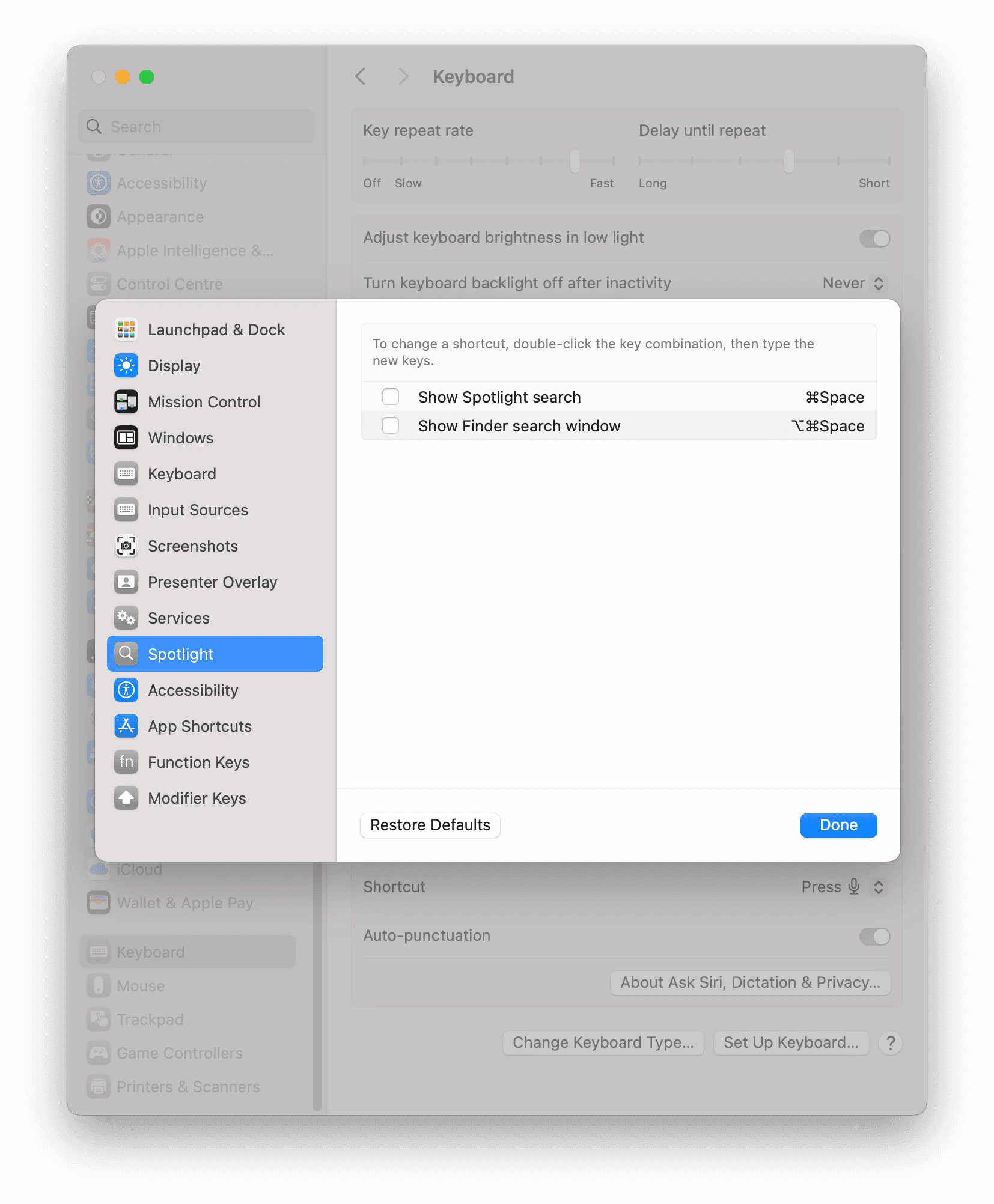
Disable hotkey for Spotlight
If ⌘ Space doesn't work, that hotkey is assigned to another feature on your Mac. Most likely, it's configured to show Spotlight search. Go to System Settings > Keyboard > Keyboard Shortcuts > Spotlight.
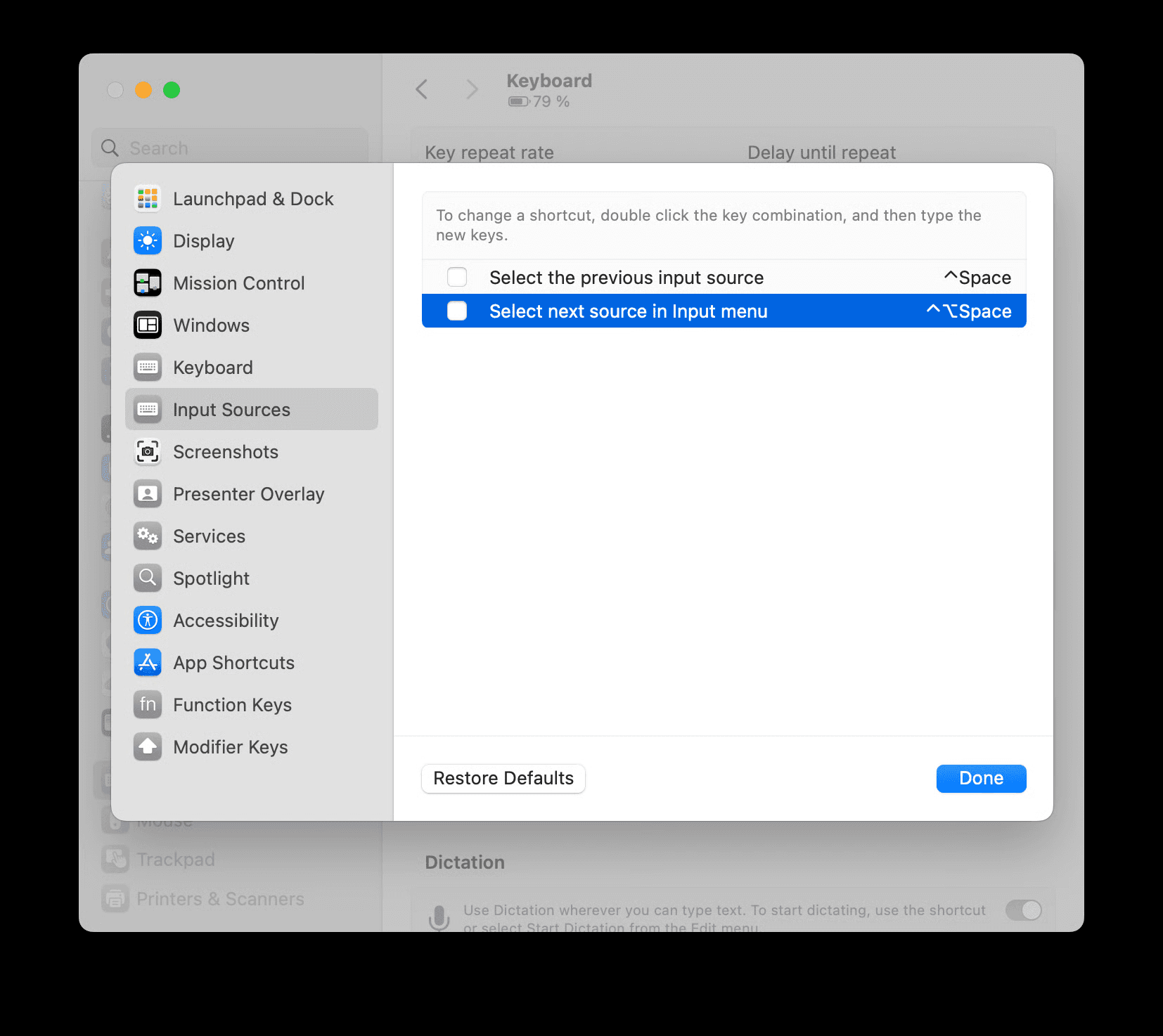
Disable hotkey for language switching
If you use or have previously used multiple languages on your Mac, you will most likely have a conflicting setup. Go to System Settings > Keyboard > Keyboard Shortcuts > Input Sources and disable or change the shortcut.
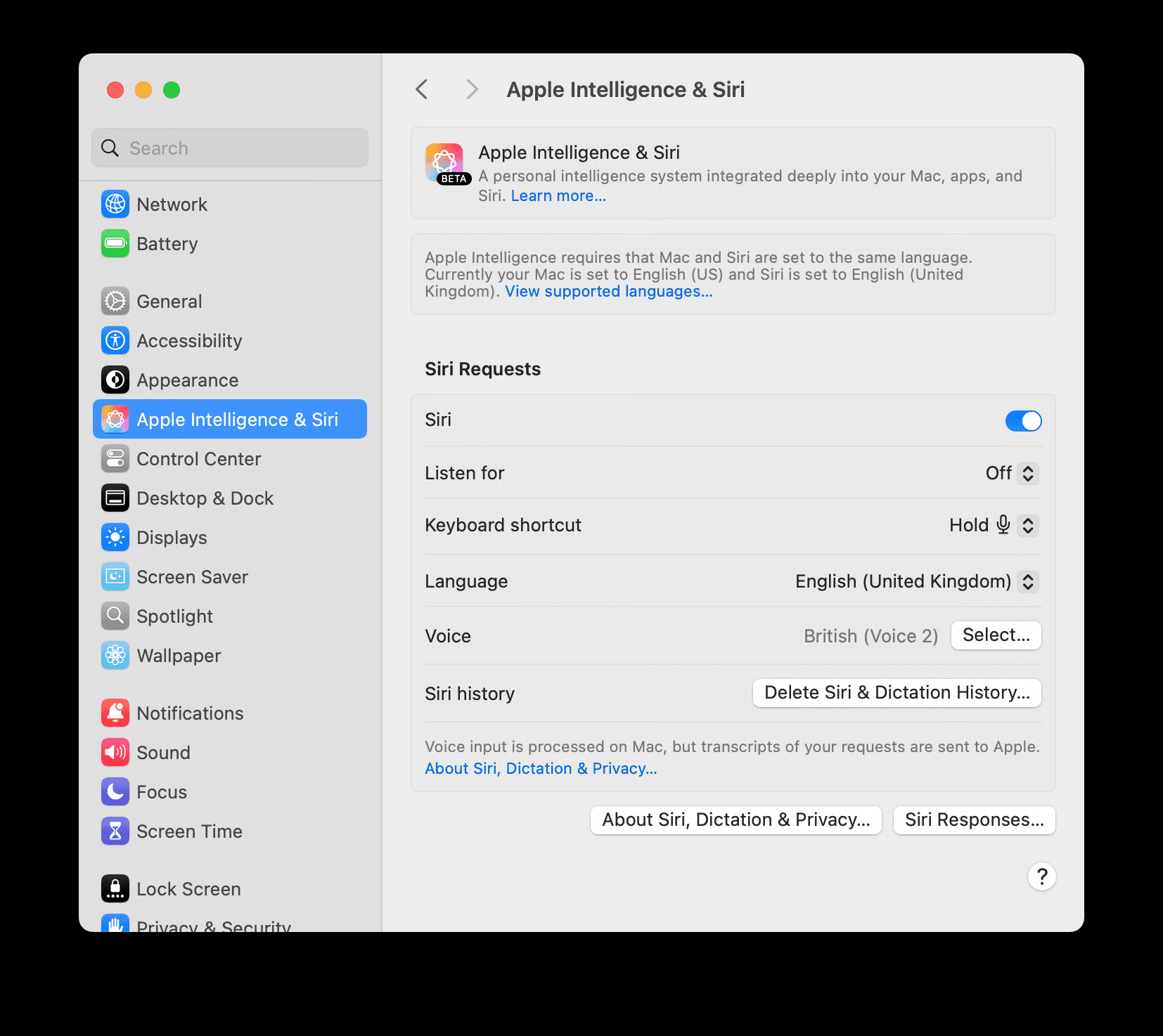
Ensure "Ask Siri" is not using the same shortcut
By default Siri might be configured to use "hold ⌘ Space" or "hold ⌥ Space" shortcuts. When using same shortcut for Raycast, you might notice slight delay when toggling the main window. We recommend changing Siri shortcut to something else or just disabling it if you're not using this feature. Go to System Settings > Apple Intelligence & Siri to configure it.