Troubleshooting
App Diagnostics
If your apps are missing in root search or configuration with your apps gets lost, you can run a built-in diagnostics tool to help us further debug the issue. Here's how to launch app diagnostics:
- On the main screen (root search) in Raycast, press the hidden shortcut
⌘⇧^⌥I(cmd + shift + control + option + I) - On the screen that appears, press the button
App Diagnostics. You are going to see a lot of output on the screen.
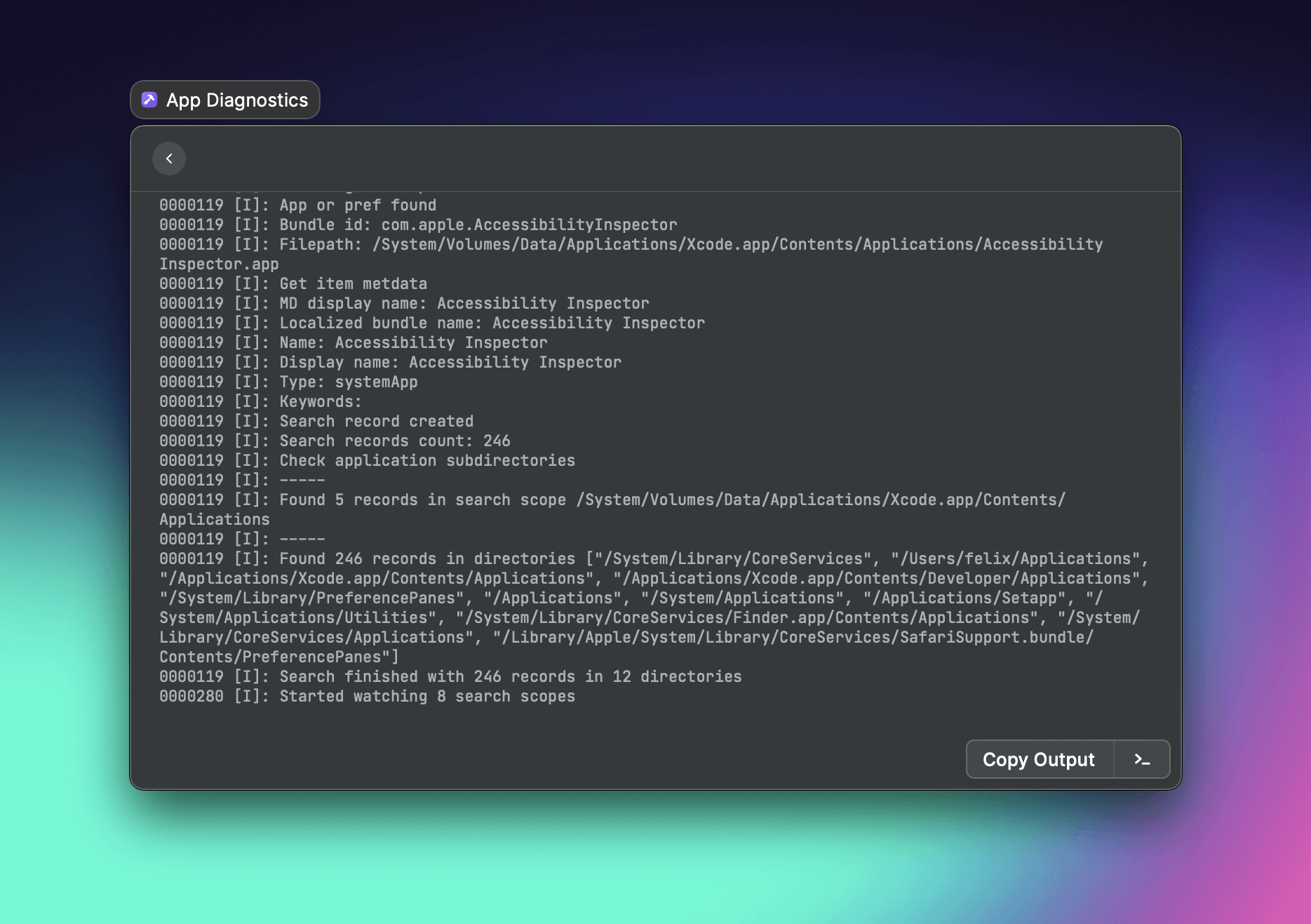
- Wait until a message such as "Started watching...search scopes" appears, wait a couple of more seconds to see whether additional messages appear after that, and then press the
Copy Outputoutput button. Important: Please still copy the output even if the logs appear to "hang" and you don't see the message. - Paste and save it into a text file and send it to us.
The output contains data about the app indexing process such as the names of your installed apps and preferences and additional search directories you might have configured. You can remove or redact parts of the file if you don't want to share certain data with us — in that case just let us know that you've modified the file since it might be relevant when we look at the timestamps of the log entries.
Unable to install app or open DMG
Our app and DMG files are notarized as Apple requires them for distributing apps outside of the Mac App Store. However, some people see an alert that the app or the DMG file can't be opened because Apple cannot check it for malicious software.
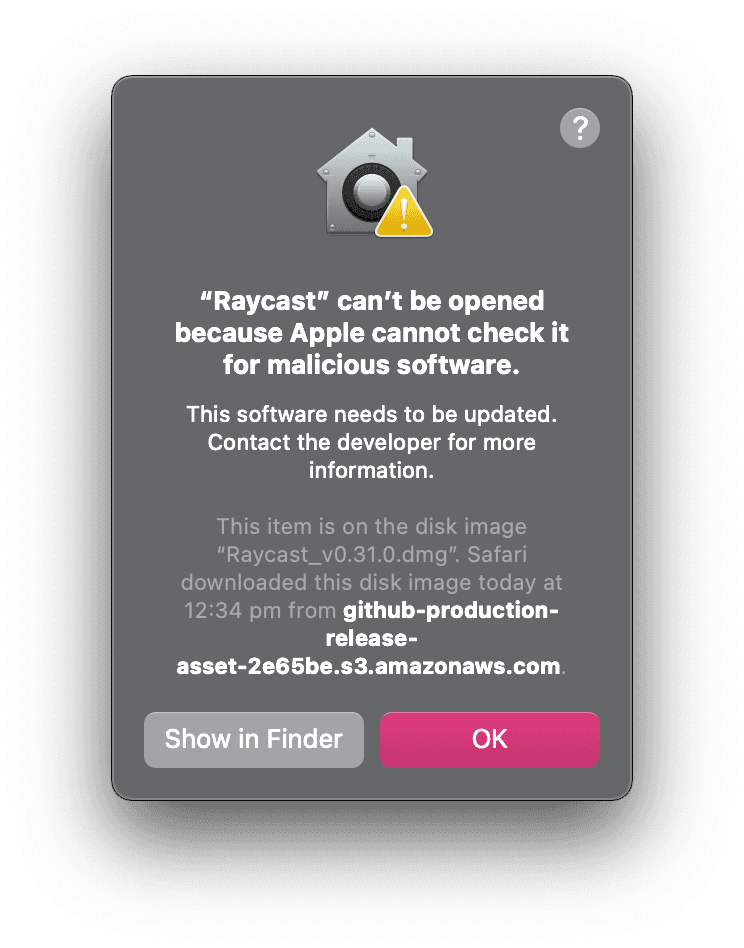
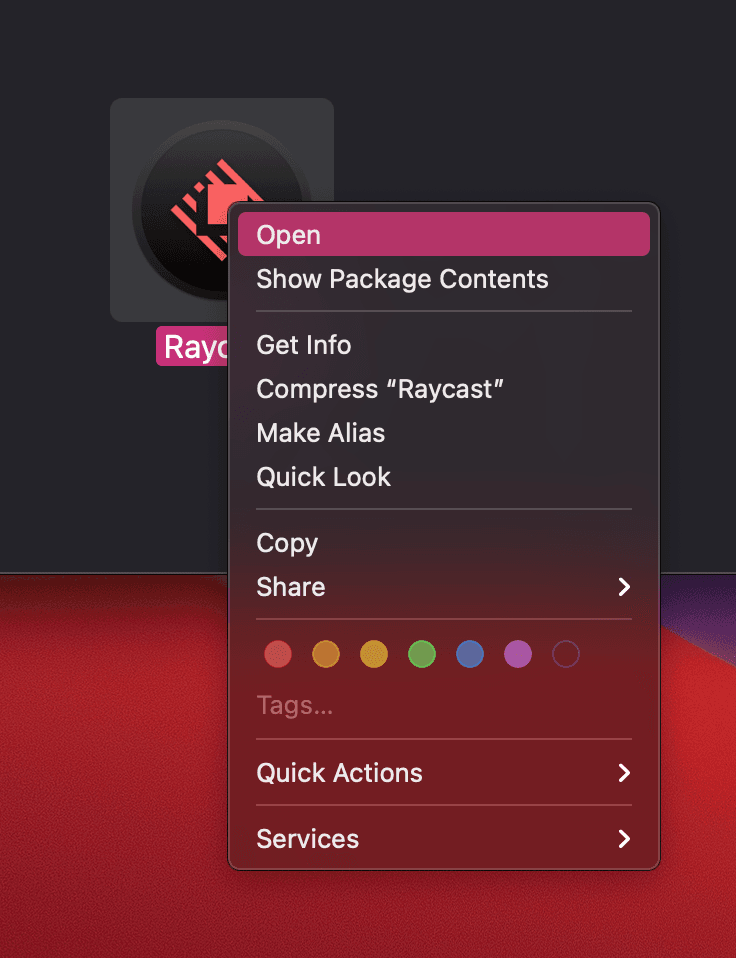
If you see an alert like this, you should right-click on the app icon and select Open in the contextual menu. This will trigger another alert that asks you to open the app. Continue with Open to launch Raycast.
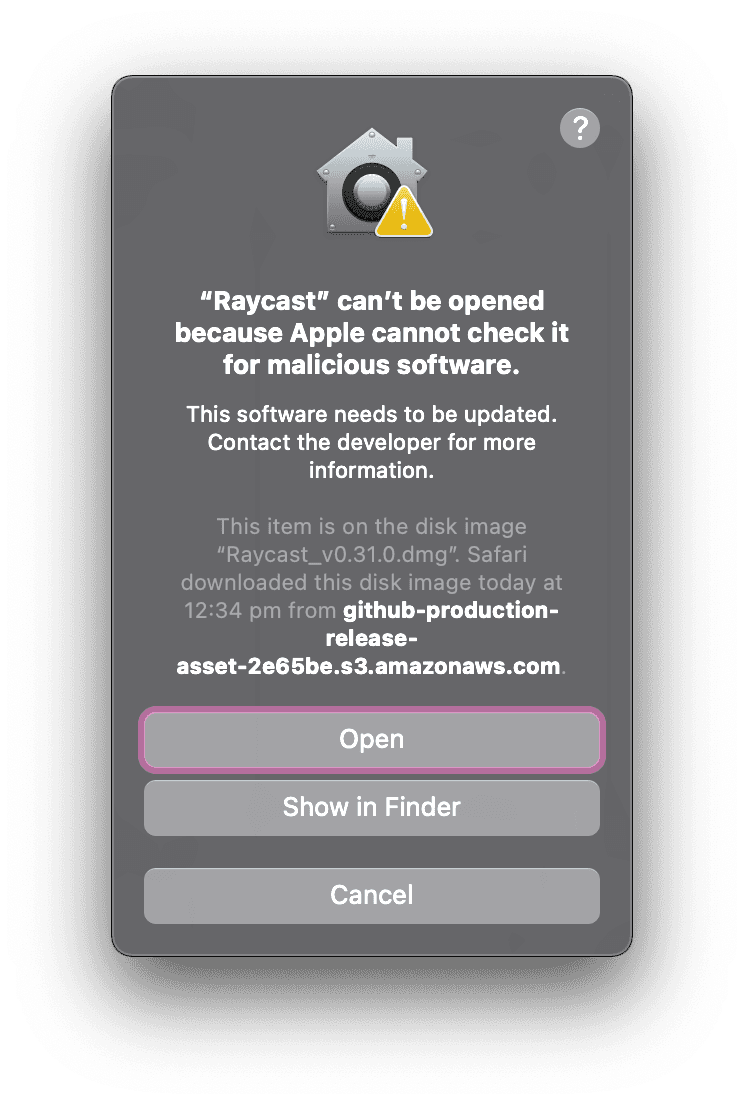
It seems that this is an issue on Apple's side. In particular Mojave doesn't reliably check the notarization of binaries.
Google Drive Permissions
If you're having issues with listing your Google Drive files in Raycast, please follow this guide and only try the next step if the previous step did not lead to a resolution.
Step 1
If you receive an error related to permissions with the "Search Google Drive Files" command, first try logging out of the "Google Workspace" extension and then log in again:
- Open Raycast Preferences > Select "Extensions" at the top > Select the "Google Workspace" extension > Click the "Log out" button on the right side
- Open the "Search Google Drive Files" command again in Raycast and log in
Step 2
If logging out and logging in does not solve the problem, next try removing Raycast from your Google OAuth applications:
- Make sure to log out of the "Google Workspace" extension in Raycast (see Step 1)
- In the browser, navigate to: https://account.google.com and log in with the same account you're using in Raycast
- On the left, click "Security" > Scroll down to "Third-party apps with account access" > Click "Manage third-party access" > Select "Raycast" and choose "Remove Access"
- Open the "Search Google Drive Files" command again in Raycast and log in
Step 3
If neither logging out and in nor removing the OAuth Raycast application solve the issue, next try overriding the default OAuth permissions that Raycast requests in order to list your files:
-
Make sure to log out of the "Google Workspace" extension in Raycast (see Step 1)
-
Quit Raycast
-
Open the Terminal app
-
Enter the following line and hit return:
defaults write com.raycast.macos gSuite_oAuthScope -string "https://www.googleapis.com/auth/userinfo.email https://www.googleapis.com/auth/userinfo.profile https://www.googleapis.com/auth/drive"This adds the permission to "See, edit, create, and delete all of your Google Drive files. (You can find more information about each OAuth permission in the Google documentation)
-
Restart Raycast
-
Open the "Search Google Drive Files" command again in Raycast and log in -- you will see a different prompt from Google that gives Raycast extended permissions.
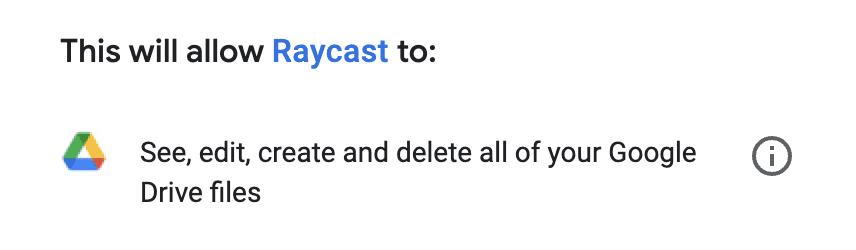
Note that the default permission is "readonly" for your files and Raycast does not directly edit or delete your Google Drive files. If you find that adding the extended permission solves your issue, please let us know!
Getting logs via terminal
If Raycast is not performing as expected, we may ask you for a debug log to help us fix the issue.
Here's how:
- Open your terminal and run the command in step 2 (It's important to leave it open since it keeps logging to a file on the desktop)
log stream --predicate "subsystem == 'com.raycast.macos'" --level debug --style compact >> ~/Desktop/ray.$(date +%Y%m%d_%H%M%S).log- Switch back to Raycast and try to trigger the issue.
- After you have triggered the issue once or twice, go back to the terminal and close the stream by pressing
⌃c - Locate the file on your desktop called
ray.{TiMESTAMP}.log, and send it to the Raycast team to help identify and debug the issues.
Search Files Issues
The Search Files command in Raycast uses the Spotlight index to retrieve results. It also requires the correct permissions to access some of your files and folders. If you're having trouble finding files in Search Files you can try some of the troubleshooting steps below.
Permissions
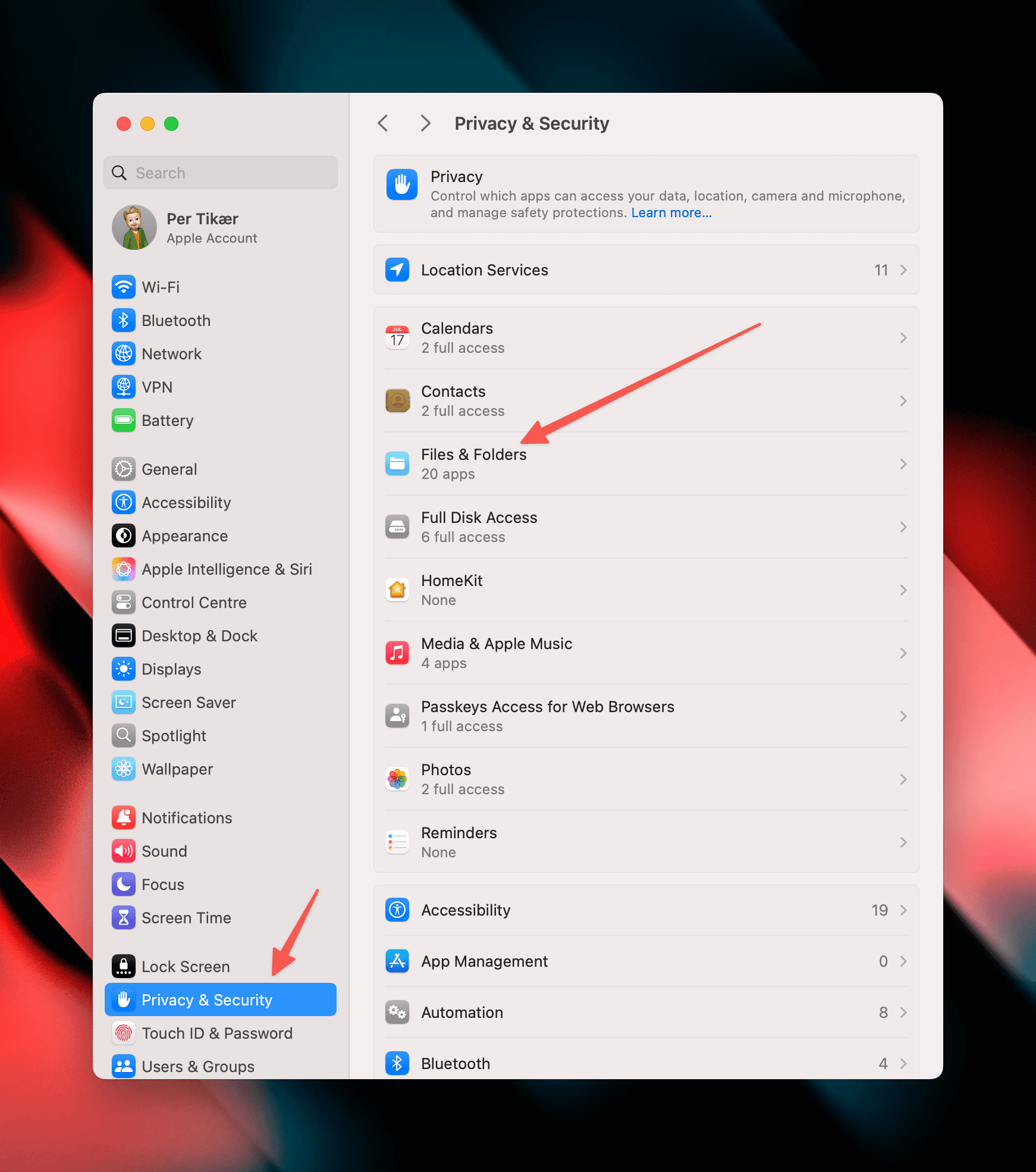
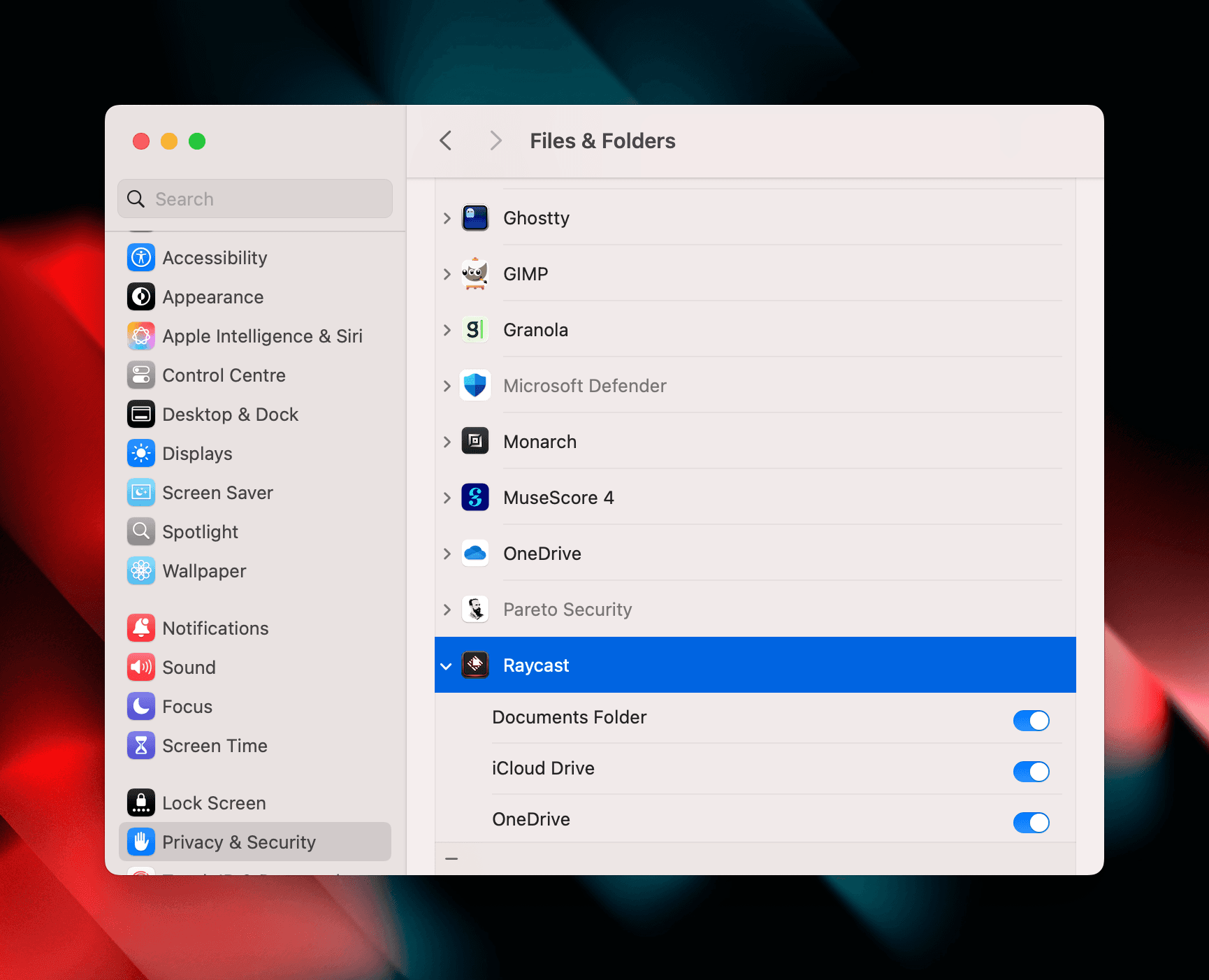
If you can't find the files that you are looking for, you may not have granted access to some files and folders. The first time you open the Search Files command, Raycast should prompt you to grant access to your files and folders.
You can check that Raycast has access to your files and folders in System Preferences > Security & Privacy > Files and Folders.
Spotlight
Rebuilding Spotlight Index
In case both Spotlight and Raycast do not show expected results, Apple suggests to rebuild the Spotlight index by first adding and then removing folders via the Privacy tab under macOS Spotlight preferences. Try adding your home folder (or other folders where your files are located that you cannot find via Raycast) to the Privacy tab and removing it again. This is also described here: https://support.apple.com/en-us/HT201716
If that does not resolve the problem, you can try some commands on the terminal:
Spotlight Indexing (via Terminal)
You can check via the terminal if Spotlight indexing is enabled and in case it's disabled, turn it on again:
Open a new Terminal window and enter:
mdutil -saThis should print information about your volumes and whether indexing is enabled or disabled.
If you see a message that indexing is disabled, you can turn it off and on by entering and confirming with your admin password:
sudo mdutil -ai off
sudo mdutil -ai on
After running those commands, it will take a while until all apps should start showing up again.
Reindexing
There's another mdutil command available for rebuilding the index. The following command would trigger rebuilding the index on all volumes:
sudo mdutil -E /System/Volumes/Data/After running the command, make sure again that indexing is turned on via mdutil -sa and wait some time. Then check again via both Spotlight and Raycast's Search Files.
Remove
If you still at this point have issue, run below command, it will remove the spotlight index, do a restart of your machine after this and it should start building it again.
sudo mdutil -X /System/Volumes/Data/How to sample processes
If Raycast or node process are using almost all CPU available in your machine, you should sample their processes in the Activity Monitor and send us the respective file(s) so we are able to troubleshoot the issue causing this.
This is how you do it:
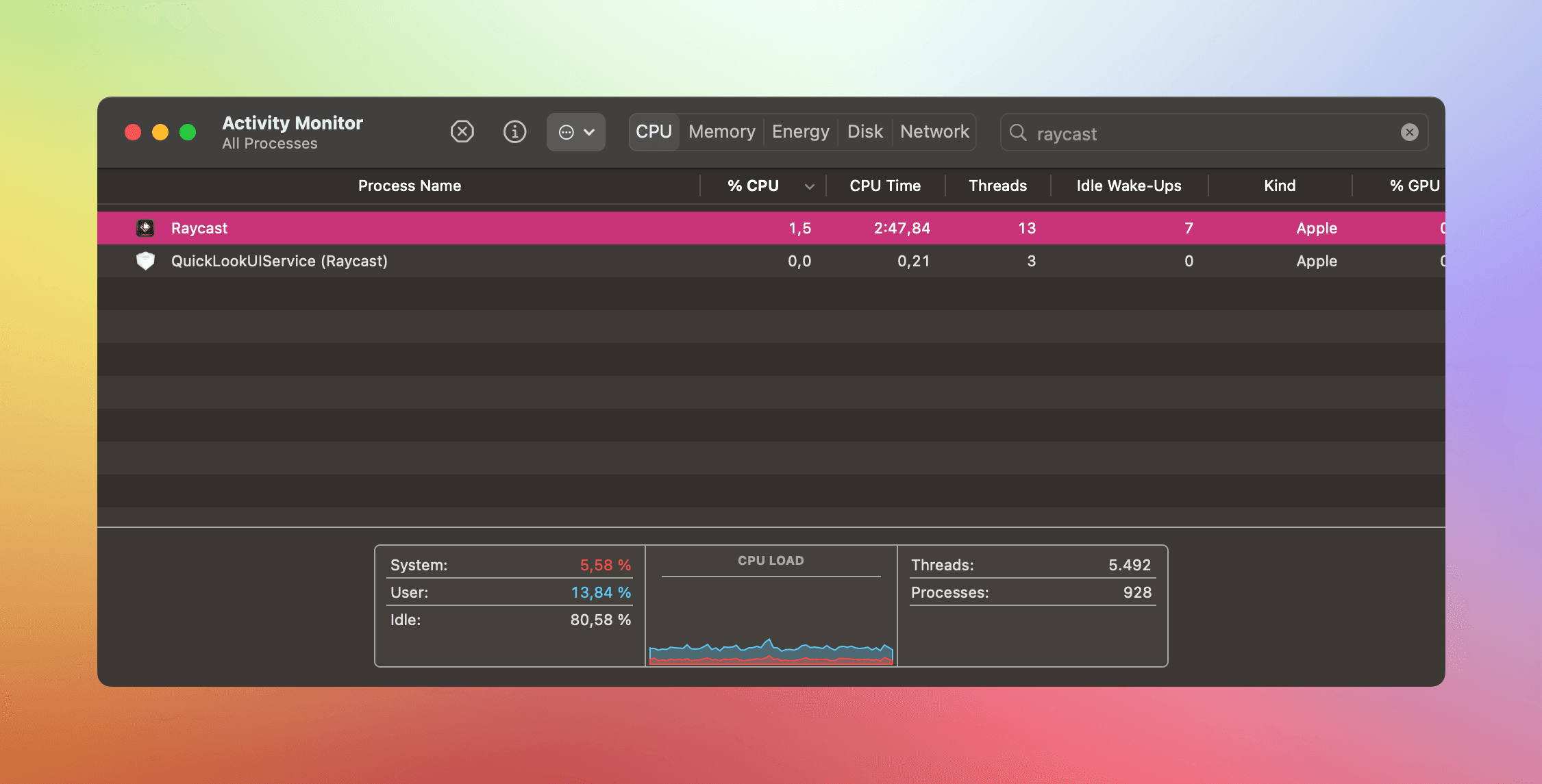
- Open Activity Monitor and filter for "raycast".
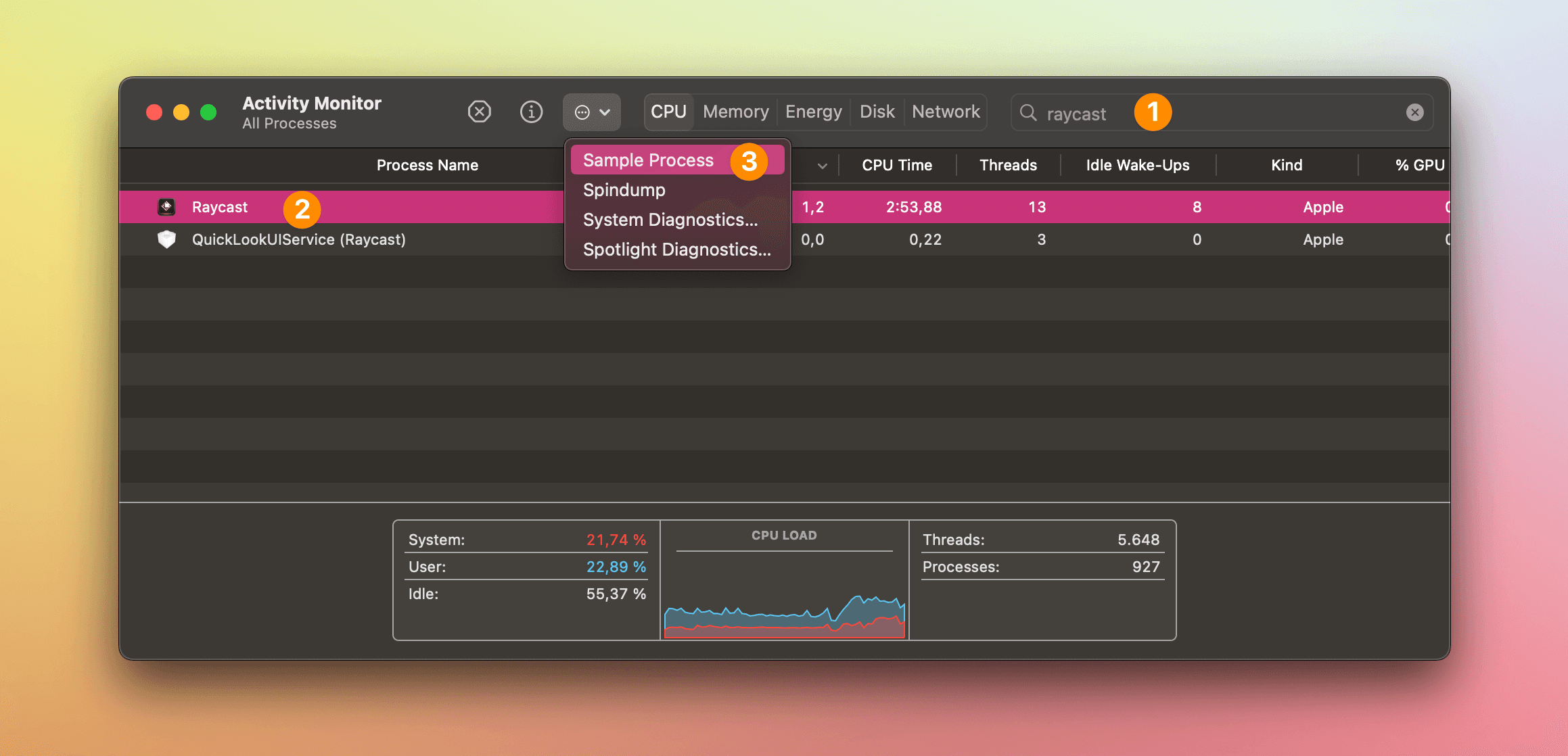
- Select Raycast process in the list and click the icon with the three dots in a circle.
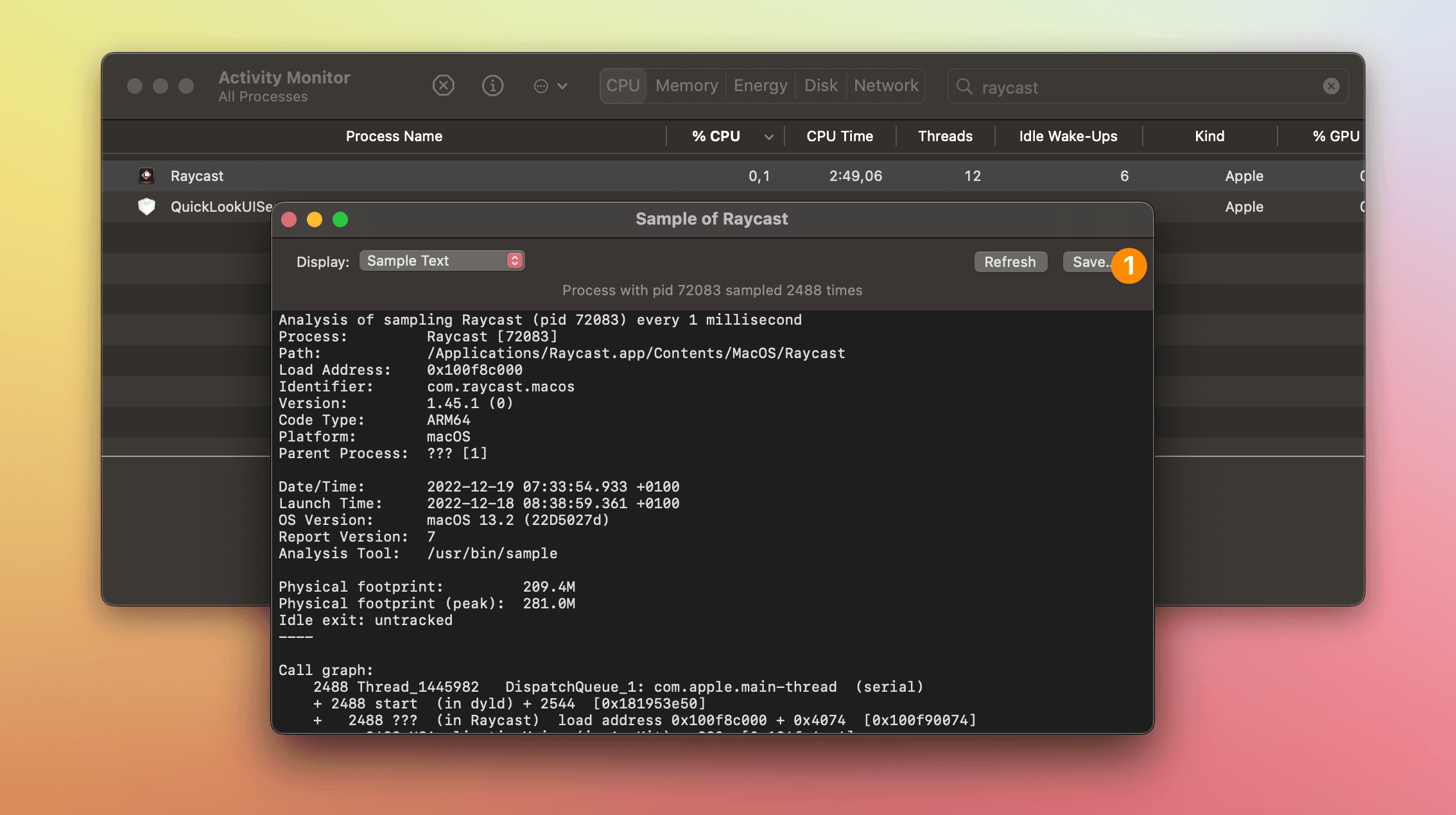
- After the sample is taken, press "Save..." to download the sample file.
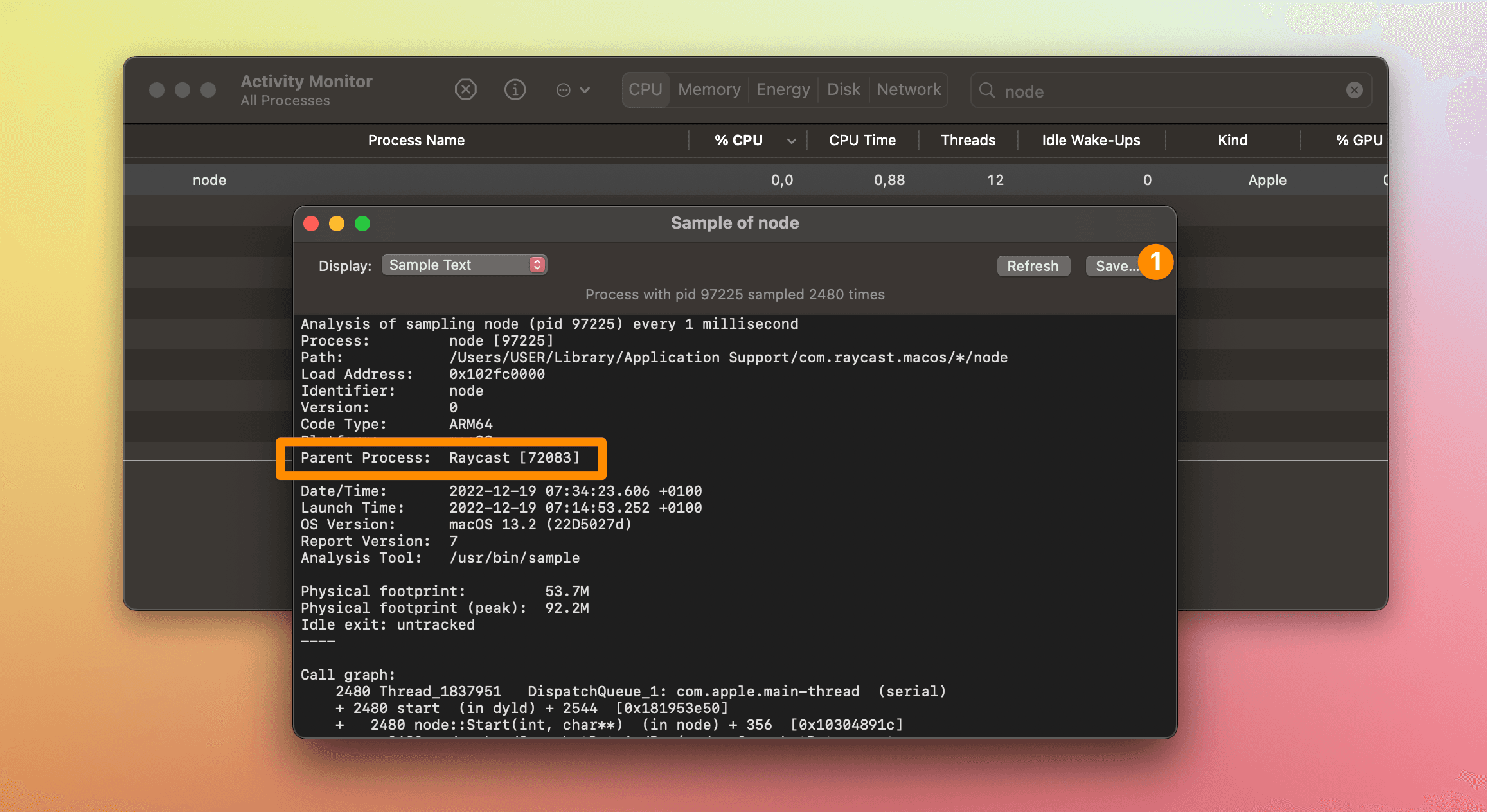
- Follow the exact same process to sample the Raycast Helper (Extensions) process.
Shortcuts
Shortcuts not opening
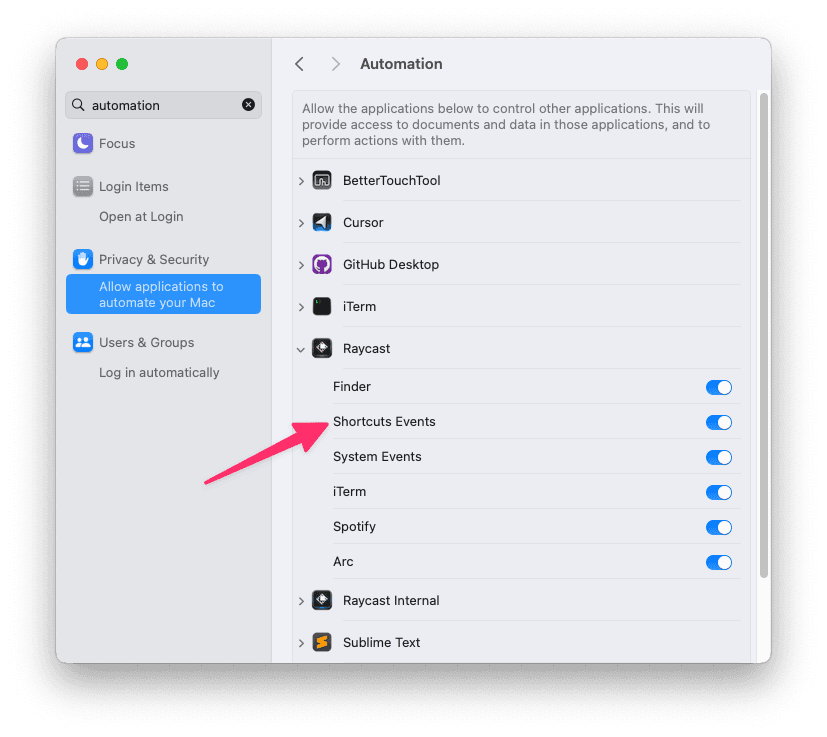
Are you able to list your Shortcuts but, when selecting them, they do not open? Make sure that you allow Raycast to open them.