Focus
Raycast Focus helps you stay in flow and get more done by blocking out distractions on your Mac. Define your goal, set a duration to focus and block out distracting apps and websites.
The Raycast Focus experience comes with these commands:
- Start Focus Session: This command opens a form to configure your focus session.
- Toggle Focus Session: This command allows you to toggle between starting or completing a focus session. Starting will use the previously used setup.
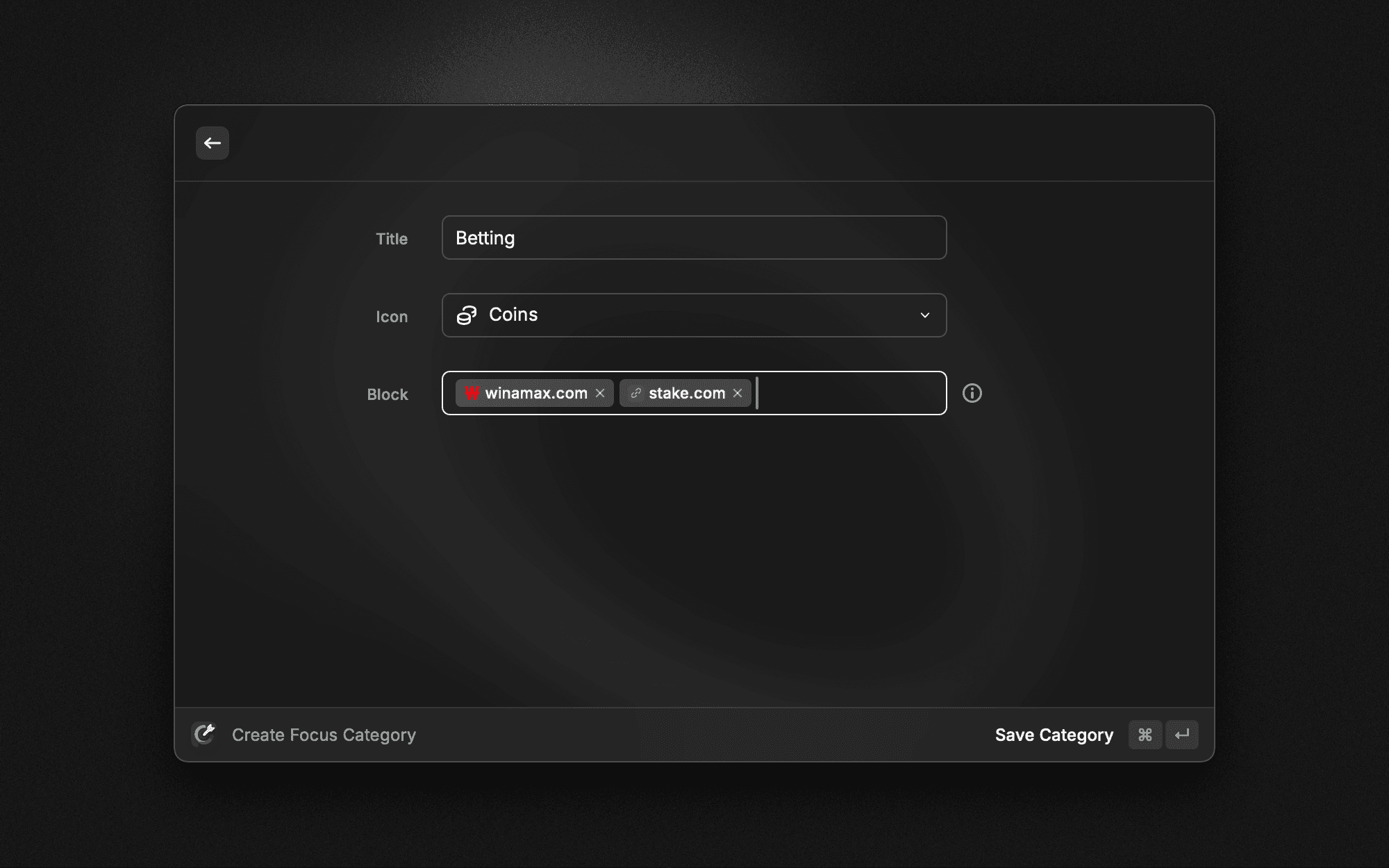
- Create Focus Category: Use this command to create categories of apps and websites to block. These categories can be used when starting a new focus session.
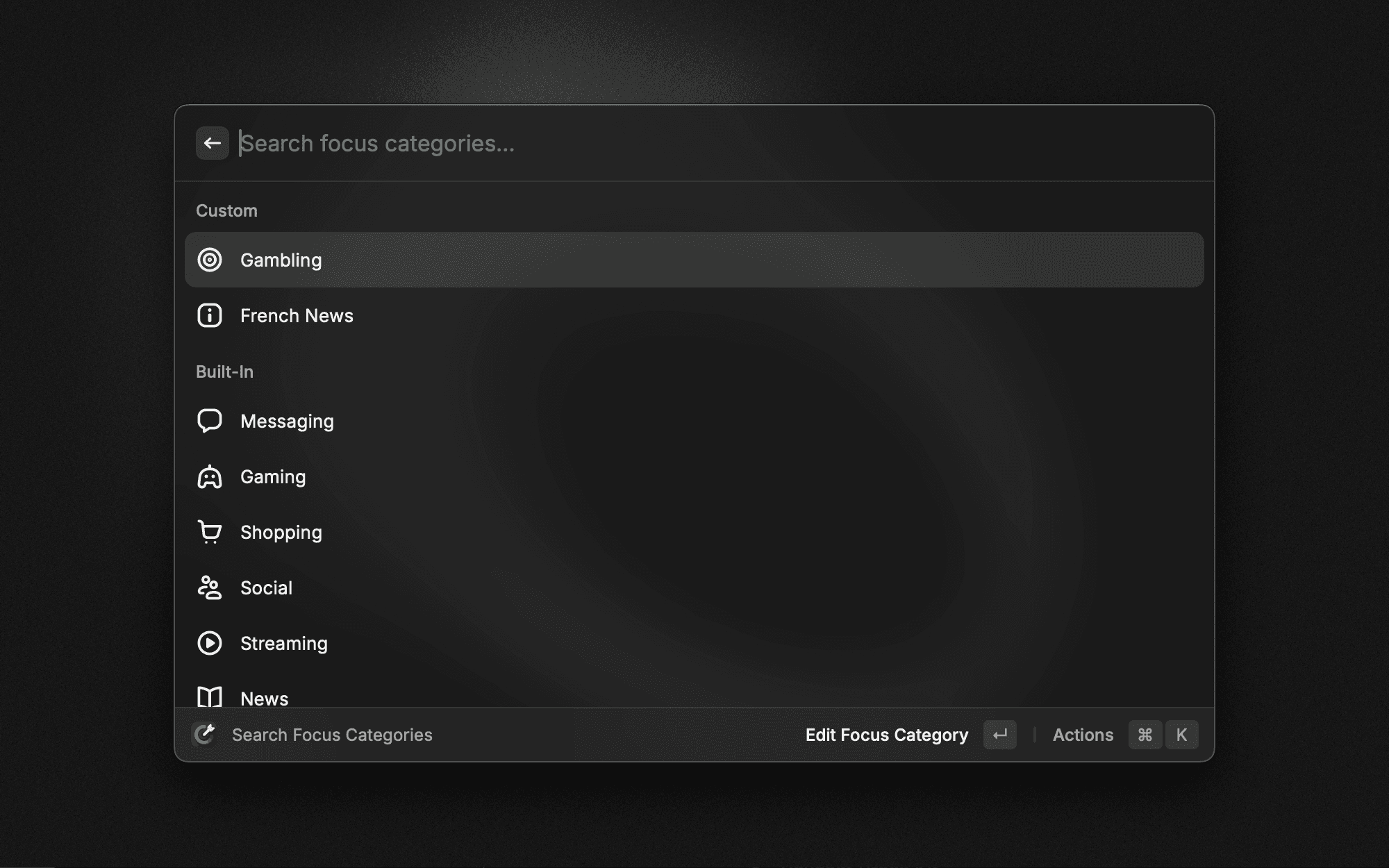
- Search Focus Category: Use this command to search focus categories. Built-in categories are crafted by Raycast and not editable. However, they can be duplicated and saved with another title.
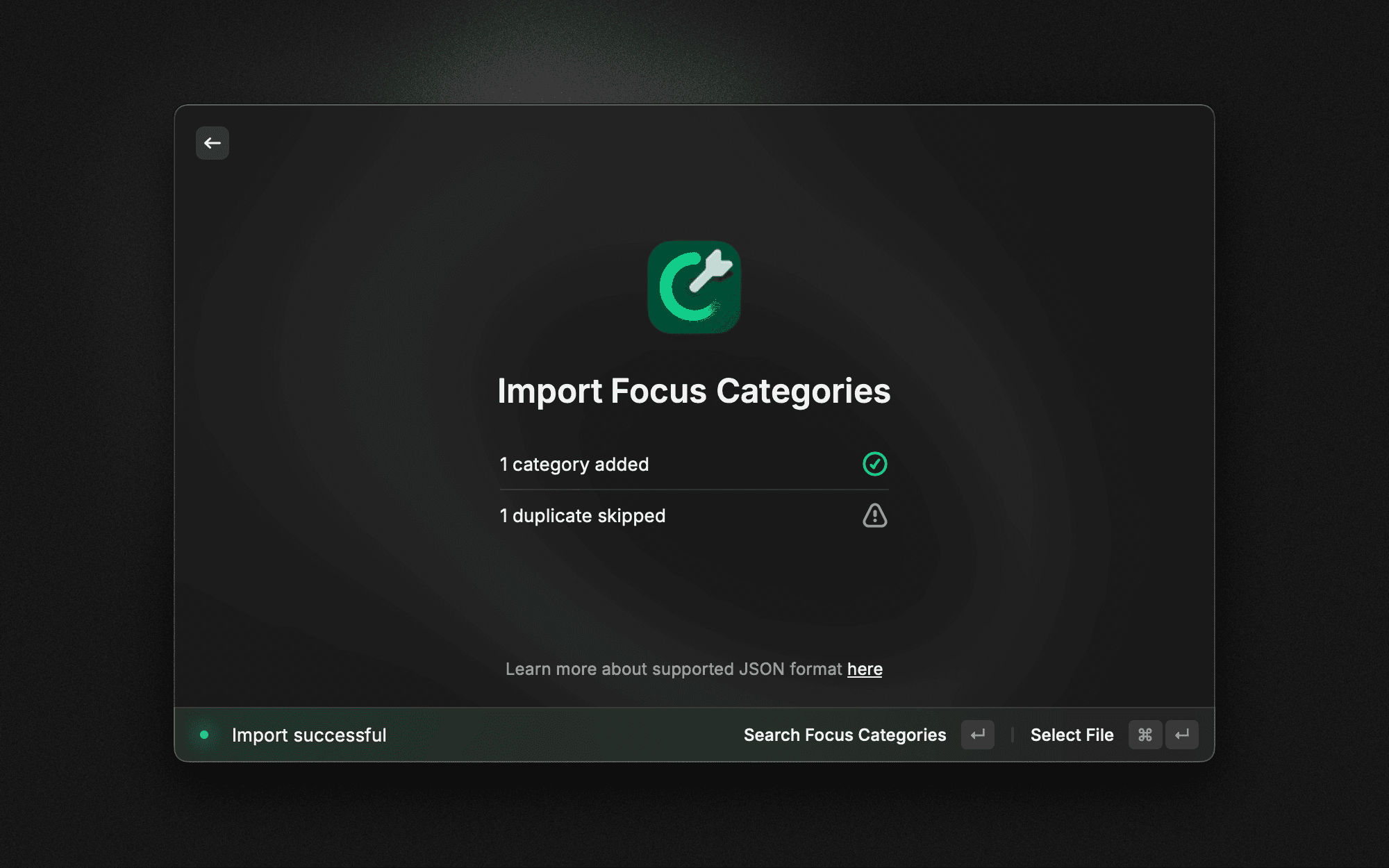
- Import Focus Categories: Import categories from a JSON file. More info on the supported format here.
While you're in a session, there are 3 additional commands:
- Edit Focus Session: This command allows you to edit your current focus session.
- Complete Focus Session: This command allows you to complete your current focus session.
- Pause Focus Session: This command allows you to pause your current focus session.
We recommend assigning a hotkey to the Toggle Focus Session command for quicker access to start / complete a focus session. A commonly used hotkey is ^ F.
Open Raycast → Settings → Extensions → Raycast Notes to record a hotkey.
Starting
Begin by starting a new focus session. This can be something broad like “Coding Session” or a more granular task you want to complete.
- Define your goal for the session.
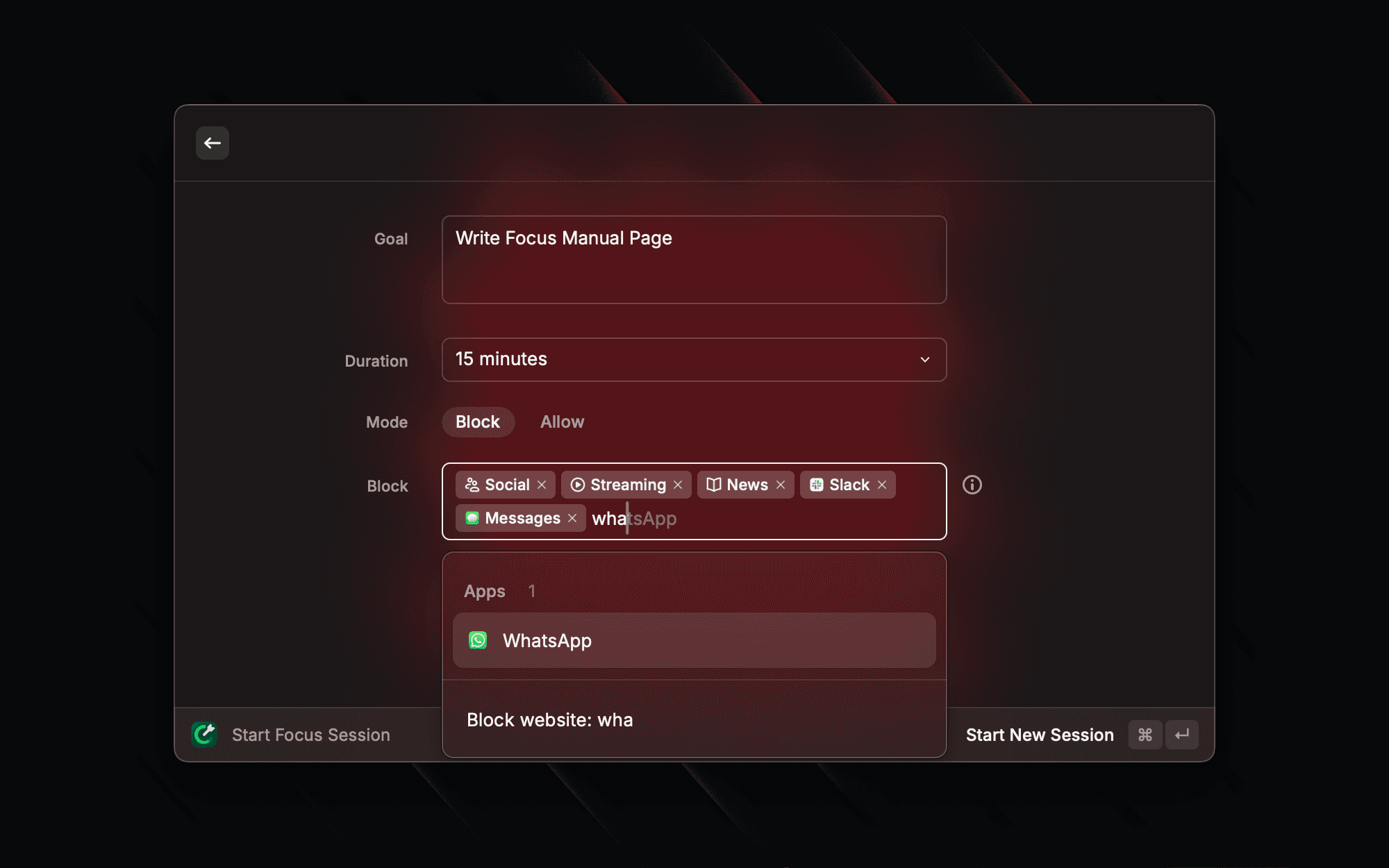
- Then set a duration, this can be anything from 5 minutes to an entire day. You can also use natural language to define a timeframe like
until 4:30pm. - Set the filtering mode for running the session.
- Block: Only apps and websites that are listed will be blocked.
- Allow: All apps and websites will be blocked except those listed.
- Finally enter the distracting apps or websites you want to block out for the duration of your focus session. We’ve defined some categories to make this easier to block out things like Social Media or News sites.
Custom Focus Categories
Use Create Focus Category to create a custom category of apps and websites to block or allow. Once create, they can be found using Search Focus Categories command.
There’s two types of categories:
- Built-in: These categories are built and curated by Raycast and cannot be edited. They can be duplicated.
- Custom: User created categories. They can be created using Create Focus Categories, or imported from a JSON file.
All these categories can be used in new sessions by issuing the Start Focus Session command.
Categories can be used in both Allow and Block modes. For example, you can create a category for the apps and websites you frequently use for work and apply it with Allow mode. Conversely, you can create a category for distracting apps and websites and use it in a session with Block mode.
Tracking
Focus
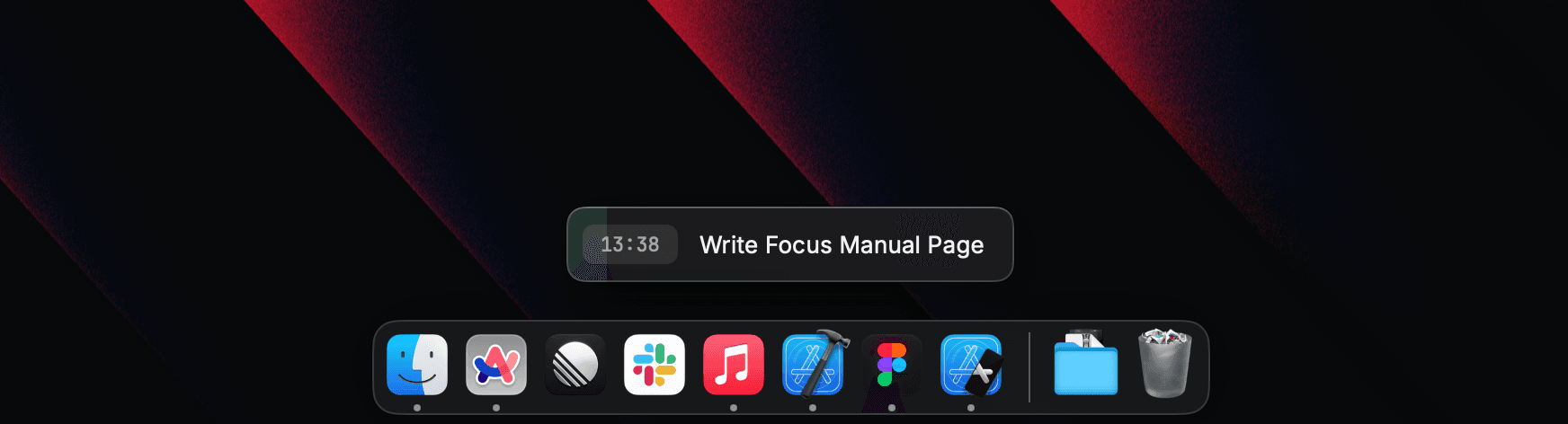
The Focus Bar will float above all your windows, subtly reminding you to stay focus throughout. You can keep track of your progress, pause, complete or manage your focus session.
Menu Bar
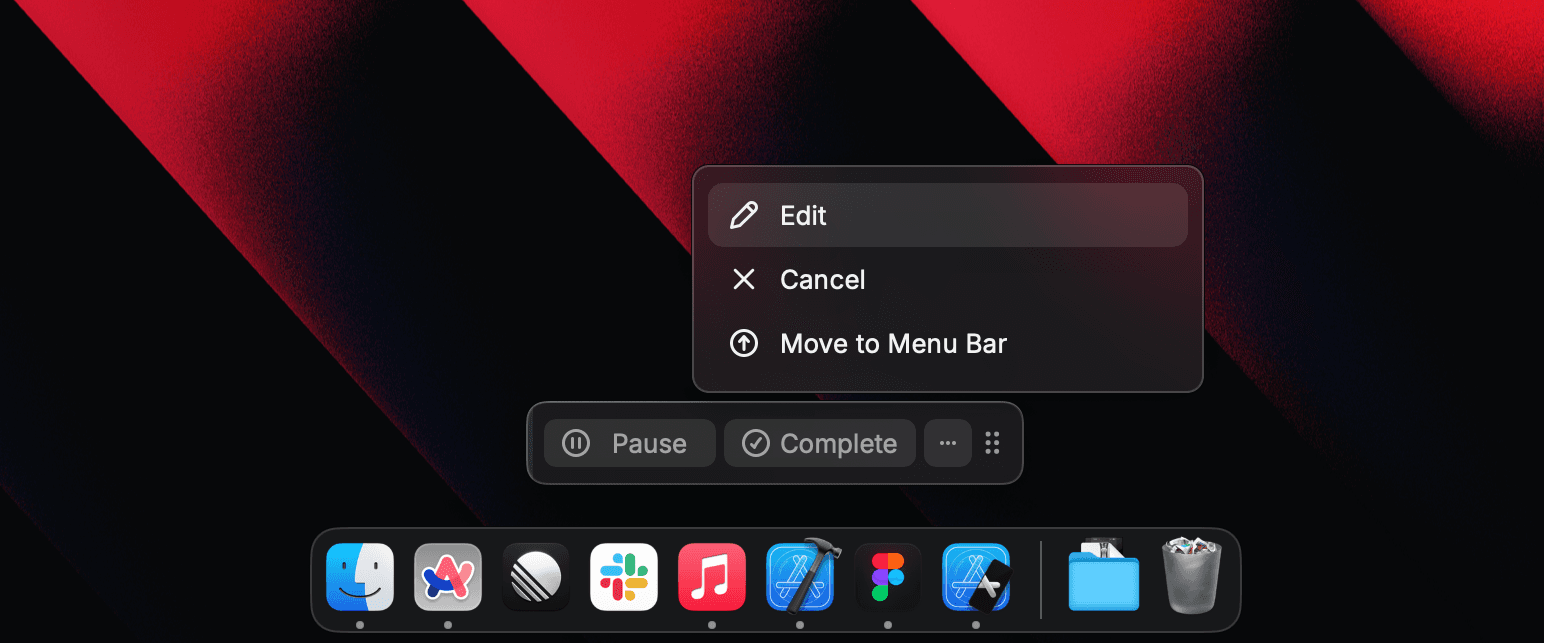
If the Focus Bar isn’t to your liking, you can use the more discrete Menu Bar item instead. Hover the Focus Bar, and click Move to Menu Bar under the more menu.

Blocking
Any app or website you defined in your block list will quit immediately when the session starts.
If you stumble on a blocked app during your session, you’ll be presented with an orange glow and toast to notify you. Blocked websites will be redirected to a block page.
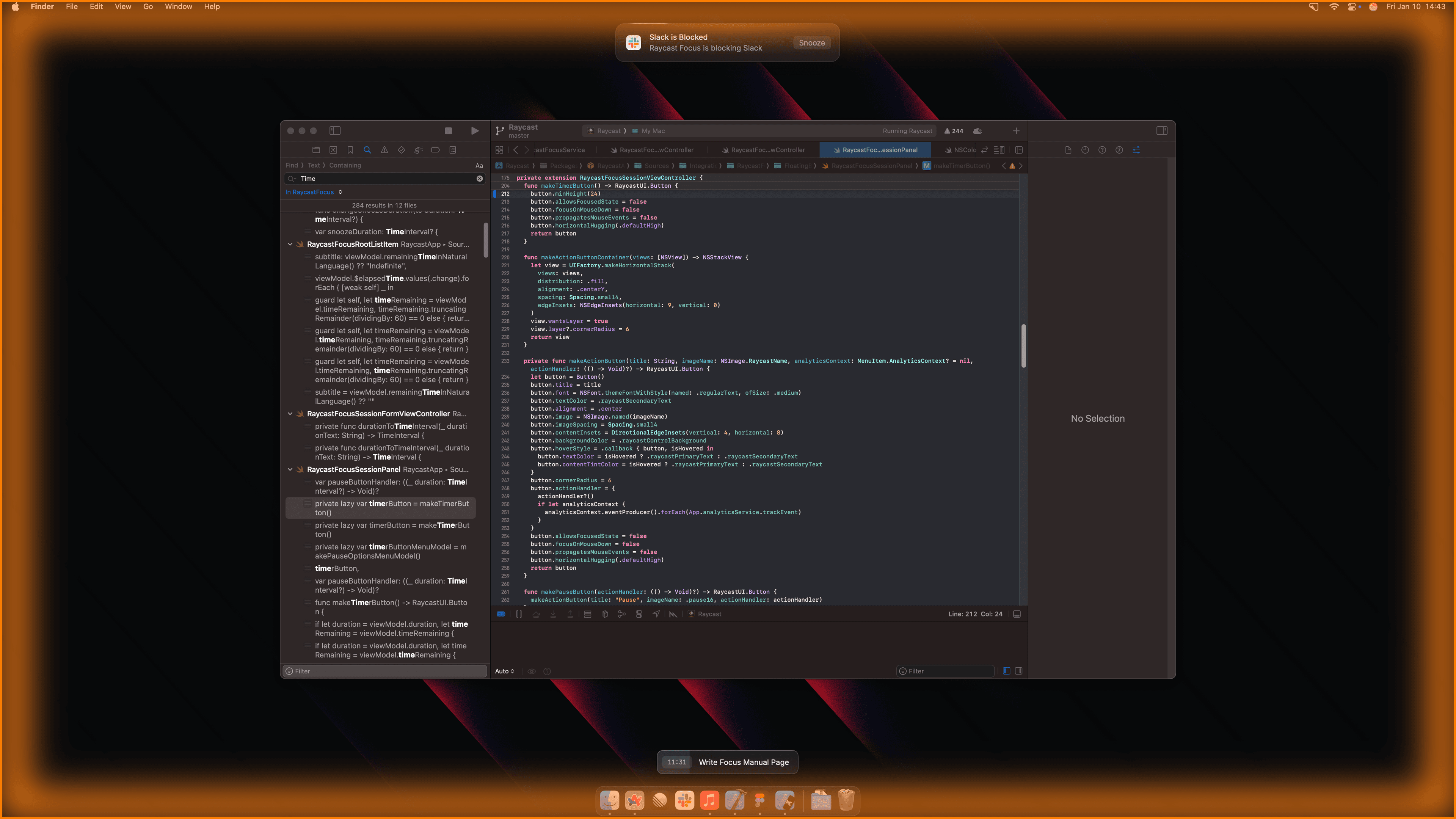
If you really need to access blocked content, you have the option to snooze. By default this is set to 3 minutes. You can customize this in Settings → Extensions.
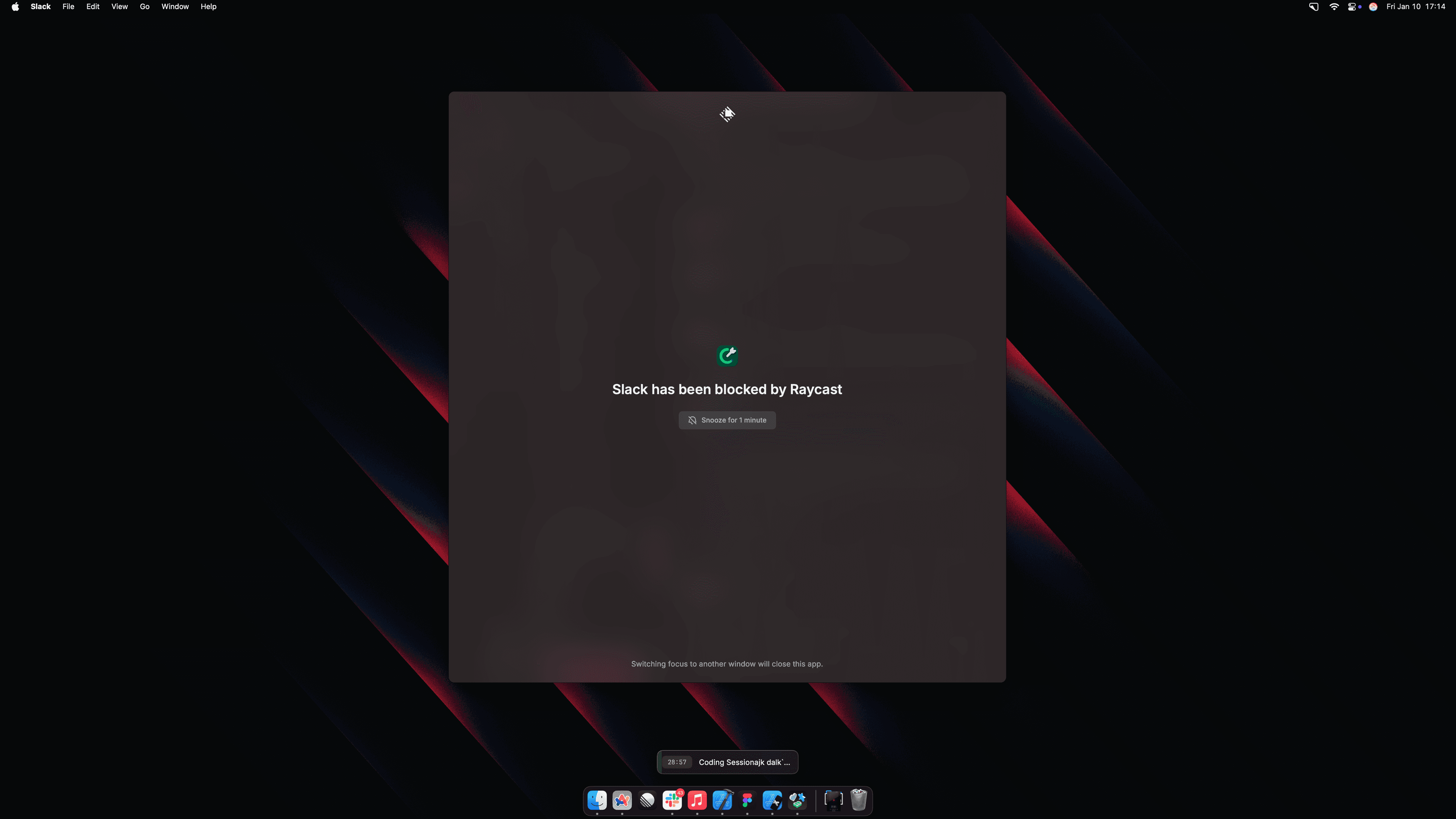
After the snooze period you’ll see the blocked overlay. The app will quit after you switch focus.
Editing
Need to add more time, or block additional apps/websites? You can edit a focus session at any time. Use the Edit Focus Session command, or hover the floating bar and use the Edit action under the more menu.
Taking a Break
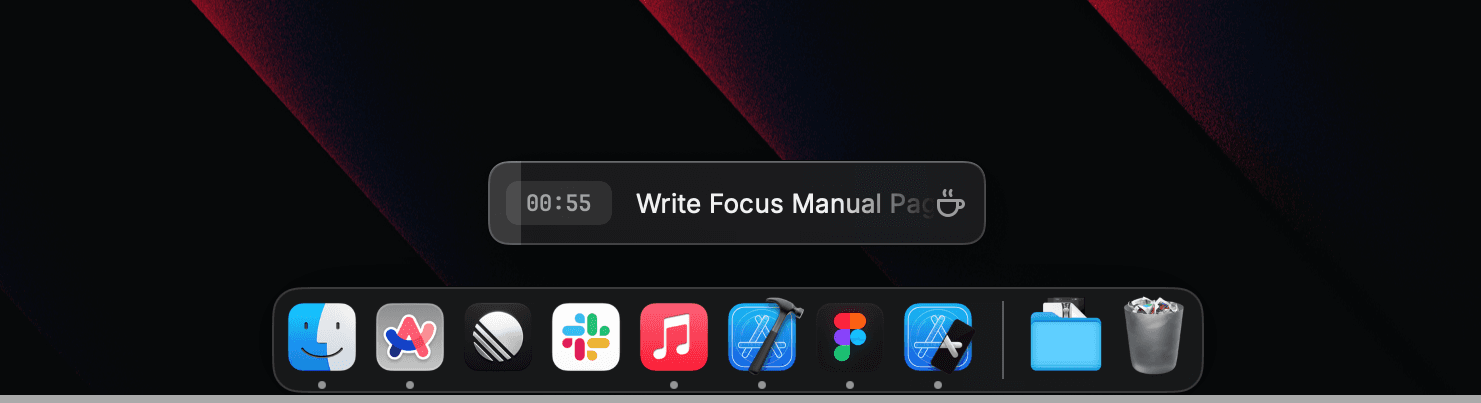
If you need a break from your session, you can easily pause your session if something urgent comes up, or you need to make a brew. You can use one of the predefined break options, helping you to step away but ready to nudge you when to jump back in.
Completing
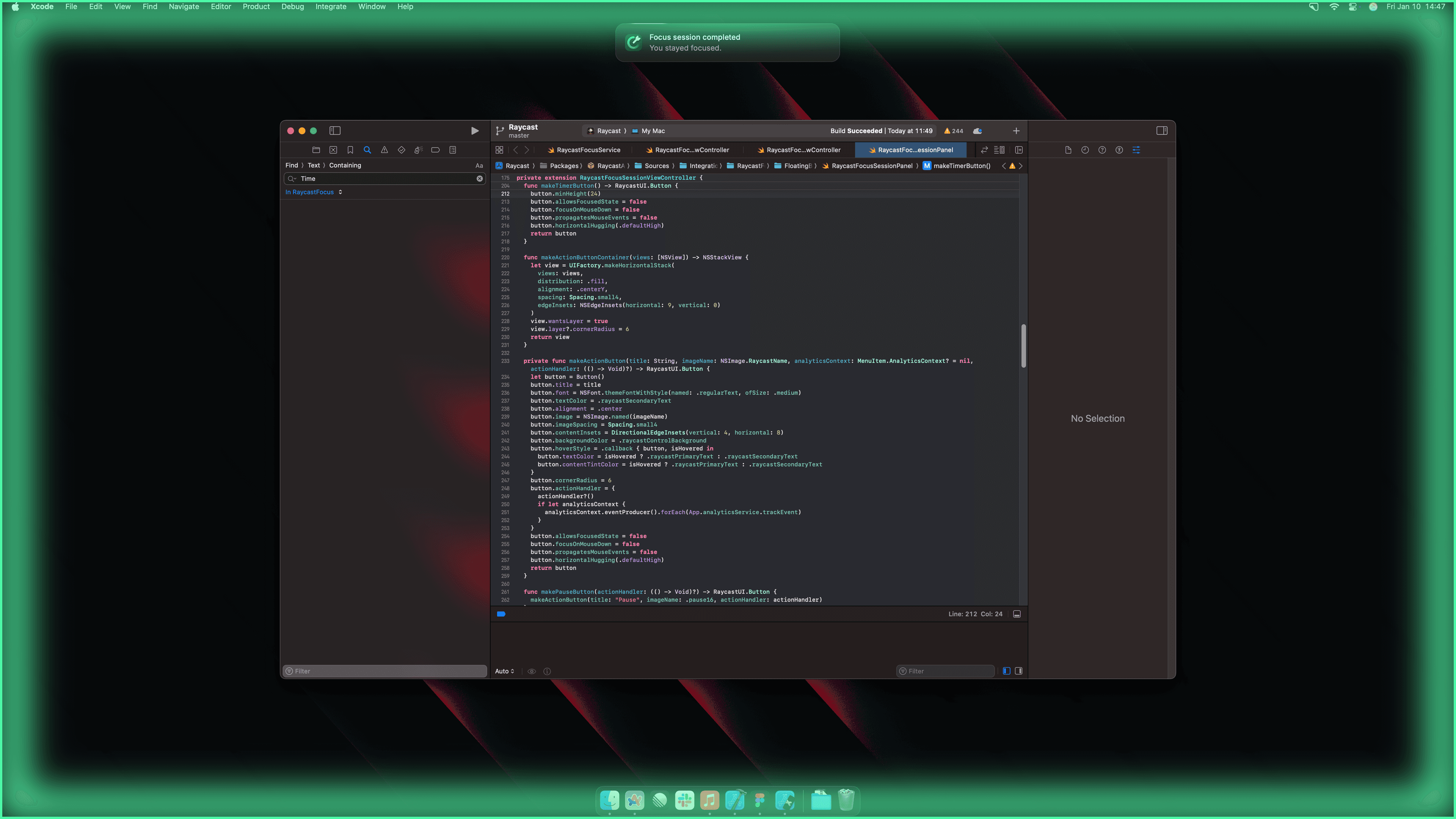
If you’ve managed to finish your task before the clock hits zero, you can manually complete your focus session. You’ll be greeted by a celebratory green glow and toast.
Your session will auto-complete after the set duration. You’ll be presented with the same green glow, but with the option to extend your session, or complete it.
Deeplinks
Raycast Focus supports deeplinks to programmatically control focus sessions from other apps or scripts. The base URL is raycast://focus/ followed by one of these actions:
Toggle Focus Session
Toggles the current focus session on or off. If no session is active, it will start a new one with the provided parameters. If a session is already active, it will complete the session.
Example:
raycast://focus/toggle?goal=Deep%20Focus&categories=social,gaming&duration=300&mode=blockParameters:
goal(optional): The title of the focus session. Should be percent encoded.categories: A comma-separated list of app/website categories to block.duration(optional): The duration of the focus session in seconds.mode(optional): The filtering mode of the session (blockorallow). Defaults toblock.
Start Focus Session
Starts a new focus session with the provided parameters. If a session is already active, no action is taken.
Example:
raycast://focus/start?goal=Deep%20Focus&categories=social,gaming&duration=300&mode=blockParameters:
goal(optional): The title of the focus session. Should be percent encoded.- categories`: A comma-separated list of app/website categories to block.
duration(optional): The duration of the focus session in seconds.mode(optional): The filtering mode of the session (blockorallow). Defaults toblock.
Complete Focus Session
Completes the currently active focus session. If no session is active, the deeplink is ignored.
Example:
raycast://focus/completeCreate a Focus Filter
Apple introduced Focus filters in macOS Ventura, a feature that lets you customize app behavior, displaying only specific content like certain Mail accounts or Calendar views, depending on the active Focus.
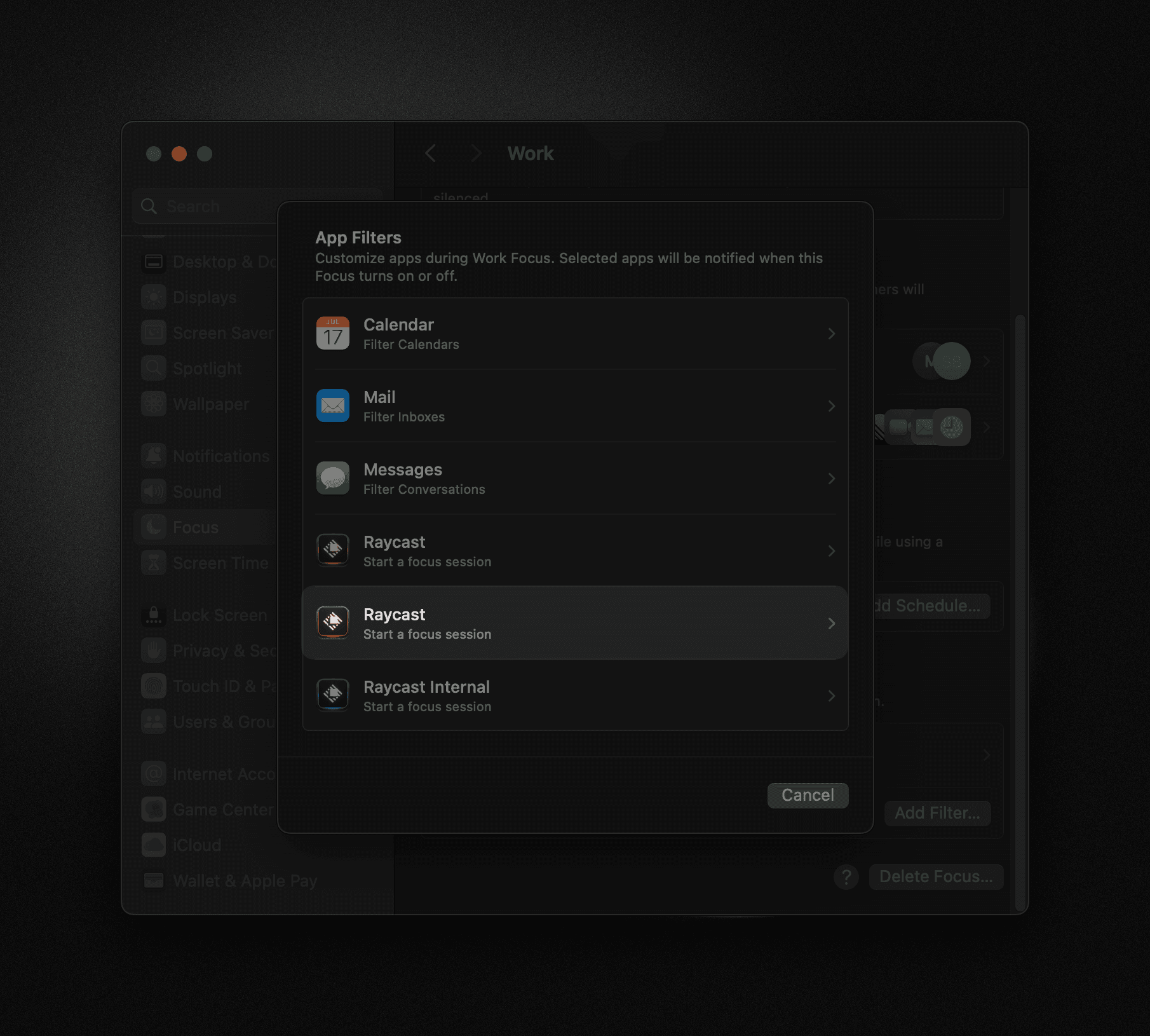
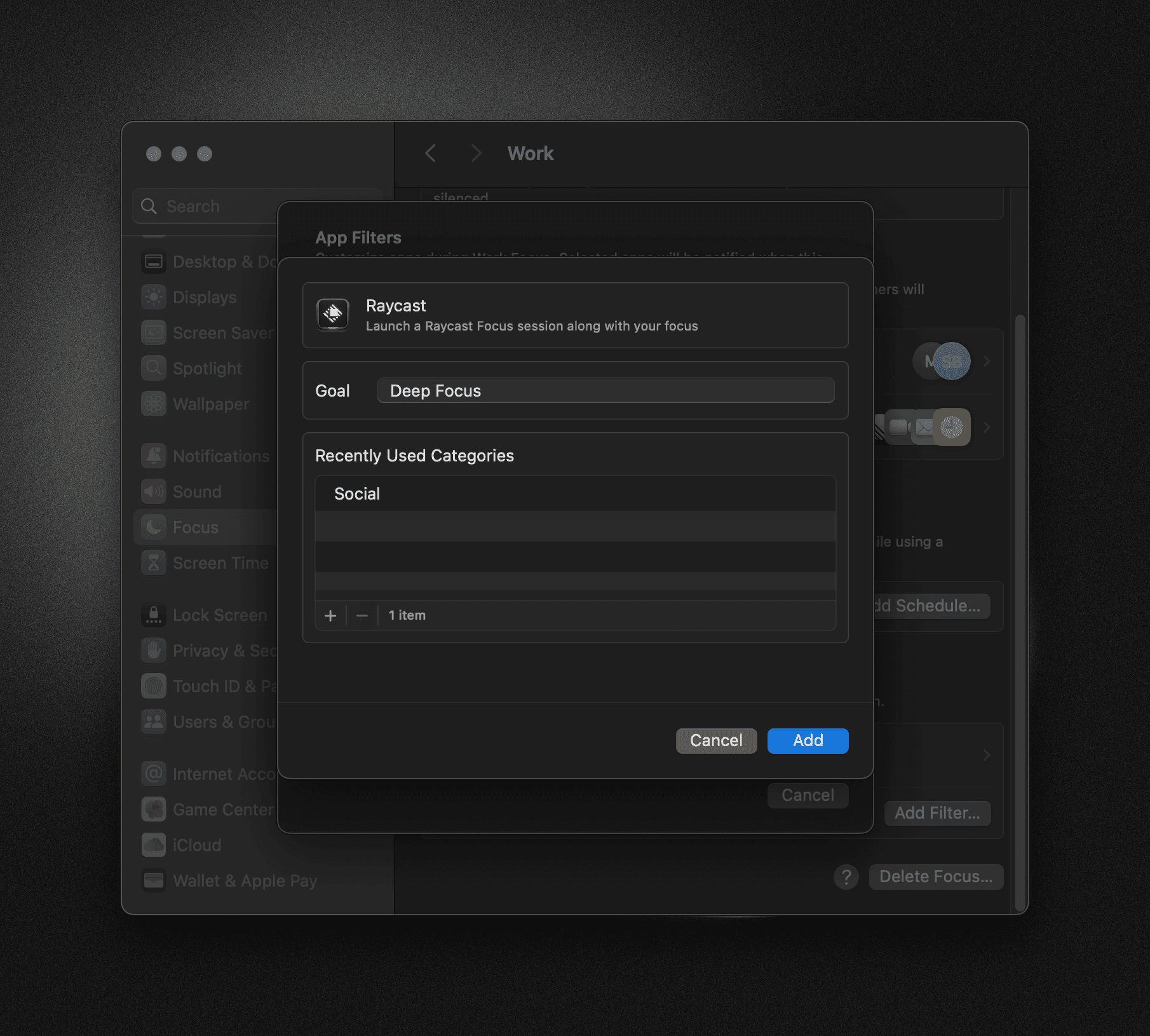
In Raycast 1.92.0, we introduced a Focus filter for Raycast Focus which allows you to start a (Raycast) Focus session along with your system Focus.
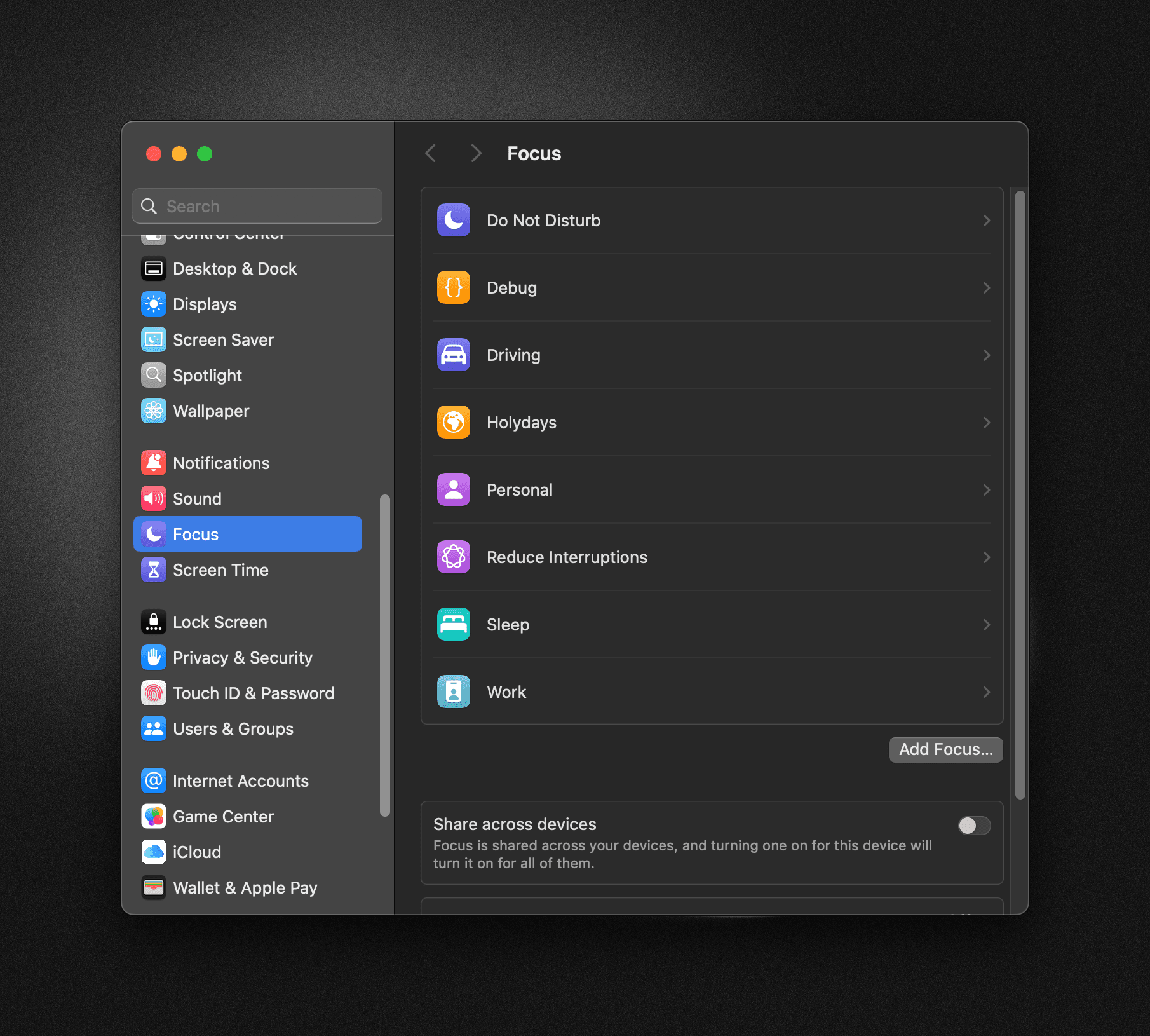
Open System Preferences → Focus and select the Focus you want to customize.
Scroll all the way down to find Focus Filters → Add Filter…
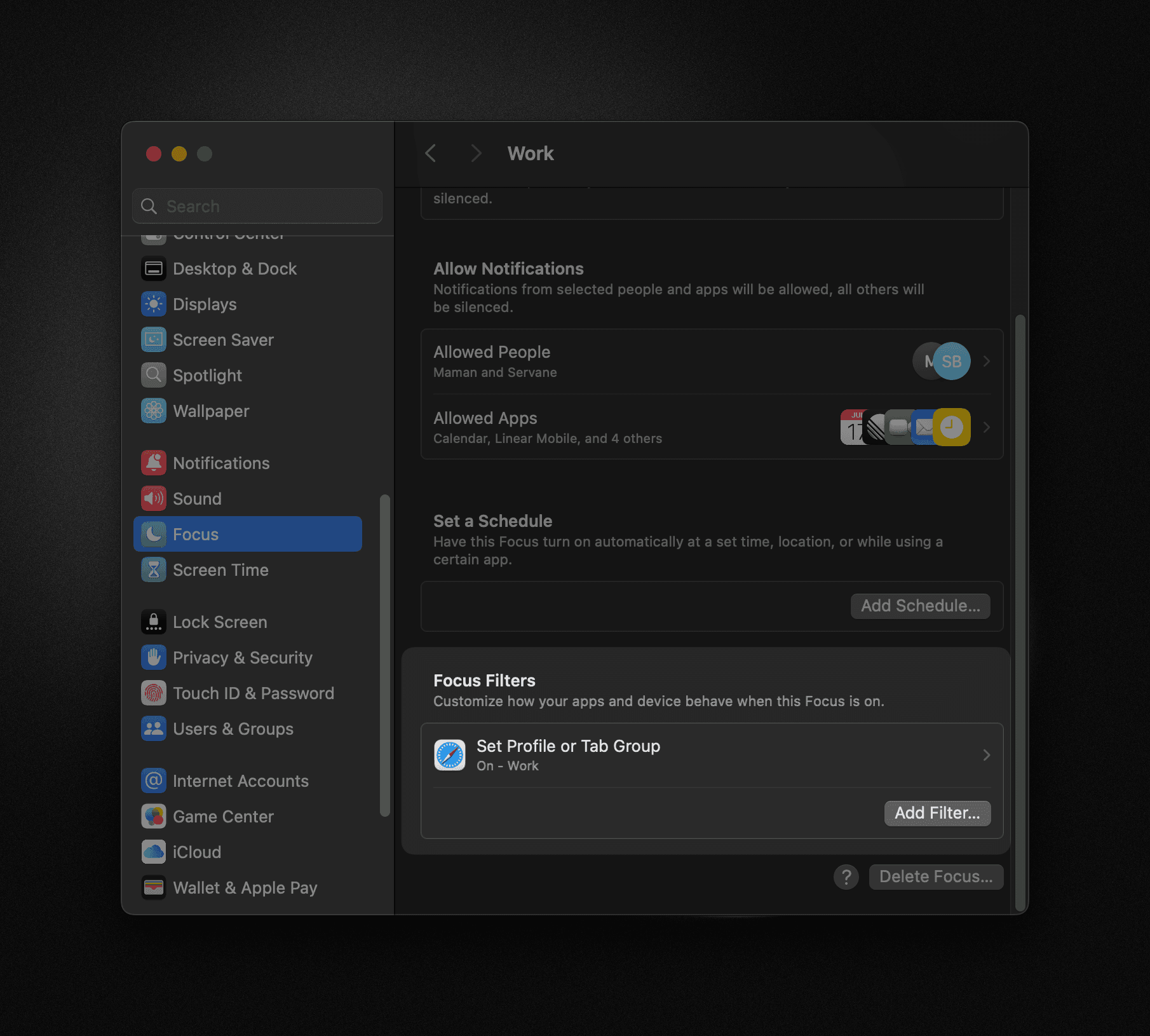
Select Raycast – Start a focus session.
Set up the Focus session to start along with the system Focus. You can customize the goal and the categories of apps & websites to block.
FAQs
Create a Shortcut
With Raycast 1.92.0, we introduced two Shortcuts to automate Raycast Focus:
- Start Focus Session
- Complete Focus Session
They can be discovered in the Apple Shortcuts app sidebar, and used to build complex workflows — such as playing music and turning on Do Not Disturb alongside a focus session.
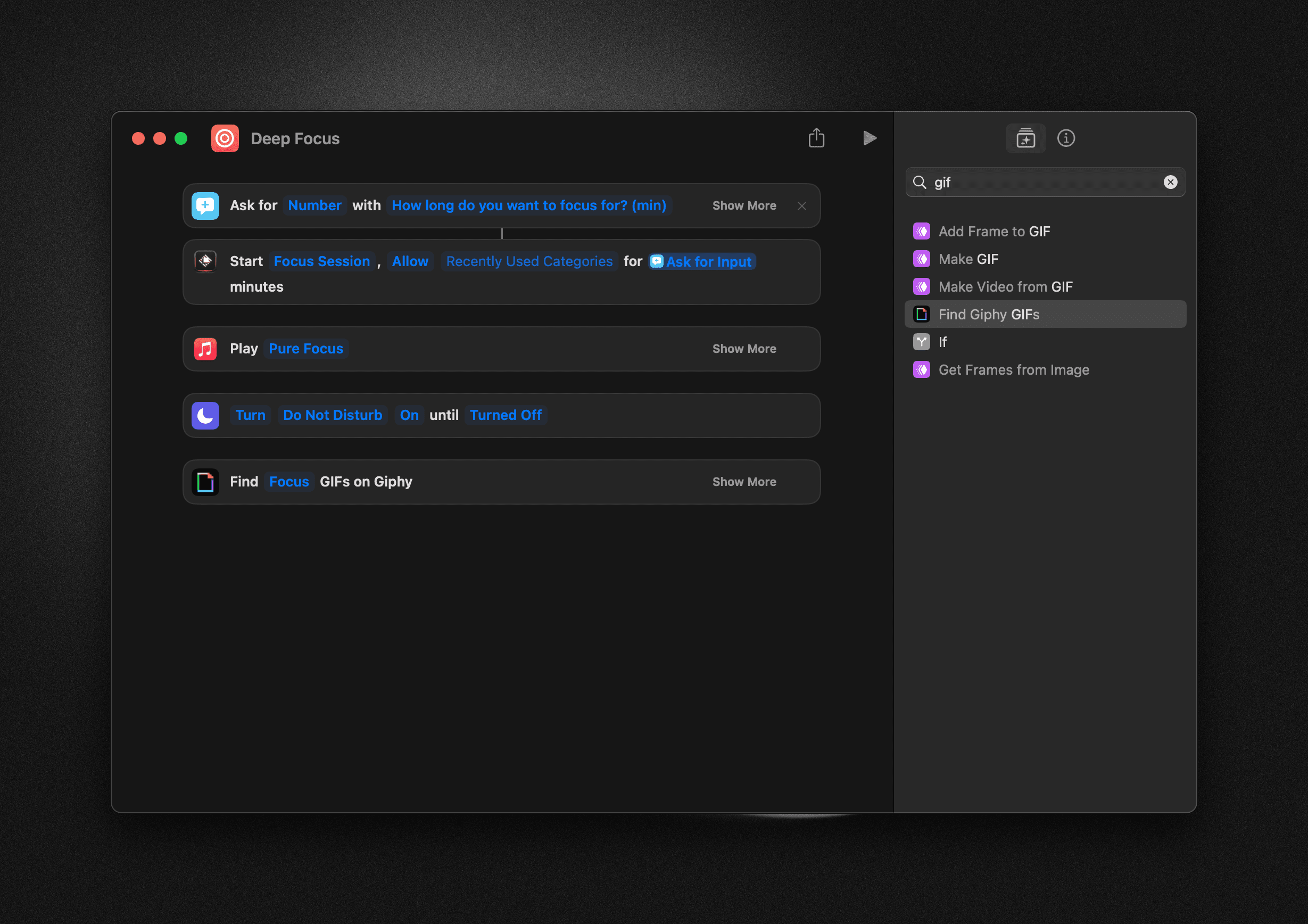
The duration parameter is optional. If you don't specify it, a focus session without a timer will start. You'll need to manually end it or complete it using the Shortcut.
FAQs
Import focus categories
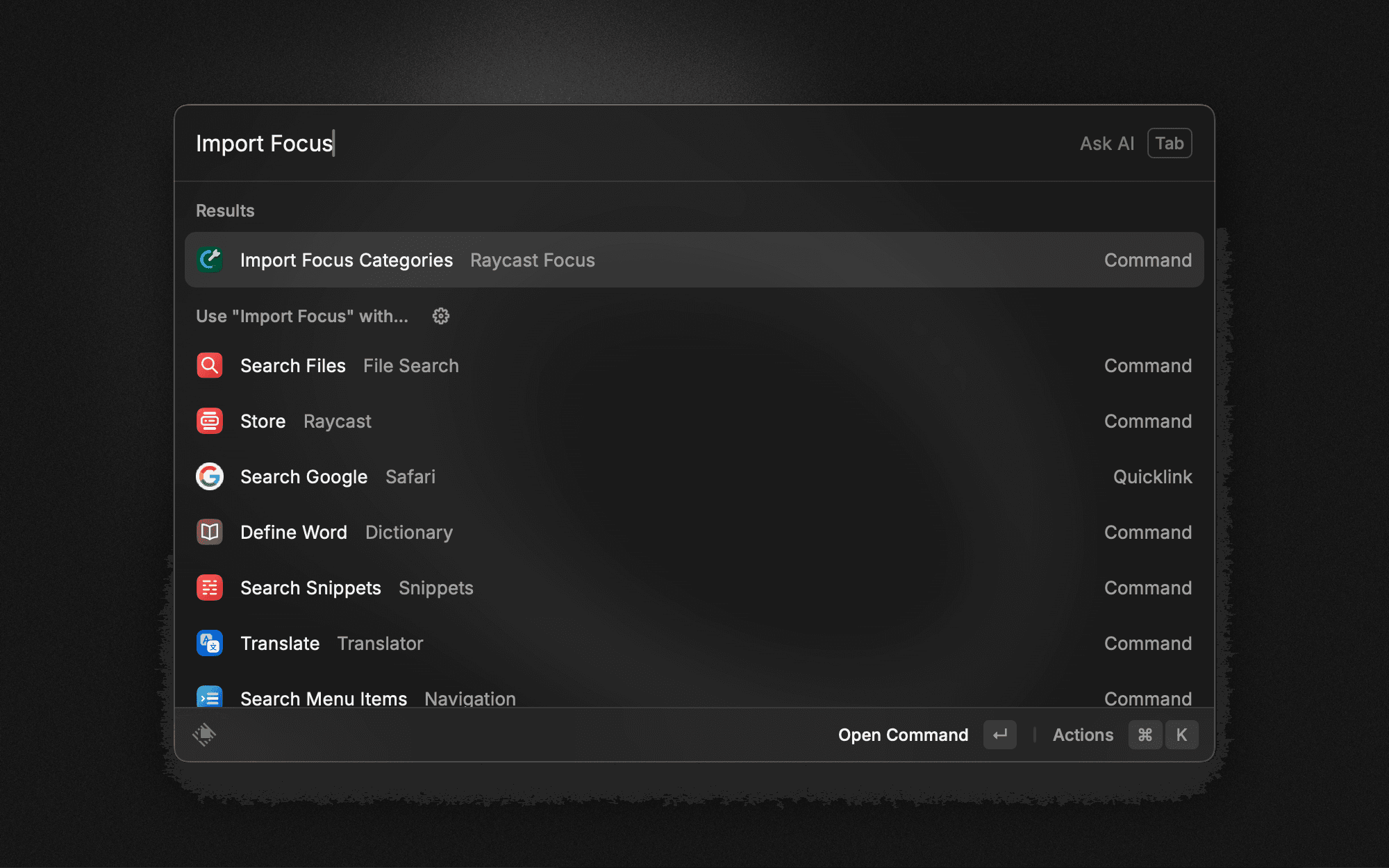
You can import Raycast Focus categories from a JSON file using the Import Focus Categories command (available in Raycast 1.92.0+).
JSON Format
- Root object — array of focus categories
- Category object
title— Category title. Type:String(required)apps— Bundle identifiers of applications to block. Type:Array<String>websites— Hostnames of websites to block (e.g.x.com,facebook.com). Type:Array<String>
Focus category title must be unique. Choose a title different from those already used by other categories.
[
  {
    "title": "Gambling",
    "websites": [
      "winamax.com",
      "stake.com"
    ]
  },
  {
    "title": "French News",
    "apps": [
      "com.apple.news"
    ],
    "websites": [
      "lefigaro.fr",
      "lemonde.fr",
      "liberation.fr",
      "lequipe.fr"
    ]
  }
]
After the import completes, you'll see how many categories were added and how many duplicates were skipped. If a category has the same title as an existing one, it's considered a duplicate.