

Model Context Protocol
Model Context Protocol or MCP is an open protocol that standardizes how applications provide context to LLMs. Raycast is a client that can connect to servers. Servers can be local data sources such as the file system or remote services such as external APIs.
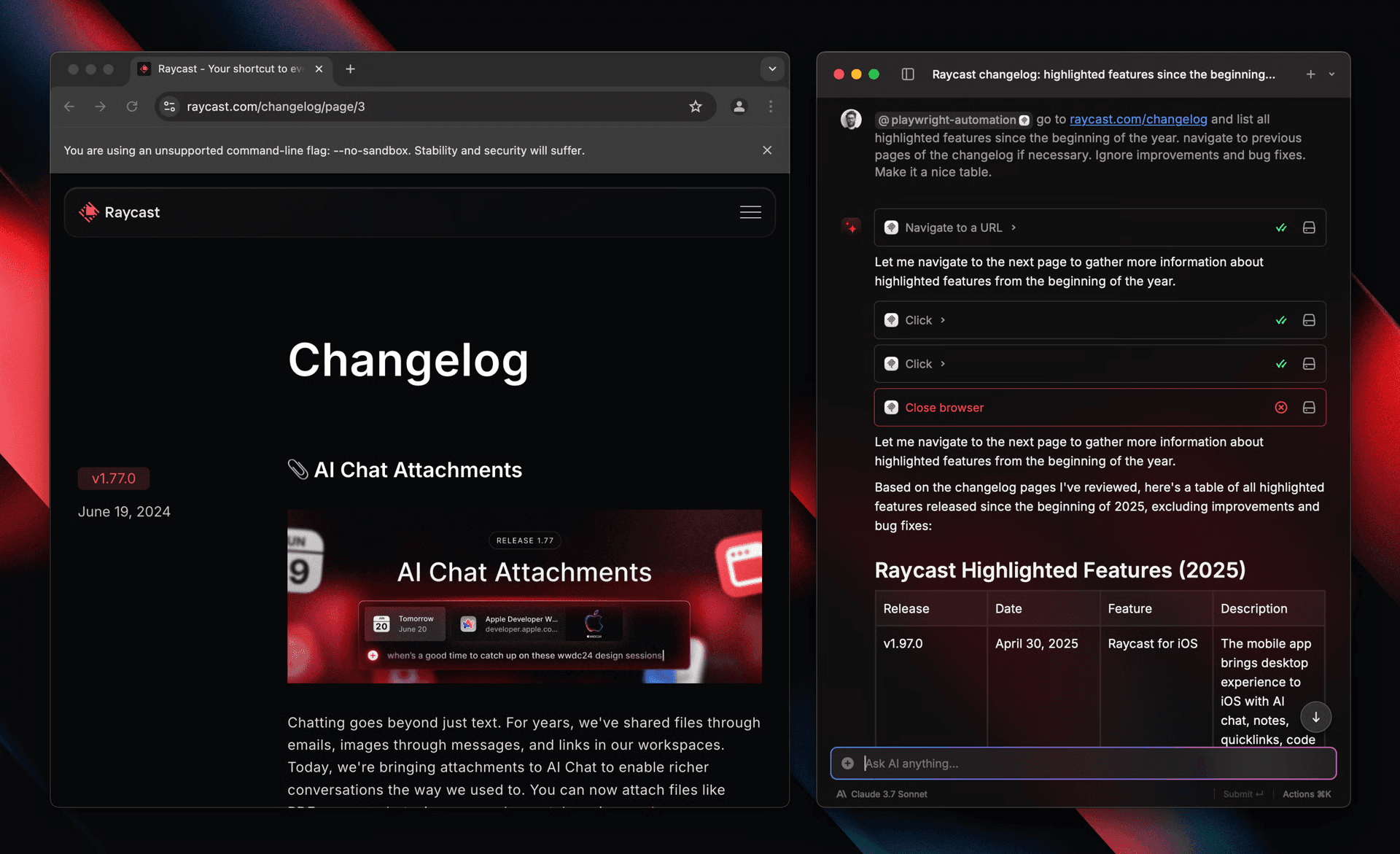
You can use MCP servers within Raycast to extend AI even further. MCP servers work and behave similar to our AI Extensions. After installation, you can @-mention MCP servers in the root search, AI Commands, AI Chat, and Presets.
Install MCP Servers
MCP Servers are decentralized — shared on GitHub and other places. You can simply install a server with the Install Server command by filling out the form.
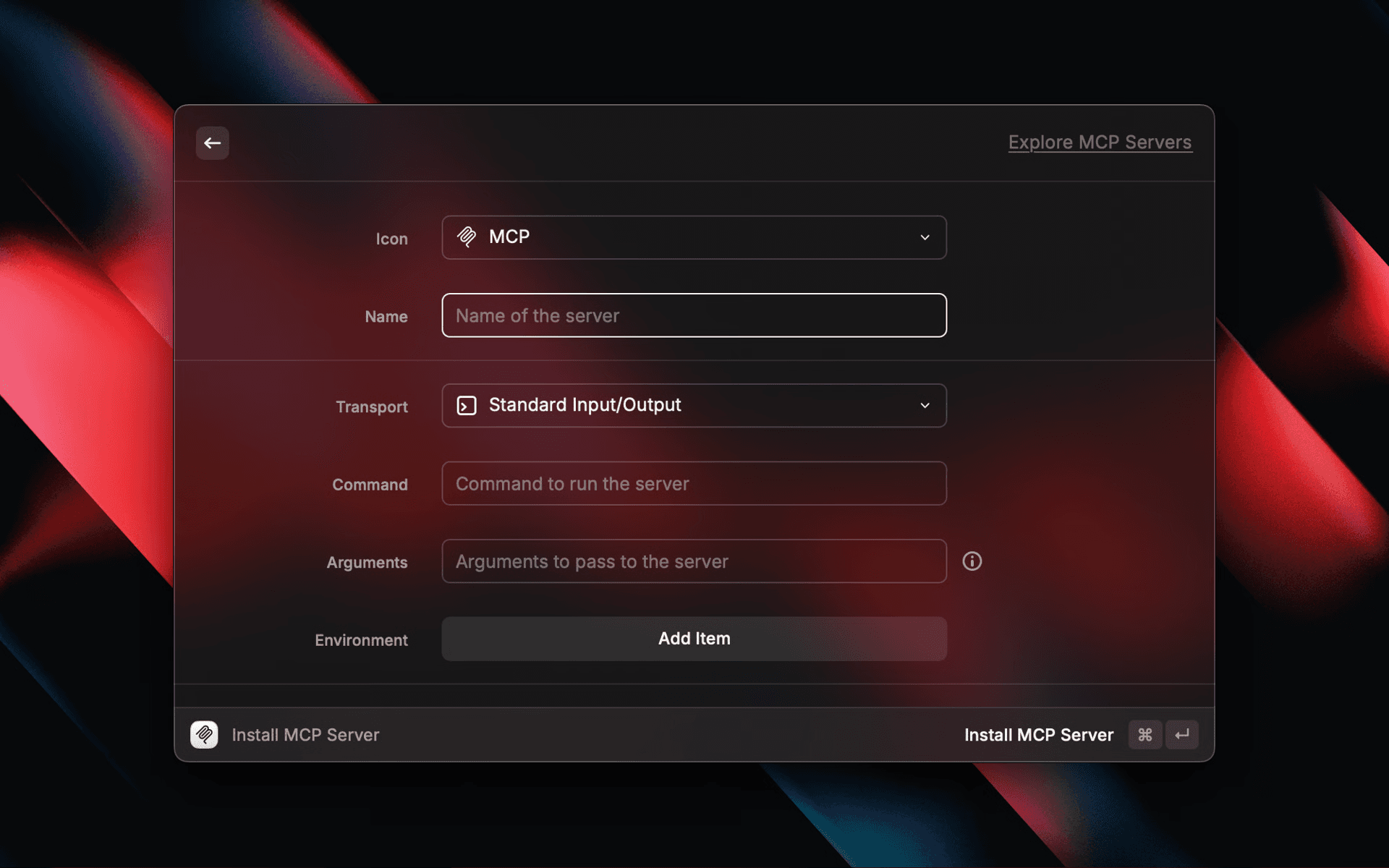
For now, we only support the stdio transport.
When running servers we pass the PATH from the default SHELL to the process. If you can run
the command (npx etc) in your default shell in a terminal, then it should run in Raycast also.
If you edit your PATH then you need to re-start Raycast to pick up the change.
If you copy a MCP configuration JSON before opening the Install Server command, Raycast attempts to input the form. Try it with the following configuration:
{
  "mcpServers": {
    "context7": {
      "command": "npx",
      "args": ["-y", "@upstash/context7-mcp@latest"]
    }
  }
}
Deeplink
You can also programmatically install a MCP Server with the following deeplink:
raycast://mcp/install?<configuration-json-percent-encoded>The JSON configuration has to be in the following format:
| Field | Description | Example |
|---|---|---|
| name | Name of the server | "Sequantial Thinking" |
| type | Server connection type | "stdio" |
| command | Command to start the server executable. The command needs to be available on your system path or contain its full path. | "npx" |
| args | Array of arguments passed to the command. | ["-y", "@modelcontextprotocol/server-sequential-thinking"] |
| env | Environment variables for the server. | {"API_KEY": "…"} |
Manage MCP Servers
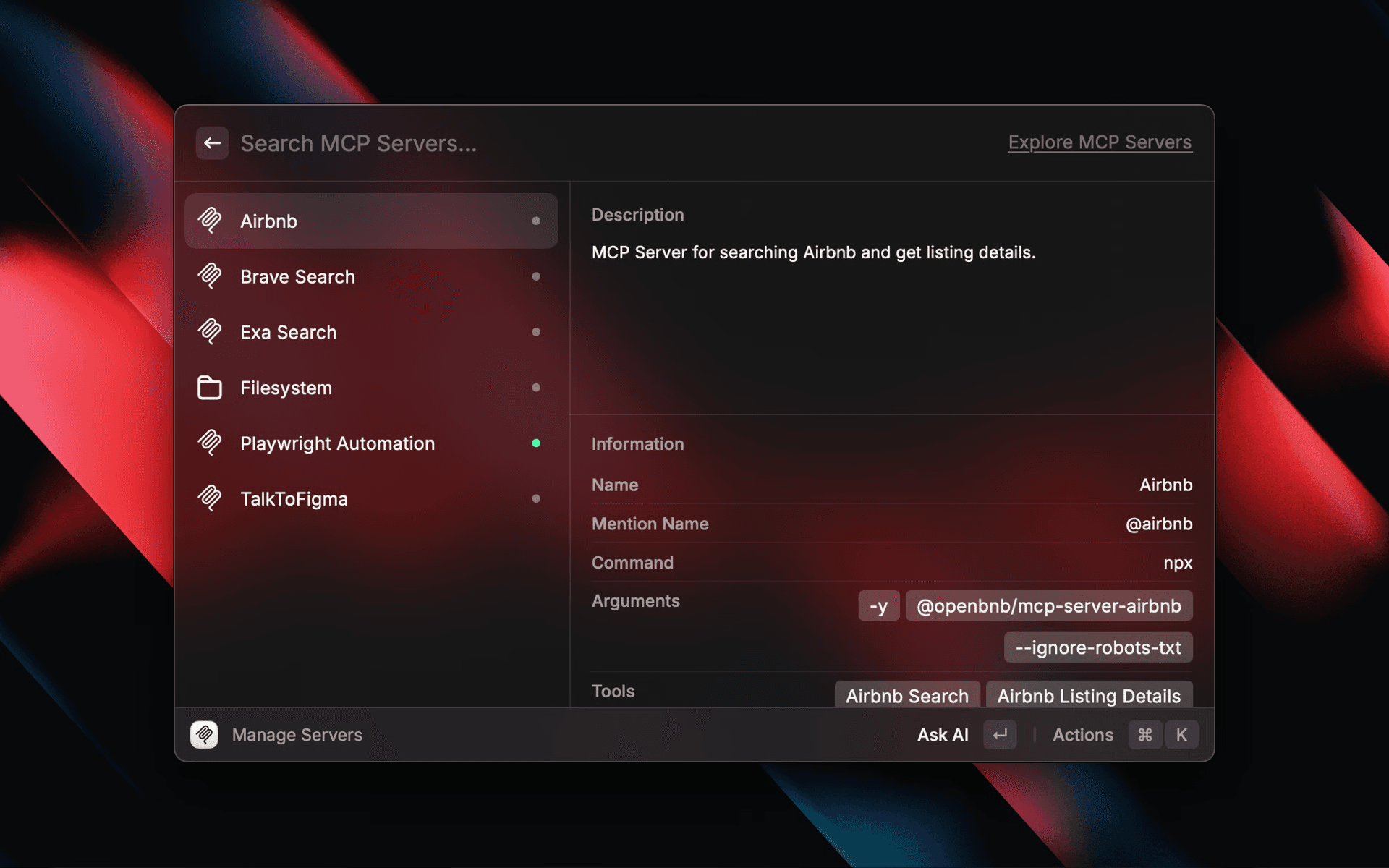
After you installed a few MCP Servers you can search them with the Manage Servers command. The command allows to uninstall servers or start a new chat with them.
Use MCP Servers
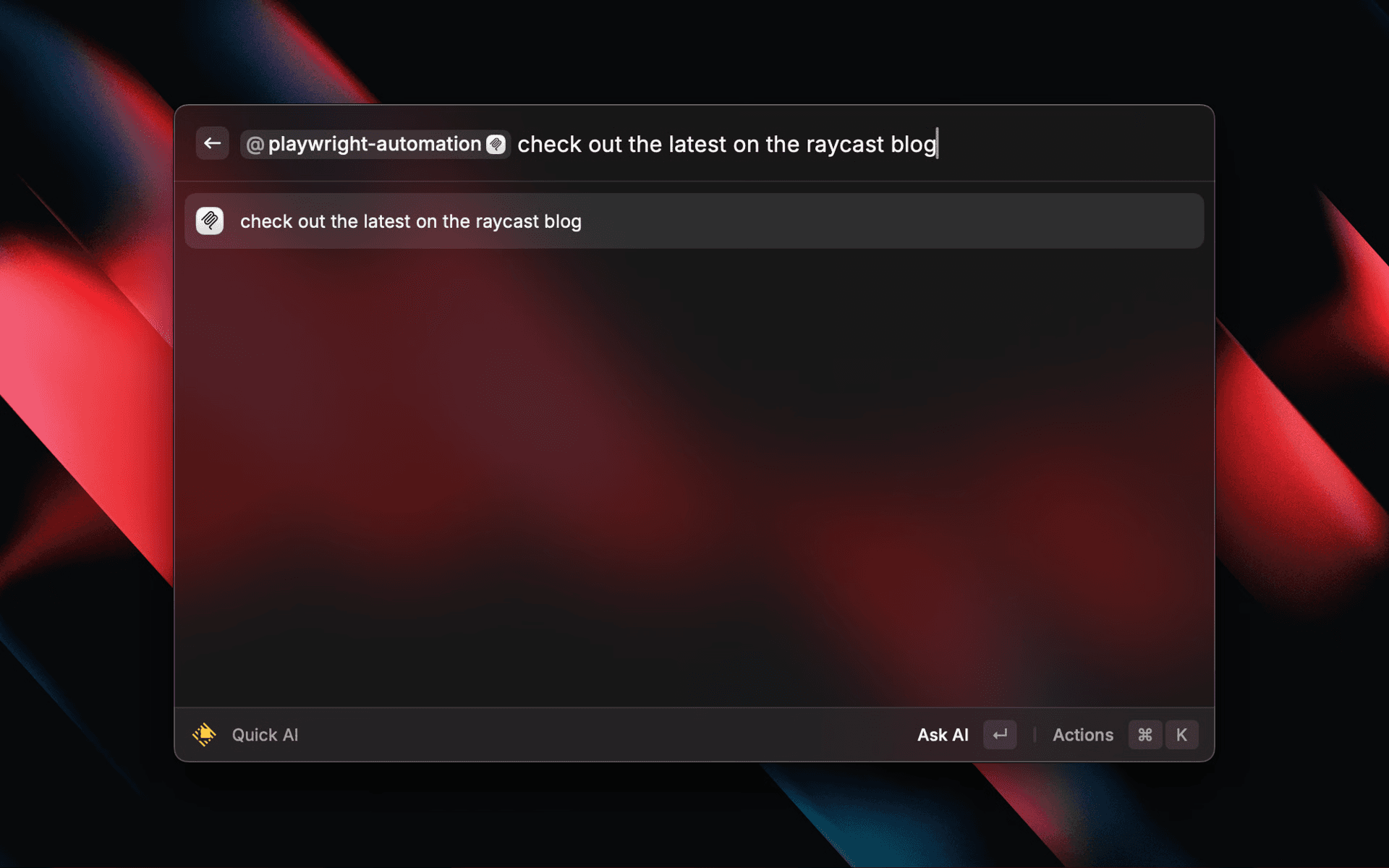
MCP Servers are used in the same way as our native AI Extensions. Simply @-mention a server after installation to use it with AI.
Explore MCP Servers
To discover servers, we built a meta registry. It contains official servers that are maintained by companies, community ones that are showcasing the power of deeply integrated services into AI, as well as an integration with Smithery.
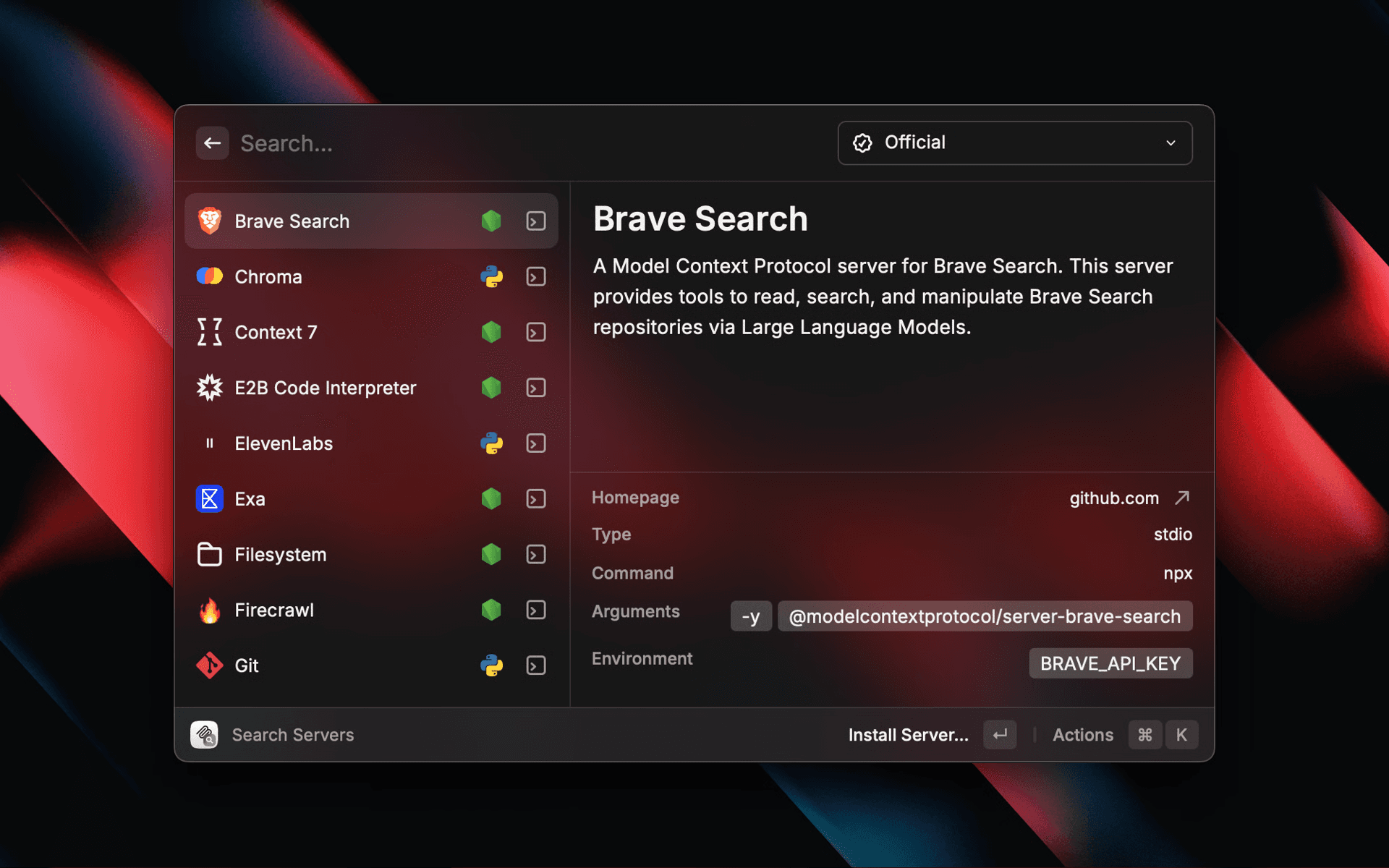
The registry also works with other clients such as Claude or Cursor. This makes it very easy to explore and install MCP servers across the ecosystem.