

Shared Snippets
You can share Snippets with members of your organization. It's an easy way to share information and frequently used text and is ideal for canned email responses, code, templates or short phrases.
You must enable organizations in Raycast and have created your first organization before you can create a shared Snippet.
Create Shared Snippet
- Search for the Create Snippet command in Raycast.
- In the form select your Organization.
- Then enter a name, text and optional keyword for the Snippet
- Finally use
⌘Enterto create and publish the Snippet.
Keywords are not shared with other team members and remain private to each user.
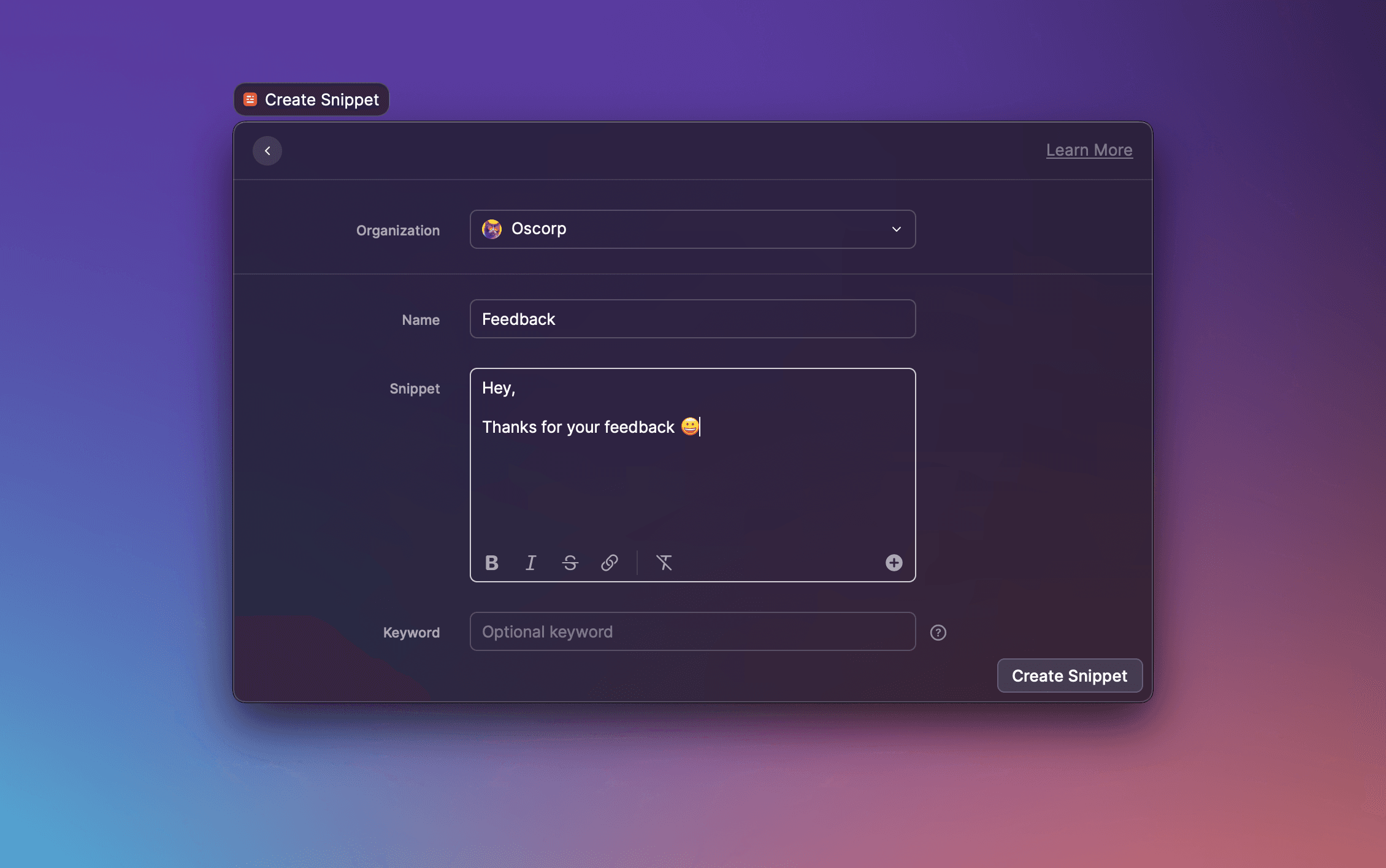
Your Snippet will now be available in Raycast for all of your organization's members.
Managing Shared Snippets
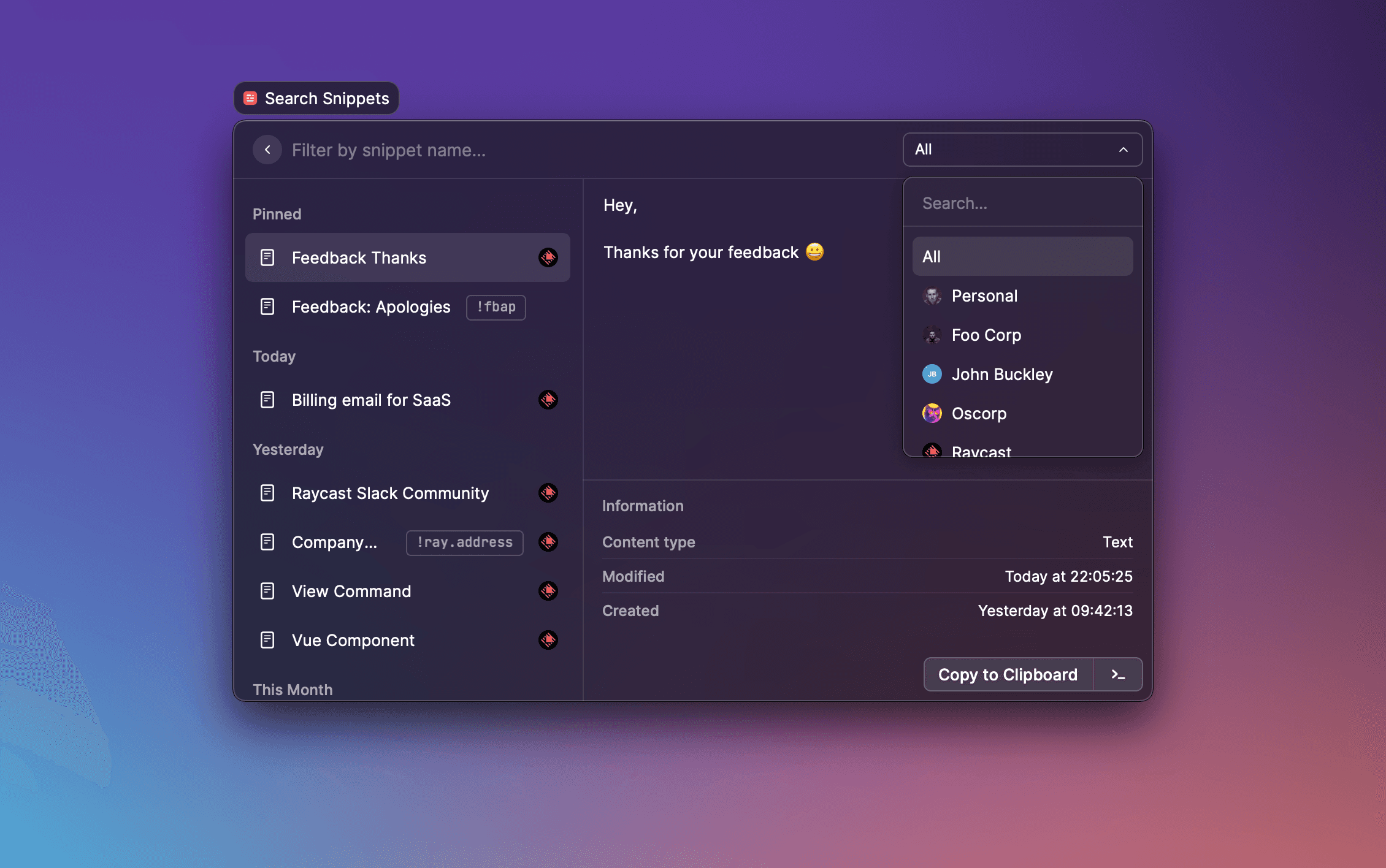
To manage Snippets use the Search Snippets command. By default you will see a list of all Snippets, including personal and shared snippets. Shared snippets display the organization's avatar on the right-hand side of the list. To view only your personal snippets, or a single organization's shared snippets, use the filter menu at the top-right of the window.
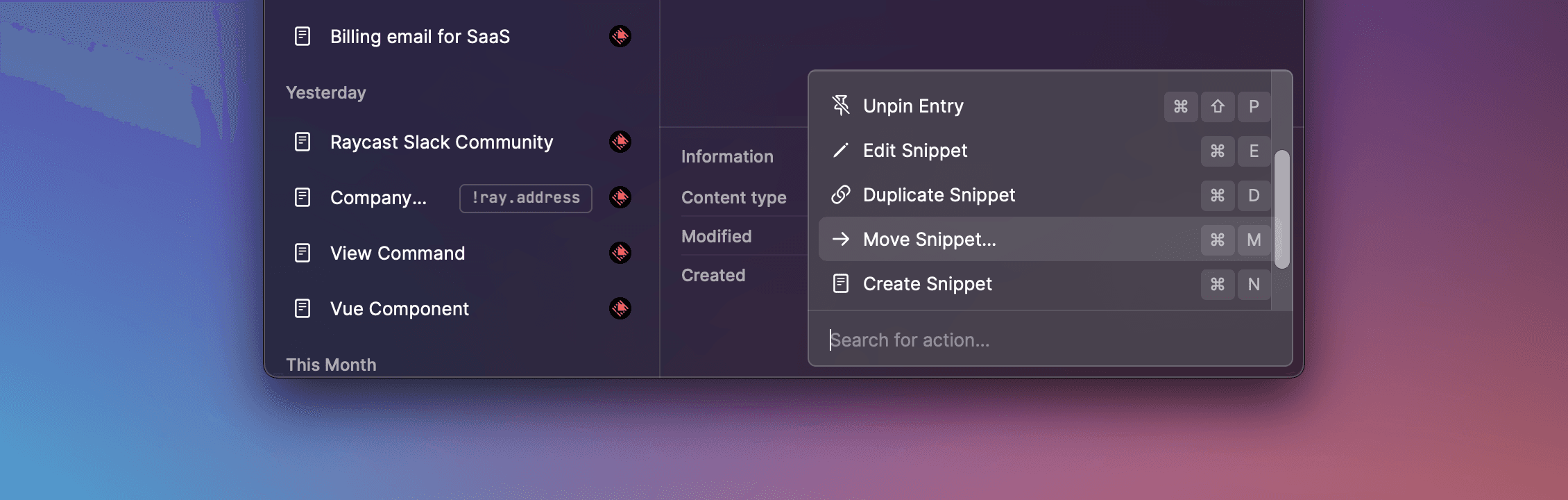
You can perform various actions on the selected Snippet using the action panel (⌘ K), including Edit, Duplicate, Move (to another organization) or Delete. You'll be prompted to confirm before a destructive action such as move or delete. You can also create a new Snippet using the Create Snippet action.
Read more about Snippets here