

Hyper Key
This page only applies to Raycast for Mac v1. Latest information for Raycast on Mac, Windows, and iOS is available in the Raycast Manual.
Getting Started
To customize the Hyper Key, go to Settings → Advanced → Hyper Key.
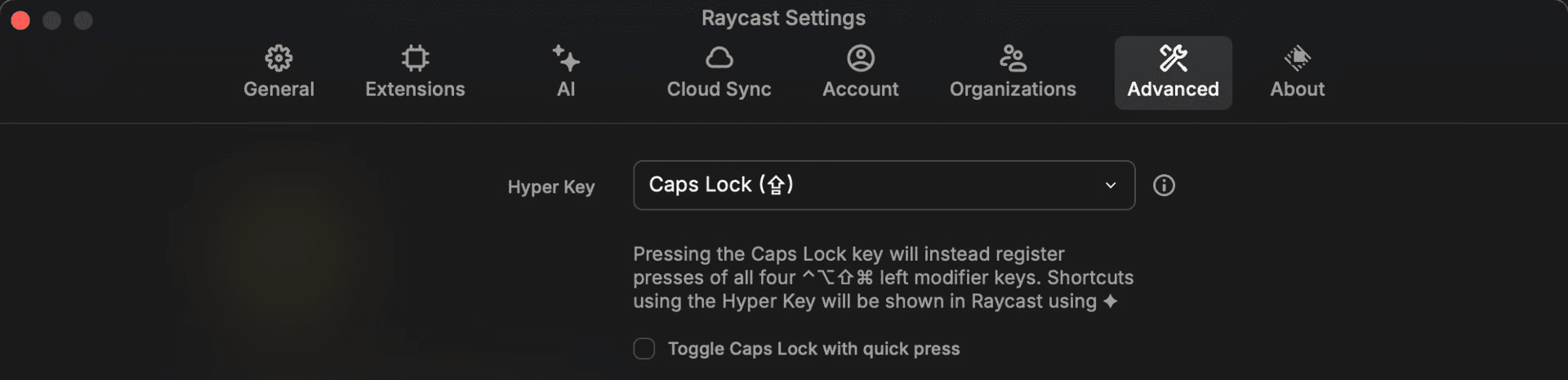
Once it’s set you’re good to go 🙂
What if something is acting up?
Ensure that no other application is performing Hyper Key mapping. If another application is already doing this, it will not work properly. Please disable any conflicting applications before using this feature.
If you’re experiencing issues (like the Hyper Key doesn’t work anymore) we’d like to have some information from you:
Option(⌥) + Click the Raycast icon in the Menu Bar and select Diagnostics Tool — here we want to have the following;
- Click the button
Hyper Key Diagnosticsand:- A screenshot of all fields in — If you have multiple keyboards it would be nice if you could also show everything from the last textarea (Key Remappings)
- Click the button
Keyboard Diagnosticsand:- Click the checkbox in upper right corner, press first ⌘ once, then your Hyper Key and then click
Copy Output
- Click the checkbox in upper right corner, press first ⌘ once, then your Hyper Key and then click