

Dynamic Placeholders
You can make your quicklinks, snippets, and AI commands dynamic with placeholders. The supported placeholders are:
| Name | Placeholder | Description |
|---|---|---|
| Clipboard Text | {clipboard} | Inserts your last copied text. The placeholder will be removed from the snippet when you use it if you have not copied any text recently. |
| Snippets | {snippet name="..."} | Inserts the content of the referenced snippet. Only snippets which aren't referencing other snippets can be inserted. |
| Cursor Position1 | {cursor} | Moves cursor to the position when pasted directly into an app or injected. Please note that a snippet can contain only one placeholder of this type. |
| Date13 | {date} | Inserts only the current date like 1 Jun 2022. |
| Time13 | {time} | Inserts only the current time like 3:05 pm. |
| Date & Time13 | {datetime} | Inserts both date and time like 1 Jun 2022 at 6:45 pm. |
| Weekday13 | {day} | Inserts the day of the week like Monday. |
| UUID13 | {uuid} | Inserts a universally unique value, such as "E621E1F8-C36C-495A-93FC-0C247A3E6E5F". |
| Selected Text23 | {selection} | Inserts the selected text from the frontmost application. In the context of the AI Chat, the previous message will be inserted instead. |
| Argument | {argument} | Add an input in the search bar. The placeholder will be replaced by the argument's value. You can add a maximum of 3 different arguments. |
| Focused Browser Tab24 | {browser-tab} | Inserts the content of the focused browser tab. |
1 Only available in Snippets
2 Only available in AI Commands
3 Only available in Quicklinks
4 Only available when the Browser Extension is installed
Modifiers
Using modifiers, you can change the value of a dynamic placeholder using the {clipboard | uppercase} syntax. It works on all placeholders.
There are four different modifiers:
uppercase-> transformsFoointoFOO.lowercase-> transformsFoointofoo.trim-> transformsFoo BarintoFoo Bar. It removes the white spaces at the beginning and the end of the value.percent-encode-> transformsFoo BarintoFoo%20Bar. It replaces special characters with their percent-encoded equivalent.json-stringify-> transformsFoo "Bar"into"Foo \"Bar\"". It makes sure that the value can be used as a JSON string.
You can specify multiple modifiers in a row: {clipboard | trim | uppercase}.
Depending on where the dynamic placeholder is used (eg. Snippet, AI Commands, or Quicklinks), Raycast might apply some default formatting to its value:
- Quicklinks -- All special characters are percent-encoded as this is ensure that the link stays valid
- AI Commands -- The placeholders are wrapped with
"""to make sure the AI understand third delimitation
If you do not want this default formatting to apply to a placeholder, you can use the special raw modifier (eg. {clipboard | raw}).
Date & Time offset
By default, if you use a date/time placeholder, its value will be set to the current date/time when you insert the snippet. To display a different date/time, you can do offsets using modifiers like +2d, -3M etc. This will change the value from the current date/time to the defined offset.
A modifier is made up of 3 components,
- it begins with a "plus" or "minus" symbol, to denote the direction of the offset from the current date/time
- the symbol is followed by a number
- at the end we have a single letter representing the unit of the offset. You can use "m" for minutes, "h" for hours, "d" for days, "M" for months and "y" for years.
Please note that a small "m" is used for minutes and a capital "M" is used for months. All units are case sensitive.
You should use spaces inside the braces to separate the modifier from the keyword. Also, you can add multiple modifiers in a single placeholder each separated by a single space.
For example, you can write placeholders like the following
{date offset="+2y +5M"}{time offset="+3h +30m"}{day offset=-3d}{datetime offset=+1h}
Please note that there should not be any space after the symbol. For example, {date offset="+ 2d"} is not a valid placeholder.
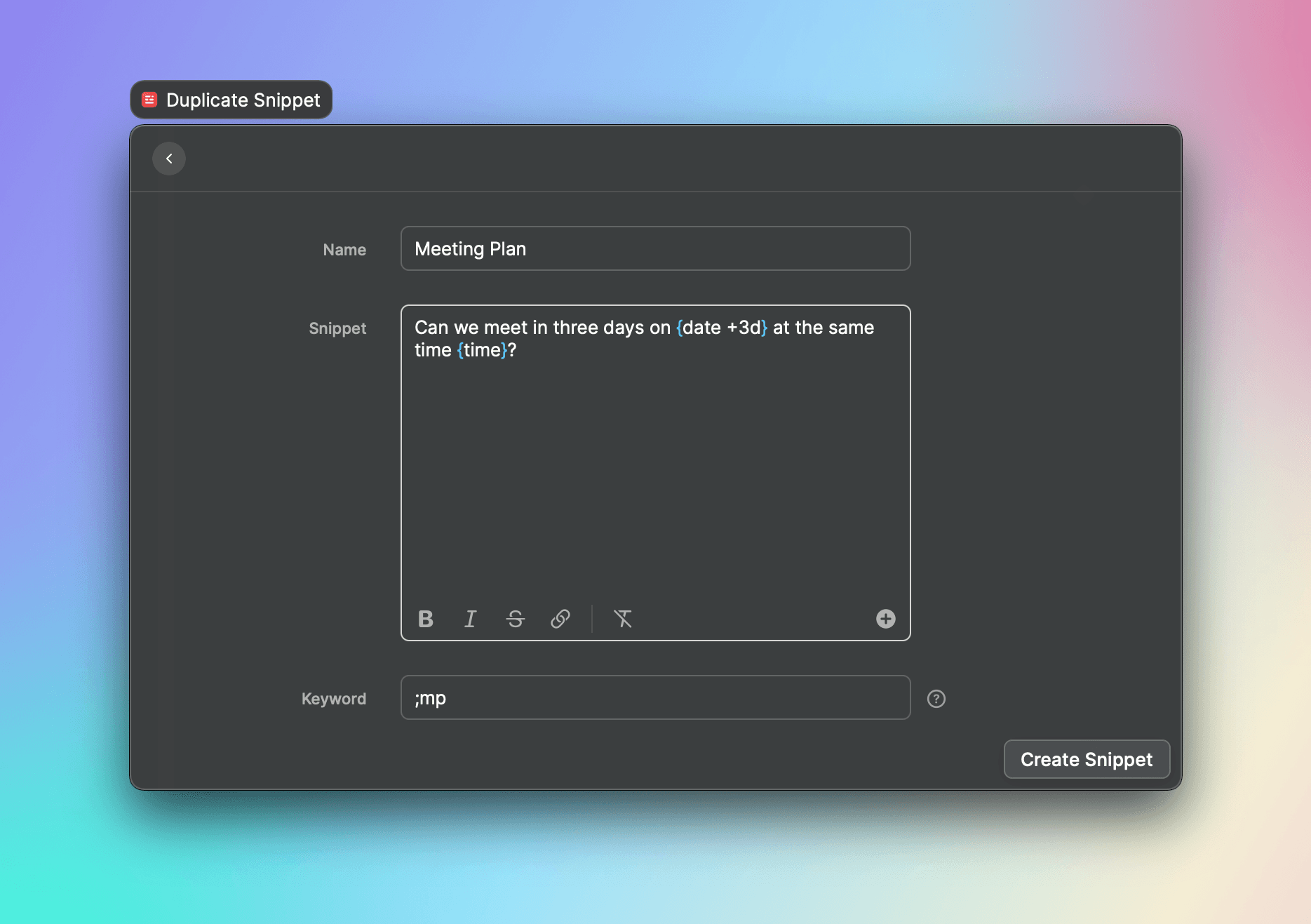
As you can see in the below image, whenever you enter a proper placeholder, the curly braces will turn blue to indicate it. If your keyword or modifier is different from what is described above, you will see the braces remain in the same text color.
Custom Date Formats
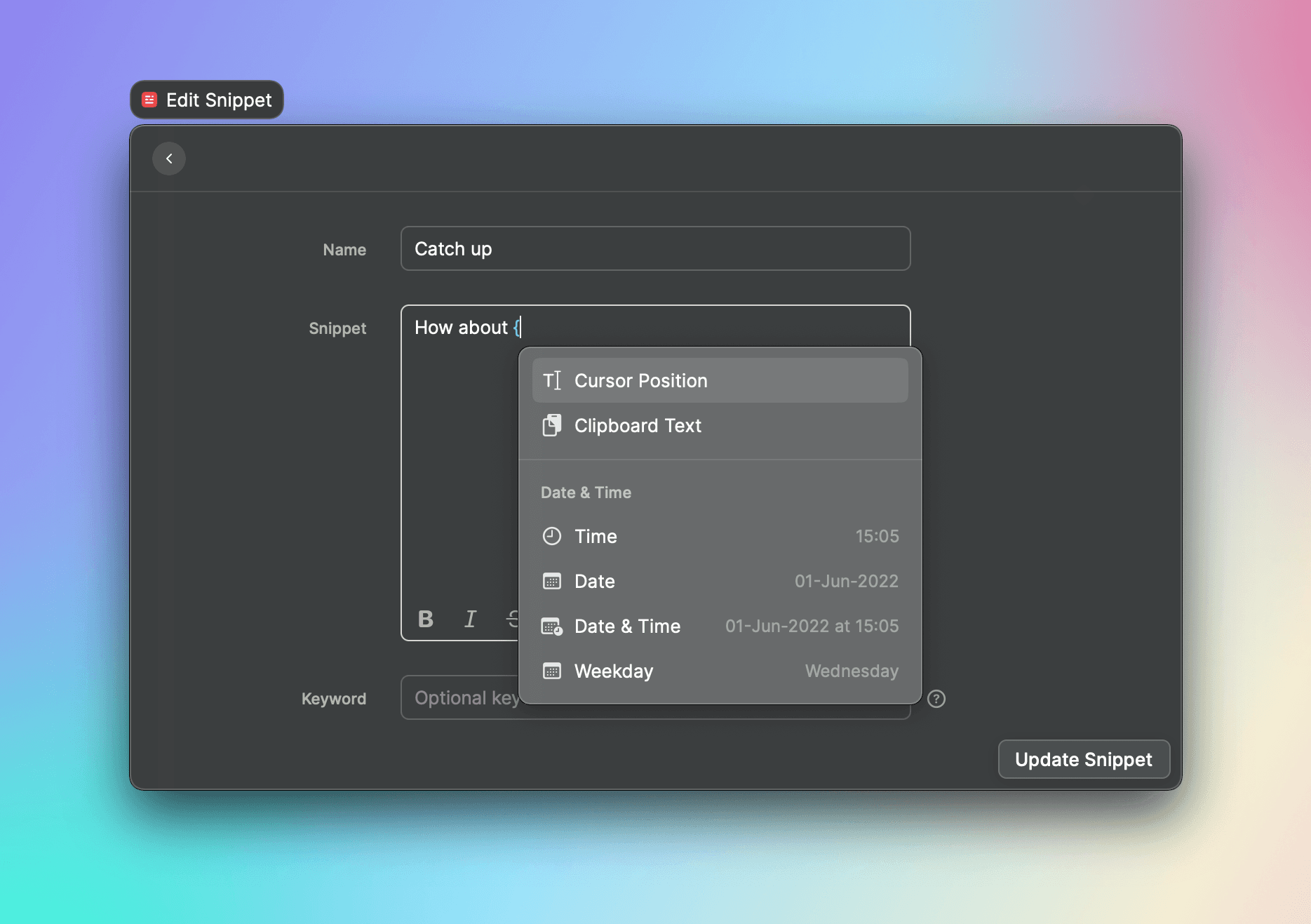
The format of the date/time placeholders depends on your system preference. You can see samples of the format on the right side of each placeholder when inserting.
Apart from the four system defined date placeholders, you can create date placeholders in your preferred format by creating a placeholder like {date format="yyyy-MM-dd"}.
Here are some more examples of date placeholders with custom formats and their expected output.
| Placeholder | Output |
|---|---|
{date format="EEEE, MMM d, yyyy"} | Wednesday, Jun 15, 2022 |
{date format="MM/dd/yyyy"} | 06/15/2022 |
{date format="MM-dd-yyyy HH:mm"} | 06-15-2022 13:44 |
{date format="MMM d, h:mm a"} | Jun 15, 1:44 PM |
{date format="MMMM yyyy"} | June 2022 |
{date format="MMM d, yyyy"} | Jun 15, 2022 |
{date format="E, d MMM yyyy HH:mm:ss Z"} | Wed, 15 Jun 2022 13:44:39 +0000 |
{date format="yyyy-MM-dd'T'HH:mm:ssZ"} | 2022-06-15T13:44:39+0000 |
{date format="dd.MM.yy"} | 15.06.22 |
{date format="HH:mm:ss.SSS"} | 13:44:39.945 |
Points to Note:
- You can mix date modifiers with custom date formats like
{date format="yyyy-MM-dd" offset="+3M -5d"} - All characters inside the double quotes which you use to represent the custom format are case sensitive
- You can add text which is not part of the date format using single quote. For example, you can write
{date format="h:mm 'on the eve of' MMMM d"}which refers to 8:30 on the eve of June 5.
Supported alphabets
The following table contains the alphabets you can use in your custom date format inside the double quotes and what they look like when the snippet is inserted. The output is based on the time June 15th, 2022 2:45 PM UTC.
Please note that all letters within the double quotes are case sensitive.
| Alphabets | Output | Description |
|---|---|---|
| YEAR | ||
y | 2022 | Year, no padding. |
yy | 22 | Year, two digits (padding with a zero if necessary). |
yyyy | 2022 | Year, minimum of four digits (padding with zeros if necessary). |
| QUARTER | ||
Q | 2 | The quarter of the year. Use QQ if you want zero padding. |
QQQ | Q2 | Quarter including "Q". |
QQQQ | 2nd quarter | Quarter spelled out. |
| MONTH | ||
M | 6 | The numeric month of the year. A single M will use 6 for June. |
MM | 06 | The numeric month of the year. A double M will use 06 for June. |
MMM | Jun | The shorthand name of the month. |
MMMM | June | Full name of the month. |
MMMMM | J | Narrow name of the month. |
| DAY | ||
d | 15 | The day of the month. A single d will use 1 for June 1st. |
dd | 15 | The day of the month. A double d will use 01 for June 1st. |
F | 3 | (numeric) The day of week in month. |
E | Wed | The abbreviation for the day of the week. |
EEEE | Wednesday | The wide name of the day of the week. |
EEEEE | W | The narrow day of week. |
EEEEEE | We | The short day of week. |
| HOUR | ||
h | 2 | The 12-hour hour. |
hh | 02 | The 12-hour hour padding with a zero if there is only 1 digit. |
H | 14 | The 24-hour hour. |
HH | 14 | The 24-hour hour padding with a zero if there is only 1 digit. |
a | PM | AM / PM for 12-hour time formats. |
| MINUTE | ||
m | 45 | The minute, with no padding for zeroes. |
mm | 45 | The minute with zero padding. |
| SECOND | ||
s | 6 | The seconds, with no padding for zeroes. |
ss | 06 | The seconds with zero padding. |
SSS | 753 | The milliseconds. |
| TIME ZONE | ||
zzz | IST | The 3-letter name of the time zone. Falls back to GMT-08:00 (hour offset) if the name is unknown. |
zzzz | Indian Standard Time | The expanded time zone name, falls back to GMT-08:00 (hour offset) if the name is unknown. |
ZZZZ | IST+05:30 | Time zone with abbreviation and offset. |
Z | +0530 | RFC 822 GMT format. Can also match a literal Z for Zulu (UTC) time. |
ZZZZZ | +05:30 | ISO 8601 time zone format. |
You can read more about date format patterns in the Unicode technical standard.
Argument Name
By default, every time you use an {argument} placeholder, a new input will be shown in the search bar (up to 3).
In order to reuse an argument placeholder, you have to give them a name: {argument name="tone"}, {argument name="email"}, etc.. When two argument placeholders have the same name, they will be replaced by the same value.
Argument Default Value
By default, an argument is required and you won't be able to run the AI Command before entering a value.
You can specify a default value for the argument in order to make it optional: {argument default="happy"}, {argument name="sport" default="skiing"}, etc..
Argument Options
You can specify some predefined options to choose from: {argument name="tone" options="happy, sad, professional"}.
Clipboard Offset
By default, {clipboard} will insert your last copied text. If you want to insert an older copied text, you can do so with {clipboard offset=1} which will insert the second to last copied text, {clipboard offset=2} for the 3rd latest, and so on.
Using a clipboard offset placeholder requires the Clipboard History to be enabled.
Browser Tab Format
By default, the content of the tab will be transformed as Markdown. However there are some cases where this isn't the type of content you are looking for and in such cases, you can specify the format of the inserted content.
There are 3 different formats available:
{browser-tab format="markdown"}- default{browser-tab format="text"}- the entire text content of the tab without any styling{browser-tab format="html"}- the entire html content of the tab
Browser Tab Selector
You can specify a CSS selector to precisely get the content you want with {browser-tab selector="a.author.text-bold"}. This enables you to create highly specific commands for certain websites.