Snippets
Write faster by using snippets to store and insert frequently used text. Expand them automatically with a keyword.
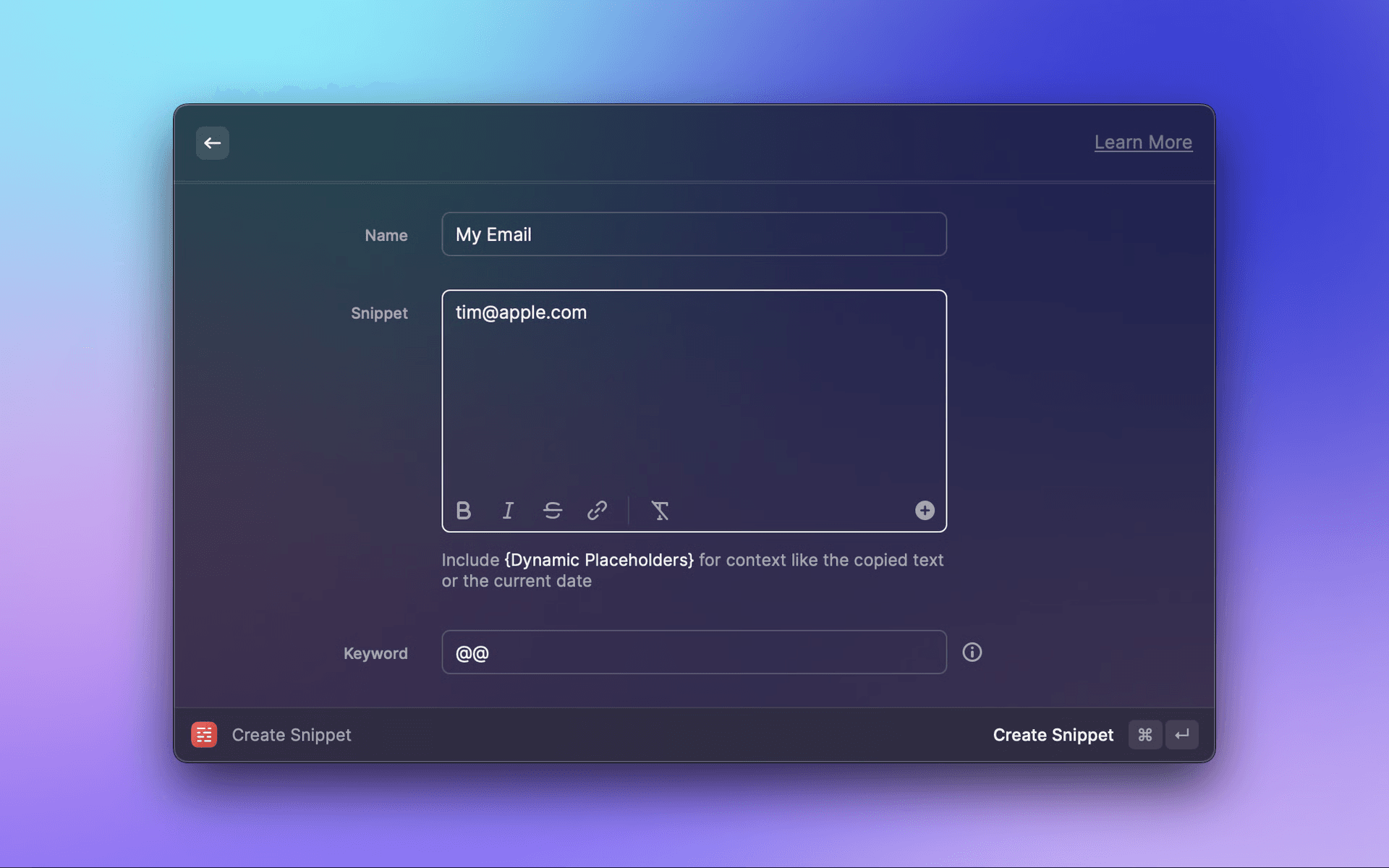
Use the Create Snippet command to store a new snippet. If you specify a keyword, you can simply type it in any application to have it auto-expand in-place. Snippets are handy for frequently used text such as canned email responses, code or emojis.
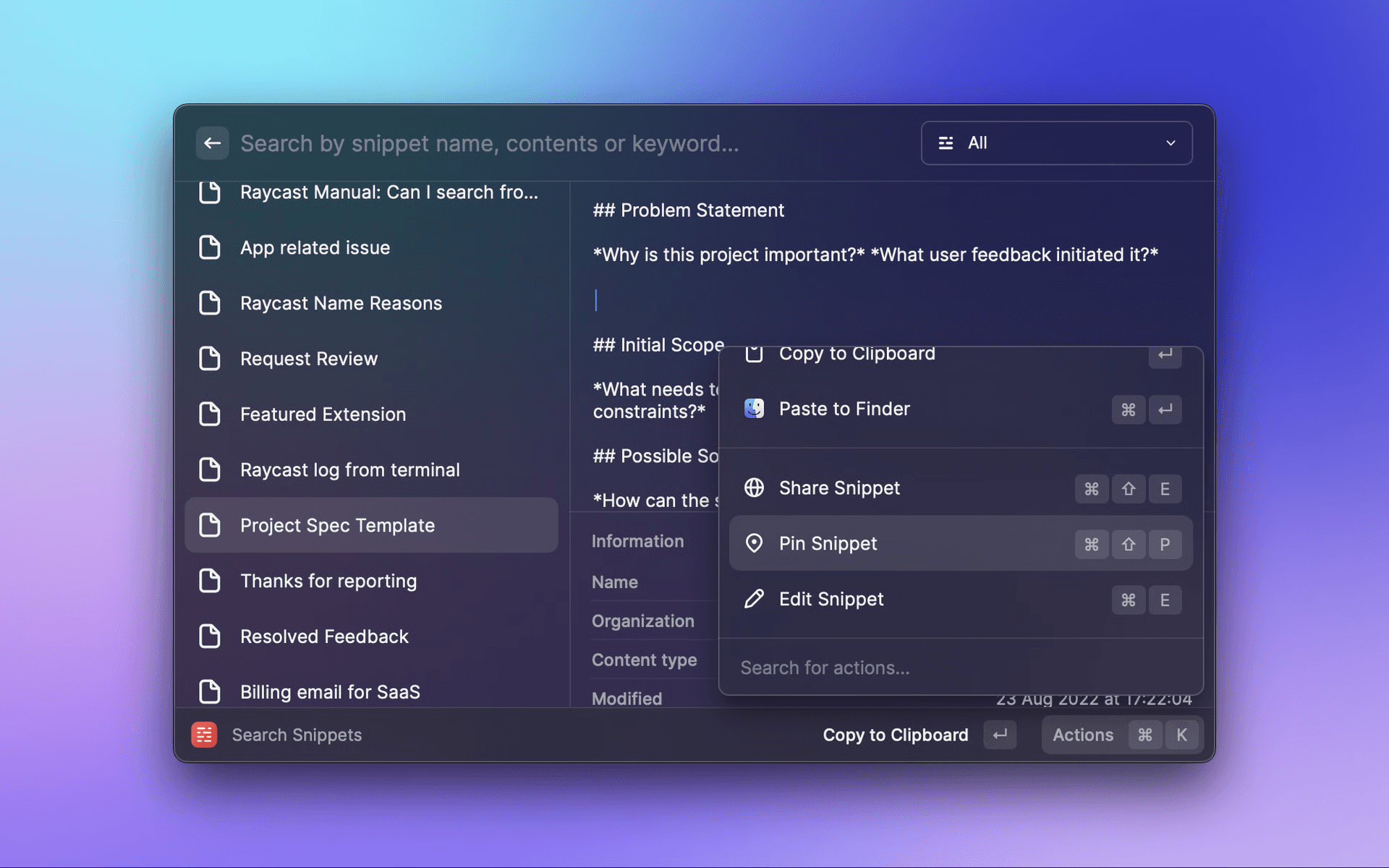
Search and manage all of your Snippets in one place using the Search Snippets command. Edit existing Snippets, pin your most frequently used ones, and copy them directly to your clipboard.
Snippets have a 65,536 character limit due to performance constraints. This limit cannot be modified.
Shared Snippets
If Raycast for Teams is enabled you can create shared Snippets for all members of your team.
Placeholders
You can make your snippets dynamic with Dynamic Placeholders.
Import Snippets
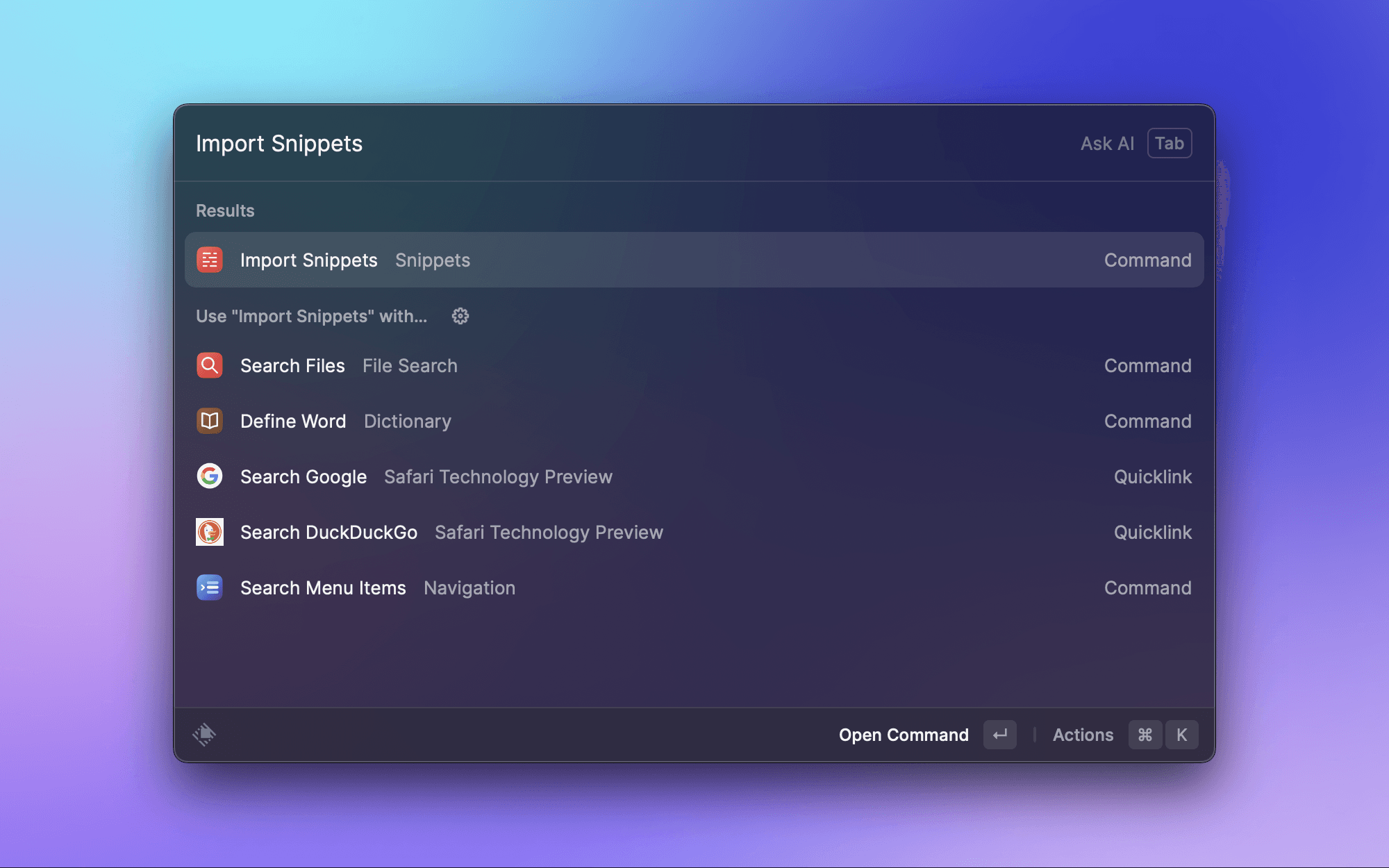
You can import snippets from a JSON file using the Import Snippets command (available in Raycast 1.37.0+).
JSON Format
- Root object — array of snippets
- Snippet object
name— Snippet title. Type:String(required)text— Snippet content. Type:String(required)keyword— Auto-expansion keyword. Type:String(optional)
[
  {
    "name": "Personal Email",
    "text": "sherlock@gmail.com",
    "keyword": "@@"
  },
  {
    "name": "Home Address",
    "text": "221B Baker St., London"
  },
  {
    "name": "Catchphrase 1",
    "text": "Elementary, my dear Watson",
    "keyword": "!elementary"
  }
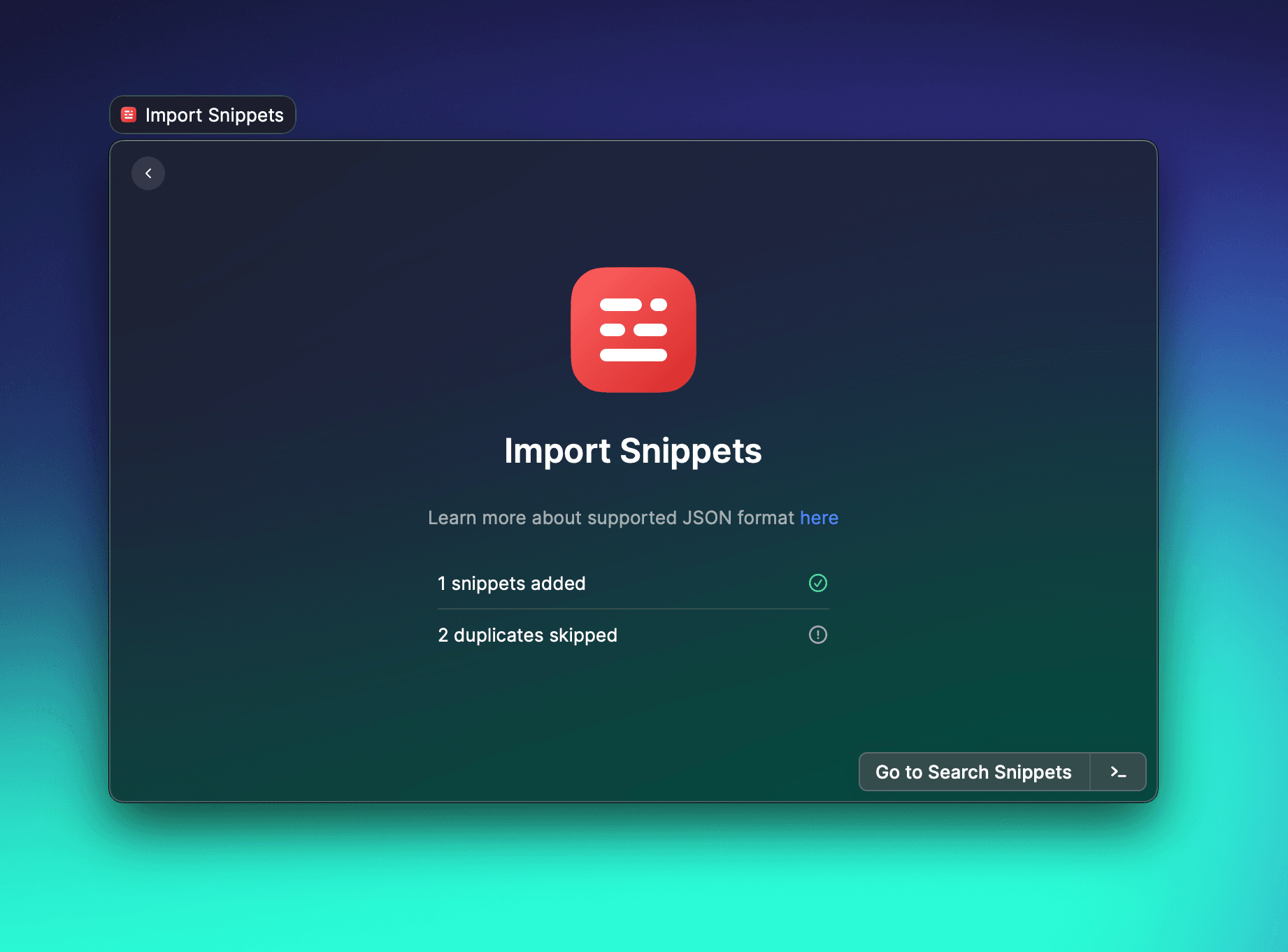
]After the import is completed, you'll see how many snippets were added and how many duplicates were skipped. If a snippet has the same title and content, it's considered a duplicate.