

Quicklinks
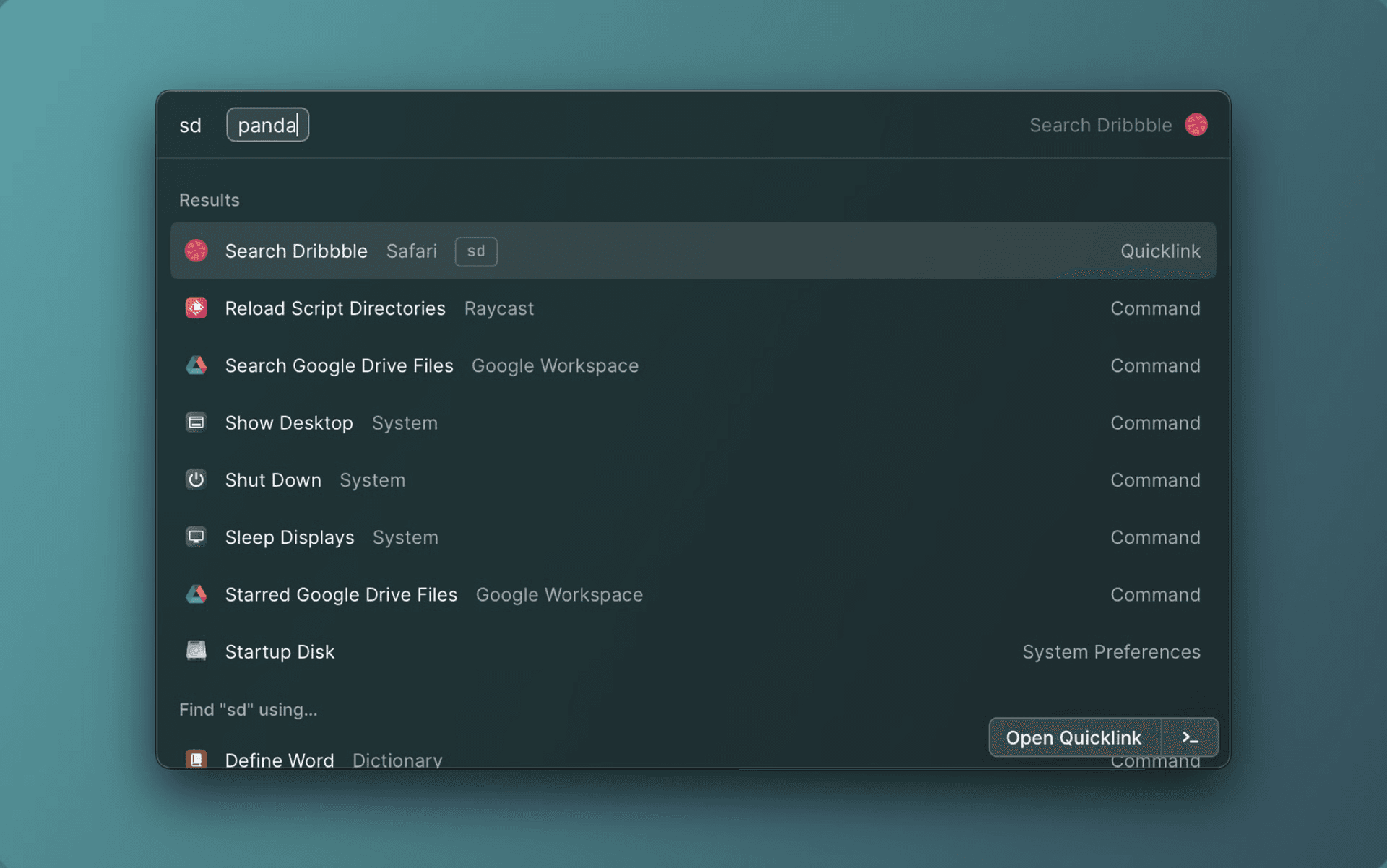
Everything you need to access quickly can be a Quicklink in Raycast. Open frequently visited links in the browser, open project folders in your favorite IDE or Terminal, jump to your loved Spotify playlist and use queries to perform searches on Google, Dribbble or other websites. The best thing is that you can access it directly from within the root search.
Examples to get started
Raycast comes bundled with a set of Quicklinks which you can add easily. Go to Raycast Preferences → Extensions → Quicklinks and click Find in Library on the right pane. You will find a list of popular web searches. You can select any of them and they will be added to the Quicklink group on the main view.

Now you can close preferences, and access what you added in Raycast's root search.
Create Quicklink
- Search for the Create Quicklink command in Raycast. Alternatively, you can select Create New Quicklink from Preferences window shown above.
- Enter a name, link and the app you would like to open with.
- You can make your quicklinks dynamic with Dynamic Placeholders.
https://translate.google.com/?sl={argument name="source language" default="auto"}&tl={argument name="target language"}&text={argument name="word"}&op=translate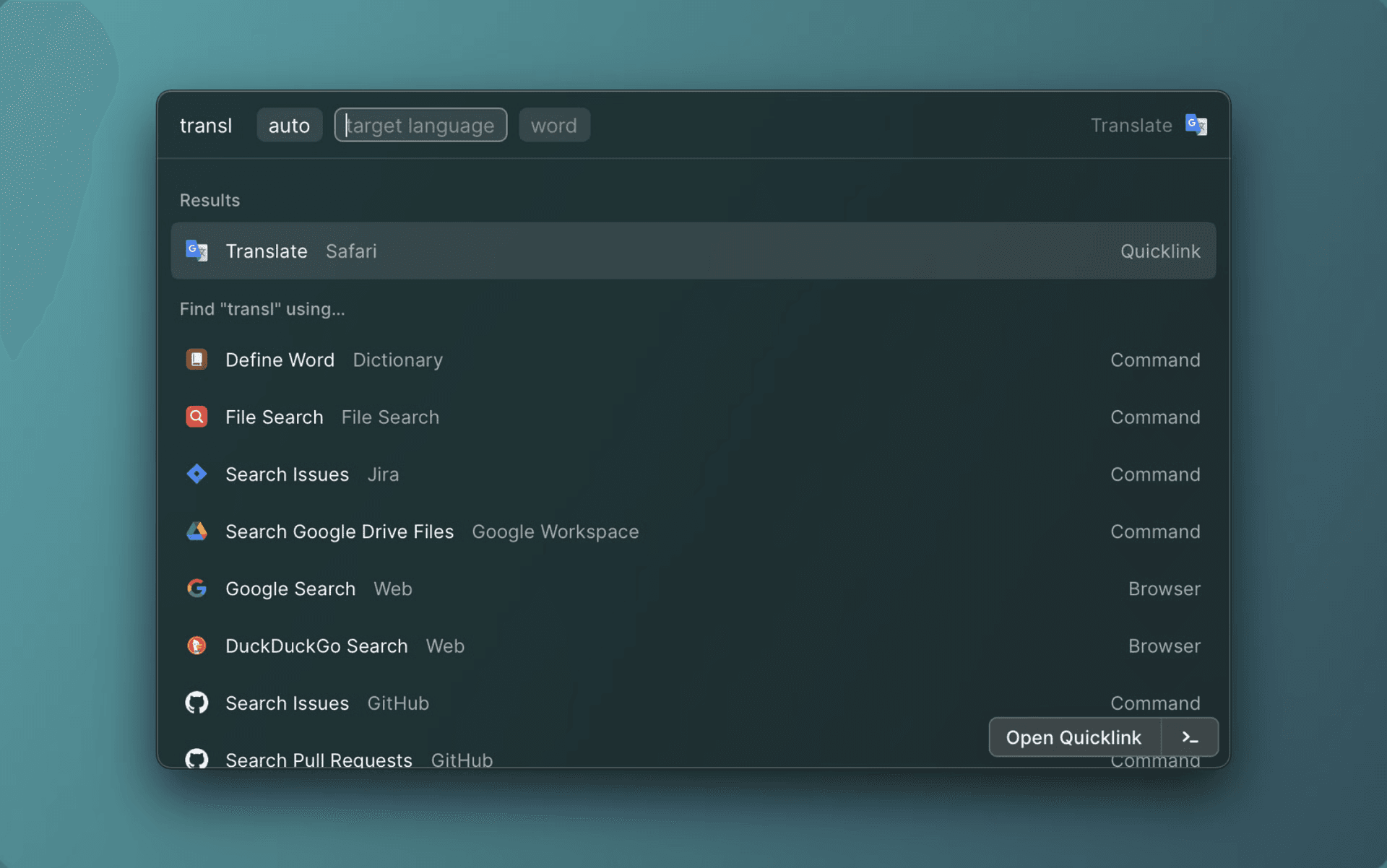
Other Quicklink Actions
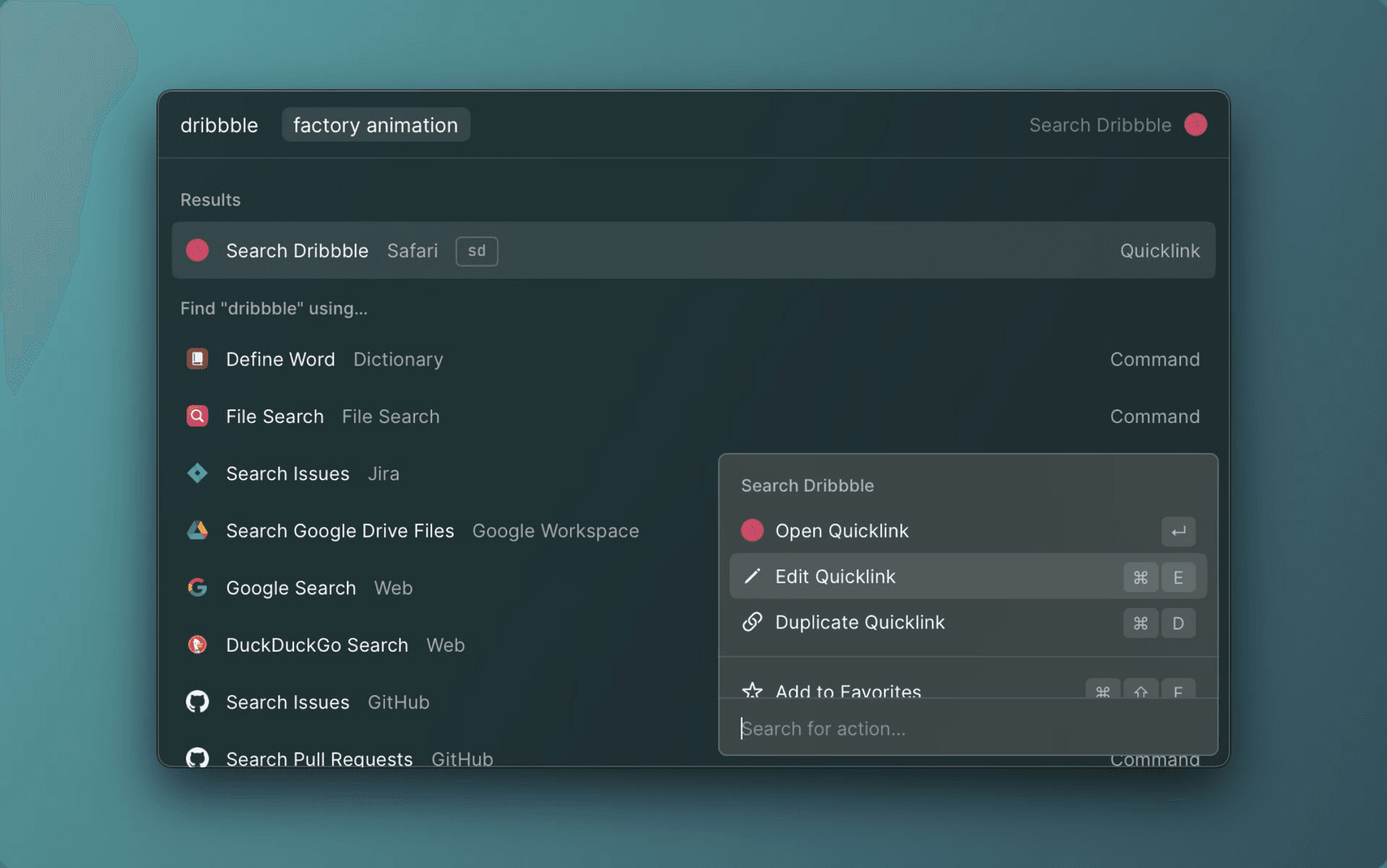
When you have a Quicklink selection open the action panel (⌘ K) to perform various actions on the Quicklink. You can edit, delete or duplicate it. You also have handy actions to copy the name or the link.
Quick Search
Finding stuff with Quicklinks has become even faster now. Just select text in any app and press hotkey for a Quicklink to pass the selected text to the first argument of the Quicklink.
You can enable it from the preferences. Go to Preferences → Extensions → Quickinks. Select Quicklinks group and on the right pane, you will find the option for Quick Search at the bottom.
This requires Accessibility permissions to get selected text from the front most application
Auto Fill
You can now enable this switch to let Raycast automatically fill the link from your active browser or your clipboard when you open the command . You can find the settings by navigating to Preferences → Extensions → Create Quicklink.
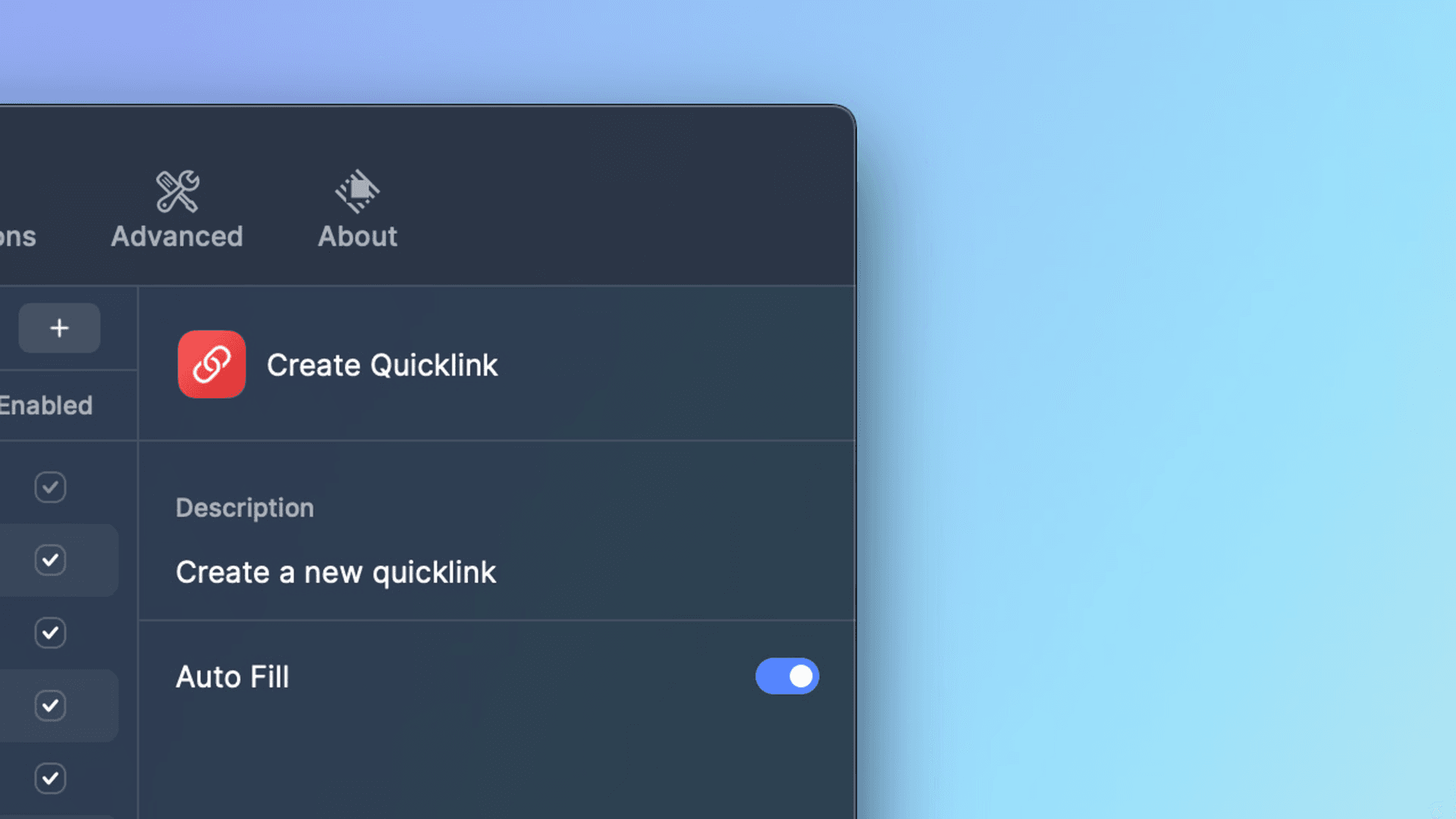
This requires Automation permissions to get url and title from the active browser tab. This features works in Safari, Chrome and a few other popular browsers. Let us know if it doesn’t work in your favourite browser.
Shared Quicklinks
If Raycast for Teams is enabled you can create shared Quicklinks for all members of your team.
Import Quicklinks
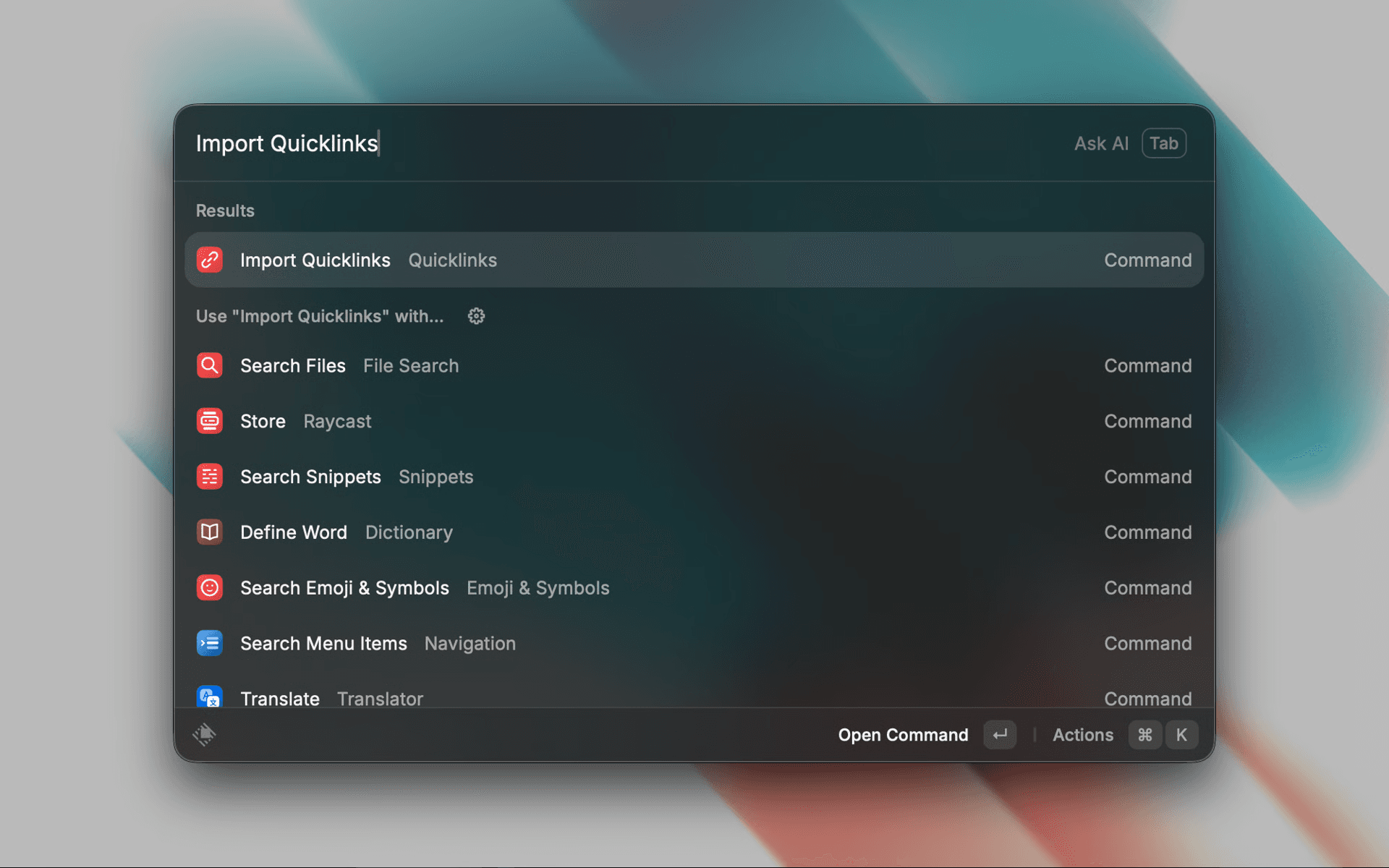
You can import quicklinks from a JSON file using the Import Quicklinks command.
JSON Format
- Root object – Array of quicklinks
- Quicklink object
name- Quicklink title. Type:String(required)link- Quicklink URL. Type:String(required)iconName- Quicklink icon. Type:String(optional)openWith- Target app to open quicklink. Type:String(optional)
If no app is specified with the openWith variable, the link will open in the default web browser. Deeplinks will be routed by the browser.
If no icon is specified with iconName, the default quicklink icon will be used.
[
  {
    "link": "https:\/\/duckduckgo.com\/?q={argument}",
    "name": "Search DuckDuckGo"
  },
  {
    "openWith": "Finder",
    "iconName": "folder-16",
    "link": "~\/Downloads",
    "name": "Downloads"
  },
  {
    "openWith": "Music",
    "link": "https:\/\/music.apple.com\/gb\/station\/apple-music-1\/ra.978194965",
    "name": "Apple 1"
  },
  {
    "link": "shortcuts:\/\/run-shortcut? Name={Test}",
    "name": "Run Shortcut"
  }
]
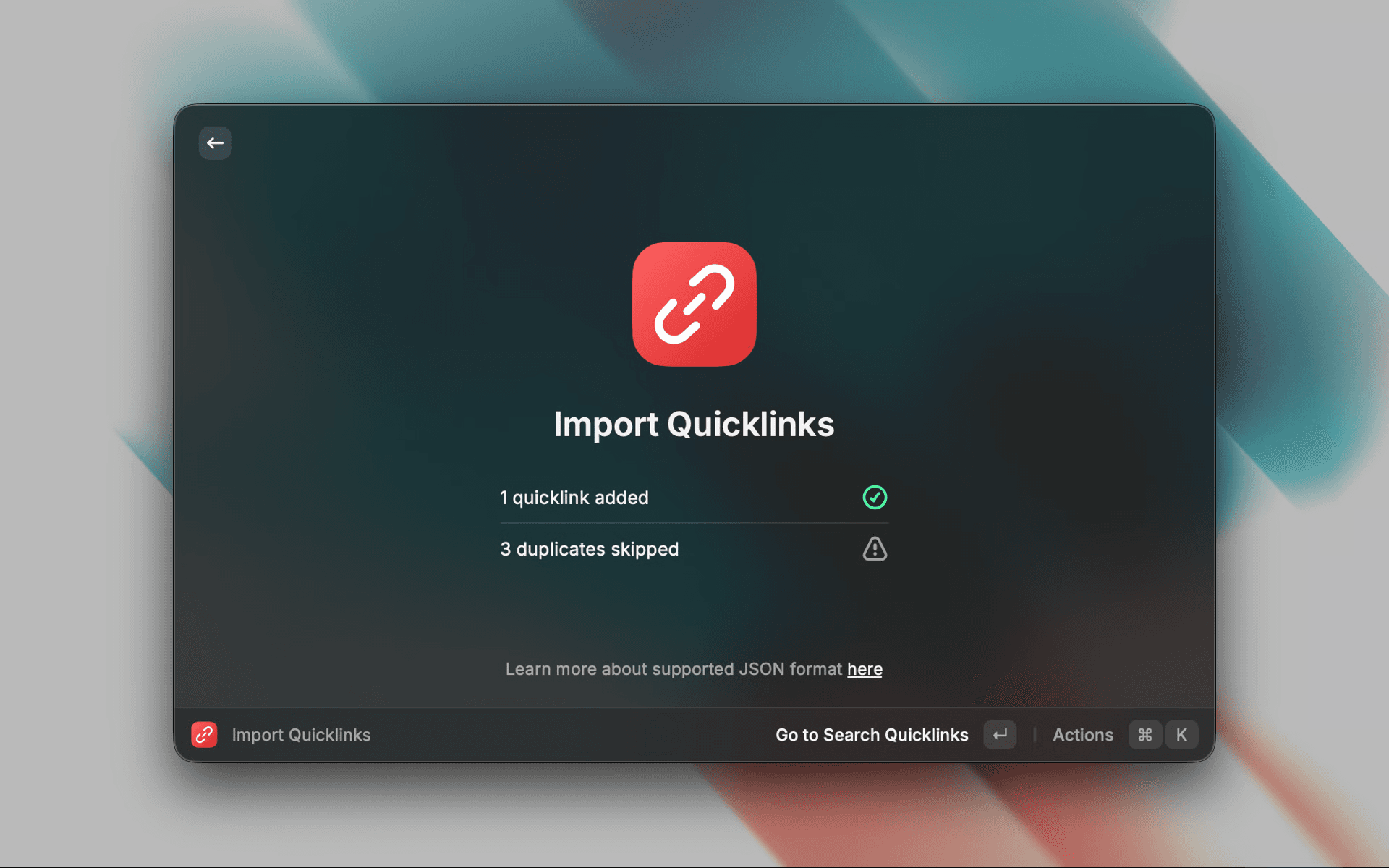
After the import is completed, you will see how many Quicklinks were added and how many duplicates were skipped. If a quick link has the same title and content, it’s considered to be a duplicate.
Read more about Quicklinks here.