SAML Single Sign-On (SSO)
Some Teams features are available in Raycast for Mac V2 and Windows, with full support coming in future updates. Raycast V1 and iOS remain unchanged.
Raycast Enterprise supports SAML-based Single Sign-On, allowing your organization to authenticate users through your existing identity provider. Once SAML is configured, users can sign in to Raycast via your IdP. When combined with Domain Capture, users with your organization's email domain are automatically directed to your IdP for authentication.
Supported identity providers include:
- Okta
- Google Workspace
- Any SAML 2.0 compliant identity provider
How it works:
- Contact Raycast to enable SAML eligibility for your organization.
- Configure a SAML application in your identity provider using the setup guide.
- Share the SAML metadata URL (or XML file) and your email domain with Raycast.
- Raycast completes the configuration and enables SSO.
- Users can then sign in via SSO. New users who authenticate through your IdP are automatically added to your organization.
Integrate with Okta
- In Okta Admin Console, navigate to Applications → Applications and press Create App Integration
- For Sign-in method, select SAML 2.0
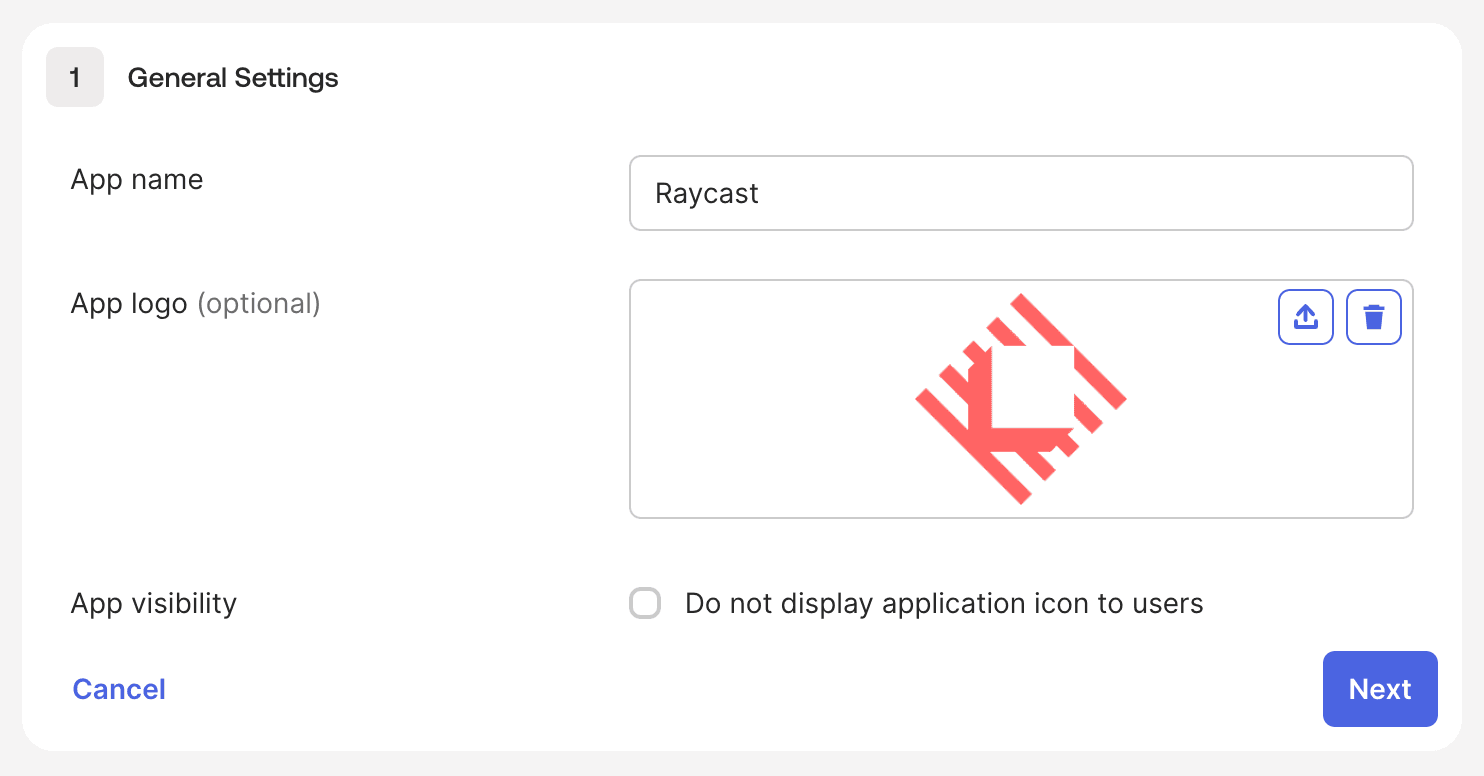
- Fill out the General Settings. You can find Raycast logos here.
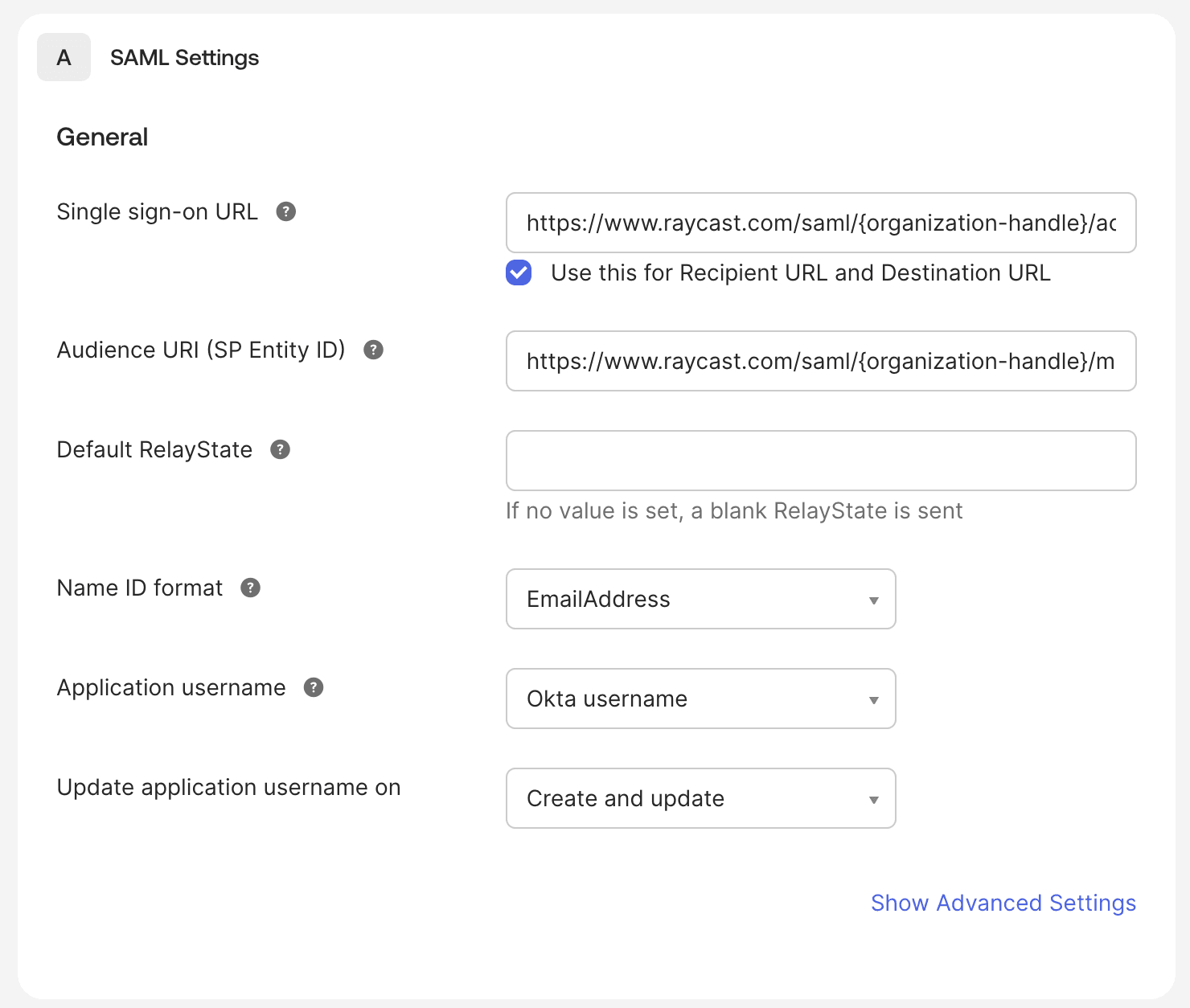
- Fill out the SAML Settings
- Single sign-on URL:
https://www.raycast.com/saml/{organization-handle}/acs - Audience URI:
https://www.raycast.com/saml/{organization-handle}/metadata - Name ID format:
EmailAddress
- Single sign-on URL:
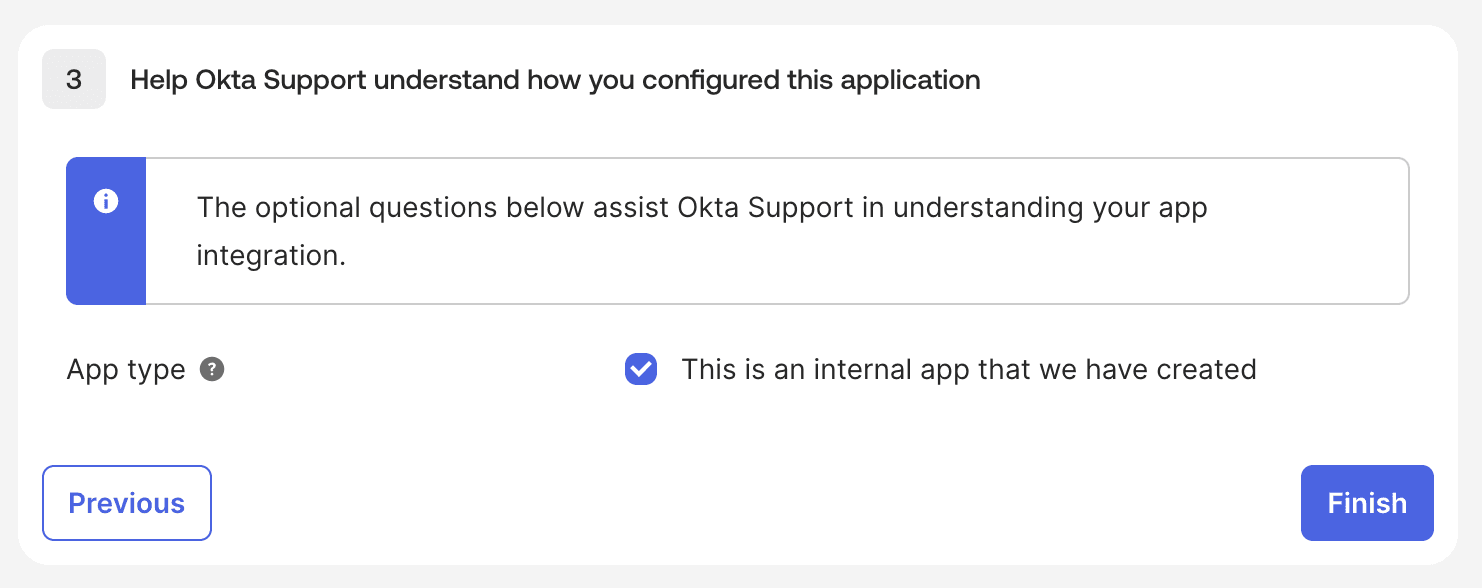
- In Feedback section mark the app as internal and press Finish
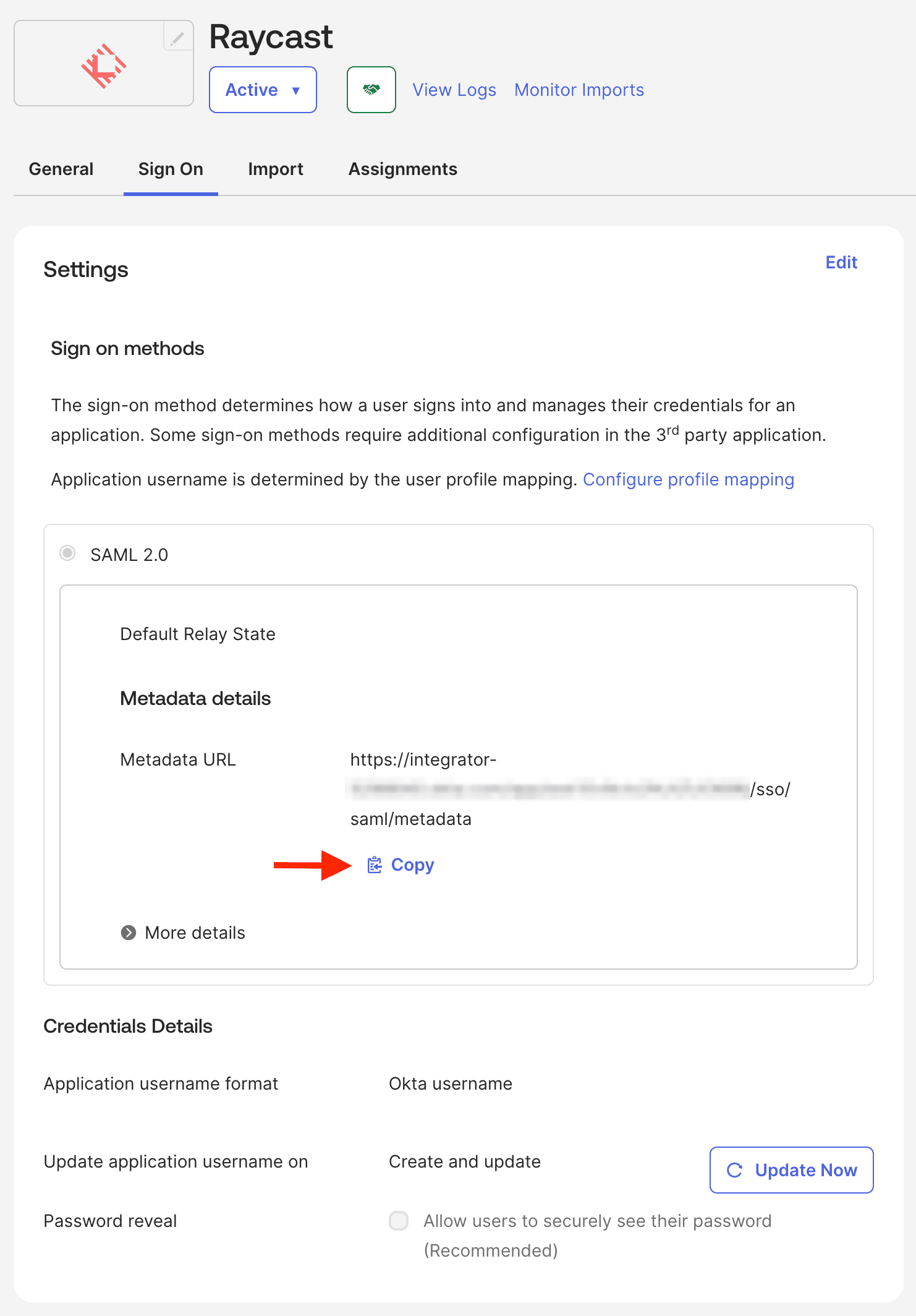
- On the next page, make sure to copy the Metadata URL and share it with Raycast
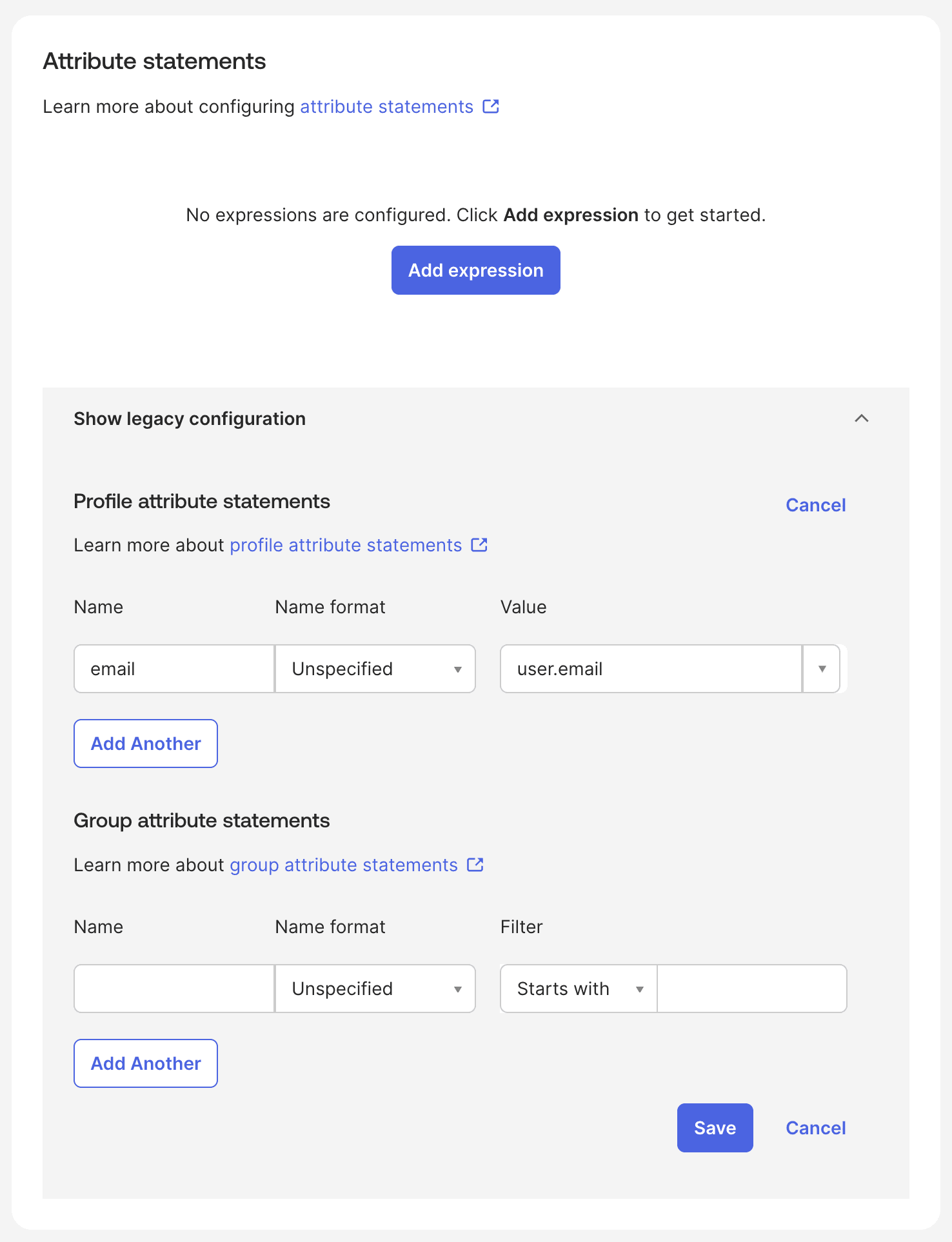
- On Attribute statements section click on Show legacy configuration and Edit
- Add a new profile attribute statement and press Save
- Name:
email - Value:
user.email
- Name:
- Inform Raycast that you have completed these steps
- Once the setup is complete on Raycast's side, you can verify that SSO is working by assigning the Application to a user in Okta, and then using that user to sign in to Raycast. A new user is expected to be created, and this user should be part of your organization.
Integrate with Google Workspace
- In Google Admin Console (admin.google.com), navigate to Apps → Web and mobile apps
- Press Add app and select Add custom SAML app
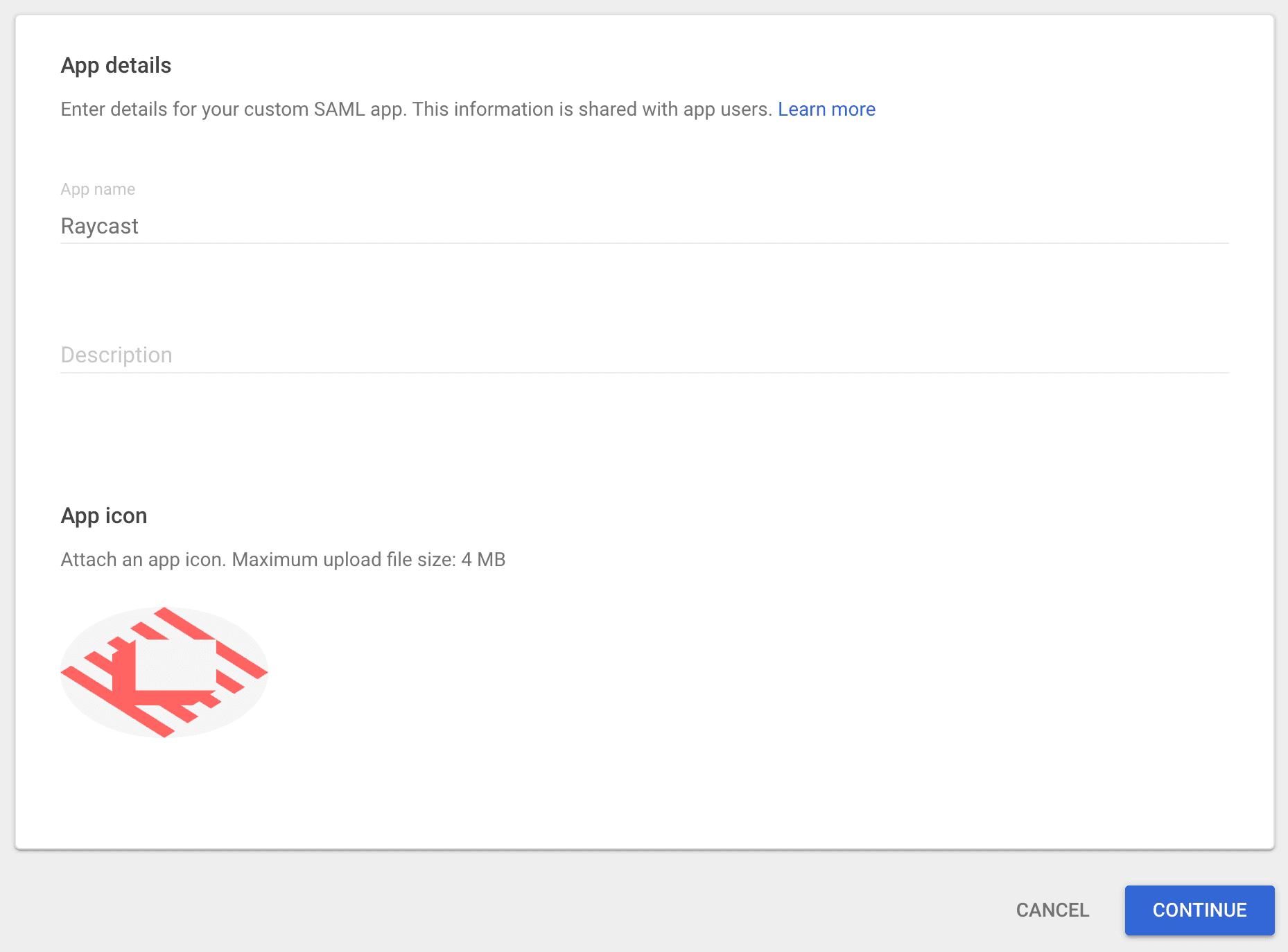
- Fill out the App details. You can find Raycast logos here.
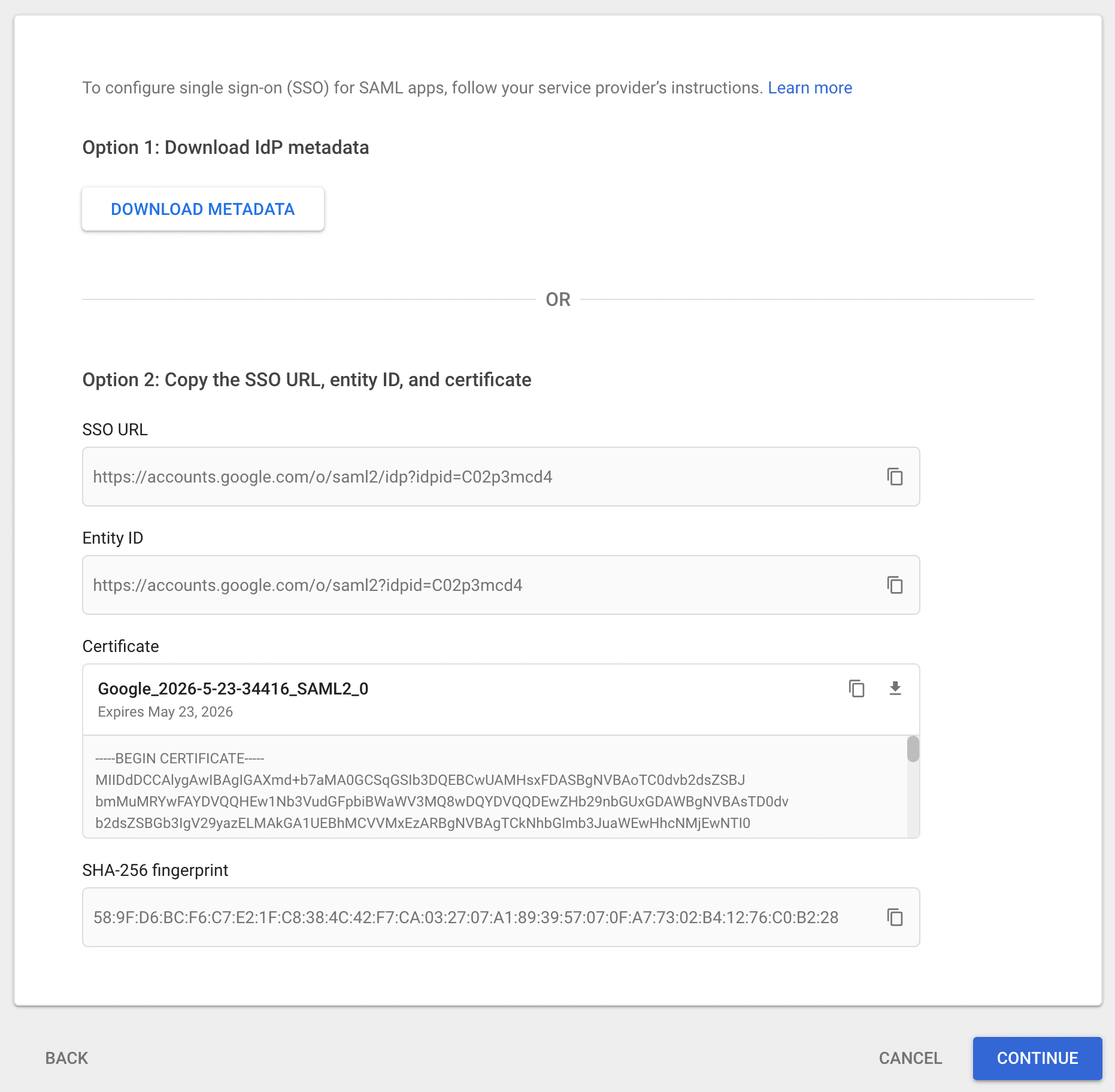
- Press Download Metadata to get your Metadata XML file and share it with Raycast
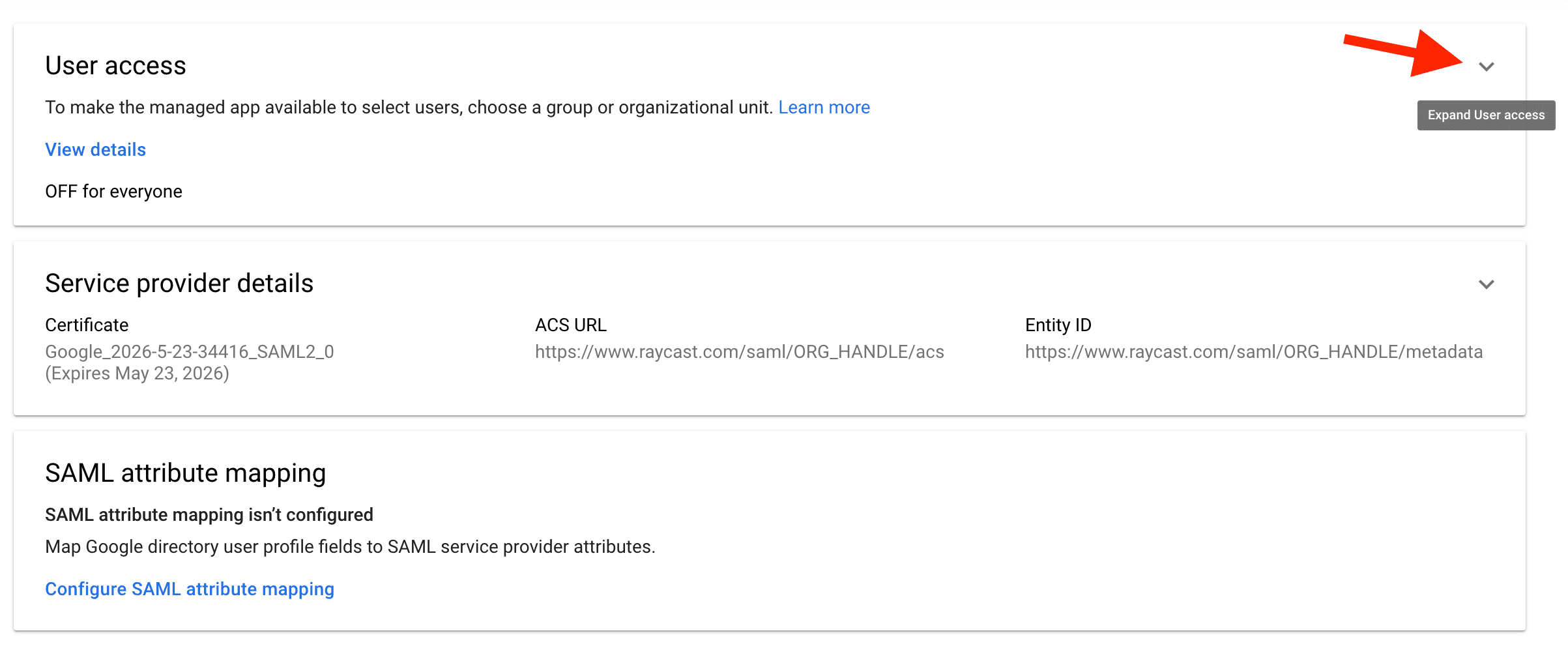
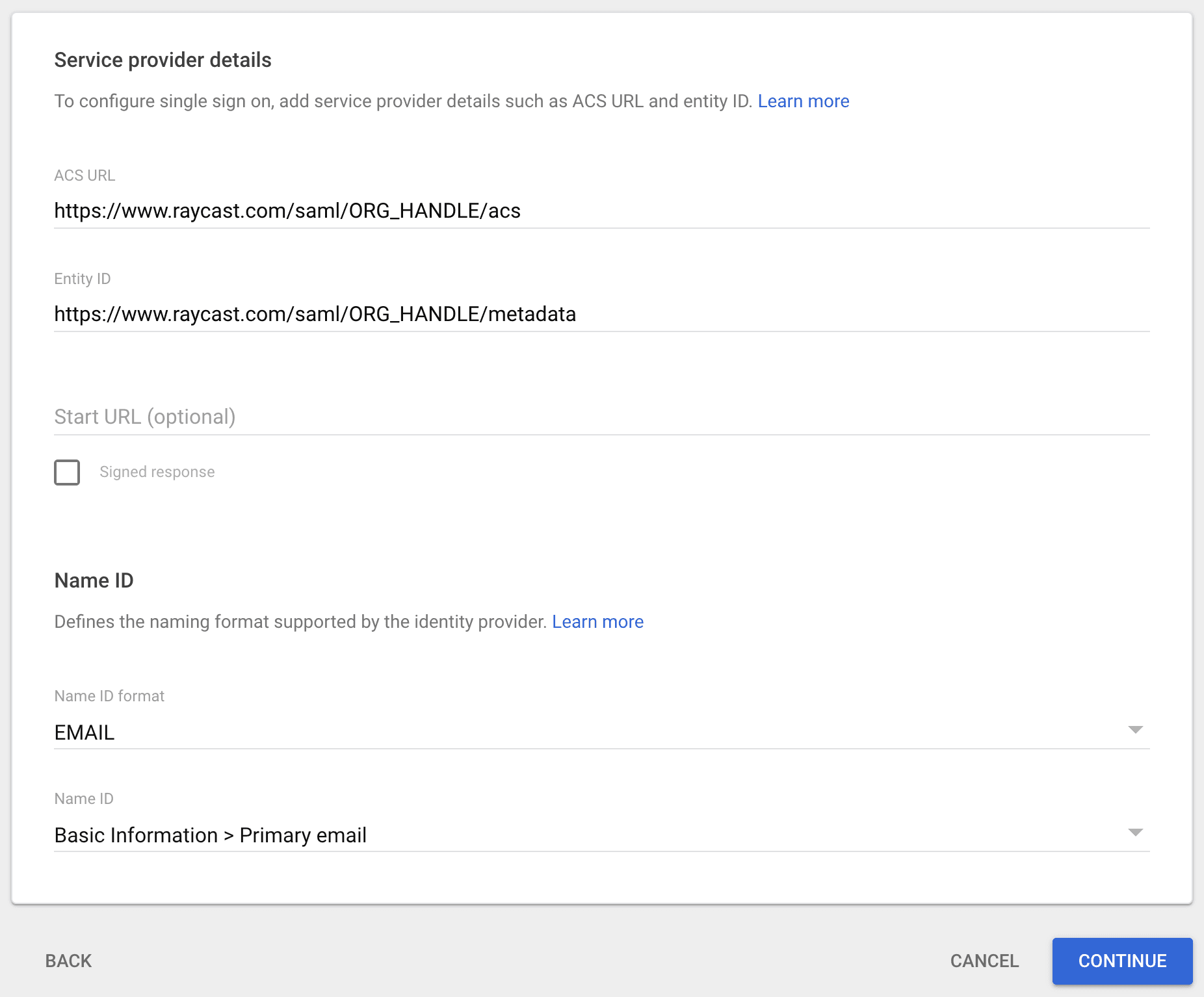
- Fill out the Service provider details:
- ACS URL:
https://www.raycast.com/saml/{your_organization_handle}/acs - Entity ID:
https://www.raycast.com/saml/{your_organization_handle}/metadata - Name ID format:
EMAIL
- ACS URL:
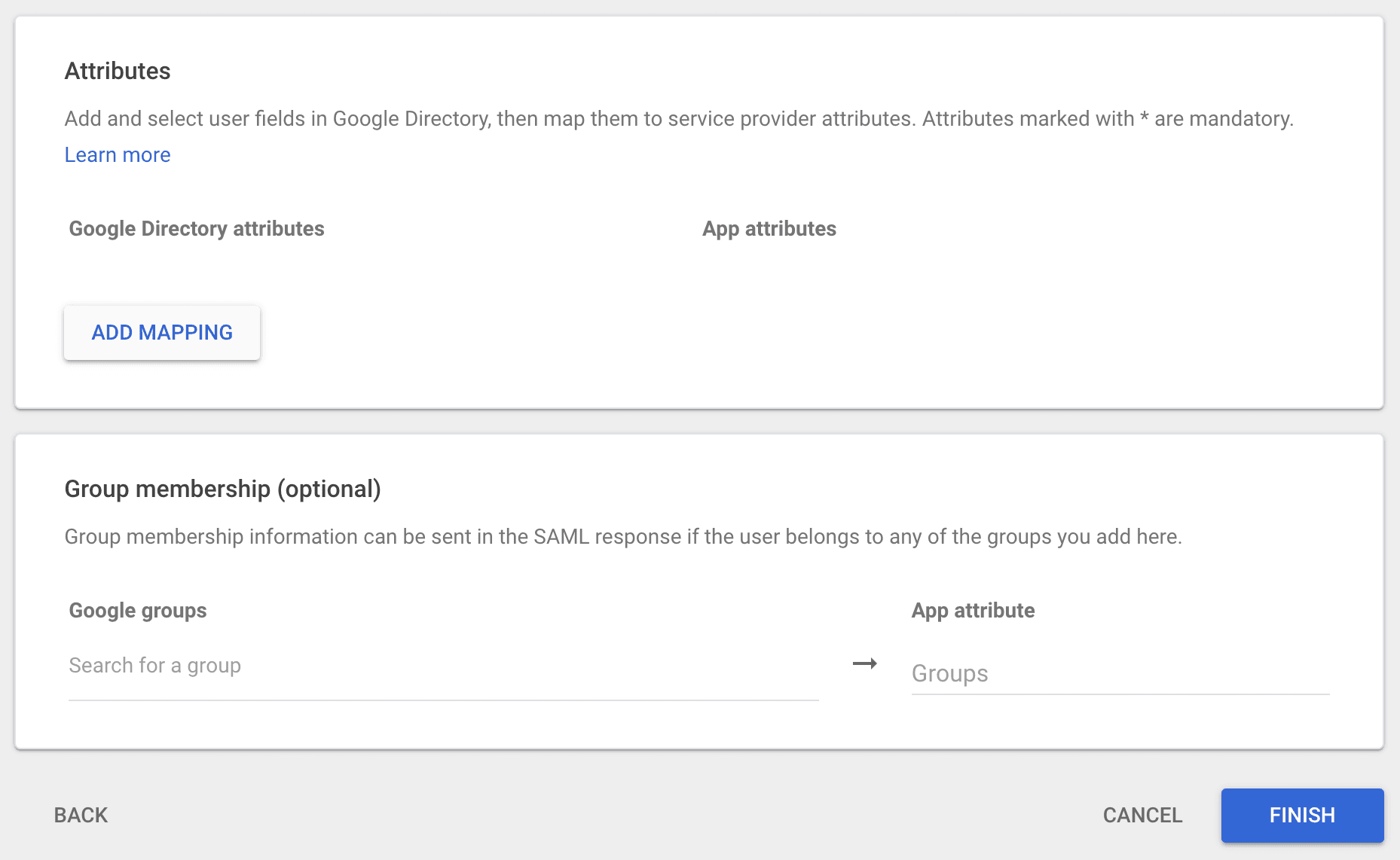
- On the Attribute mapping screen press Finish
- Inform Raycast that you have completed these steps
- To enable this for the users in your Organization or a Group within it, you will need to press the top right corner of the User access card