

AI Commands
AI Commands turn prompts you reach for again and again into a one-press Raycast command. Pick text, open the command, get the result. Build your own to match how you write, code, or think, and chain in AI Extensions when a command needs to do more.

Discover AI Commands
Built-in AI Commands
Raycast ships a set of AI Commands that work out of the box. They're tuned for everyday cases like writing, communication, and code:
- Improve Writing: Tightens grammar and style without changing your meaning.
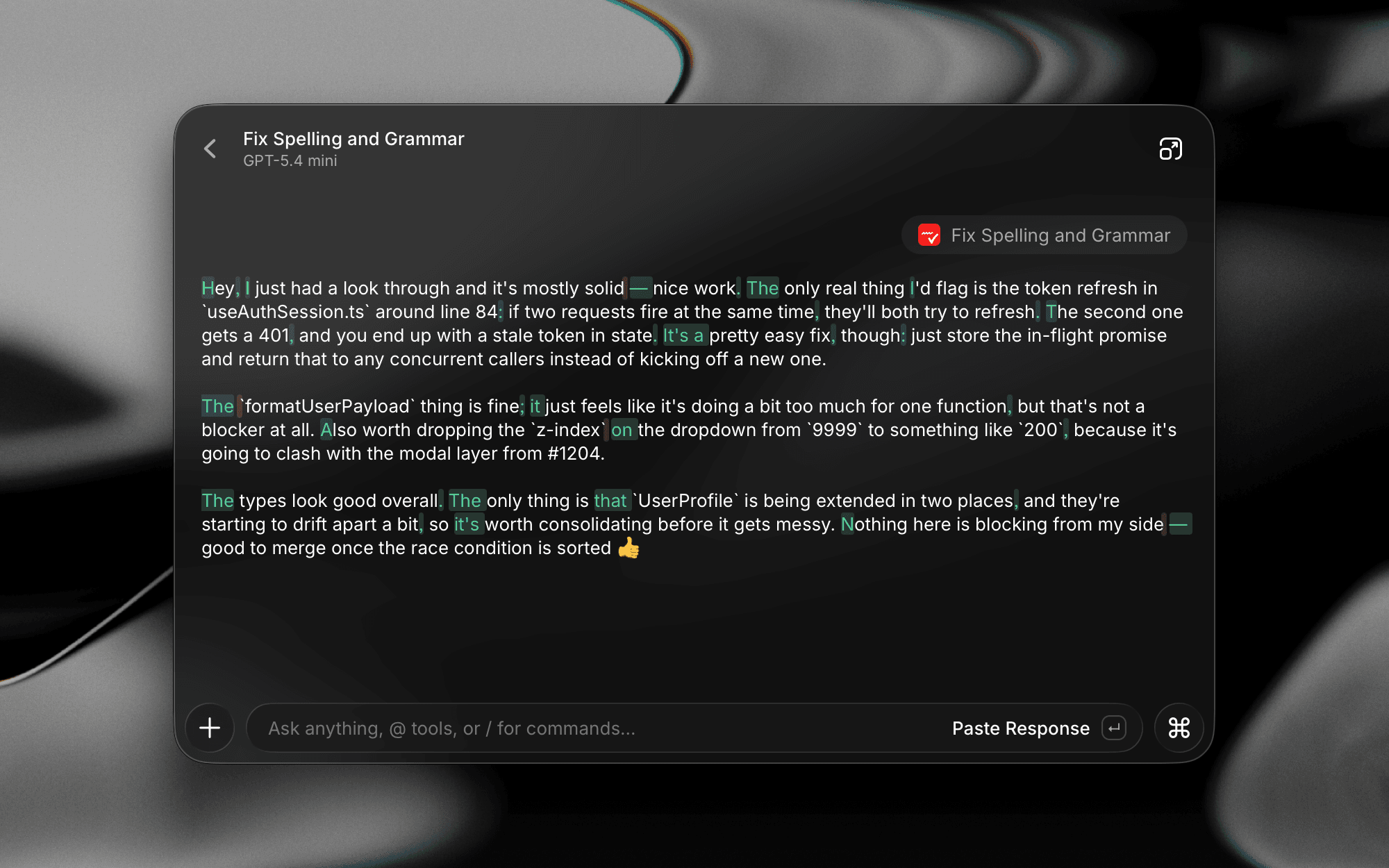
- Fix Spelling and Grammar: Corrects mistakes and highlights what changed.
- Explain This in Simple Terms: Simplifies a confusing word, sentence, or paragraph.
- Change Tone to Professional: Rewrites in a more formal register.
- Change Tone to Friendly: Warms up dry copy.
- Find Bugs in Code: Scans a snippet for likely issues.
- Summarize Webpage: Condenses the page open in your browser.
- Ask About Webpage: Answers a question about the page you're reading.
Quick Fix
Quick Fix runs the Fix Spelling and Grammar AI Command directly in any focused app with one hotkey. Type into any field (or select some text), press the hotkey, and Raycast replaces the text in place. Its settings live in Settings → AI → Quick Fix.
The first time you run it, Raycast prompts you to grant the Accessibility permission on macOS so it can read and replace text in the active app. By default, Quick Fix is assigned to a double press of the right Shift key, so you can trigger it without leaving the keyboard.
The Prefer Selection option controls whether Quick Fix targets only the selected text (default) or the entire focused field.
Preserve Formatting Experimental keeps your text's styling intact in supported apps like Slack and Notion. Raycast merges the corrections back into your original message, so bold text, links, and Slack custom emoji survive the fix rather than being rewritten.
Create AI Commands
To make your own, search the Create AI Command command in Root Search. You'll see a form with one required field and a handful of optional ones.
- Prompt: The instructions sent to the model. Type
@to insert an AI Extension or{to insert a Dynamic Placeholder. - Name & Icon: How the command appears in Root Search.
- Organization: If you're in a Raycast team, choose whether the command is personal or shared with your organization.
- Model: The model used when the command runs. AI Commands have their own model setting, independent of Quick AI and AI Chat.
- Creativity: How loose the model's responses should be (none, low, medium, high, maximum).
- Reasoning Effort: For reasoning models, how much thinking the model should do before responding.
- Output Behavior: Where the command's response goes. Open in Raycast shows it in a Raycast window, or Replace Selection writes the result back in place over your selected text.
- Highlight Editing Changes: Useful for commands that rewrite selected text in-place. Raycast highlights what was edited.
- Tags: Free-form labels for organizing your commands.
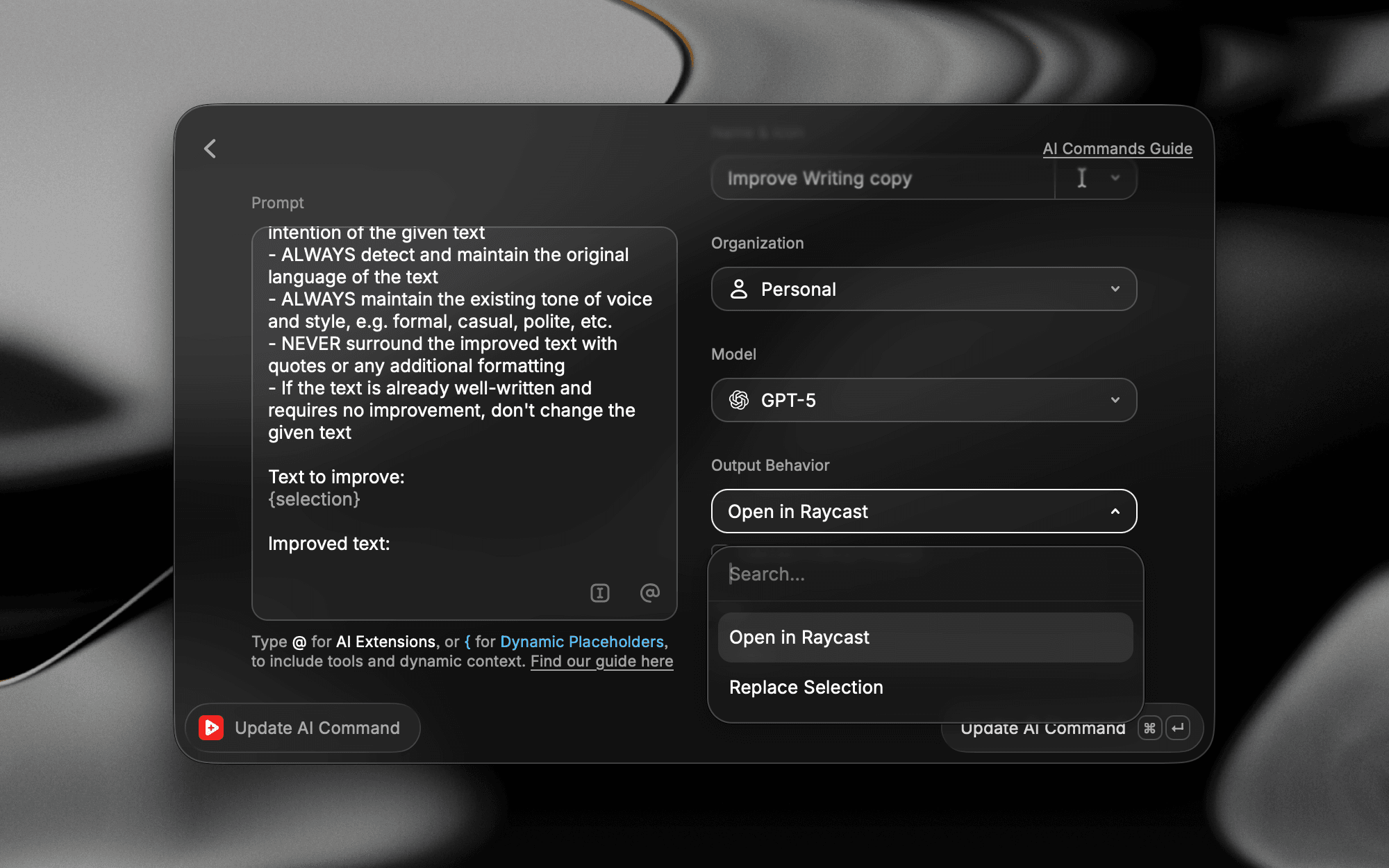
Press ⌘Enter / CtrlEnter to save. The command appears in Root Search immediately.
Built-in commands can be the starting point for your own. Find one in Search AI Commands, press ⌘D / CtrlD to duplicate, then tweak the prompt, model, and creativity to match how you actually work.
You can set a default model for AI Commands in Settings → AI → Models & Providers, under Custom AI Commands. This default applies to commands that don't have a specific model selected. If you choose a model on an individual command, that per-command choice always takes priority over the default, and changing the default later won't update commands that already have a model set.
To change the model an existing command uses, edit that command directly (AI Commands → select the command → Model) and pick the model there.
Each AI Command stores its own model, and there isn't currently a "use default" option per command. To apply your default model to an existing command, update that command's Model field manually.
Using AI Commands
Run an AI Command from Root Search like any other command. Most commands work on the active app's selection or focused field, so you typically:
- Select some text in any app.
- Open Raycast.
- Search for the command and hit Enter.
Raycast shows the response in a window, and from there you can copy it, paste it, or continue the conversation with Raycast AI to refine or discuss the output.
A few prompt patterns to get you started:
Translate {selection} to Swedish: Translate whatever you've highlighted.Summarize {selection} into three bullet points: Quick TL;DR.Reply to this email in my tone: {selection}: Drafted replies on tap.{argument name="Language"}: When you want to type a value at runtime, use an argument placeholder. Raycast prompts you for Language before the command runs.
{selection} and {argument} are two of many Dynamic Placeholders you can drop into a prompt. Others pull in your clipboard, the current date, the focused app, and more.
You can also pull in AI Extensions to make commands act on your tools, not just text. A command with @calendar what does my afternoon look like? becomes a one-shot daily check-in.
Manage AI Commands
Search Search AI Commands in Raycast to see every command you've created or that's built in. From the Action Panel:
- Edit AI Command (⌘E / CtrlE): Open the command in the form view to change any field.
- Duplicate AI Command (⌘D / CtrlD): Copy a command. The fastest way to start from a built-in.
- Share AI Command: Generate a shareable link for a command so a teammate can install it with one click.
- Import AI Commands: Bring in a set of commands from a JSON file. Use Import AI Commands in Root Search.
Built-in commands can be edited and duplicated but not deleted; your custom commands can be removed from the same Action Panel. Tags make it easier to keep a large library organized. Assign them when creating or editing, and filter by them in Search AI Commands.
Permissions
Quick Fix needs Accessibility access to read and replace text in the active app. Grant it in System Settings → Privacy & Security → Accessibility (renamed Device Control and Data Access on macOS 27). Raycast prompts the first time you run the command if the permission is missing.