

File Search
File Search turns Raycast into the fastest way to find a file on your computer. Type in Root Search and matches appear inline as you go or use the Search Files command for richer details and metadata without opening Finder or Explorer.
Get Started
- Start typing a file or folder name in Root Search. Matching results appear inline alongside your apps, commands, and history.
- Press ↵ to open the selected result, or ⌘K / CtrlK to open the Action Panel for more actions.
- For a richer view, open the Search Files command. The command will show a wider results list, a details panel showing file metadata, and the same actions as Root Search. When the search field is empty, the command shows your Recently Used files.
By default, File Search matches on file name alone. To also match on what's inside your files, turn on Content Search.
Type any file path into Root Search and you'll see an Open in Finder or Open in File Explorer command to take you straight to that location.
Sort a Folder
When you browse into a folder path, a Sort Folder By dropdown appears in the Navigation Bar. Press ⇧⌘P / CtrlShiftP to switch between Date Modified, Date Created, and Name. Raycast remembers your choice for the next folder you browse.
What Gets Indexed
By default, Raycast indexes your home folder, and on Mac it also indexes /Applications. Hidden files are excluded, and Raycast respects .gitignore, .ignore, Git exclude files, and .rayignore files. Common noise like node_modules, *.tmp files, and system caches is filtered out automatically.
Raycast also skips the state and cache folders that developer tools keep in your home folder, such as the caches and sessions inside .claude, plus .codex, .npm, .cargo/registry, and .swiftpm. Files you wrote yourself in those folders, like .claude/settings.json or anything under .claude/skills, are still indexed.
Your file index is stored locally on your device and is never synced or uploaded to Raycast servers.
Permissions
On first launch, Raycast requests permission to scan your home folder. If you prefer, grant permission to individual folders instead and File Search will index just those. If you skip this during setup, you'll see a prompt when you open the Search Files command.
If you choose to limit access to specific folders rather than granting it to your whole home folder, Raycast shows a one-time warning explaining that indexing (and File Search results) will be limited to the folders you picked, so you know what to expect before confirming.
.rayignore
A .rayignore file works like .gitignore, but for Raycast's File Search. Place one in any folder to tell Raycast what to skip. List one path or glob pattern per line, and rules apply to that folder and all subfolders. This is useful when you want to exclude something from File Search without touching your Git config, such as a tracked build directory you don't want cluttering results.
The Exclude from Index action in Search Files handles this for you. Select a file, run the action, and Raycast walks up the directory tree to find the nearest .rayignore, appends the rule, or creates a new .rayignore in the file's parent folder if none exists.
Settings
All File Search settings can be found in Settings → File Search.
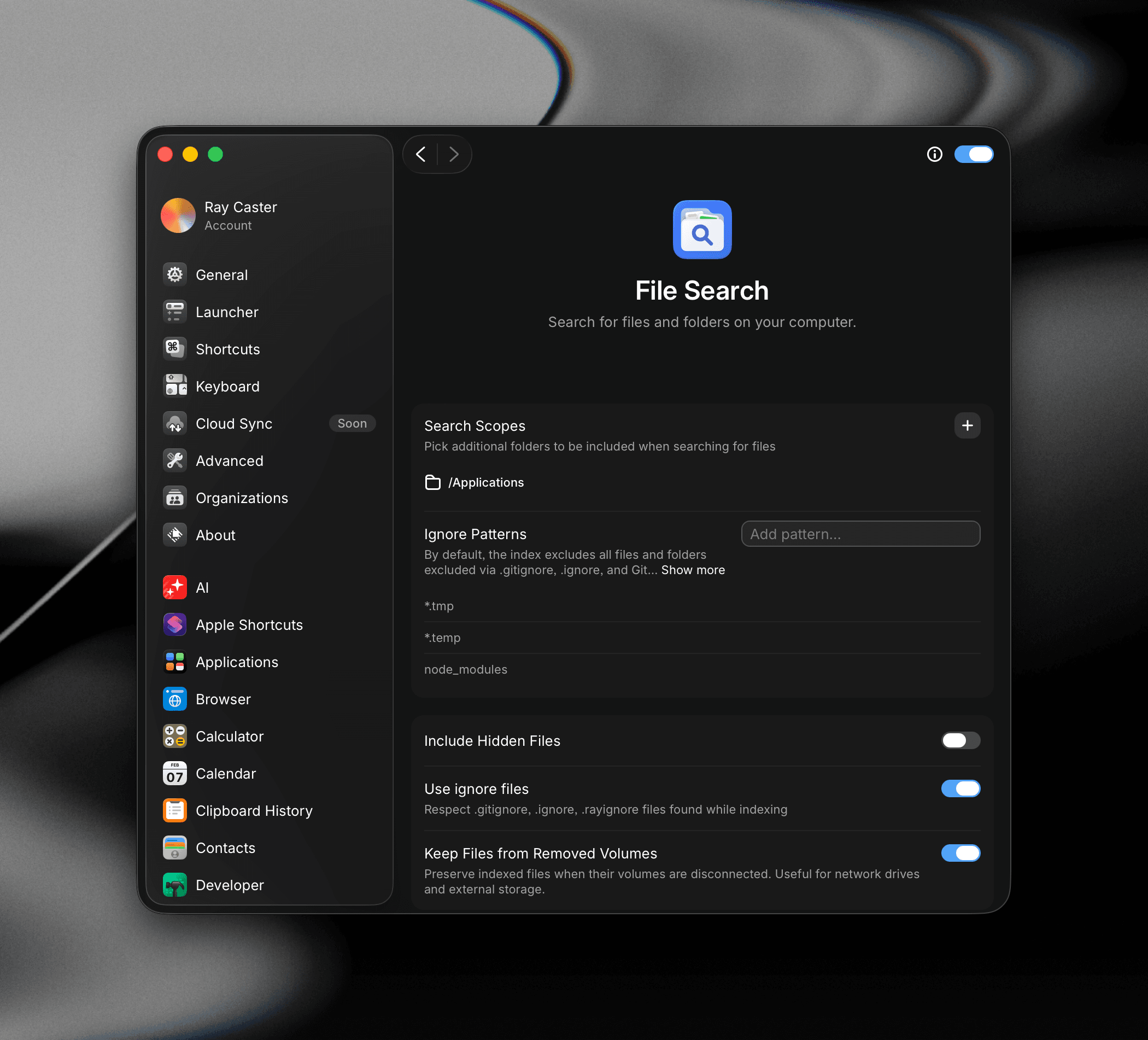
- Content Search: Also match on the text inside files, not just their names. See Content Search below.
- Search Scopes: Add or remove additional folders to be included when searching for files. Useful for bringing in an external drive or a specific project folder not in your home folder.
- Ignore Patterns: Comma-separated glob patterns to skip globally (for example
*.log, build/**). Combine with.rayignorefiles for per-folder rules. - Include Hidden Files: Index dotfiles, folders that start with
., and other hidden files on your system. - Use Ignore Files: Respect
.gitignore,.ignore, and.rayignorefiles. On by default. - Index Network & Removable Drives: Index files on network shares, removable drives, and virtual filesystems, including ones mounted inside your search scopes.
- Keep Files from Removed Volumes: Preserve indexed results for files on external or network drives even when those drives are disconnected or unavailable.
- Excluded Automatically: Folders an app keeps rewriting, like build output and caches, that Raycast stopped indexing on its own. Each row shows how many reindexes it saved.
- Enforce Low Disk Space Block: Stop indexing if the estimated index wouldn't fit in your available disk space. Off by default. See Enforce Low Disk Space Block below.
- Reset to Defaults: Restore all File Search settings to their defaults. See Reset to Defaults below.
If you would like to turn off File Search in Root Search, you can do so from Settings -> Launcher -> Include Files in Root Search.
Content Search
Content Search lets Raycast find files by what's inside them, not just their names. It uses your operating system's built-in search index (Spotlight on macOS, Windows Search on Windows), so it only works when that index is healthy and covers your File Search folders.
To turn it on, open Settings → File Search and toggle on Content Search. If the toggle is grayed out, your OS index isn't covering your File Search folders yet — fix that first (below), then enable it.
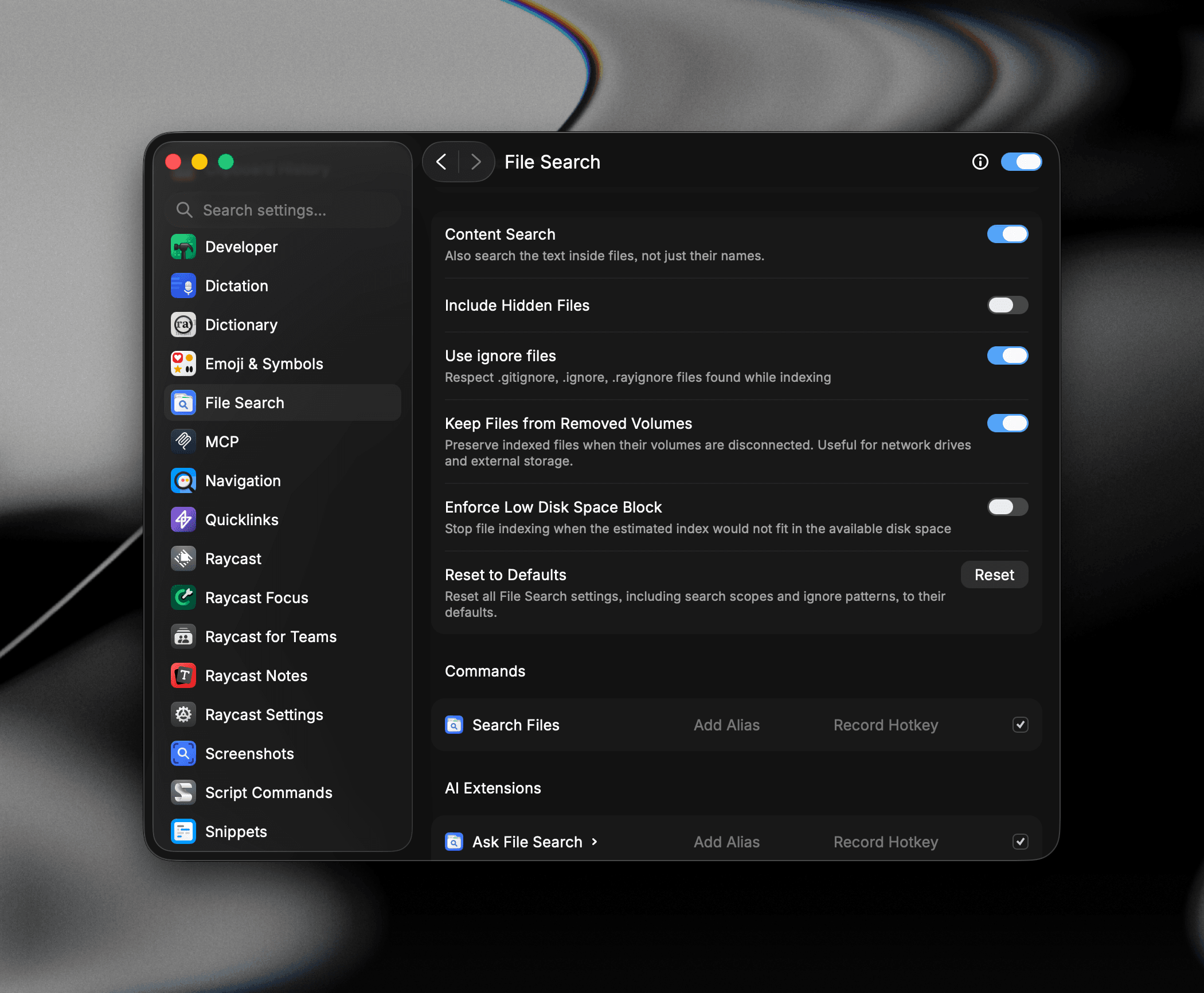
If Spotlight isn't indexing your File Search folders, Content Search shows a warning and the toggle stays disabled.
- Open System Settings → Spotlight (Raycast's warning has an Open Spotlight Settings shortcut).
- Make sure your File Search folders are not in Spotlight's Privacy / excluded list. Remove any you want searchable.
- Give Spotlight time to finish indexing, then re-toggle Content Search.
Enforce Low Disk Space Block
Off by default, and currently available to some users. When enabled, Raycast stops indexing your files if it estimates the index wouldn't fit in your available disk space, protecting you from a large index filling up your drive.
If indexing is blocked because you're low on space, Raycast shows a warning at the top of File Search settings ("You are low on disk space, which may prevent Raycast from indexing your files"). To resolve it, free up disk space, then re-run indexing. If you'd rather let indexing proceed regardless, turn this setting off.
Reset to Defaults
If your File Search settings get into a messy state, or you just want a clean slate, you can restore everything to its defaults in one step.
- Open Settings → File Search.
- Scroll to Reset to Defaults.
- Click Reset.
- Confirm in the dialog ("Reset File Search Settings?"). Your files will then be re-indexed.
Resetting restores all File Search settings to their defaults, including:
- Search directories (scopes) — back to the defaults (your Home folder and Applications).
- Ignore patterns / exclusions — back to the default set.
- Other toggles like Include Hidden Files, Use Ignore Files, and Keep Files from Removed Volumes.
After you confirm, Raycast re-indexes your files so search reflects the restored settings. Depending on how much you have indexed, this can take a little while to complete.
This only affects File Search settings. It doesn't delete your files or change settings elsewhere in Raycast.
Actions
With a file selected in either Root Search or the Search Files view, press ⌘K / CtrlK to open the Action Panel. Several File Search-specific actions you can use in Raycast:
- Show Details in File Search: Opens the Search Files command to the selected file with the details panel open.
- Quick Look: Preview the file without opening it.
- Open in Terminal: Opens the folder in your default terminal. Folders only.
- Save as Quicklink: Turn the file into a Quicklink so you can launch it by name later.
- Save as Duplicate: Creates a copy of the file alongside the original.
- Share…: Sends the file through your system's share options. Root Search results only.
- Send to Quick AI / Send to AI Chat : Attach the file to a new Chat as context. Files only.
- Toggle Hidden Files: Includes hidden files on your computer in File Search.
- Index Files: Force a fresh scan of your file index. You can also use the Stop Indexing action from the indexing toast to pause it.
AI Extensions
File Search ships with AI Extensions you can call in AI Chat or Quick AI with an @ mention to ask about your files in natural language — for example "find the PDF I downloaded last week from Apple" or "open the most recent screenshot from this morning" — without knowing the exact file name.
- Ask File Search (
@file-search) — queries Raycast's own File Search index, so it reflects your configured search scopes, ignore patterns, and (if enabled) Content Search. - Ask Finder (
@finder) — asks against macOS Finder.
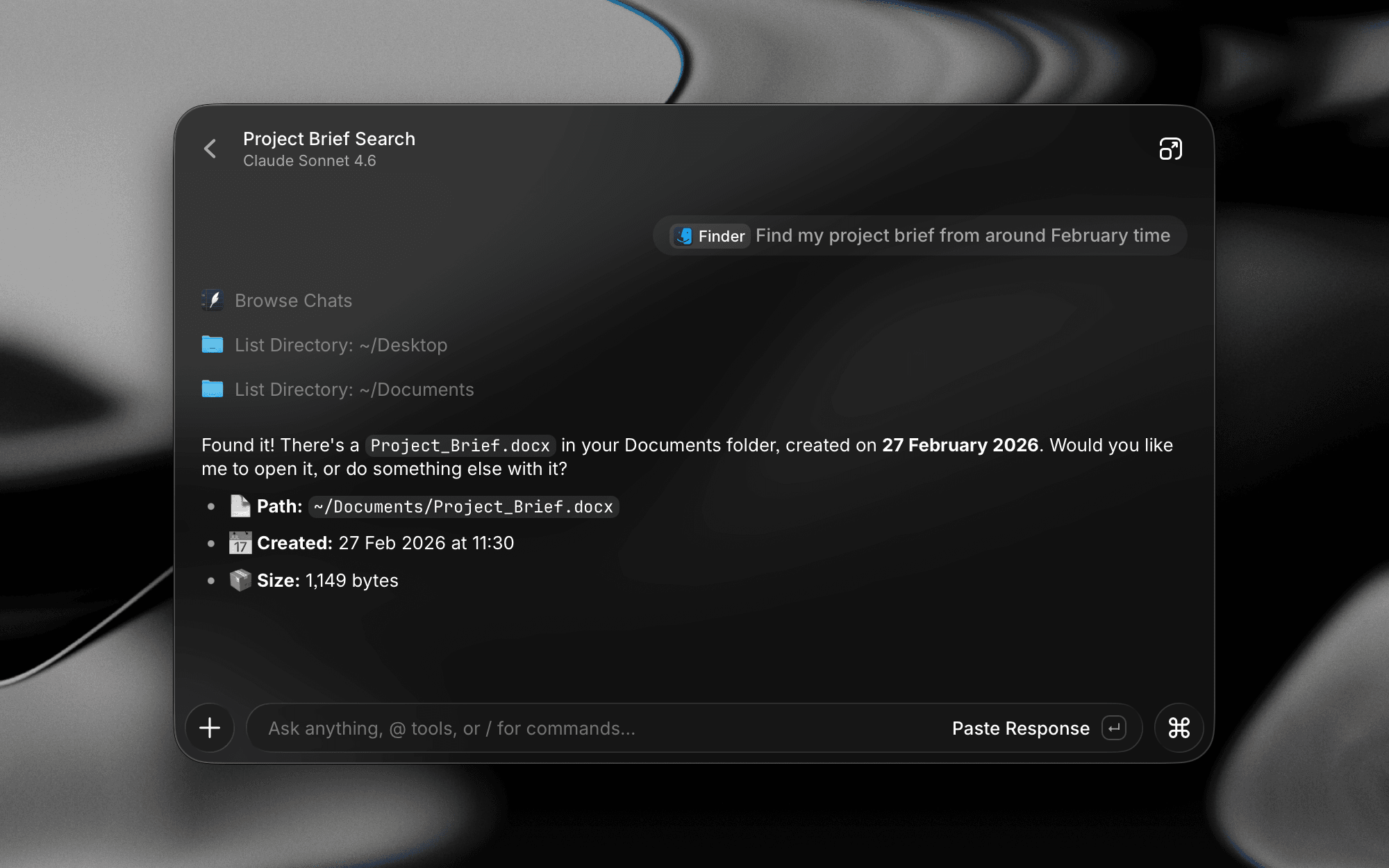
Each can be given an alias and hotkey, and toggled on/off, from the AI Extensions section of File Search settings.
Both extensions are also available as fallback commands. This means you can type your file search into Root Search with no matching results and use the Use with Ask File Search or Use with Ask Finder command at the bottom of results to locate it on your Mac.
Troubleshooting
If File Search isn't working as expected, here are some common issues and steps to resolve them.