

Bring Your Own Key
Bring Your Own Key (BYOK) lets you connect your own API key from Anthropic, Google, OpenAI, or OpenRouter and use it across Raycast's AI features. If you already have credits with a provider, you can utilize them in Raycast: your model conversations run on the provider credits associated with your key rather than against Raycast AI limits. You'll be responsible for the API costs incurred at the provider's standard rates.

You can add one API key per provider from Anthropic, Google, OpenAI, and OpenRouter. Be sure to monitor the provider's API console to prevent costly surprises when using your own key. For Anthropic, Google, and OpenAI, only AI models available in Raycast AI will be available as models through BYOK. An OpenRouter key unlocks OpenRouter's full model catalog instead.
If using BYOK with Anthropic, Google, or OpenAI, requests are processed through our servers in order to unify the model APIs, integrate fallback behaviors, and do some final prompt management. OpenRouter is the exception: requests made with your OpenRouter key go directly to OpenRouter's servers. Learn more about BYOK and Privacy on the Raycast AI Privacy & Security page.
A few tools that Raycast runs on its own servers, such as image generation, still use a Raycast AI model for that step and count against your AI credits. Everything else is billed to your key, not your AI credits.
Add a Key
- Open Settings → AI → Models & Providers.
- In the API Keys section, click to add your key.
- Select your provider from the dropdown.
- Paste your key into the API Key field, then click Verify. Raycast will check the key with the provider to ensure it can be used.
- Once verified, click Save. The key is stored securely and the provider appears in your API Key list.
If you don't yet have a key, the Manage in [Provider] Console button opens the provider's key console page in your browser.
Managing & Deleting Keys
Each configured provider entry in the API Keys list will show:
- A toggle to enable or disable the key without deleting it. Disabled keys won't be used for any AI request.
- Remove the key entirely.
- Shortcut to the provider's console for rotating or revoking the key on their side.
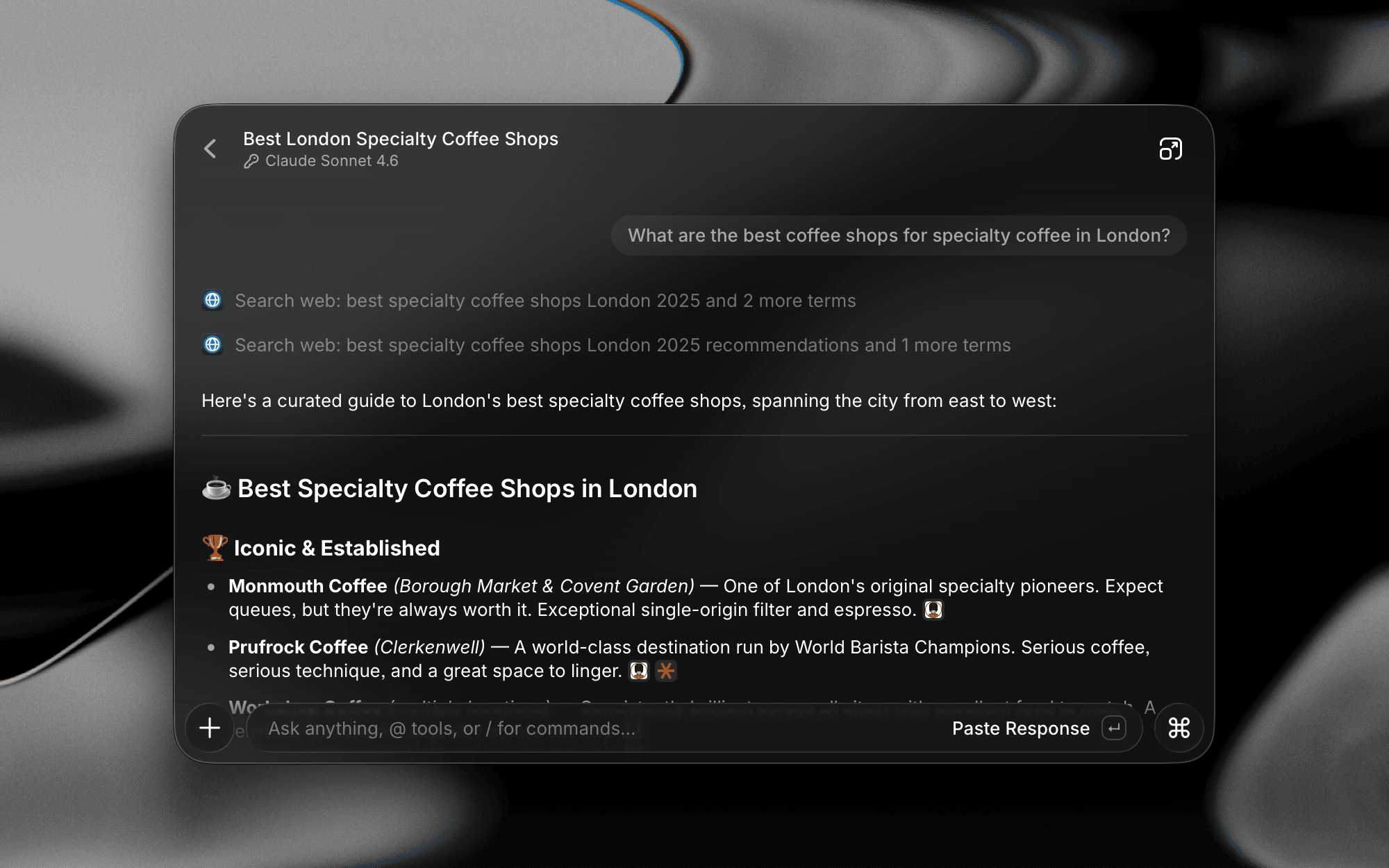
When an API key is active, a small key icon appears next to that provider's model names in Raycast AI to show that the request will use your provided API key.