

Agents
Agents are for the questions and tasks you handle over and over, tailored to your way of working. Instead of configuring from scratch each time, you save the role, model, and tools as an Agent and pick it when you need it. An Agent follows it the whole chat, so you get consistent results for a particular kind of work.
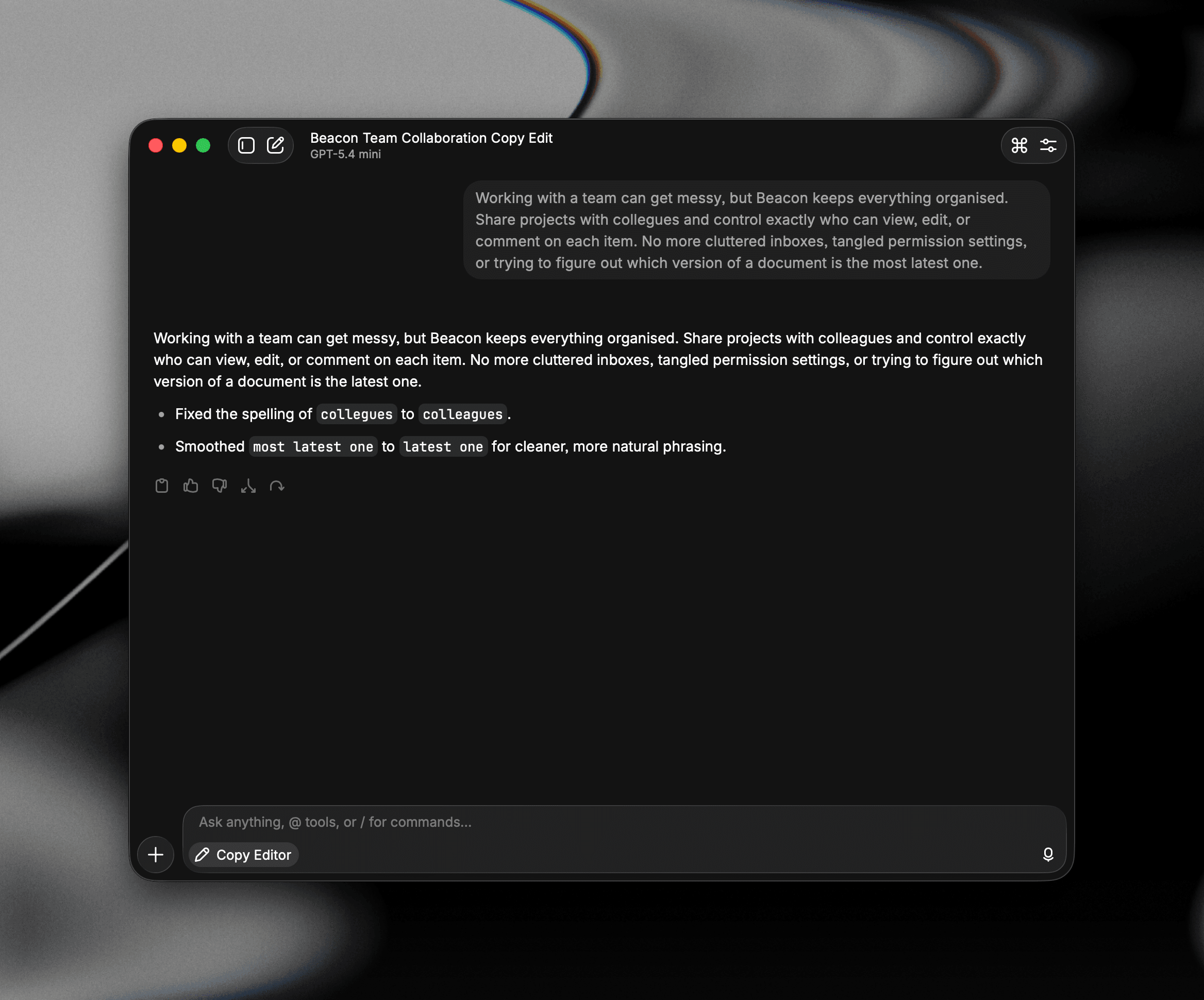
Agents were previously called Presets in Raycast v1. They're functionally the same — only renamed.
Get Started
To build your first Agent:
- Open Settings → AI → Agents.
- Click Create New Agent.
- Personalize your agent with the following:
- Name & Icon: Give the Agent a clear name and pick an icon.
- Model: Choose the model the Agent should use, or use Inherit to use the Chat's selected model. If you set a model, it's locked for any chat using that Agent.
- Organization: If you're in a Raycast team, choose whether the Agent is personal or shared with your organization.
- Instructions: Write the system prompt that defines the Agent's role and rules. Lead with the role and the rules it should always follow.
- AI Extensions: Add the AI Extensions this Agent is allowed to call. Only the extensions you add here are available to it, which scopes the Agent to just the AI Extensions its task needs.
- Advanced: When the selected model supports it, set Reasoning Effort.
- Click Save Agent (⌘↵ / Ctrl↵).
Your new Agent is immediately available in AI Chat's Change Agent action and in the Search Agents command. To use it, open AI Chat, open the Action Panel (⌘K / CtrlK), choose Change Agent, and pick it.
Built-in Agents
Raycast includes a ready-made Deep Research Agent — tuned for thorough, source-backed answers — so you can see how Agents work without building one first.
Built-in Agents can't be edited or deleted, but you can use the Disable option to hide it.
Looking for more Agents? Browse a community library of ready-made Agents on the Preset Explorer and add any of them to Raycast in one click.
Use an Agent in Chat
There are two ways to switch Agent inside AI Chat:
- Action Panel: Open the Action Panel (⌘K / CtrlK) and choose Change Agent, then pick any Agent — or pick Ask Anything to remove it.
- Slash menu: Type
/in the composer to open a quick switcher, then pick an Agent from Custom Agents or Built-in Agents. Choose Default to clear the current Agent.
When an Agent has a model assigned, the chat's model picker is locked to that model — the Agent decides which model is used. Agents using models set to Inherit allow you to switch models in the chat as usual.
You can also start a new conversation already set to an Agent with the New Chat with Agent action, available both in the Agents settings and from the Search Agents command.
Search Agents from Root Search
Agents are also visible Root Search and through the Search Agents command. Open the command to browse your Agents (grouped into Custom Agents and Built-in Agents), search by name, and use specific actions in the Action Panel:
- New Chat with Agent: Press ↵ to open AI Chat with that Agent active.
- Create Agent: Go straight to the new Agent dialog in Settings.
- Edit Agent / Duplicate Agent: Open the Agent dialog to change a custom Agent, or clone any Agent as a new one.
- Configure Agent: Assign a hotkey or alias so you can launch the Agent directly from Root Search.
- Hide/Show in Root Search: Control whether an Agent appears as its own item in root search.
- Delete Agent / Delete All Agents: Remove a single custom Agent or all of them.
Because each Agent is its own Root Search item, you can give a frequently used Agent a hotkey and jump straight into a new AI Chat with it without opening it first.
Settings
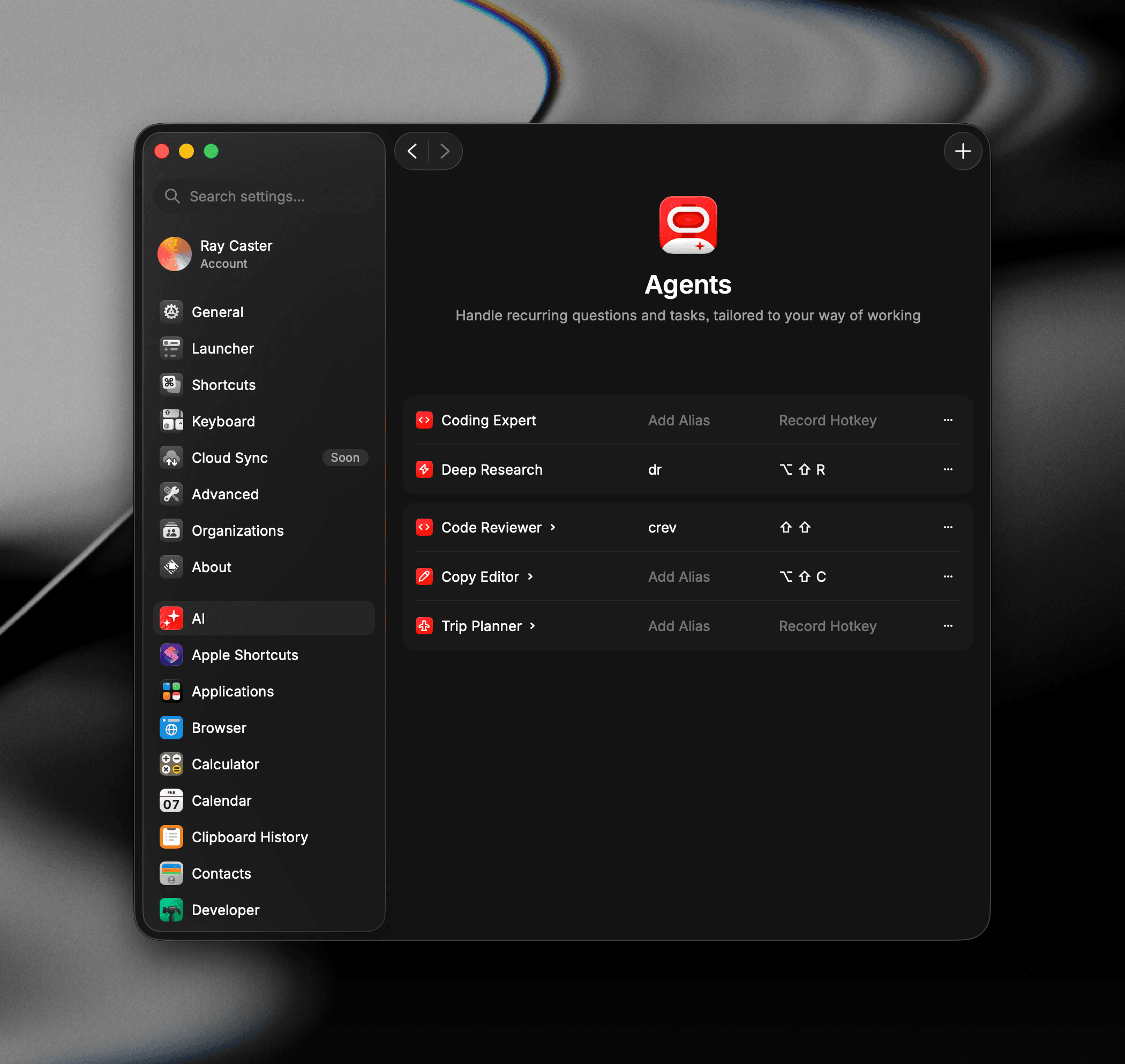
All Agent settings can be found in Settings → AI → Agents. Your Agents are split into built-in and custom groups. For a custom Agent you can:
- Edit: Click the Agent's name to open the edit dialog.
- Enable / Disable: toggle whether it shows up in the Agent menus.
- Delete: remove it (you'll be asked to confirm; this can't be undone).
Built-in Agents show in their own group and can be Disabled but not edited or deleted.
Agents, Extensions & Skills
Agents tie together several Raycast AI building blocks:
- AI Extensions: An Agent's tool list scopes which AI Extensions it loads by default, so you can keep it focused on the tools its task needs.
- Skills: Skills are still discovered automatically based on your message; you don't attach them to an Agent. An Agent's instructions and a relevant Skill can apply in the same conversation.
- AI Commands: AI Commands are separate, single-shot prompts. Agents are for ongoing conversations where the role, model, and tools should persist.