
Clipboard History Control
Support for Enterprise features in Raycast for Windows has not yet been added. Contact us if you require these features in your organization.
Manage Clipboard History settings across your organization with two controls:
Clipboard History Retention
Set how long Clipboard History is retained for all organization members. Enforce a specific period for your clipboard history retention policy, or select "No restriction" to allow users to set their own retention period.
Configure Clipboard History Retention
- In Raycast Account Settings, navigate to Organization → Admin Controls
- Click the dropdown next to Clipboard History Retention and select your retention period
- A message reading "Settings updated successfully" will appear, confirming the change

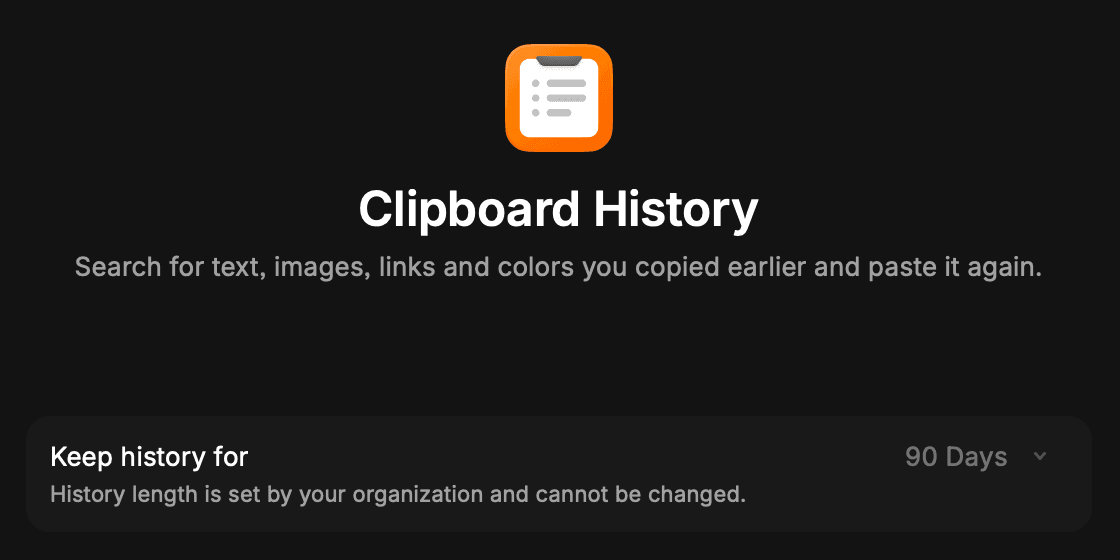
When a clipboard history retention period is set, members will not be able to change the retention duration in their Raycast client settings and their clipboard history will be limited to the configured period (see image below).
Clipboard History Disabled Applications
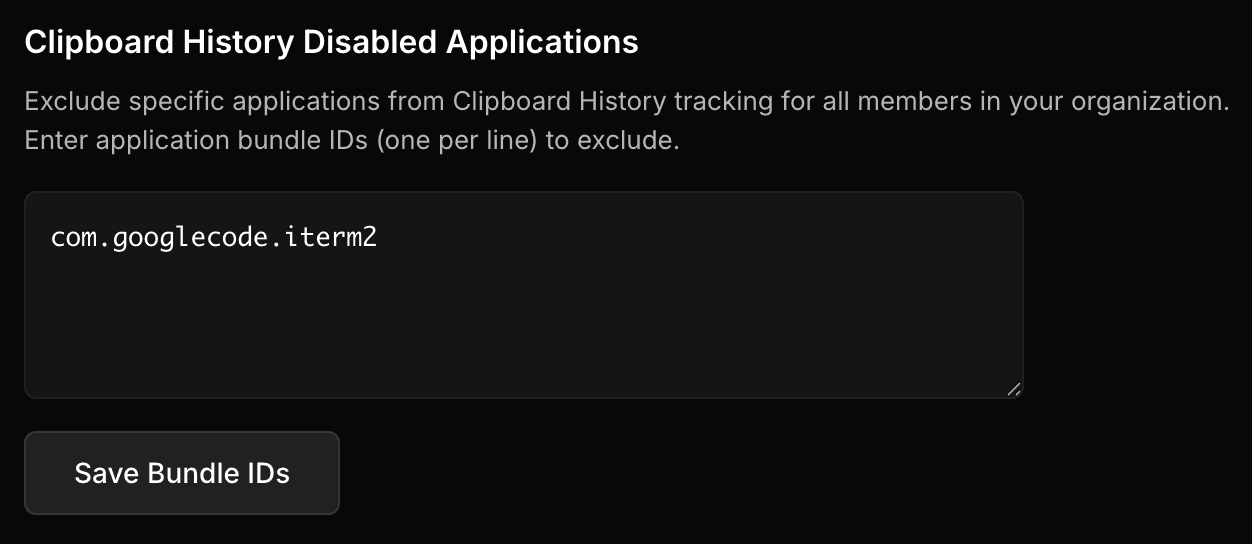
Exclude specific applications from clipboard history tracking for all organization members. Enter application bundle IDs (one per line) to prevent clipboard history from recording content copied in those applications. For example, com.googlecode.iterm2 to exclude iTerm2.
This control helps organizations comply with data handling policies by ensuring sensitive clipboard data from specific applications is never stored.
Configure Clipboard History Disabled Applications
- In Raycast Account Settings, navigate to Organization → Admin Controls
- In the input field below Clipboard History Disabled Applications enter the application bundle IDs (one per line) you want to exclude and click on Save Bundle IDs
- A message reading "Clipboard History disabled applications updated successfully" will appear, confirming the change
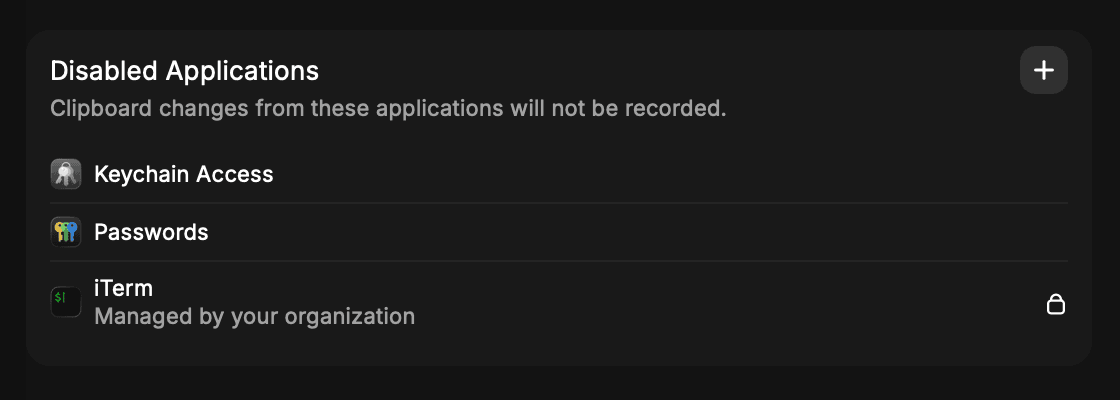
When applications are excluded, members will not be able to remove them from the Disabled Applications list in their Raycast client settings, where they appear marked as "Managed by your organization" (see image below).