

Widgets & Controls
Customize your iPhone with Raycast widgets and controls so your most-used commands are always within reach — on the home screen, lock screen, and Control Center.
Widgets
Home Screen
Customize your home screen with the AI Widget — quickly trigger the camera, voice, or Ask AI — or use the Favorites widget to surface your most-used commands.
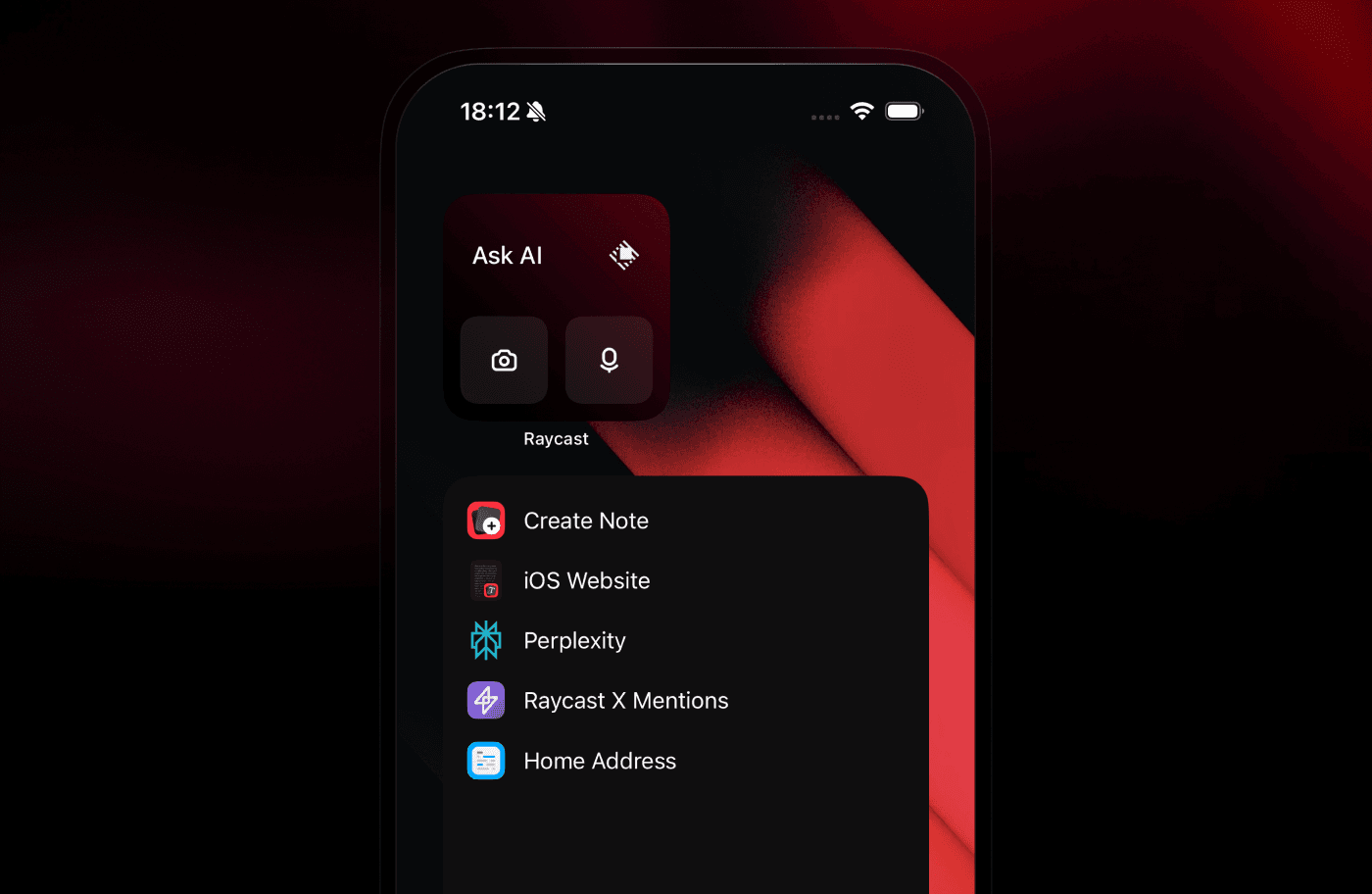
Adding a Widget
- On your home screen, hold down until your apps begin to wiggle.
- Tap the + in the top left.
- Search for Raycast.
- Tap Raycast and browse the widgets.
Lock Screen
Customize the lock screen with a set of actions, like Open Voice, Create Note, Snippets, and more.
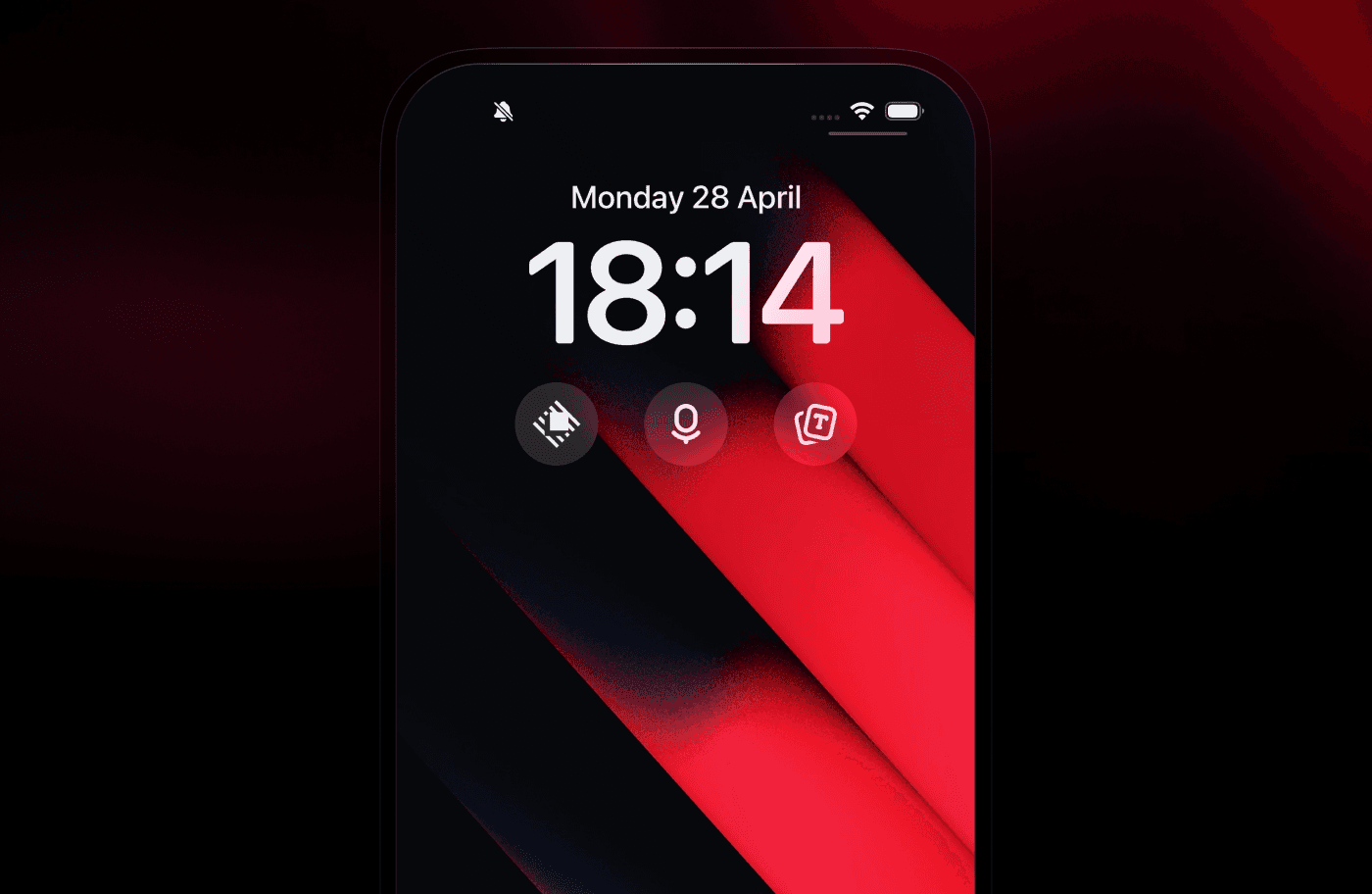
Adding a Widget
- Lock your device.
- Long-press the screen.
- Tap Customize.
- Tap Lock Screen.
- Tap Add Widgets.
- Search for Raycast.
- Tap or drag a widget.
- Dismiss the sheet.
- Tap Done in the top right.
Controls
Controls are much like widgets or shortcuts, giving you quick access to frequently used actions. Controls live on your Lock Screen (replacing the camera and torch buttons in the bottom corners) or in Control Center (swipe from the top right).
You can add a control to start a new AI Chat, Open Camera Attachment, or Create Note.
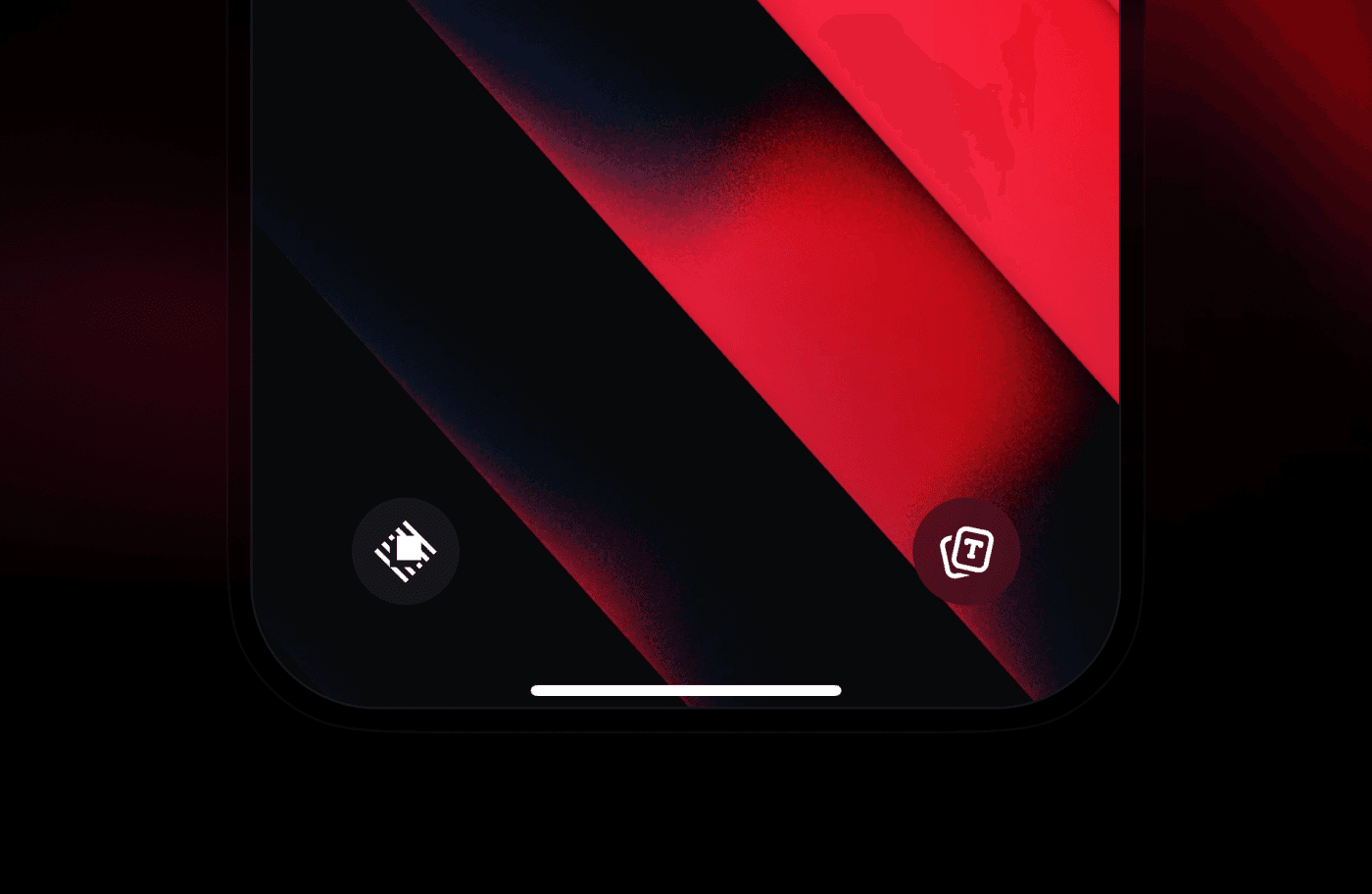
Add to Lock Screen
To replace the Torch or Camera control on your lock screen:
- Lock your device.
- Long-press the screen.
- Tap Customize.
- Select Lock Screen.
- Tap minus on the existing control to remove it.
- Tap + to add a control.
- Search for Raycast.
- Select your control (Ask AI, Open Camera, Open Voice, etc.).
- Tap Done (top right) to save.
Add to Control Center
To add a control to Control Center:
- Swipe down from the top right.
- Tap the + button (top left).
- Tap Add a Control (bottom).
- Search for Raycast.
- Select your control (Ask AI, Open Camera, Open Voice, etc.).
- Drag a corner to resize, or drag to rearrange.
- Tap an edge to exit edit mode and return to Control Center.