

Quick AI
Quick AI lets you ask Raycast AI a one-off question from Root Search and get the answer in the same window. Type your question, press Tab, and read the response without interrupting your flow. When a question grows into something bigger, hand the whole conversation over to AI Chat with a single keystroke.
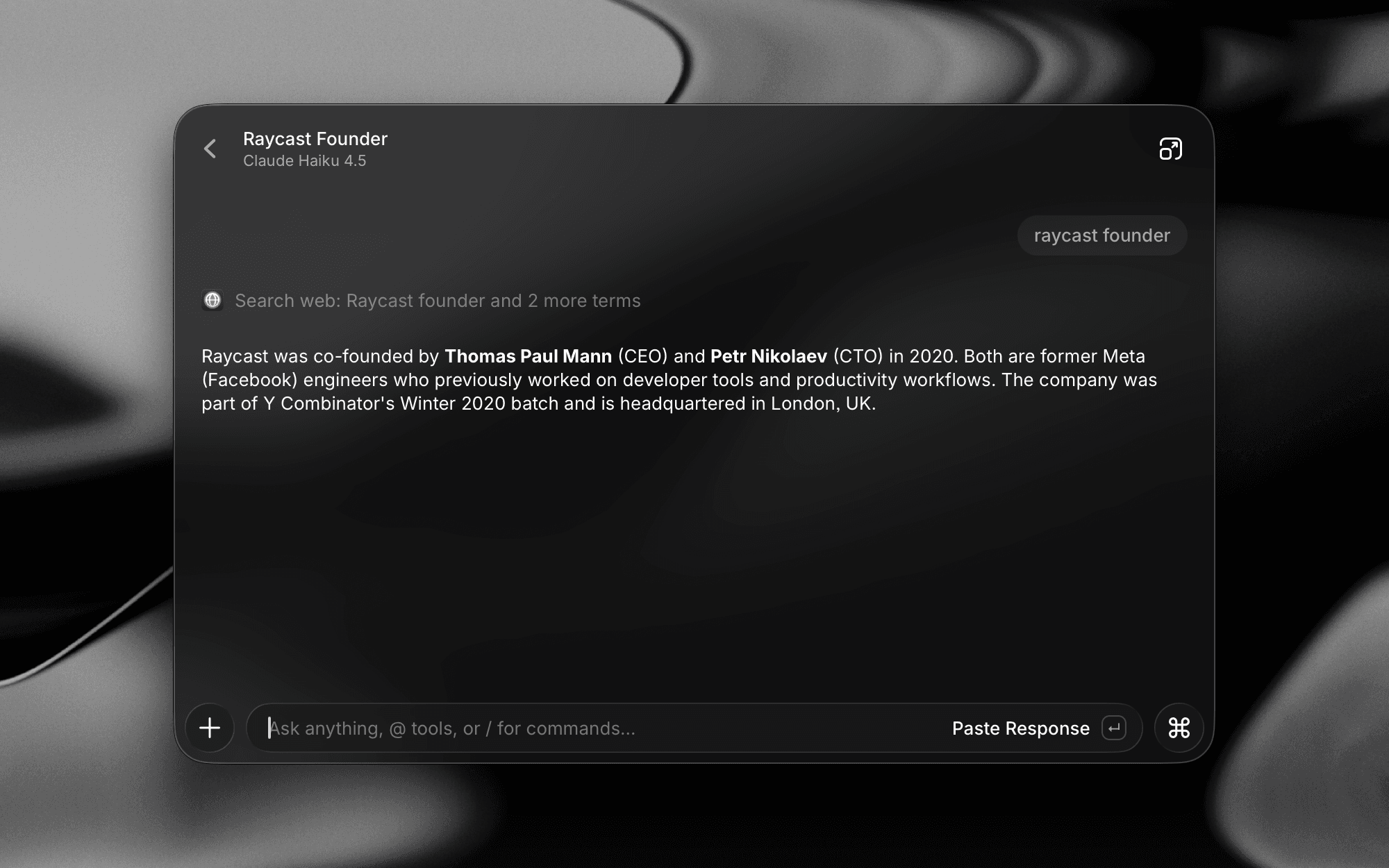
Open Quick AI
There are three ways to start:
- From Root Search: Start typing your question, then press Tab. Raycast hands your text to Quick AI and submits it.
- Run the Quick AI command directly from Root Search to open with an empty prompt.
- Set Quick AI as a fallback command in Settings → Launcher → Fallback Commands to send any unmatched Root Search text straight to Quick AI when you press ↵.
Pressing Tab from Root Search always opens Quick AI, even with no text typed, so you can start fresh.
Ask a Question
Type your prompt and press ↵ to submit. Quick AI streams the answer back in the same window.
On the response, ↵ pastes the answer into the previously focused app by default. To swap the default to copy instead, open Settings → AI → Commands → Quick AI → Primary Action.
When a response includes code, it appears in a code block with the detected language and a copy button. Long lines scroll sideways by default. Click Enable line wrap in the top right of the block to wrap them to the response width, and click again to switch back.
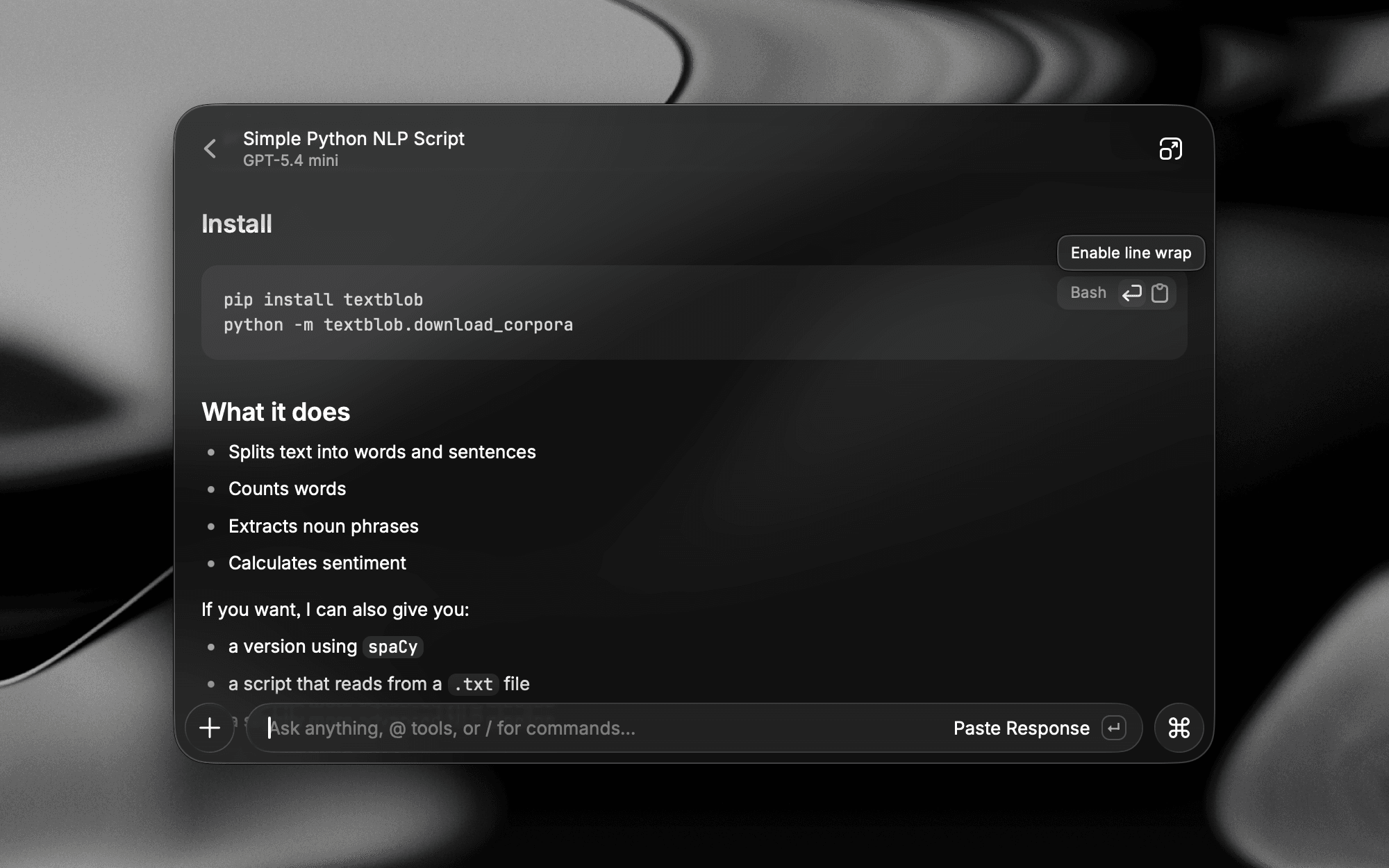
Follow-ups
Keep typing after a response to ask a follow-up. Quick AI is a full conversation, not a single-shot Q&A.
- Regenerate the last response with the same model: ⌘R / CtrlR
- Regenerate the last response with a different model: ⇧⌘R / CtrlShiftR
- Start a fresh conversation: ⌘N / CtrlN
- Navigate between recent Quick AI chats: ⌘[ / Ctrl[ and ⌘] / Ctrl]
- Rate the response with Good Response (⇧⌘= / CtrlShift=) or Bad Response (⇧⌘- / CtrlShift-) to send feedback to Raycast.
Dictate a Message
To speak a prompt instead of typing it, press ⌃M / CtrlM or choose Start Dictating from the Action Panel. Your words appear in the composer as you speak. Press ⌃M / CtrlM or ↵ to Accept Dictation, or Esc to Cancel Dictation. Learn more on the Dictation page.
Attach Context
Open the Add Context menu to the left of the composer, or type @, to attach something to your question.
Quick AI can capture what you're looking at through Screen Awareness:
- Focused Window: A full capture of the app in front of you, including its content, your selection, and a screenshot.
- Selected Text: Whatever you've highlighted in another app.
- Selected Area or Entire Screen: A screenshot captured from your desktop.
Attachments are scoped to the message you send them with, and they come along if you continue the conversation in AI Chat, which accepts a wider set of context. Learn more on the Screen Awareness page.
Send to AI commands open AI Chat by default. To have them go to Quick AI instead, change the command's Primary Action in Settings → Screen Awareness.
Collapsed Messages
To keep conversations easy to scan, long messages you send are collapsed in both Quick AI and AI Chat. A collapsed message shows its first part with a Show more control to expand it, and a Collapse control to fold it back once expanded.
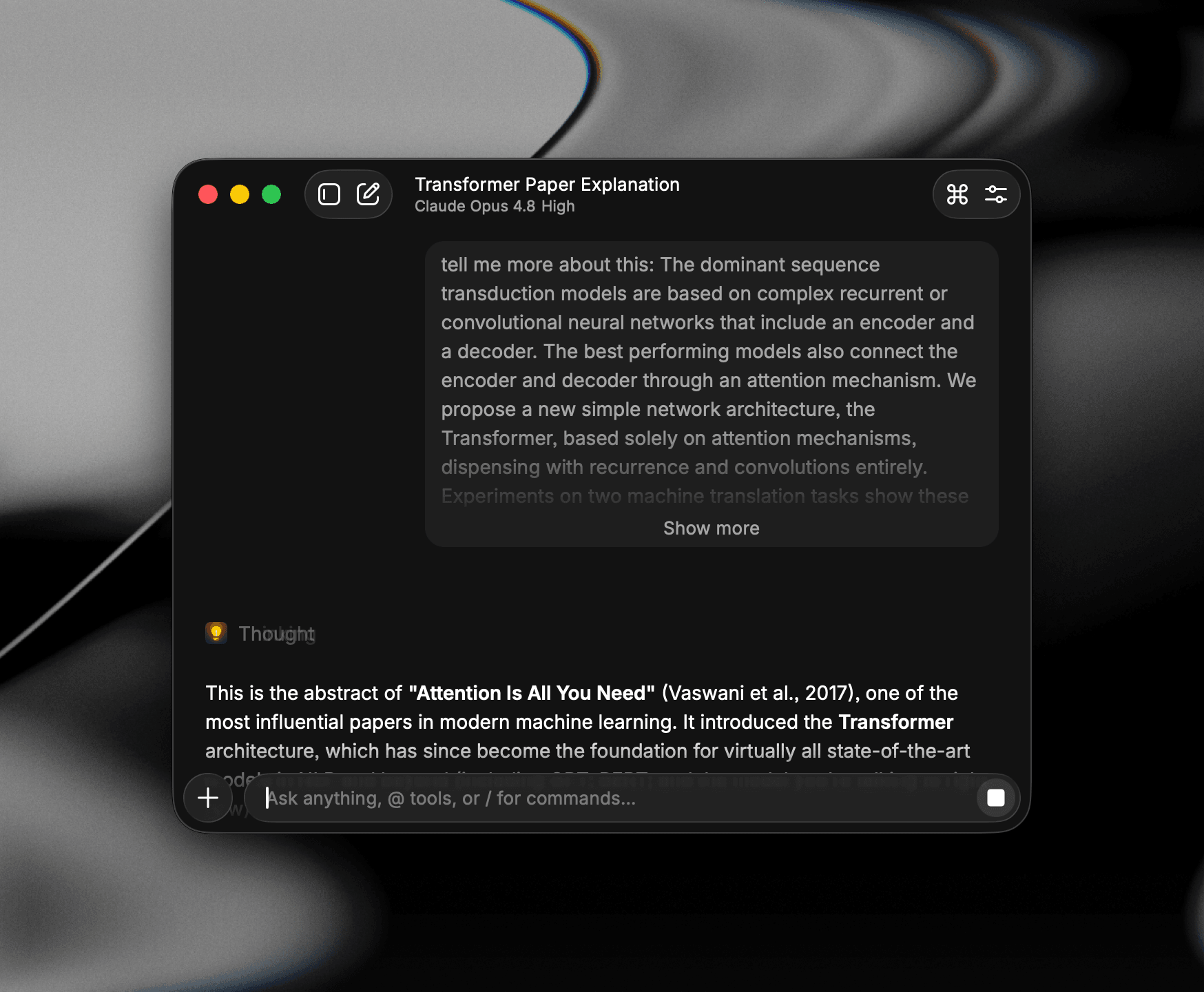
Only long messages collapse: A message over 10 lines (or a comparably long single paragraph) is collapsed, while shorter messages are always shown in full.
Ask User Question
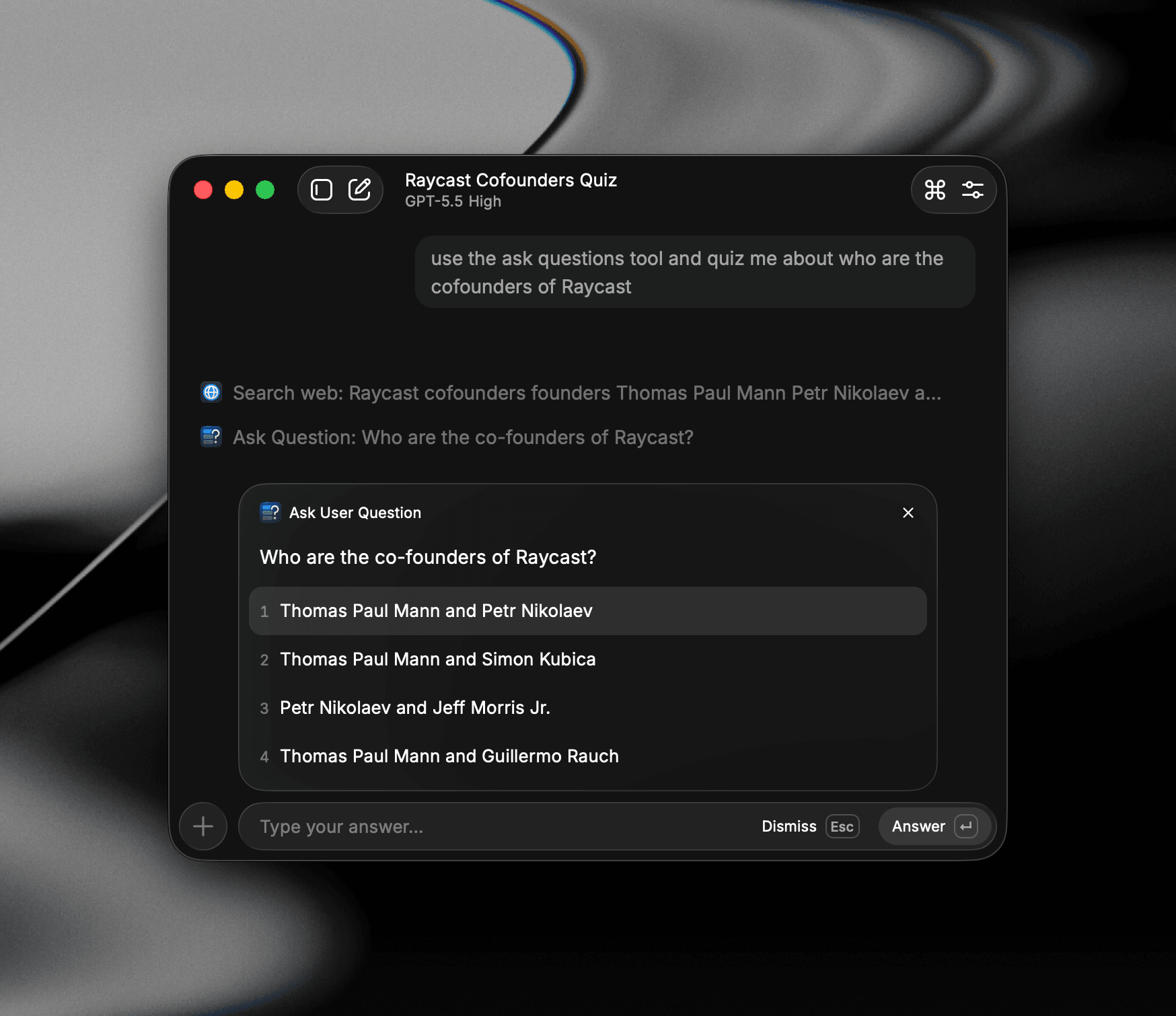
Sometimes the AI needs a bit more direction. When a request is ambiguous or the model isn't sure how to proceed, it can pause and show you a short multiple-choice question right in the conversation. Pick an option and it continues with your answer. This works in both Quick AI and AI Chat and is always on — there's no setting to turn it off.
To reliably trigger it, ask for it in your prompt: Either name the tool directly ("use the ask questions tool") or describe the flow ("do X, then ask me to choose Y").
Try it: Paste either of these into Quick AI:
Set up a new project folder for me and ask me to choose from the available optionsUse the ask questions tool and quiz me about who are the cofounders of RaycastBecause these requests leave out details (where to create the folder and what to call it, or how many questions and how hard), the AI will typically ask a clarifying question with a few options before doing anything.
Models
Configure the AI models used across Quick AI, AI Chat, and Custom AI Commands from Settings → AI → Models & Providers, or use the Manage Models command to jump straight there. Learn more on the AI Commands page.
Auto
Auto picks a model for each request based on a Model Preference of Lightweight, Balanced, or Flagship. Follow-up messages stay on the same model where possible. Quick AI uses the preference you set on its row under Default Models. See Auto on the AI Chat page for what each preference does.
Switch Models
Open the Action Panel (⌘K / CtrlK) and pick Change Model to switch the active model mid-conversation, or Regenerate with Model… to try the last answer on a different model.
To change the model Quick AI starts with, see Default Models.
Default Models
Pick the default model for each surface:
- Quick AI: The model used when you ask a quick question from Root Search.
- AI Chat: The default for new chats. Set to Last Used Model to continue with whichever model you used most recently.
- Custom AI Commands: The default for any AI Command that doesn't specify its own model.
When a model supports reasoning effort, each row also shows a dropdown for it, with the recommended option marked Default. Your choice carries over between models that support it, or resets to the new model's default. The same control appears in Custom AI Command settings whenever a specific model is used instead of Last Used Model.
When a surface's default model is set to Auto, its row also shows a Model Preference dropdown (Lightweight, Balanced, or Flagship) to choose the default preference for that surface.
Manage Models
Choose which models appear in the model pickers across Quick AI, AI Chat, and Custom AI Commands:
- Review model details: Each model lists its Speed, Intelligence, and Context window so you can compare capabilities at a glance.
- Enable or disable models: Toggle the checkbox next to a model to control whether it shows up in pickers. Disabled models are hidden everywhere AI models can be selected.
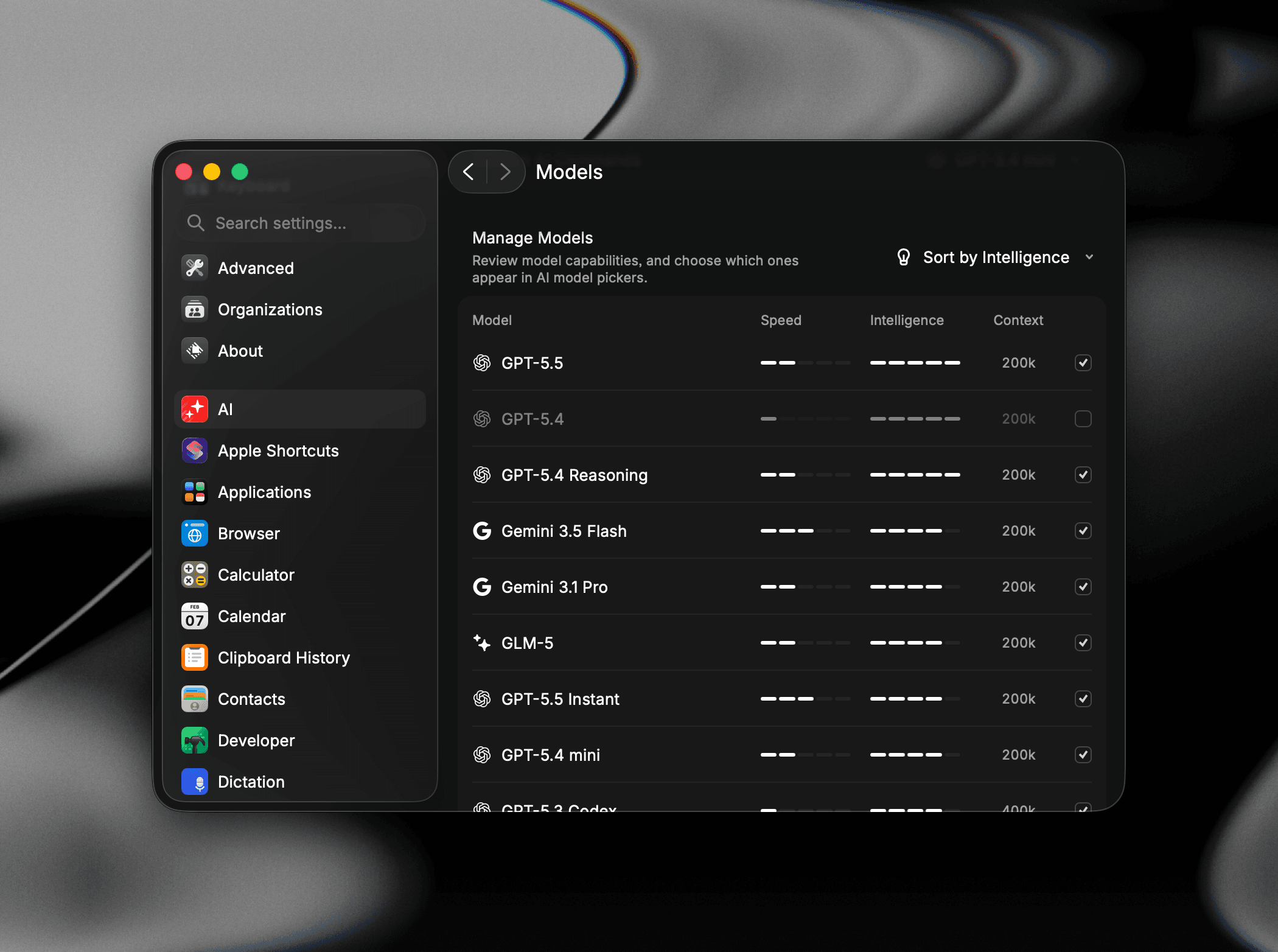
- Group by Provider: Models are grouped by their provider (e.g. Raycast, Anthropic). Expand or collapse a provider to focus on a subset.
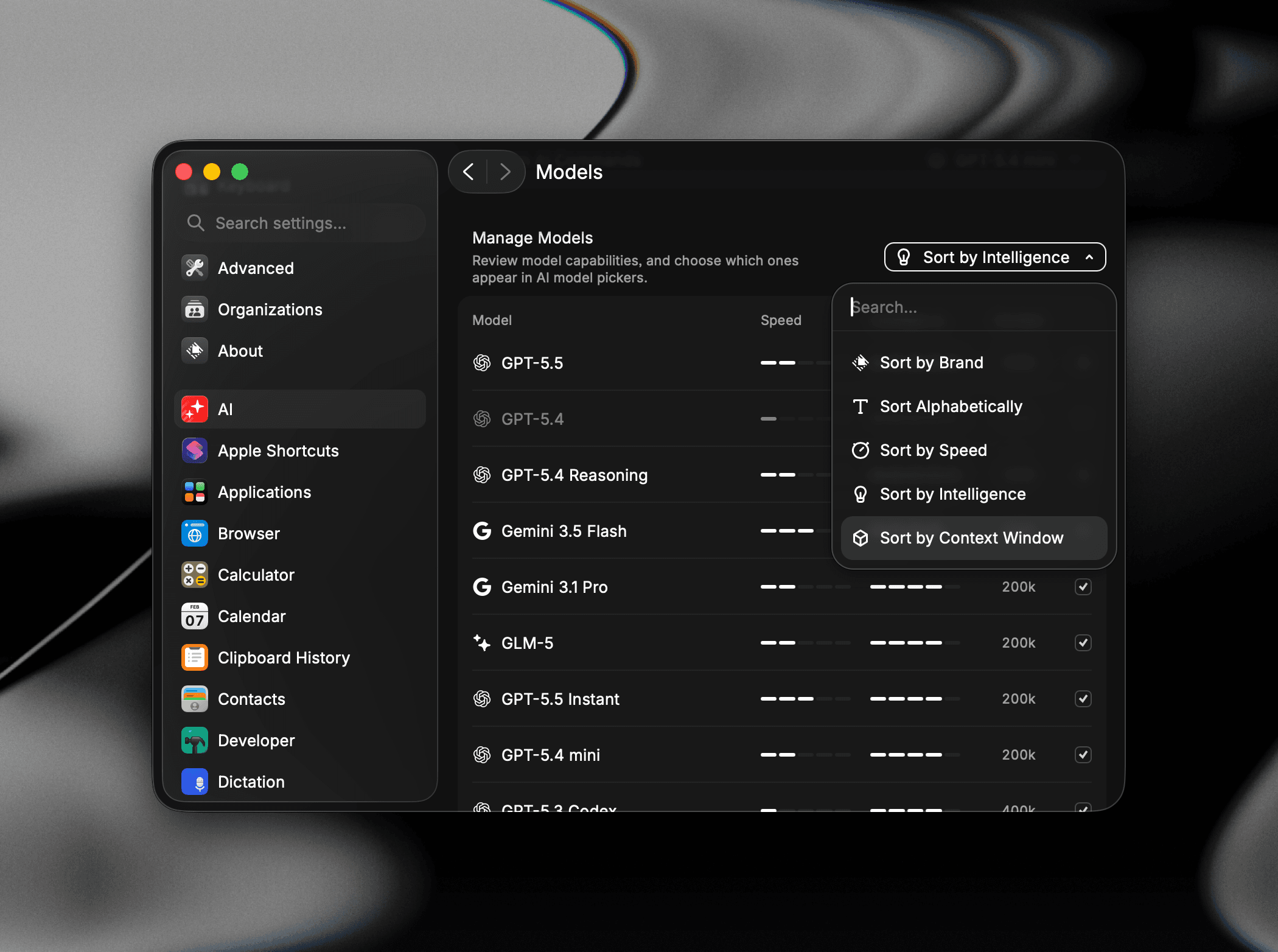
- Sort the list: Use the sort menu in the top-right to order models by Brand, Alphabetically, Speed, Intelligence, or Context Window.
Continue in AI Chat
When a question grows into something bigger, press ⌘J / CtrlJ to move the conversation into AI Chat. The full history, model, and any attachments come with it, and you get the chat workspace, longer context, and tools. Learn more on the AI Chat page.
Auto-new Chat
Quick AI starts a fresh chat after a period of inactivity, so you don't accidentally tack new questions onto an older conversation. Adjust the timeout in Settings → AI → Chat → Start New Chat (options: 5 minutes, 10 minutes, 15 minutes, 30 minutes, 1 hour, always, never).
This same inactivity timer also determines whether a Send to AI command reuses your active chat or starts a new one when AI Chat is closed.
Settings
Tune Quick AI from Settings → AI → Commands → Quick AI:
- Primary Action: Paste to active app or copy the response to clipboard on ↵.
- Tab Shortcut: Hide the Tab hint in Root Search (the shortcut still works).
The default model for Quick AI is set on the Quick AI row in Settings → AI → Models & Providers → Default Models. See Default Models.
A few settings under Settings → AI → Chat apply to Quick AI as well as AI Chat:
- Start New Chat: Start a new chat after the specified timeout when opening Quick AI.
- Conversation History: Show conversations from AI Chat and Quick AI combined or keep them separate.
Troubleshooting
Quick AI lets you talk to a model from Root Search. Most reports come down to the trigger key, model selection, sync, or hitting a usage or context limit. Here are the common ones.