

Navigation
Navigation commands help you move around your computer without lifting your hands from the keyboard, jumping between open windows and triggering any app's menu actions in seconds. Instead of reaching for the mouse, cycling through ⌘Tab / AltTab, or digging through nested menus, you can find and act on what you need straight from Raycast.
Search Menu Bar Items
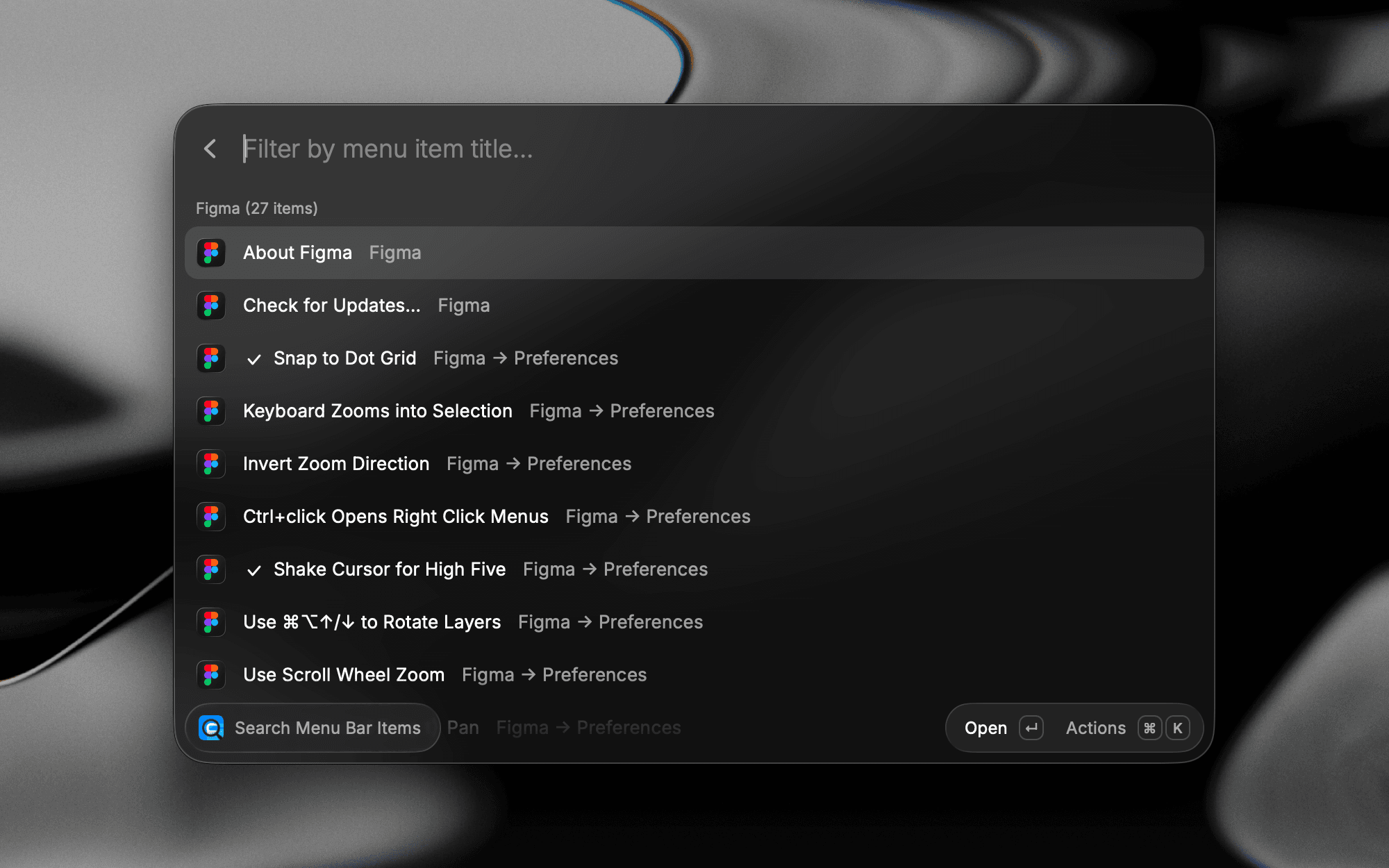
Search Menu Bar Items turns Raycast into the fastest way to trigger any menu action of the app you're currently using, with no reaching for the mouse or digging through nested menus.
Getting started
Open Search Menu Bar Items and start typing the name of the action you're after, like "Export as PDF" or "Merge Cells". Raycast surfaces matching items from the frontmost app's menu bar and runs the one you select, all from the keyboard.
Everything in one place
The command groups all of the active app's menu actions into a single searchable section. Instead of hunting through separate top-level menus (File, Edit, View, and so on), every available action lives in one list you can filter instantly.
It also respects each item's current state, so dynamically enabled or disabled actions appear exactly as the app exposes them.
Assign an alias or hotkey to the command for instant access from any app. Because results follow the frontmost app, the same command adapts to whatever you're working in.
Permissions
Search Menu Bar Items needs Accessibility access to read and trigger menu items in other apps. Grant it in System Settings → Privacy & Security → Accessibility (renamed Device Control and Data Access on macOS 27). Raycast prompts on first launch if permissions are missing.
Switch Windows
Switch Windows turns Raycast into the fastest way to jump to any open window across all your apps, with no cycling through ⌘Tab / AltTab or hunting across desktops.
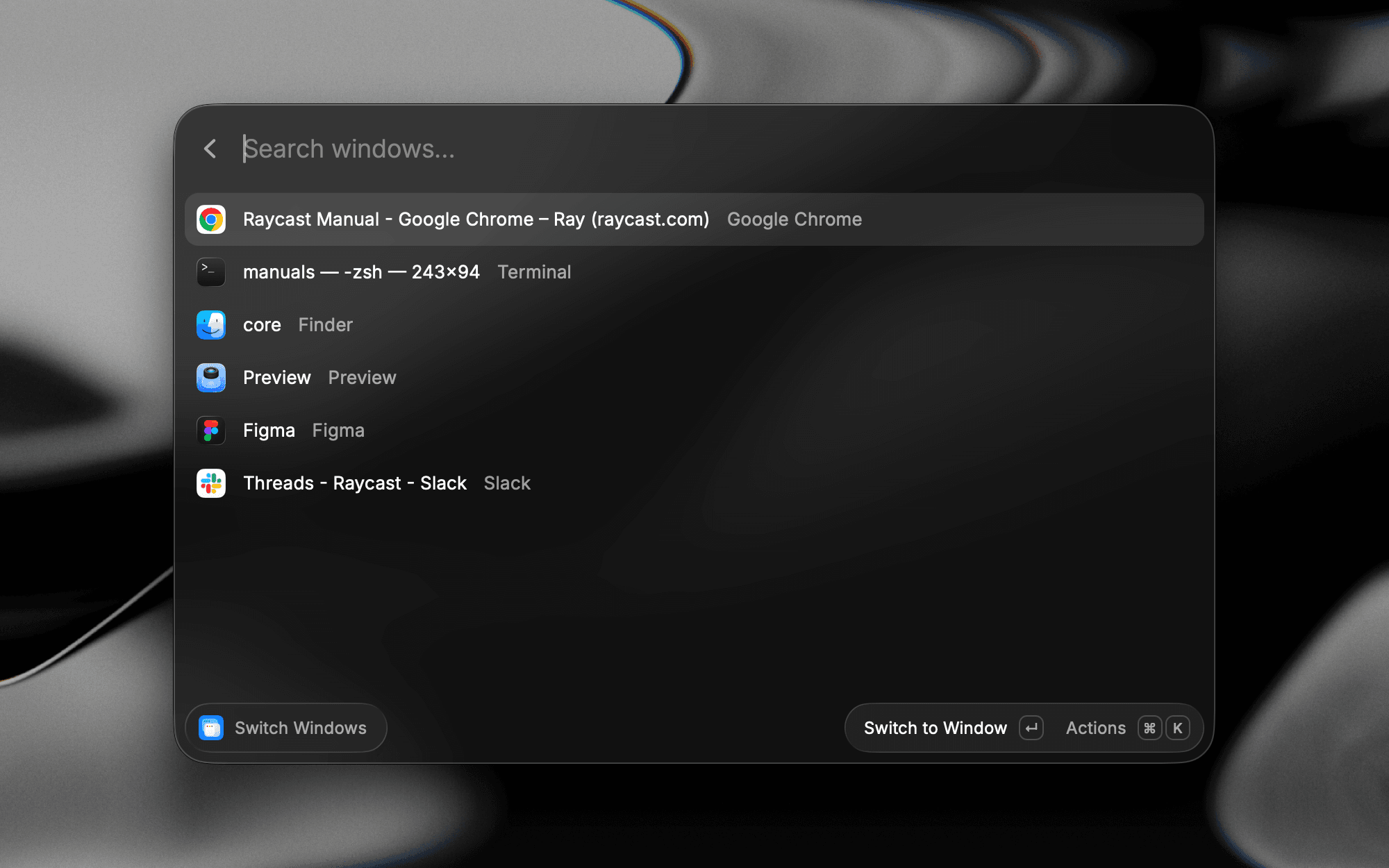
Each result shows the window's title alongside the app it belongs to, so a Chrome tab, a Terminal session, and a Slack channel are all equally easy to tell apart. Press Enter to switch to the selected window.
Getting started
Open Switch Windows and start typing the name of the app or window you're after, like "Figma" or a specific document title. Raycast surfaces matching open windows and brings the one you select to the front, all from the keyboard.
Everything in one place
The command lists every open window in a single searchable view, including multiple windows of the same app. Instead of cycling blindly through ⌘Tab / AltTab or scanning all your open windows, every window lives in one list you can filter instantly.
It also reflects your windows as they currently are, so newly opened or closed windows appear exactly as your system exposes them.
Window actions
You can do more than switch. Open the Action Panel (⌘K / CtrlK) on any result to act on that window without bringing it to the front — minimize it, close it, enter fullscreen, or hide the whole application, each with its own shortcut.

Assign an alias or hotkey to the command for instant access from any app. Type part of a window's title, not just the app name, to land directly on the right window.
Permissions
Switch Windows needs Accessibility access to read and switch between your open windows. Grant it in System Settings → Privacy & Security → Accessibility (renamed Device Control and Data Access on macOS 27). Raycast prompts on first launch if permissions are missing.