

Auto Quit
Some apps you only check occasionally, but they sit open all day eating memory anyway. Auto Quit closes them a few minutes after you stop using them and gets out of your way until you open them again. Pick the apps, set a timeout, and Raycast handles the rest.
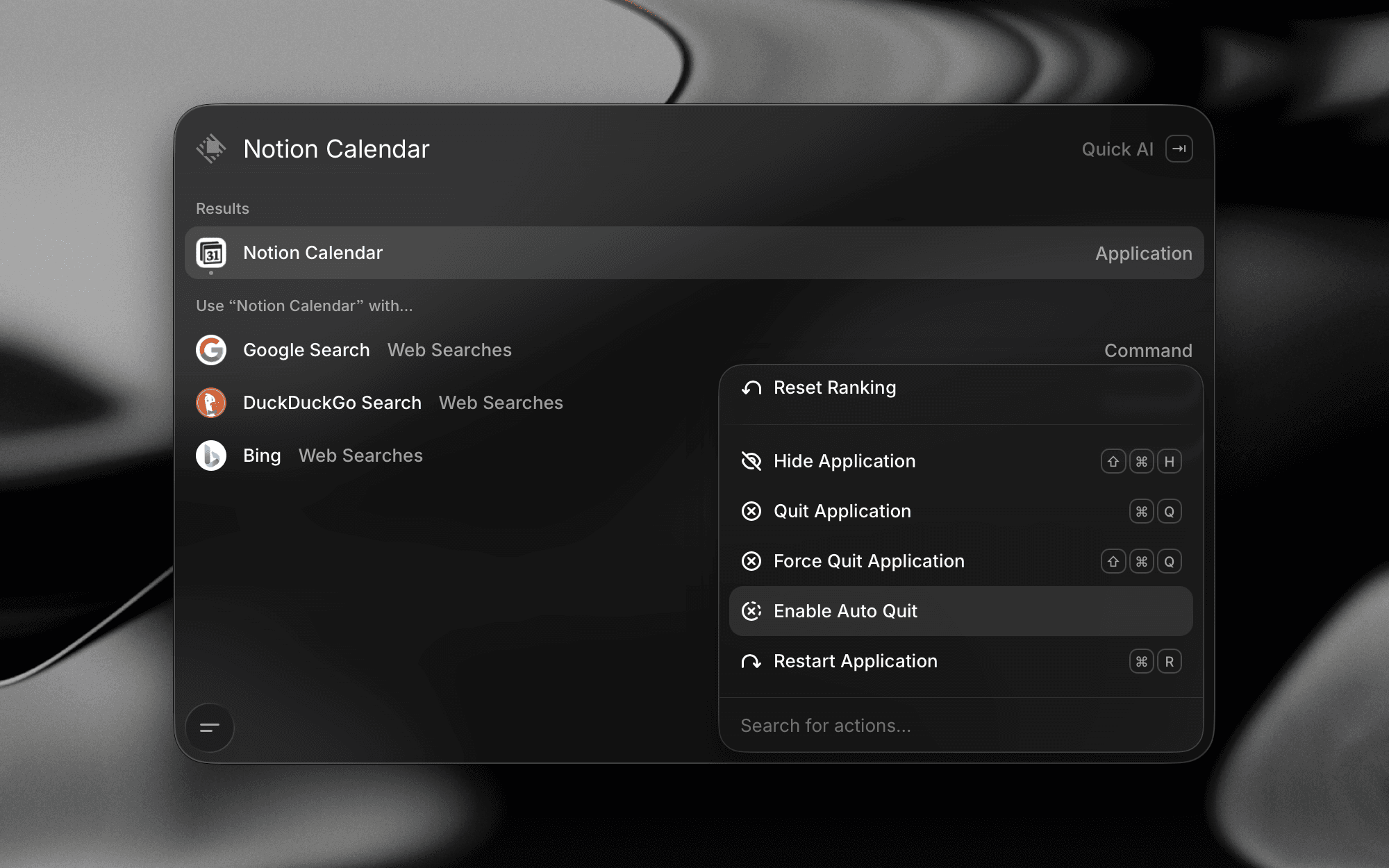
Get Started
- Open Raycast and search for an app you'd like to configure with Auto Quit.
- Press ⌘K / CtrlK to open the Action Panel and select Enable Auto Quit.
- The next time the app sits in the background for 3 minutes (by default), Raycast quits it.
To turn it off, select Disable Auto Quit from the Action Panel when viewing the app in Root Search. You can also add or remove apps directly in Settings → Applications → Auto Quit.
Manage Auto Quits
All Auto Quit settings live under Settings → Applications → Auto Quit. From here you can change the default duration for all apps, set a different timeout per app, and add or remove apps from the list.
Duration
The Default Auto Quit Duration is the timeout used when you use Enable Auto Quit from the Action Panel. Pick from 1, 3 (Default), 5, 10, or 15 minutes. Changing the default also updates every app currently using it. One change adjusts your whole list at once.
Each app can have its own timeout instead of following the default. Apps still using the default show a Default label next to their interval, making it clear which ones will update when you change it.
Quit Apps Closed to Tray
Plenty of Windows apps keep running in the notification area after you close their windows. With Quit Apps Closed to Tray on, Auto Quit makes sure these apps actually quit rather than just closing their windows. Turn it off if you'd rather Auto Quit only close an app's windows and leave it running in the tray. On by default.
Add or Remove Apps
Click the button at the top of the settings page to add an app, or the button beside any app to remove its rule. You can also toggle Auto Quit for any app from Root Search using the Enable Auto Quit / Disable Auto Quit action.
When Auto Quit Waits
Auto Quit avoids closing apps in situations where it would interrupt you. When any of these apply, the timer reschedules itself and tries again later:
- The system is recording audio or video (macOS only). Auto Quit pauses for every scheduled app while a recording is active.
- A media player is playing. On macOS, this covers Spotify and Apple Music, and the player keeps running until playback stops. On Windows, an app is left alone for as long as it's the one actively reporting media playback.
- The app is currently frontmost. The timer is reset while you're in the app and starts again when it's hidden or deactivated.
Background-only apps, such as menu bar utilities, daemons, and similar, usually never trigger an Auto Quit because they don't go through the active/inactive lifecycle the timer listens for.
Raycast is always excluded from Auto Quit, along with the system file manager (Finder on macOS, File Explorer on Windows) — even if you try to enable it on them.
Tips
- Pair Auto Quit with Quit All Apps for an end-of-day reset. Quit All Apps clears everything in one shot, while Auto Quit handles stragglers throughout the day.
- Avoid Auto Quit for apps that need to keep running, such as sync clients or mail apps you rely on for notifications, or music players you control from elsewhere.