

Translate
The Translate command turns any block of text into another language without leaving Raycast. Open it, type or paste what you want to translate, and the result appears in real time. You can copy it, paste it directly into the app you came from, or send it to AI Chat for follow-up.
Open Translate from Root Search by typing Translate and pressing ↵. For faster access, assign an alias (like tr) or a hotkey from the Action Panel (⌘K / CtrlK).
How It Works
When Translate is open, the window splits into a source field on top and a translated field below. As you type, edit, or paste into the source field, the translation updates automatically. Word and character counts are shown for the source text.
Source and Target Languages
Each side has its own language picker.
- The source language defaults to Detect Language, so Raycast figures out what you typed. The detected language is shown as a subtitle once it has been identified.
- The target language is whatever you set last, or the default you picked in Settings.
- To change either one, open the Action Panel and choose Change Source Language or Change Target Language. The pickers also support fuzzy search, so typing
japjumps to Japanese. - Use Swap Languages to flip source and target. The current translation moves up into the source field, ready to translate back the other way.
Inline Translation
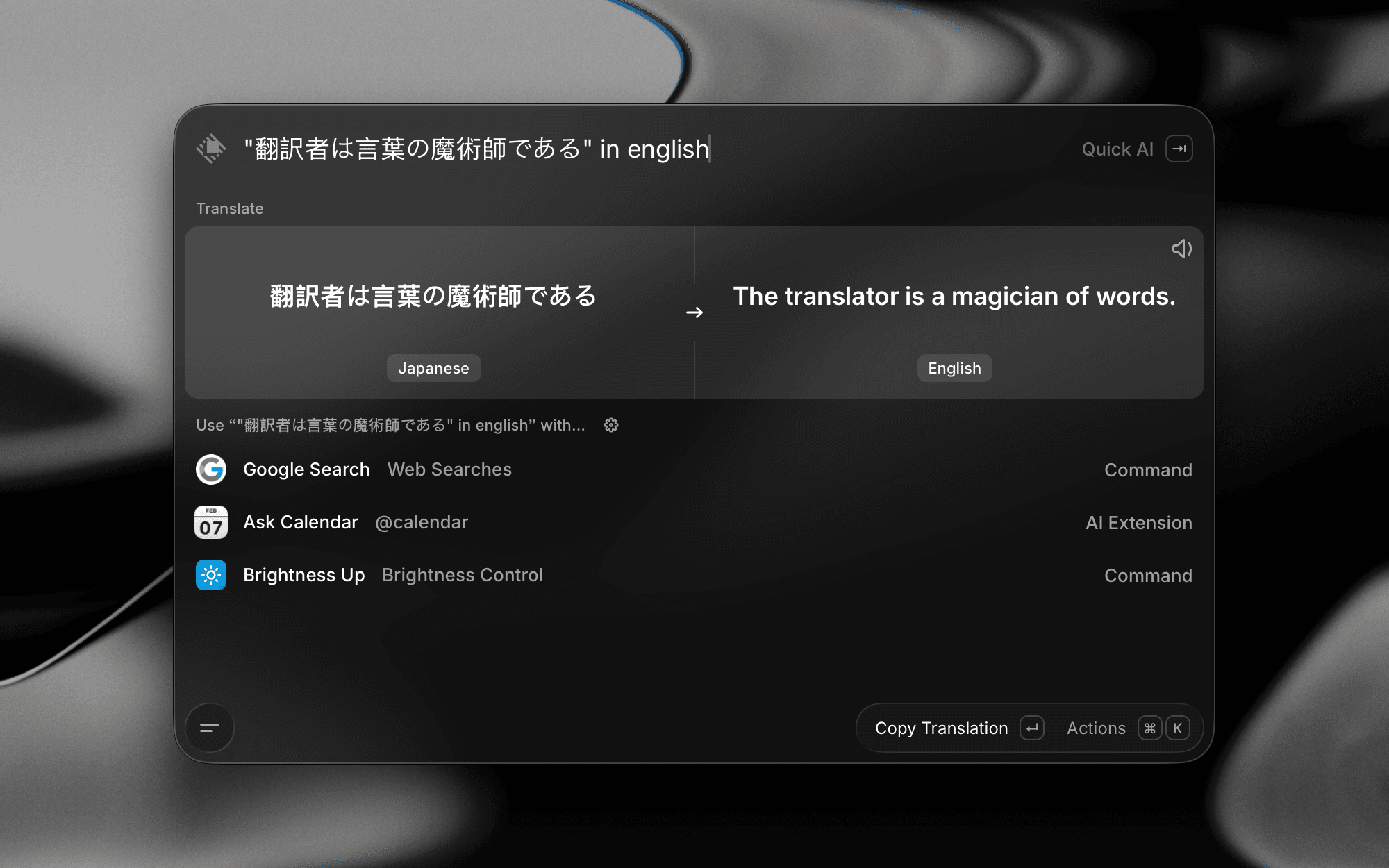
You don't have to open the Translate command to translate a quick phrase. From Root Search, type your text followed by in or into and a language name, and the translation appears right in the results.
Examples:
hello in german"good night" into french
The language name needs to be at least three characters and is matched fuzzily, so jap, germ, or port all work. Language codes (like de or fr) are intentionally not matched, to avoid triggering inline translation by accident.
Action Panel
Open the Action Panel with ⌘K / CtrlK to see everything you can do with the current translation:
- Copy Translation: Copy the translated text to your clipboard. This is the default action when you press ↵.
- Copy Source Text: Copy the original text instead.
- Paste to Active App: Paste the translation directly into the app you were just in. You can make this the default action in Settings.
- Swap Languages: Flip source and target.
- Change Source Language / Change Target Language: Pick a different language for either side.
- Continue in AI Chat: Send both the source and the translation to AI Chat as context, so you can ask follow-up questions, request a more formal tone, or get an explanation of an idiom.
Default Source and Target Languages
If you usually translate between the same pair of languages, set them once and skip the picker every time. Open Settings → Translator and choose your default Source Language and Target Language. Leave the source on Detect Language if you'd rather have Raycast guess.
Use Selected Text as Source
When this setting is on, launching Translate from a hotkey automatically fills the source field with whatever text you currently have selected in the foreground app. Highlight a sentence in your browser or chat app, hit your Translate hotkey, and the translation appears immediately. Toggle it in Settings → Translator → Use Selected Text as Source.
Custom Translate Commands
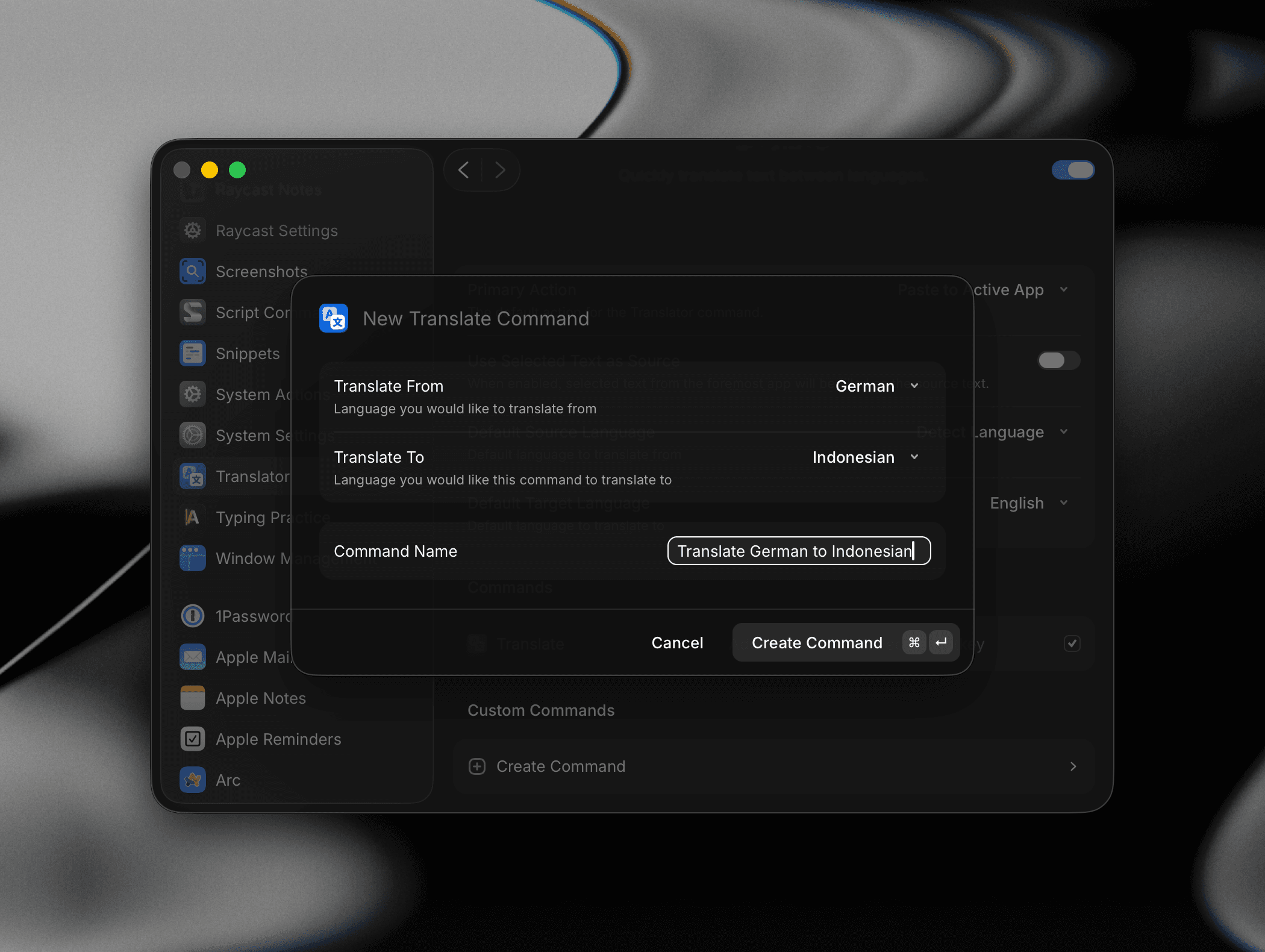
Create your own translation commands with a fixed language pair, so you can jump straight into translating without picking languages first. For example, you might create Translate to Spanish or English to Japanese, give them their own aliases or hotkeys, and treat them like any other command in Root Search.
- Open Settings → Translator → Custom Commands and click Add Custom Command.
- Pick a name, a source language (or Detect Language), and a target language.
- Edit, duplicate, disable, or delete custom commands from the same screen, and copy a deeplink to share or automate them.
Keyboard Shortcuts
- ⌘↵ / Ctrl↵: Run the primary action (copy or paste, depending on Settings).
- ⌥⌘↵ / CtrlAlt↵: Paste the translation into the active app.
- ⇧⌘↵ / CtrlShift↵: Copy the source text.
- ⌘S / CtrlS: Swap source and target languages.
- ⌘P / CtrlP: Open the target language picker.
- ⇧⌘P / CtrlShiftP: Open the source language picker.
- ⌘K / CtrlK: Open the Action Panel.
- Escape: Clear the source field, or close the command if it's already empty.
Settings
All Translate settings live under Settings → Translator:
- Primary Action: Choose whether ↵ copies the translation or pastes it into the active app.
- Default Source Language: The language Translate starts from. Leave it on Detect Language to let Raycast guess.
- Default Target Language: The language Translate translates into by default.
- Use Selected Text as Source: Auto-fill the source field with the text you currently have selected when you launch Translate from a hotkey.
- Custom Commands: Create, edit, and manage your own translation commands with fixed language pairs.