

Invitations Control
Support for Enterprise features in Raycast for Windows has not yet been added. Contact us if you require these features in your organization.
If SAML SSO is enabled for your organization, the Invitations Control setting is automatically disabled.
Control whether new members can join your organization via invite link.
- Invitations enabled (default): Managers can copy and share an invite link. Anyone with the link can join the organization.
- Invitations disabled: The invite link is deactivated. New members can only be added via SAML SSO or SCIM provisioning.
Configure Invitations Control
- In Raycast Account Settings, navigate to Organization → Admin Controls
- Click the toggle next to Disable Invitations to enable or disable it
- A message reading "Settings updated successfully" will appear, confirming the change

Copying the Invite Link
When invitations are enabled, managers can copy the invite link from two places:
Option 1: Organization Settings (Web)
- In Raycast Account Settings, navigate to Organization
- Click Copy Invite Link button in the Members section
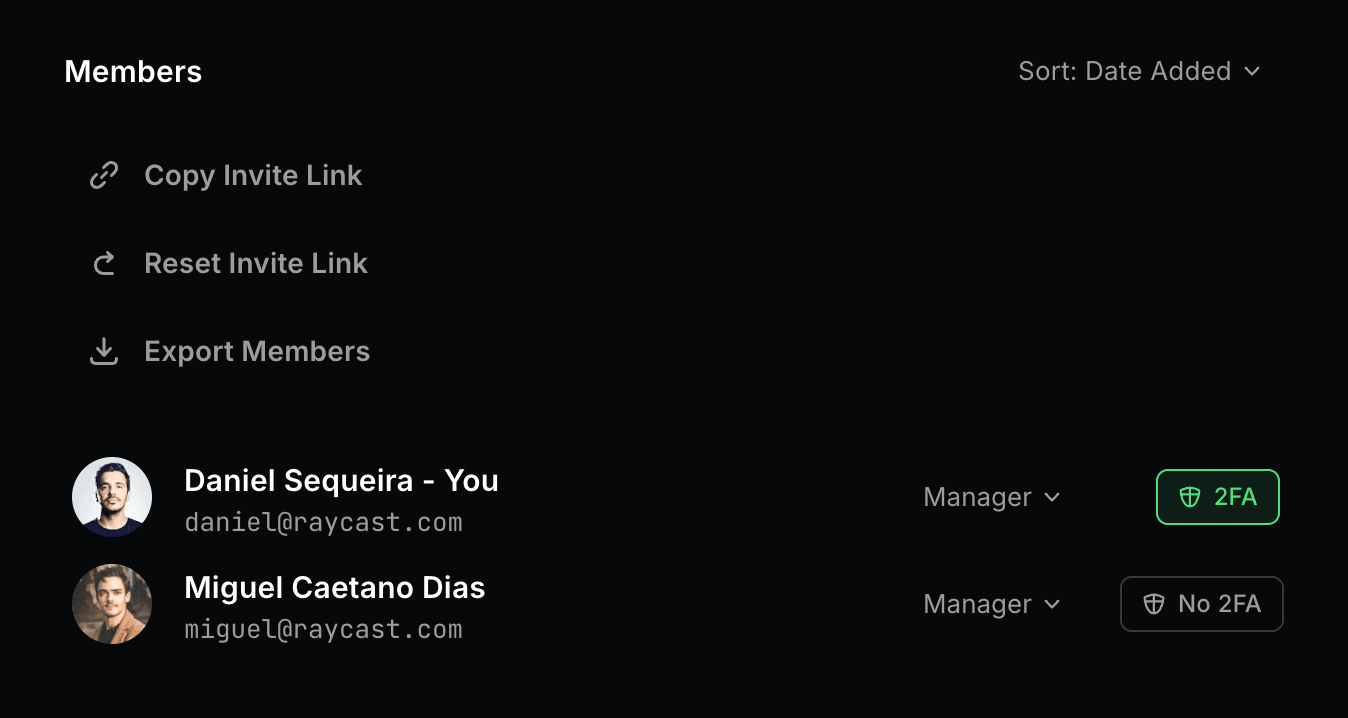
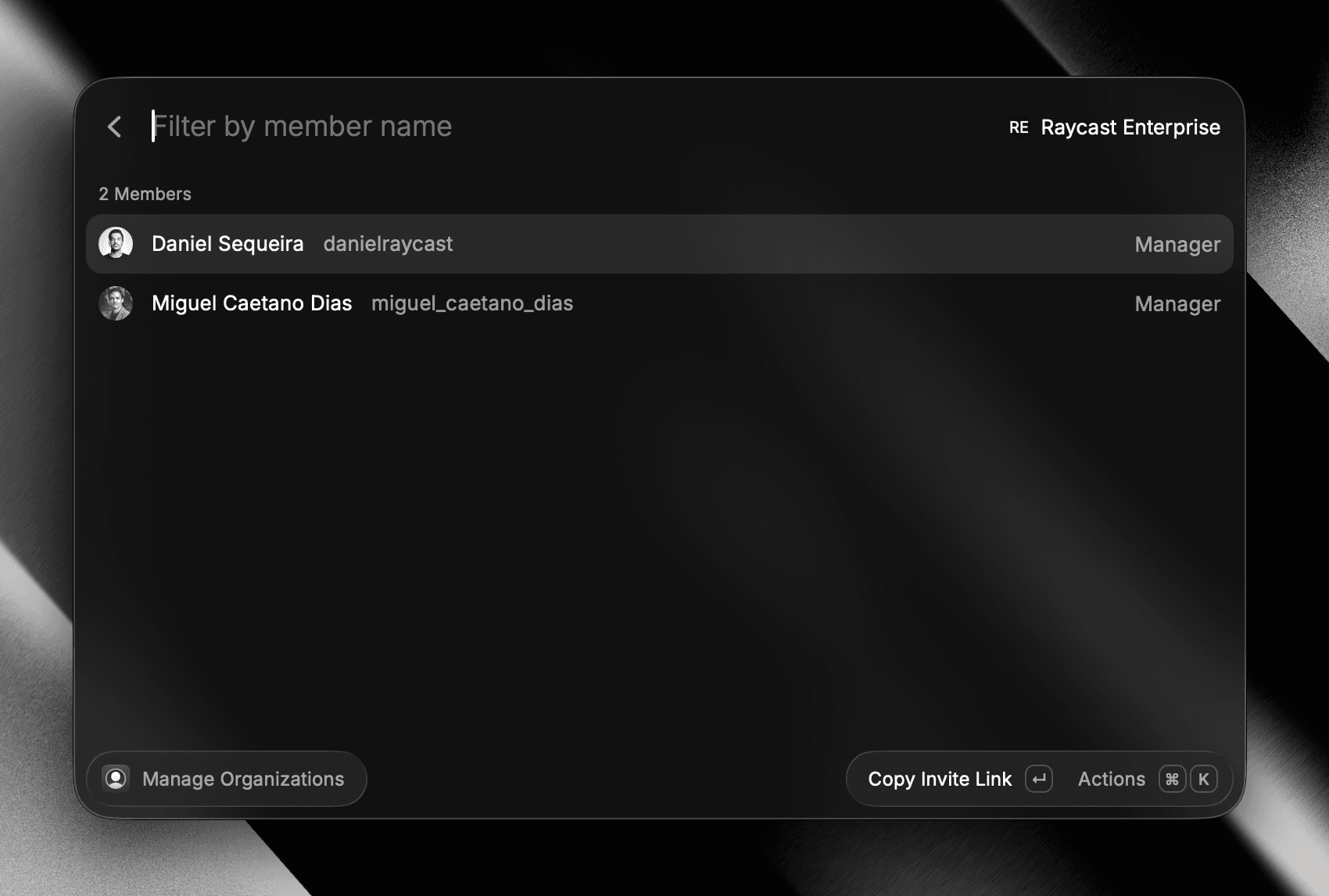
Option 2: Manage Organizations Command (Raycast App)
- Open Raycast app
- Search for Manage Organizations command
- Select your organization (if you are part of multiple organizations)
- Press Enter to Copy Invite Link
Managers can also Reset Invite Link at any time to invalidate previously shared links from both places mentioned above, the new link will be immediately available.