

Custom Providers
Custom Providers let you connect any compatible provider to Raycast and bring your own models. The models you define appear in the model picker alongside Raycast AI models, ready to use across AI features. This is the most flexible way to bring outside models into Raycast, covering aggregators, cross-vendor gateways, and self-hosted proxies alike.
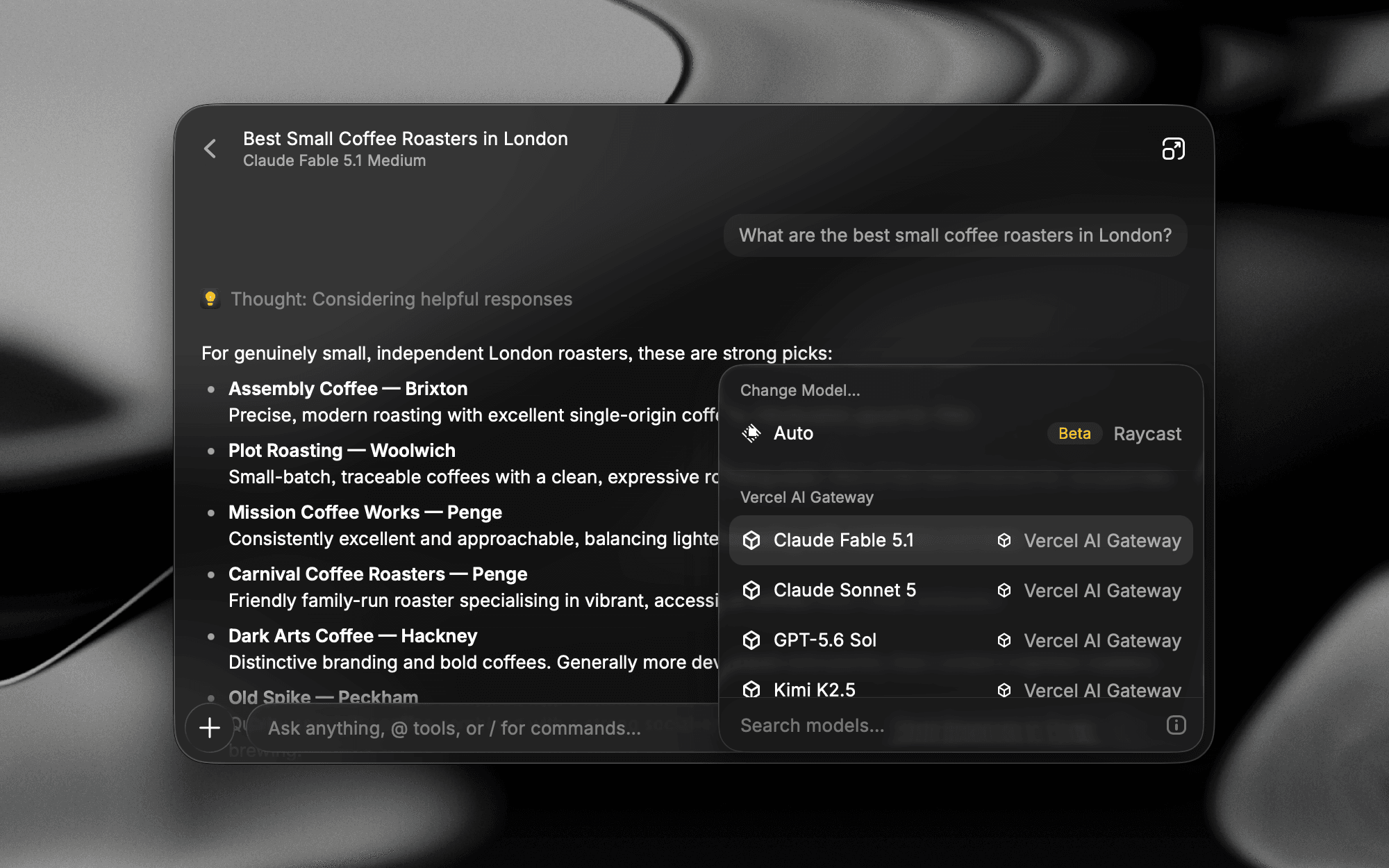

Requests to your custom models are routed directly from your device to the provider's servers, without passing through Raycast. Your API keys stay in the file on your device, and you pay the provider's standard rates for messages.
Tools such as web search are opt-in through the tools block in your config. Only tools set to raycast run on Raycast's servers, which requires Raycast Pro. Image generation isn't available for custom provider models.
Get Started
- Open Settings → AI → Models & Providers and scroll down to the Custom Providers section.
- Click Reveal Providers Config. Raycast opens the config folder and places a
providers.template.yamlfile inside it, documenting the file format. - Copy the template to a file named
providers.yamlin the same folder, then edit it with your providers and models. The template'stoolsblock enables all four tools throughraycast, so remove the block if you don't want your models to use them. - Save the file. Raycast watches it for changes, so your providers and their model counts appear in the Custom Providers section right away, with no restart needed.
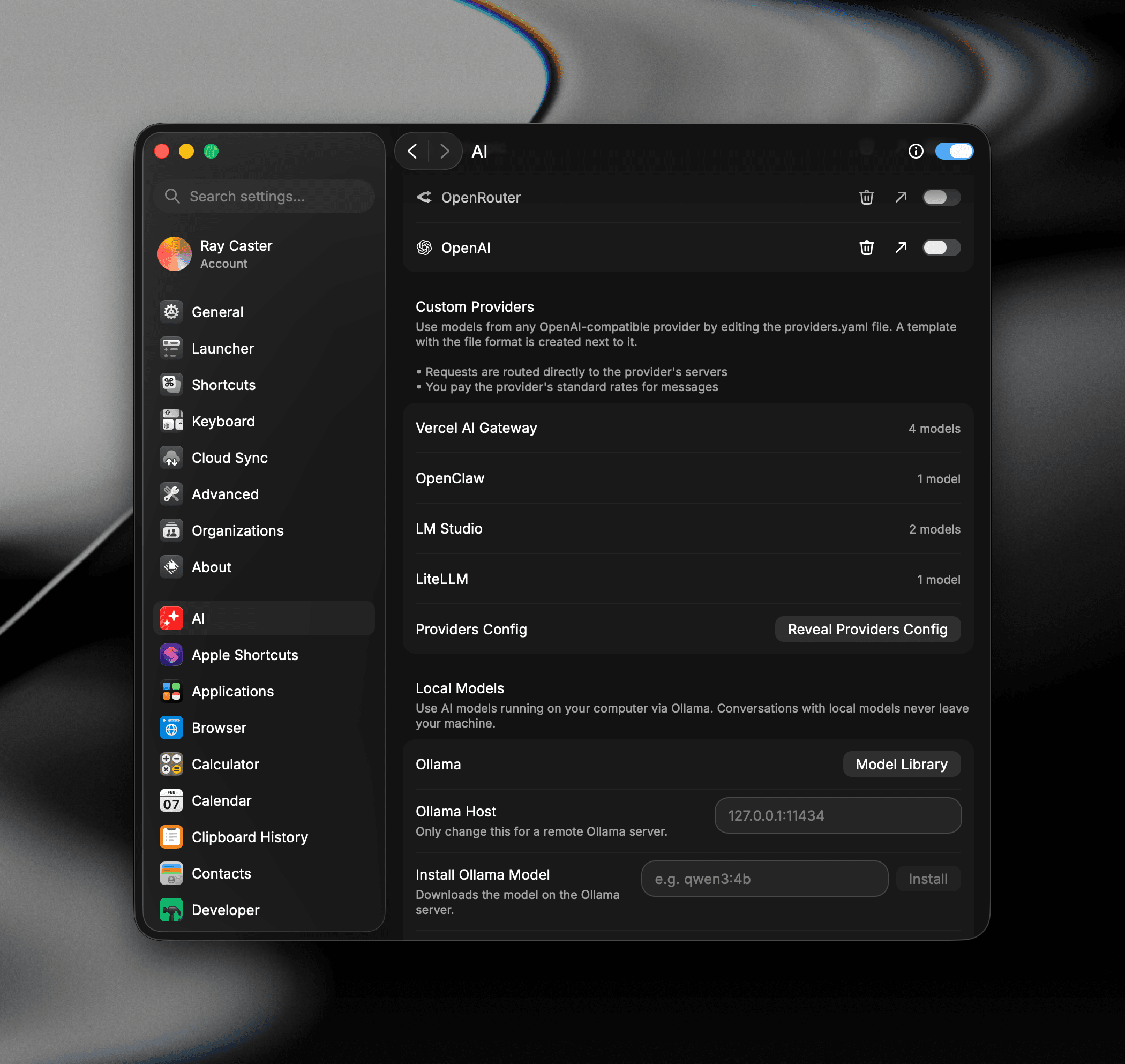

The file lives at ~/.config/raycast/ai/providers.yaml inside your user folder on both macOS and Windows.
If Raycast can't read your file, an Invalid providers.yaml badge appears next to Providers Config in Settings. Hover over the badge to see exactly what went wrong. Your previously loaded models keep working while you fix the file.
Configuration Format
Each entry in the providers list needs an id, a name, an OpenAI API compatible base_url, and a list of models. Here's a trimmed example connecting a provider with one model:
providers:
  - id: my_provider
    name: My Provider
    base_url: https://api.example.com/v1
    api_keys:
      my_provider: YOUR_API_KEY
    models:
      - id: my-model-id
        name: My Model
        provider: my_provider
        description: A short description shown in Raycast
        context: 200000
        abilities:
          temperature:
            supported: true
          vision:
            supported: true
          system_message:
            supported: true
          tools:
            supported: true
          reasoning_effort:
            supported: false
Provider Fields
| Field | Required | Description |
|---|---|---|
id | Yes | Unique identifier for the provider entry |
name | Yes | Provider name shown in Raycast |
base_url | Yes | OpenAI API compatible endpoint, without the /chat/completions suffix |
api_keys | No | Map of key aliases to API keys, omit for providers that don't require authentication |
additional_parameters | No | Extra fields added to every /chat/completions request |
include_user_email | No | Set to true to send your signed-in Raycast email as an X-User-Email header, useful for per-user attribution on a shared gateway |
models | Yes | List of models to register, providers without any valid models are skipped |
Model Fields
| Field | Required | Description |
|---|---|---|
id | Yes | Model identifier, must match the id the provider's API expects |
name | Yes | Model name shown in Raycast |
provider | No | Selects which alias in api_keys to use, defaults to the first key |
description | No | Short description shown in Raycast |
context | No | Context window size in tokens, refer to the provider's documentation |
abilities | No | Capability flags for the model, see below |
Abilities
Each ability is optional and takes a supported: true or supported: false value. When omitted, Raycast assumes system messages and temperature are supported, and tool use and vision are not. Declaring an ability the model doesn't actually support can make requests fail.
| Ability | Enables |
|---|---|
temperature | Sending a temperature value with requests |
vision | Image attachments in prompts |
system_message | Sending a system message |
tools | Tool use, required for AI Extensions and tools |
reasoning_effort | Reasoning effort control for reasoning models |
The providers.template.yaml file installed next to your config documents the same format with complete annotated examples.
The OpenAI API is not a formal standard, so we can't guarantee that every provider works correctly with Raycast AI. Refer to your provider's API documentation for model identifiers and capabilities.
Tools
Custom provider models can use Raycast's tools, such as web search and reading web pages, when your providers.yaml has a top-level tools block. Tools are opt-in: without the block, custom provider models get no tools at all. A model only uses tools if it declares abilities.tools.supported: true, and the block applies to every model in the file, with no per-provider or per-model overrides.
| Tool | What it does | Supported providers |
|---|---|---|
web_search | Searches the web, with source cards and citations | raycast, custom, tavily, exa, firecrawl, brave, perplexity |
read_page | Reads a web page you or the model provide | raycast, custom, tavily, exa, firecrawl, jina |
search_images | Finds images | raycast |
chart | Renders charts | raycast |
Image generation isn't available for custom provider models.
The tools block doesn't affect OpenRouter models added through Bring Your Own Key, which keep using OpenRouter's :online web search. Installed AI Extensions such as Exa Search or Perplexity also keep working with any tool-capable model, independent of the block.
Entry Format
Each tool takes either a provider name or an object with the provider and its settings. Leaving a tool out or setting it to false turns it off.
tools:
  web_search: raycast            # shorthand
  read_page:                     # object form
    provider: tavily
    api_key: TAVILY_KEY
chart: false # off, same as leaving it out| Field | Applies to | Description |
|---|---|---|
provider | All | Required. The service that runs the tool |
api_key | Vendors, custom | Plain-text key. Required for tavily, exa, firecrawl, brave, and perplexity. Optional for jina, where anonymous use is rate limited, and for custom |
base_url | Vendors | Replaces the vendor's API address, for example to route through a proxy in front of the vendor |
url | custom | Required. Your gateway endpoint, called exactly as written |
headers | Vendors, custom | Extra request headers, with string values only. They're applied after the vendor's auth header, so they can replace it |
include_user_email | Vendors, custom | Set to true to send your signed-in Raycast email as an X-User-Email header. Off unless set to exactly true |
max_results | web_search | Maximum number of results returned to the model. Defaults to 10, between 1 and 20 |
To use one service for both web tools, share the entry with a YAML anchor:
tools:
  web_search: &tavily
    provider: tavily
    api_key: TAVILY_KEY
  read_page: *tavily
Tool Providers
| Provider | Where requests go | Authentication | Default address |
|---|---|---|---|
raycast | Raycast's servers, requires Raycast Pro and no extra key | Your Raycast account | – |
custom | Your own gateway, see Custom Gateway | Authorization: Bearer <api_key> if set | url |
tavily | Tavily /search and /extract | Authorization: Bearer | https://api.tavily.com |
exa | Exa /search and /contents | x-api-key | https://api.exa.ai |
firecrawl | Firecrawl /search and /scrape | Authorization: Bearer | https://api.firecrawl.dev/v2 |
brave | Brave /web/search, search only | X-Subscription-Token | https://api.search.brave.com/res/v1 |
perplexity | Perplexity Search API /search, search only | Authorization: Bearer | https://api.perplexity.ai |
jina | Jina Reader, read page only | Authorization: Bearer if set | https://r.jina.ai |
Every provider except raycast is called directly from your device, through the system proxy if one is configured, so these requests never touch Raycast's servers. When a provider fails, the tool fails, and Raycast never falls back to another provider. The model sees the provider's error message, for example Tavily returned 401: Invalid API key. Your keys never appear in error messages.
Custom Gateway
Set a tool's provider to custom to run it on your own gateway. The gateway contract is a subset of Tavily's search and extract APIs, so a gateway that simply forwards to Tavily works as is. Raycast sends POST requests with a JSON body to the url you configure:
tools:
  web_search:
    provider: custom
    url: https://ai.example.com/web/search
    api_key: GATEWAY_KEY
    headers:
      X-Team: platform
    include_user_email: true
  read_page:
    provider: custom
    url: https://ai.example.com/web/extract
api_key: GATEWAY_KEYRaycast sends one request for each way the model phrases the search, up to 5, and merges the results. country is only included when the model asks for one, as an ISO 3166-1 alpha-2 code.
Request:
{ "query": "raycast founders", "max_results": 10, "country": "US" }Response:
{
"results": [
{ "url": "https://example.com", "title": "Example", "content": "A snippet of the page" }
]
}
Any response status other than 2xx counts as a failure. The error, error.message, message, or detail field of the response body is shown to the model.
Limits
- Search requests time out after 30 seconds, and each snippet is capped at 2,000 characters.
- Page reads time out after 60 seconds, and page content is capped at 200 KB, marked with
[Content truncated]when cut. read_pageonly acceptshttpandhttpsURLs.
Invalid Configuration
An invalid entry turns off only that tool, while your models and all other tools keep working. Common causes are a missing api_key, a provider that doesn't support the tool, a missing or non-http url for custom, and an unknown tool name.
Examples
Cross-vendor gateways such as Vercel AI Gateway or Cloudflare AI Gateway put models from every major lab behind a single endpoint and a single key, with usage tracking and spend controls in one dashboard:
providers:
- id: vercel_ai_gateway
name: Vercel AI Gateway
base_url: https://ai-gateway.vercel.sh/v1
api_keys:
  vercel: VERCEL_AI_GATEWAY_KEY
models:
  - id: anthropic/claude-fable-5.1
    name: "Claude Fable 5.1"
    context: 1000000
    abilities:
      temperature:
        supported: true
      vision:
        supported: true
      system_message:
        supported: true
      tools:
        supported: true
      reasoning_effort:
        supported: true
Using Custom Models
Custom provider models show up in the model picker grouped under the provider's name you set in the file. Pick them anywhere you'd pick a Raycast AI model, including Quick AI, AI Chat, and AI Commands. Since Raycast has no benchmark data for custom models, they don't show speed or intelligence scores in the model settings.
If you only want models from OpenRouter, adding an OpenRouter API key via Bring Your Own Key unlocks its full catalog automatically. If you run local models with Ollama, Raycast supports this natively with Local Models and detects your models automatically for you.