
Bring Your Own Subscription
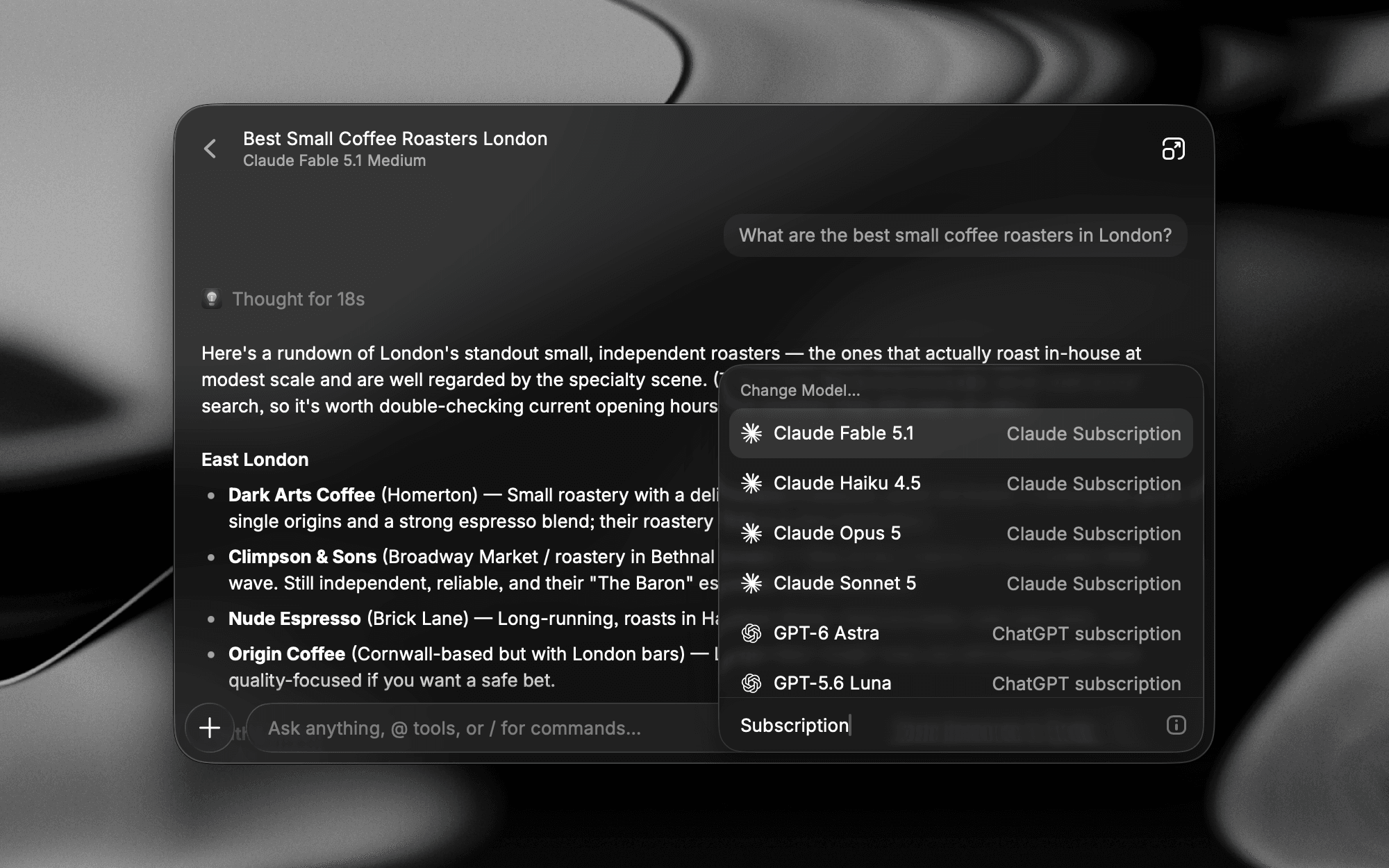
Bring Your Own Subscription lets you use your Claude or ChatGPT subscription inside Raycast. Sign in using the provider's command line tool, and the models included in your plan show up in Raycast's model picker alongside everything else. Usage counts towards that subscription, not your Raycast AI credits.

Your prompts go straight from the provider's tool on your machine to Anthropic or OpenAI, never through Raycast's servers. Raycast never sees or stores your Claude or ChatGPT credentials.
Get Started
You'll need a paid Raycast plan, plus an active Claude or ChatGPT subscription. Accounts that only have API access don't qualify; use Bring Your Own Key for those instead.
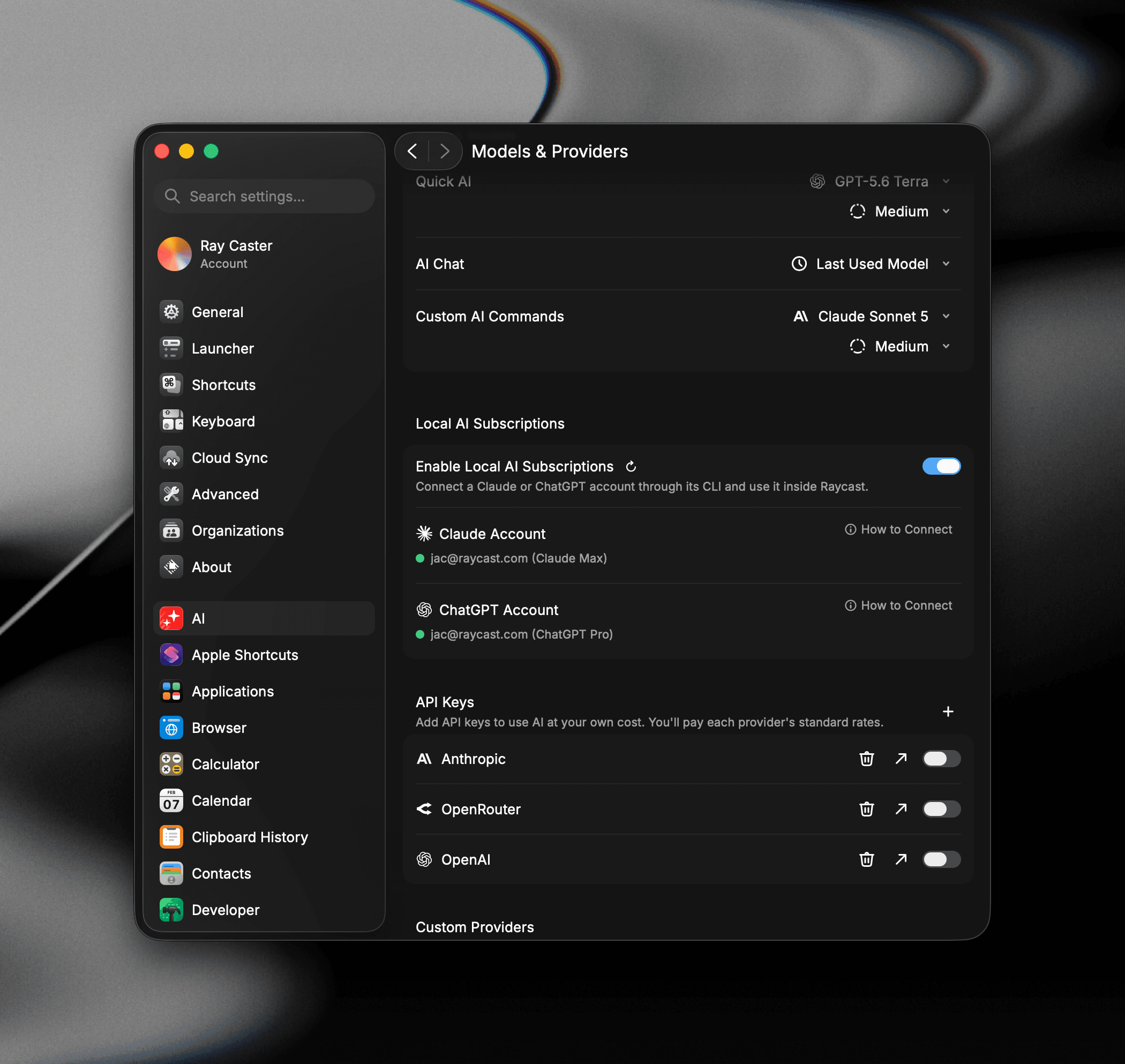
- Open Settings → AI → Models & Providers.
- Scroll to Local AI Subscriptions section and turn on Enable Local AI Subscriptions.
- Install the provider's command line tool (if not installed already):
- Claude: Install Claude Code.
- ChatGPT: Install the Codex CLI.
- Sign in to the tool from Terminal:
- Claude: Run
claude, then enter/login. - ChatGPT: Run
codex loginand sign in with your ChatGPT account.
- Claude: Run
- Back in Raycast, check that the Claude Account or ChatGPT Account row shows your account and plan. If it doesn't, click .
You're all set. Open the model picker in AI Chat, Quick AI, or an AI Command and choose a model from the Claude Subscription or ChatGPT Subscription section.
Raycast finds claude and codex in the usual places: your PATH, Homebrew, npm's global folder, and the Codex or ChatGPT desktop apps. If you installed a tool somewhere else, add it to your PATH and restart Raycast.

Using Subscription Models
Subscription models work in AI Chat, Quick AI, and AI Commands, and for Automations. Raycast reads the list of models available to your account, and the list updates when the provider adds models.
Subscription models carry a small or badge in the picker and in the selected model text under the chat title so you can tell them apart from Raycast AI models.
Most of what you're used to carries over:
- Attachments: Send images and files as you normally would.
- Reasoning: Models that support it show a Reasoning Effort option in the picker.
- Prompt suggestions: With a Claude subscription model selected, an empty composer in AI Chat or Quick AI shows Claude's suggested next prompt as the placeholder. Press Tab or → to insert it.
- Tools: AI Extensions, MCP servers, and Skills all work. Raycast stays the tool host, so your tool permissions apply as usual.
- Web search: Runs through the provider's own search rather than Raycast's.
A few tools that Raycast runs on its own servers, such as image generation, still use a Raycast AI model for that step and count against your AI credits. The conversation itself stays on your subscription.
Usage Limits
Your subscription usage limits are determined by the provider, not Raycast. Claude and ChatGPT both have rolling limits, typically a five-hour window and a weekly cap, shared with anything else you use the subscription for. When you hit one, Raycast tells you which limit you've reached and when it resets, and the chat pauses until then.
Check your usage before you hit a limit:
- Type
/usagein the AI Chat composer while a subscription model is selected, or choose Show AI Usage from the Action Panel (⌘K / CtrlK). - Or open Settings → AI → Models & Providers and click Show Usage on the connected account.
- Or run Show Claude Usage or Show ChatGPT Usage from Root Search.
Either way, the panel shows the usage windows your provider reports, each with the percentage used and, when the provider shares it, the time it resets. ChatGPT also lists any usage limit resets available to you. The numbers are account-wide, so they include usage outside Raycast.
Raycast doesn't switch you to Raycast AI credits automatically. Wait for the limit to reset, or change the chat's model to a Raycast AI model or a different provider and continue. Open Settings → Account if you want to check your AI credit balance first.
Manage Subscriptions
The Local AI Subscriptions section in Settings → AI → Models & Providers shows the status of each account in the Claude Account and ChatGPT Account rows: connected with your plan title, signed out, or not installed.
- Pause everything: Turn off Enable Local AI Subscriptions. Subscription models disappear from the picker, and any chat using one will ask you to pick another model. Turn it back on and they return; you won't need to sign in again.
- Switch accounts or sign out: Use the provider's own tool. Run
claudeand enter/logout, or runcodex logout. Raycast picks up the change the next time it checks the account. After you sign out, subscription models stay in the picker but appear muted, and a chat using one shows a notice above the composer with Check Connection and Provider Settings buttons. - Refresh: Click if you've just signed in or changed plan and Raycast hasn't noticed.
- Show Usage: Appears on each connected account and opens AI Usage for that account, showing the same provider usage windows as
/usagein AI Chat. If both accounts are connected, switch between Claude and ChatGPT at the top of the dialog.