
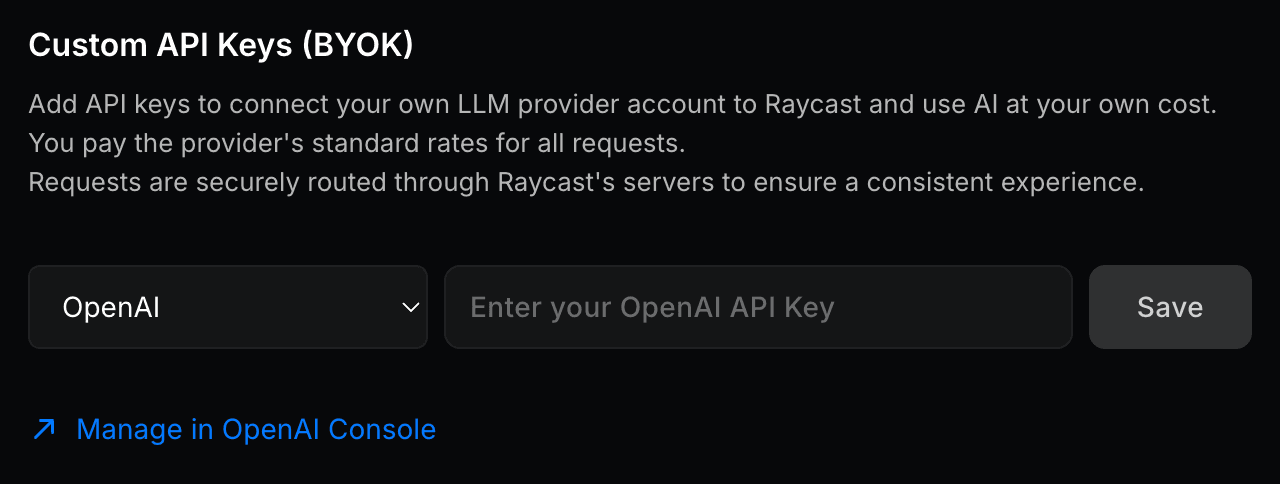
Custom API Keys (BYOK)
Support for Enterprise features in Raycast for Windows has not yet been added. Contact us if you require these features in your organization.
Connect your organization's own Anthropic, Google, or OpenAI account to Raycast. Your provider bills you directly at their standard rates for usage of their models, so that usage of those models runs on your existing accounts and commitments instead of Raycast's included tokens. You keep the same Raycast AI experience and choose whether members also see Raycast's built-in models.
Managers add keys under Organization → AI Control Center. Once a key is saved, members' AI requests to models from that provider use your account. Requests still pass through Raycast to unify the provider APIs, handle fallbacks, and apply final prompt management. See Raycast AI Privacy & Security for how that data is handled.
Supported providers: Anthropic, Google, and OpenAI
How Custom API Keys work:
- No API key configured: Members use the AI models included in your plan, alongside any Custom Providers or Local Models.
- API key configured, enforcement disabled: AI models from the providers you've added API keys for appear alongside Raycast's built-in models. Usage of those AI models is billed to your provider account.
- API key configured, enforcement enabled: Members can only use AI models from the providers you've added API keys for. Raycast's built-in models are switched off and all usage is billed to your provider account.
See Custom API Keys Enforcement below to choose between the two.
Configure Custom API Keys
- In Raycast Account Settings, navigate to Organization → AI Control Center
- Click the dropdown below Custom API Keys (BYOK) and select your provider
- Insert your provider API Key in the input field and click on Save
- A message reading "API key saved successfully" will appear, confirming the change
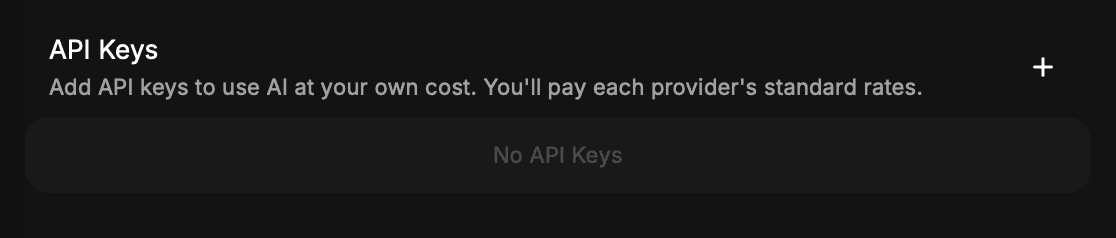
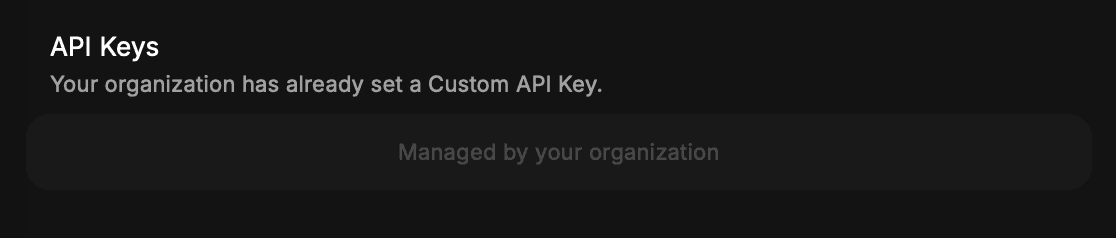
The images below show how the API Keys section appears in the Raycast client settings with and without a Custom API Key configured for your organization. With an API key configured, which AI models members see also depends on the Custom API Keys Enforcement setting below.
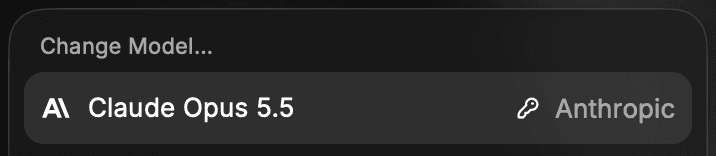
In the Raycast client's model selector, models that use your Custom API Keys show a key icon next to the provider name.
Custom API Keys Enforcement
Choose whether members see only the models from your Custom API Keys, or those models alongside Raycast's built-in models. When enabled, members can only use models from the providers you've added keys for. When disabled, those models are added alongside Raycast's built-in models.
- In Raycast Account Settings, navigate to Organization → AI Control Center
- Scroll down to the Custom API Keys (BYOK) section
- Click the toggle next to Custom API Keys Enforcement to enable or disable it
- A message reading "Settings updated successfully" will appear, confirming the change
