

API Keys
Organization API keys let your CI pipelines work with Raycast on behalf of the organization, not a person. A pipeline that uses one keeps working when the member who set it up leaves the organization or changes role.
Each key can only do what you allow when you create it:
- Publish private extensions: Run
ray publishfrom CI to publish extensions to your organization's Private Store - Enterprise Deploy Custom Providers configuration: Read and replace the
providers.yamlthat applies to every member. Only available when Custom Provider Configuration is enabled for your organization
Create an API Key
- In Raycast Account Settings, select your organization under Organization, then click Manage API Keys
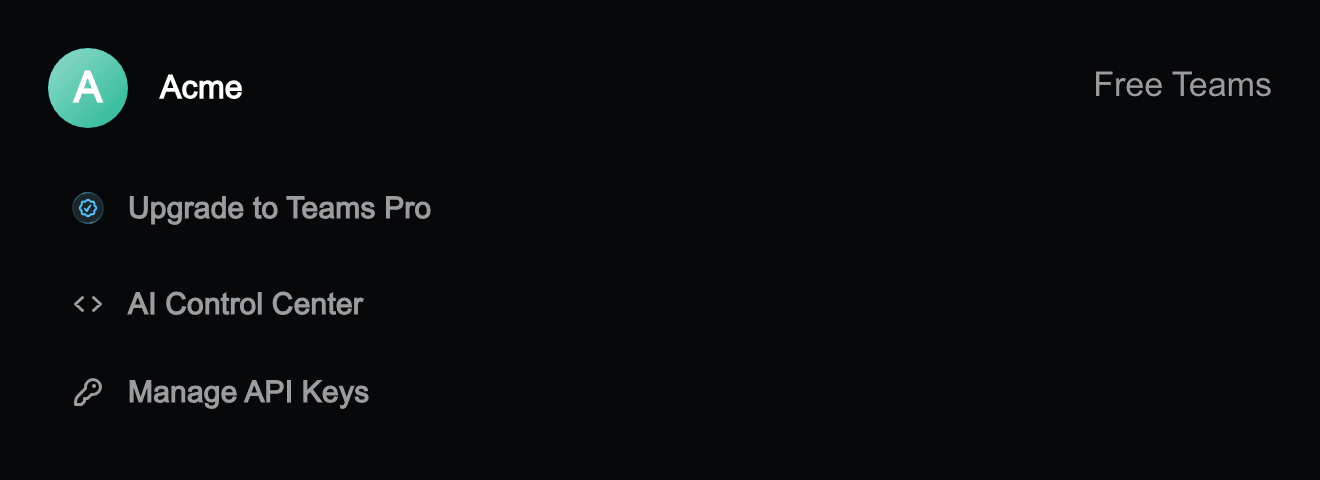
- Click Create Key
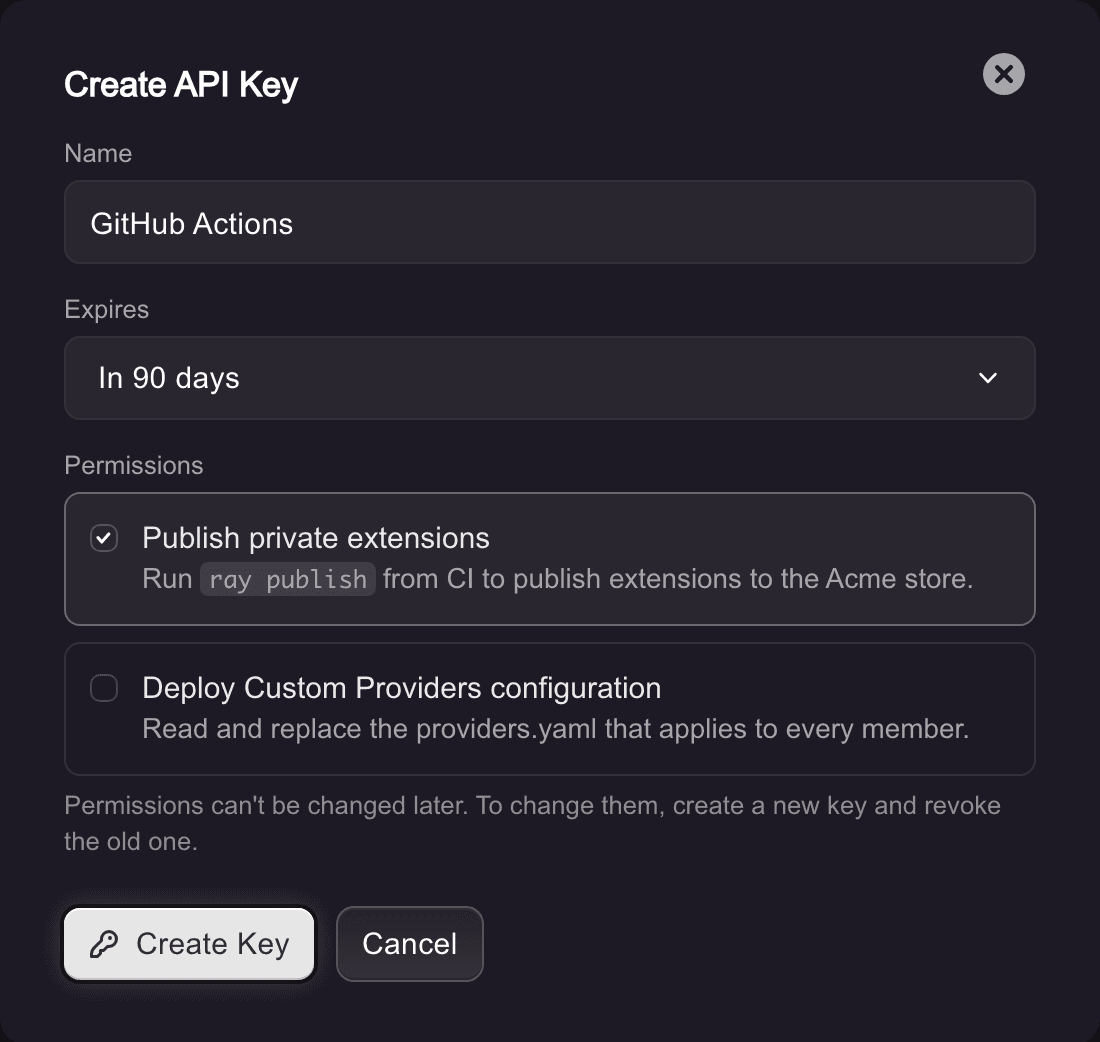
- Enter a name for the key, such as the CI provider that will use it
- Choose when the key expires: in 90 days, in 1 year, or never
- Under Permissions, select what the key can do. If your organization can only use one permission, it's already selected
- Click Create Key
- Copy the key and store it as a secret in your CI provider. This is the only time the key is shown
Permissions can't be changed after a key is created. To change them, create a new key with the permissions you need, update the secret in your CI provider, then revoke the old key.
Use an API Key
Publish Private Extensions
Set the key as the RAY_TOKEN environment variable in your CI job, then run npx ray publish in the extension's folder after installing its dependencies. For example, in GitHub Actions:
- name: Install dependencies
  run: npm ci

- name: Publish to the Private Store
  env:
    RAY_TOKEN: ${{ secrets.RAYCAST_API_KEY }}
  run: npx ray publish
Enterprise If Private Extension Publishing is set to No one, publishing with a key is refused too.
To learn how to build a private extension, see the Publish a Private Extension guide.
Deploy Custom Providers Configuration
Send the key as a bearer token to the custom provider configuration API. See Manage the Configuration from CI for the request, the responses, and a GitHub Actions example.
Manage API Keys
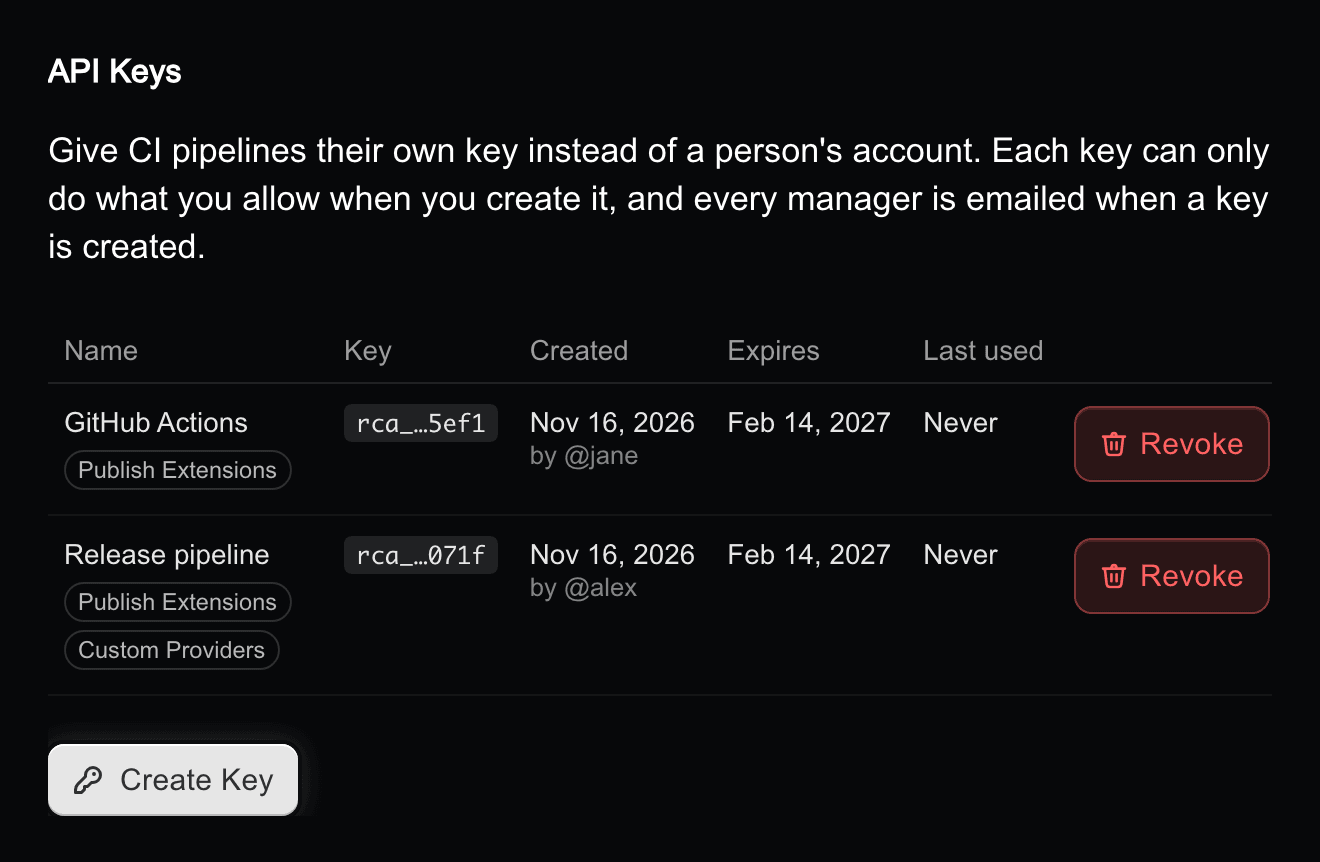
The list shows each key's permissions, who created it, when it expires, and when it was last used, so you can spot keys that are no longer needed.
- Only Managers can create, see, and revoke API keys
- Every Manager gets an email when a key is created
- To revoke a key, click Revoke next to it. A revoked or expired key stops working immediately
- To rotate a key, create a new one, update the secret in your CI provider, then revoke the old key
- An organization can have up to 10 active API keys
Keys are stored hashed and can't be shown again after they're created.