

AI Chat
AI Chat is Raycast's full chat workspace, with persistent history, Memory, rich attachments, and tool use so you can start a multi-turn conversation, attach context, and pick up where you left off across sessions. For fast, one-off questions straight from Root Search, use Quick AI instead.
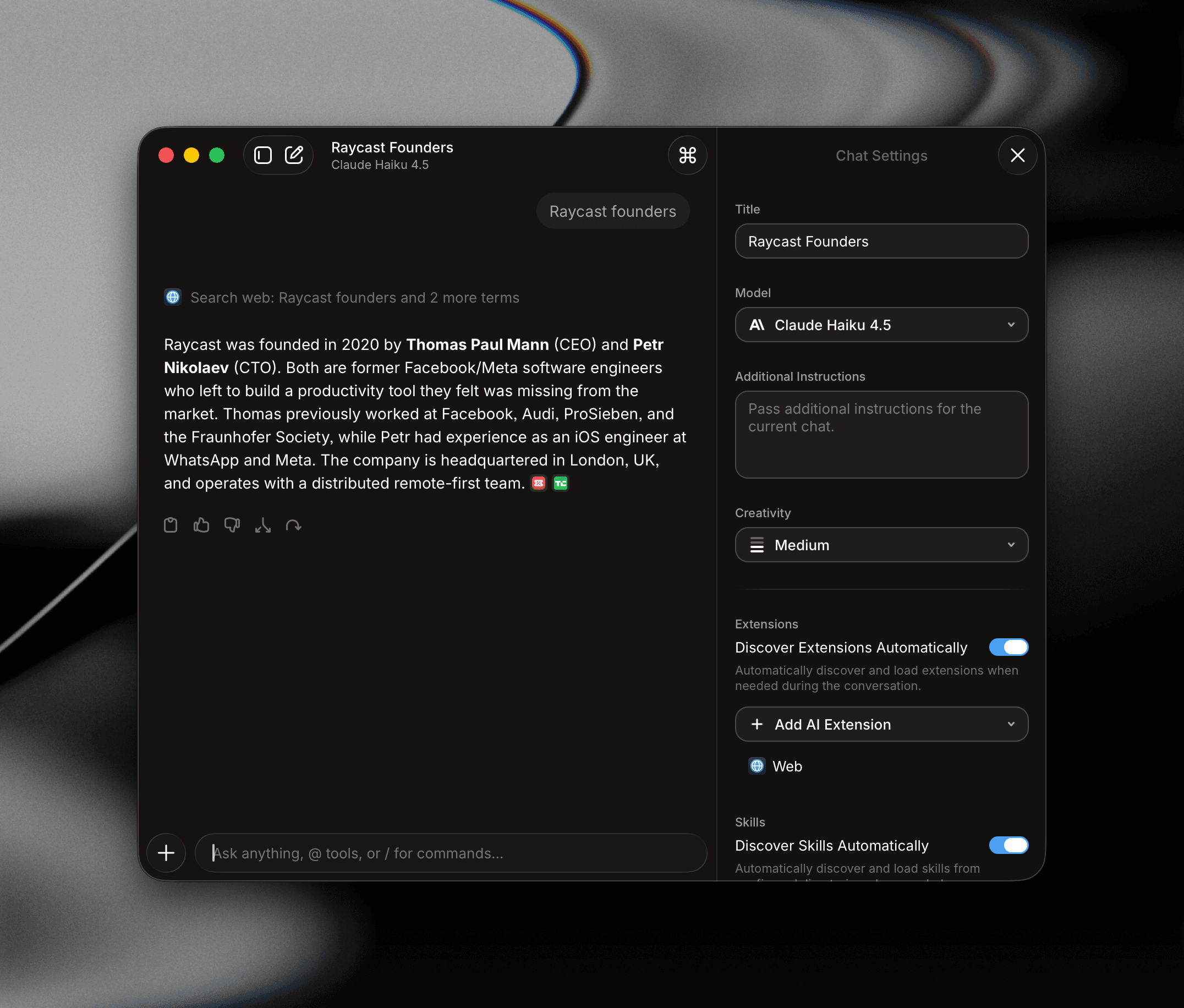
There are a few ways to start:
- Use the AI Chat command from Root Search to open the chat workspace.
- Press ⌘J / CtrlJ from a Quick AI conversation to continue it in AI Chat with the full history.
- Use a Send to AI command to send content into your active AI Chat from anywhere: Send Focused Window to AI, Send Selected Text to AI, Send Screen Area to AI, or Send Screen to AI. Learn more on the Screen Awareness page.
AI Chat lives in its own window, so you can keep it alongside whatever you're working on.
Start a Conversation
Type your prompt in the composer and press ↵ to send. ⇧↵ adds a new line. AI Chat streams the response back and remembers the whole thread, so each follow-up can build on earlier turns.
- Edit any previous message to re-run the conversation from that point.
- Regenerate the last response with ⌘R / CtrlR.
- Start a fresh chat with ⌘N / CtrlN.
- With an empty composer, press ↑ to edit your last message, then keep pressing ↑ or ↓ to step through earlier and later messages. See Edit a Message.
When a response includes code, it appears in a code block with the detected language and a copy button. Long lines scroll sideways by default. Click Enable line wrap in the top right of the block to wrap them to the response width, and click again to switch back.
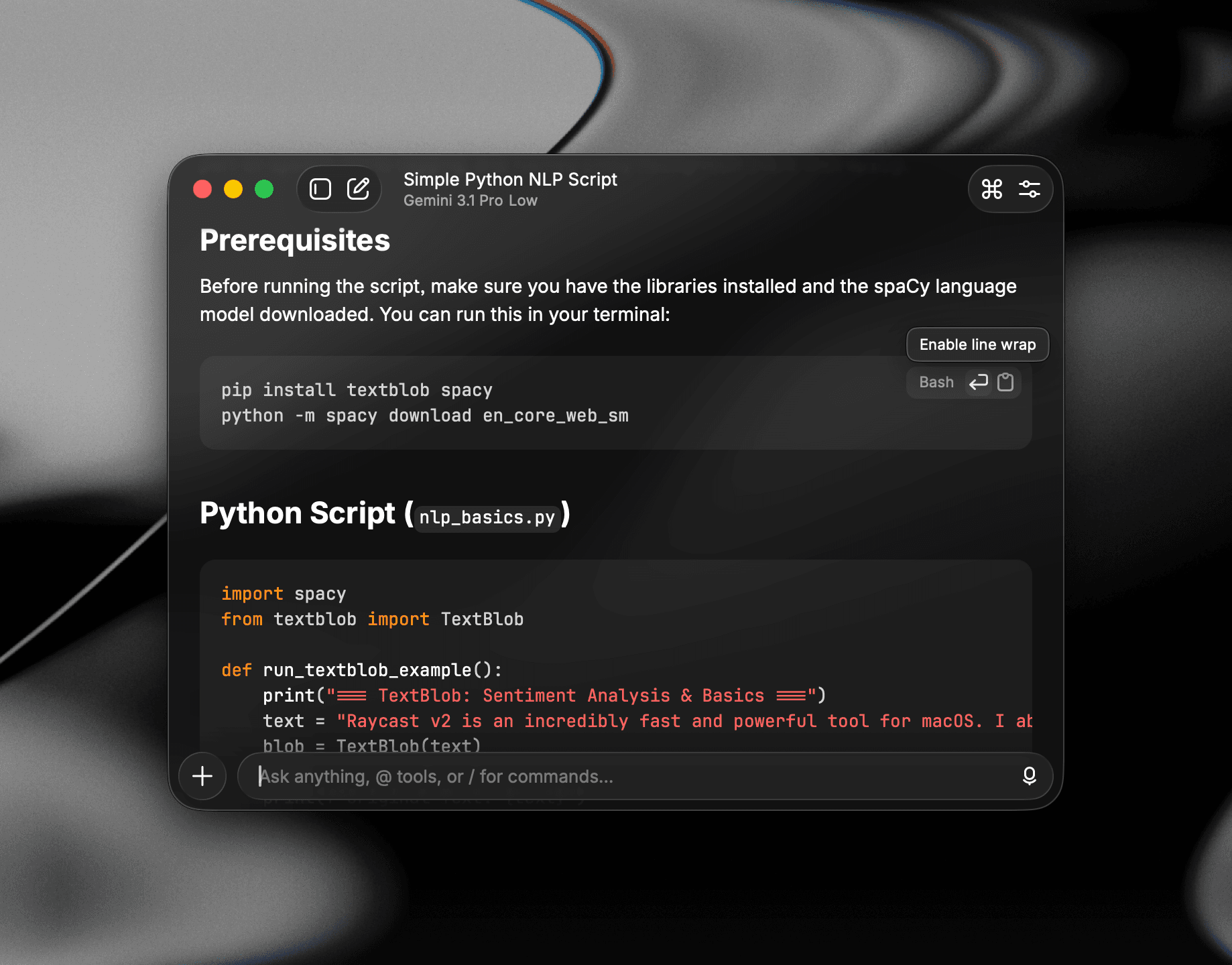
You can adjust the zoom level of the AI Chat window by using ⌘- / Ctrl- to zoom out or ⌘+ / Ctrl+ to zoom in, or ⌘0 / Ctrl0 to return to actual size, or in Settings → AI → Chat → Zoom.
Dictate a Message
Speak your prompt instead of typing it. Click the microphone button in the empty composer, or press ⌃M / CtrlM. Your words appear as you speak. Press ⌃M / CtrlM again to Accept Dictation, or Esc to Cancel Dictation. Learn more on the Dictation page.
Steer or Queue Follow-ups
While a response is streaming, you can Queue a follow-up to run when it finishes, or Steer to inject your message into the current run without restarting. The send button shows Steer Message or Queue Message for the active mode. Default is Queue. Change it under Follow-up Behavior in Settings.
- Do the opposite once: ⌘↵ / Ctrl↵ applies the other behavior for one message (⌥↵ if that's your primary Send Message shortcut).
- Promote a queued message: Click Steer on a queued message to inject it into the current run. With no active run, it sends.
Canceling is unchanged (empty input still cancels a run). Pending tool confirmations still pause the run; steered messages apply once it resumes.
Edit a Message
Change a message you already sent and re-run the conversation from that point with the new text. Hover a previous message to reveal its actions, click the edit (pencil) icon, update the text in the composer (it shows Editing Message while you do), and resend.
You can also edit from the keyboard. With an empty composer, press ↑ to load your last message. Keep pressing ↑ or ↓ to move between earlier messages. Once you change the text, the arrow keys move the caret again. Press Esc to cancel and get your draft back.
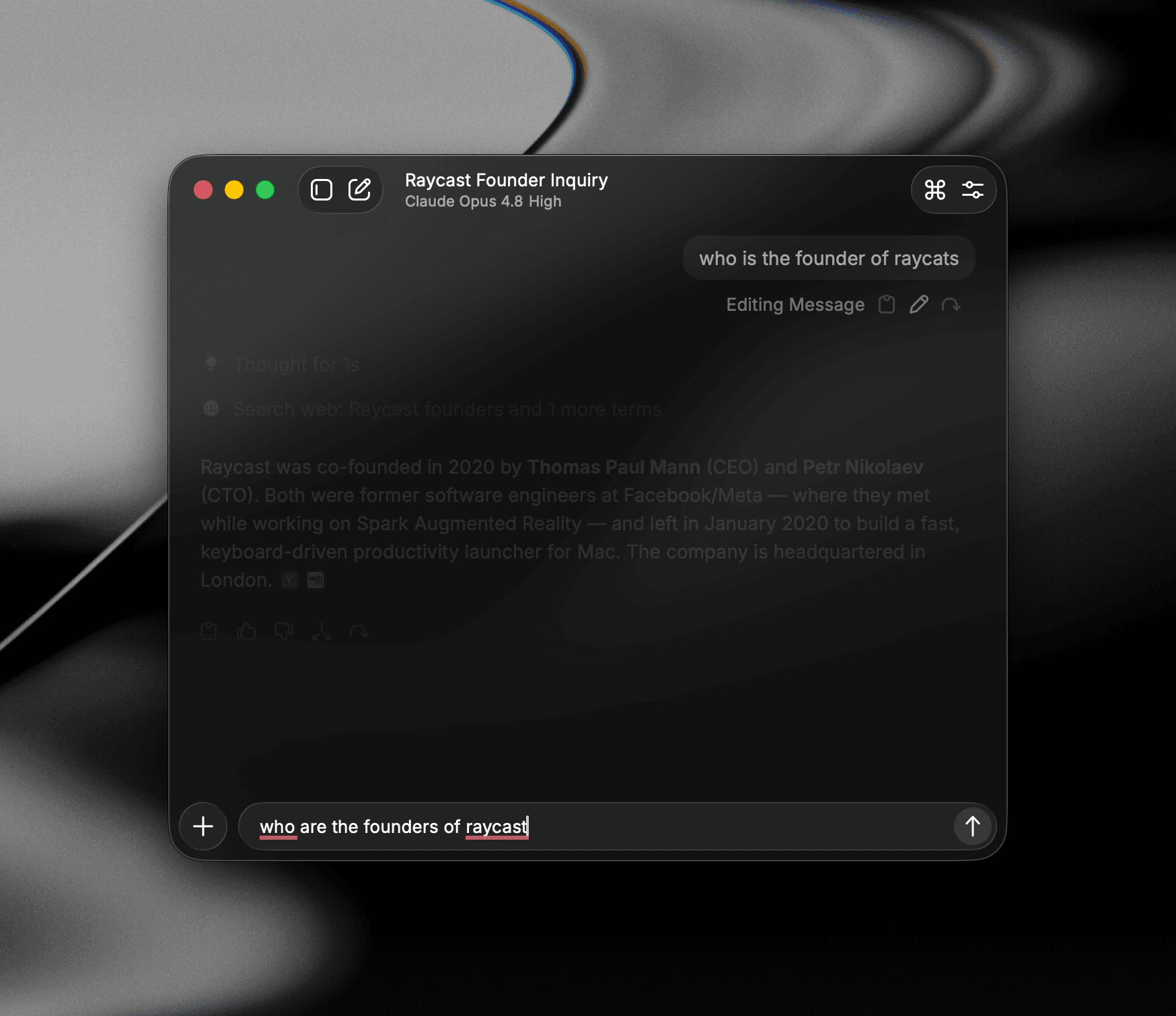
Editing replaces the original response and any messages after it, so resending consumes additional credits or provider usage, like regenerating a response.
Collapsed Messages
To keep conversations easy to scan, long messages you send are collapsed in both AI Chat and Quick AI. A collapsed message shows its first part with a Show more control to expand it, and a Collapse control to fold it back once expanded.
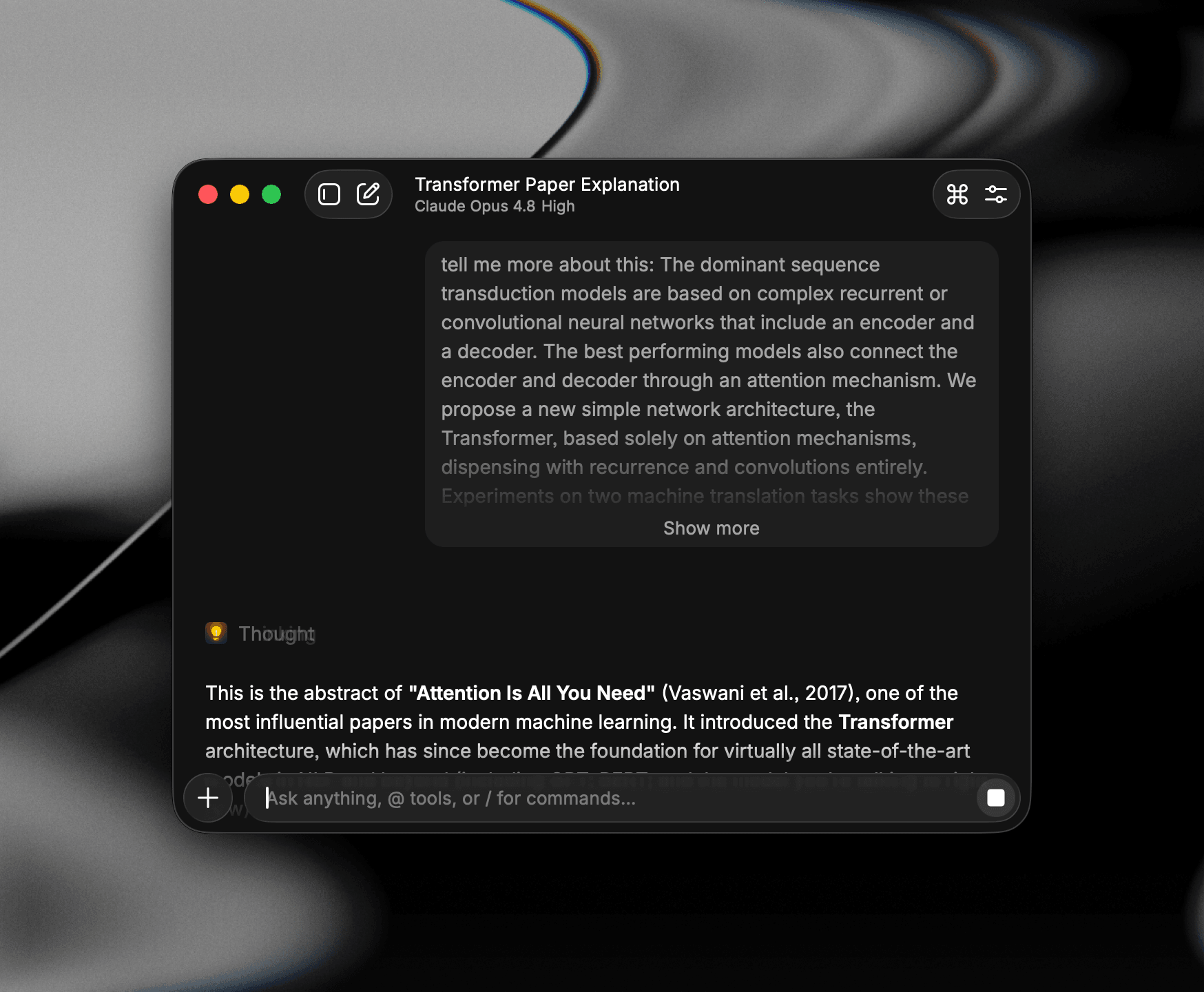
Only long messages collapse: A message over 10 lines (or a comparably long single paragraph) is collapsed, while shorter messages are always shown in full.
Find in Chat
Press ⌘F / CtrlF to search the text of the open chat. Type to highlight matches, then press ↵ for the next match or ⇧↵ for the previous one. Press Esc to close the find bar. Collapsed messages expand when they contain a match.
To search across all your chats, use the search field in the history sidebar. See Manage Chats.
Ask User Question
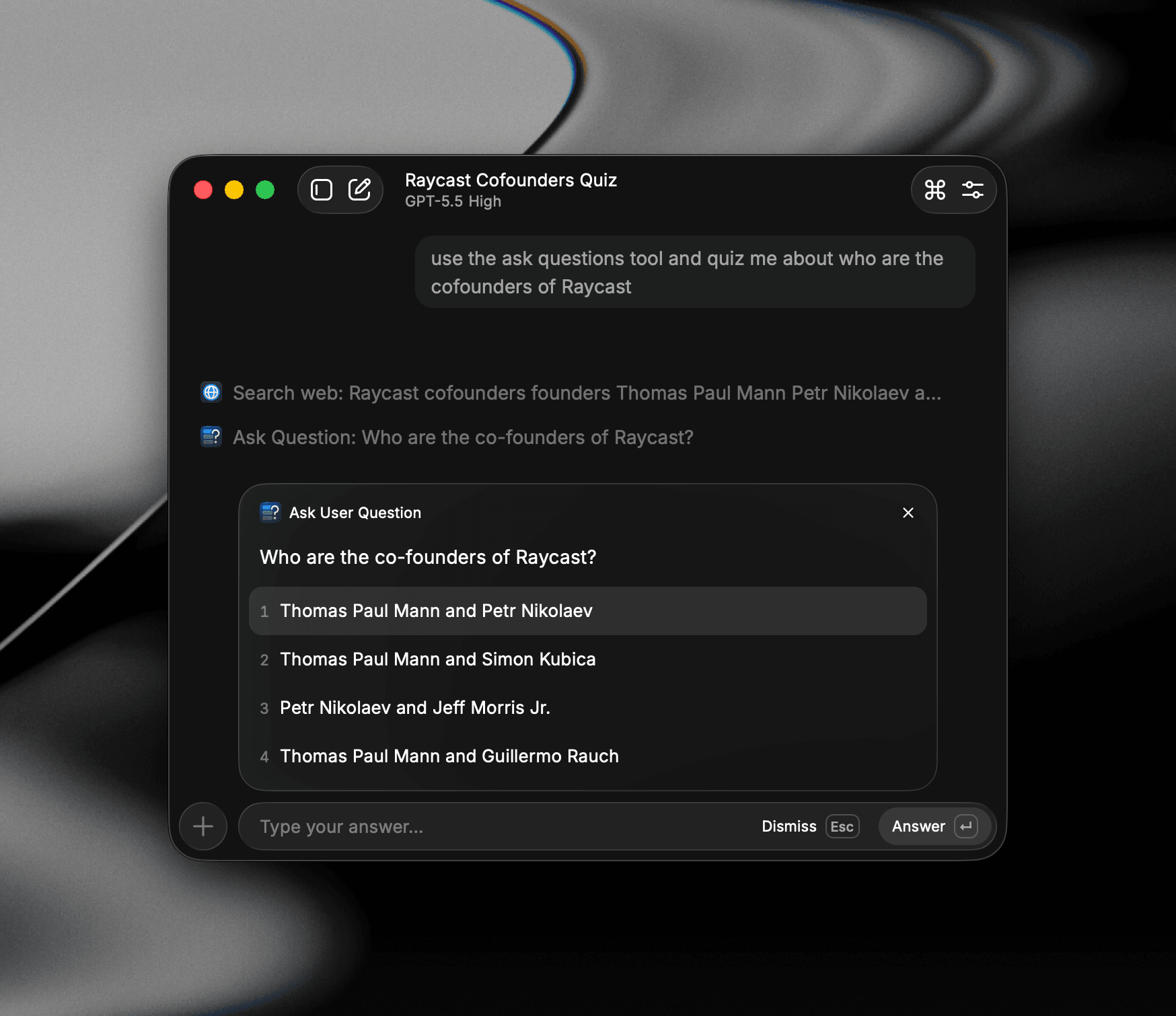
Sometimes the AI needs a bit more direction. When a request is ambiguous or the model isn't sure how to proceed, it can pause and show you a short multiple-choice question right in the conversation. Pick an option and it continues with your answer. This works in both Quick AI and AI Chat and is always on — there's no setting to turn it off.
To reliably trigger it, ask for it in your prompt: Either name the tool directly ("use the ask questions tool") or describe the flow ("do X, then ask me to choose Y").
Try it: Paste either of these into AI Chat:
Set up a new project folder for me and ask me to choose from the available optionsUse the ask questions tool and quiz me about who are the cofounders of RaycastBecause these requests leave out details (where to create the folder and what to call it, or how many questions and how hard), the AI will typically ask a clarifying question with a few options before doing anything.
Models
Configure the AI models used across AI Chat, Quick AI, and Custom AI Commands from Settings → AI → Models & Providers, or use the Manage Models command to jump straight there.
Auto
Auto picks a model for each request based on what matters most to you: Lightweight, Balanced, or Flagship. Balanced is the default and gives you strong answers while using about 70% fewer credits than Flagship. Lightweight is the quickest option, taking about 70% less time to respond than Flagship. Flagship puts answer quality first and delivers the best results in Raycast's internal testing.
- Lightweight: Fast and efficient.
- Balanced: Quality and value.
- Flagship: Prioritizes answer quality. Available on Pro+ and Max.
Follow-up messages stay on the same model where possible. Each chat remembers its own preference.
Change the preference for the current chat with Model Preference in the settings sidebar, with Change Model Preference… in the Action Panel, or from the Model Preference section of the composer's / menu. You can also set a default under Default Models, or set one on an Automation.
Switch Models
Open the model picker from the AI Chat window's title bar or by using / in the composer. Pick a fast model for general chatting, a reasoning model for harder problems, or an image-capable model when you want to generate visuals.
Tune model behavior from the settings sidebar:
- Creativity: None, Low, Medium, High, or Maximum.
- Reasoning Effort: For models that support extended thinking (not used by Auto).
- Web Search: Let the model pull live results during the answer.
Auto Model
Auto is a built-in model that picks one of Raycast's AI models for each request, so you don't have to choose one yourself. Select it from the model picker in AI Chat, Quick AI, or Custom AI Commands like any other model.
Auto's Model Preference tells it what to favor when it picks a model:
- Lightweight: Fast and efficient. Auto prefers responsive, lower-cost models.
- Balanced: Quality and value. Auto balances response quality, speed, and cost. This is the default.
- Flagship: Most intelligent. Auto prefers the highest-quality suitable model. Available on Raycast Pro+ and Raycast Max plans.
Without one of those plans, Flagship appears muted in the Model Preference picker with a Pro+ badge, and choosing it opens the upgrade flow instead of applying it. If a chat is set to Flagship and your plan changes to one that doesn't include it, that chat uses Balanced instead.
When Auto is the active model, its preference appears next to the model name in the AI Chat window's title bar. Click it, or choose Change Model Preference from the Action Panel, to change the preference for that chat. To set a default preference for each surface, see Default Models.
Default Models
Pick the default model for each surface:
- AI Chat: The default for new chats. Set to Last Used Model to continue with whichever model you used most recently.
- Quick AI: The model used when you ask a quick question from Root Search.
- Custom AI Commands: The default for any AI Command that doesn't specify its own model.
When a model supports reasoning effort, each row also shows a dropdown for it, with the recommended option marked Default. Your choice carries over between models that support it, or resets to the new model's default. The same control appears in Custom AI Command settings whenever a specific model is used instead of Last Used Model.
When a row's default model is Auto, that row also shows a Model Preference dropdown. Each surface keeps its own preference, so AI Chat, Quick AI, and Custom AI Commands can each use a different one. See Auto Model.
Manage Models
Choose which models appear in the model pickers across AI Chat, Quick AI, and Custom AI Commands:
- Review model details: Each model lists its Speed, Intelligence, and Context Window so you can compare capabilities at a glance.
- Enable or disable models: Toggle the checkbox next to a model to control whether it shows up in pickers. Disabled models are hidden everywhere AI models can be selected.
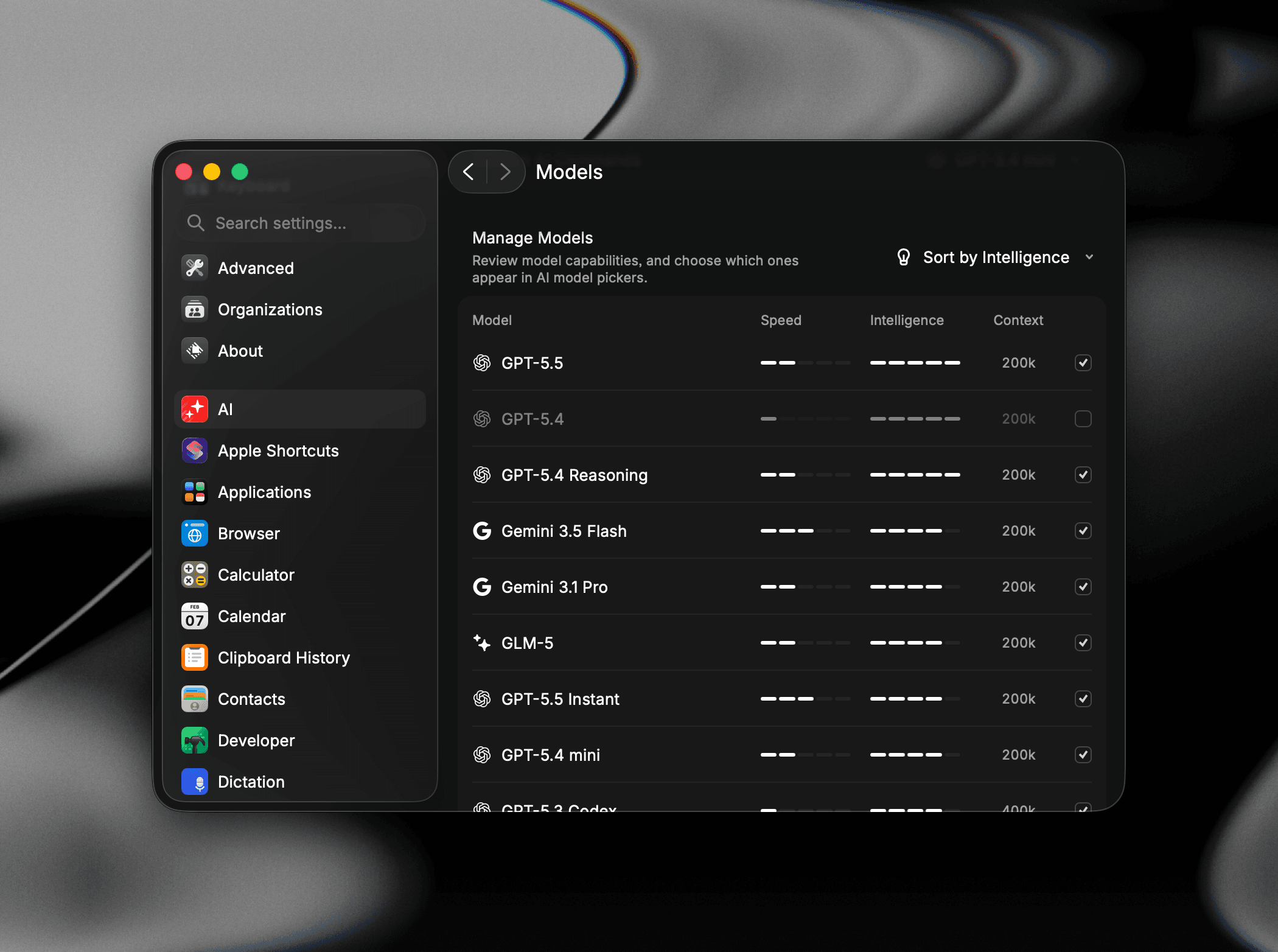
- Group by Provider: Models are grouped by their provider (e.g. Raycast, Anthropic). Expand or collapse a provider to focus on a subset.
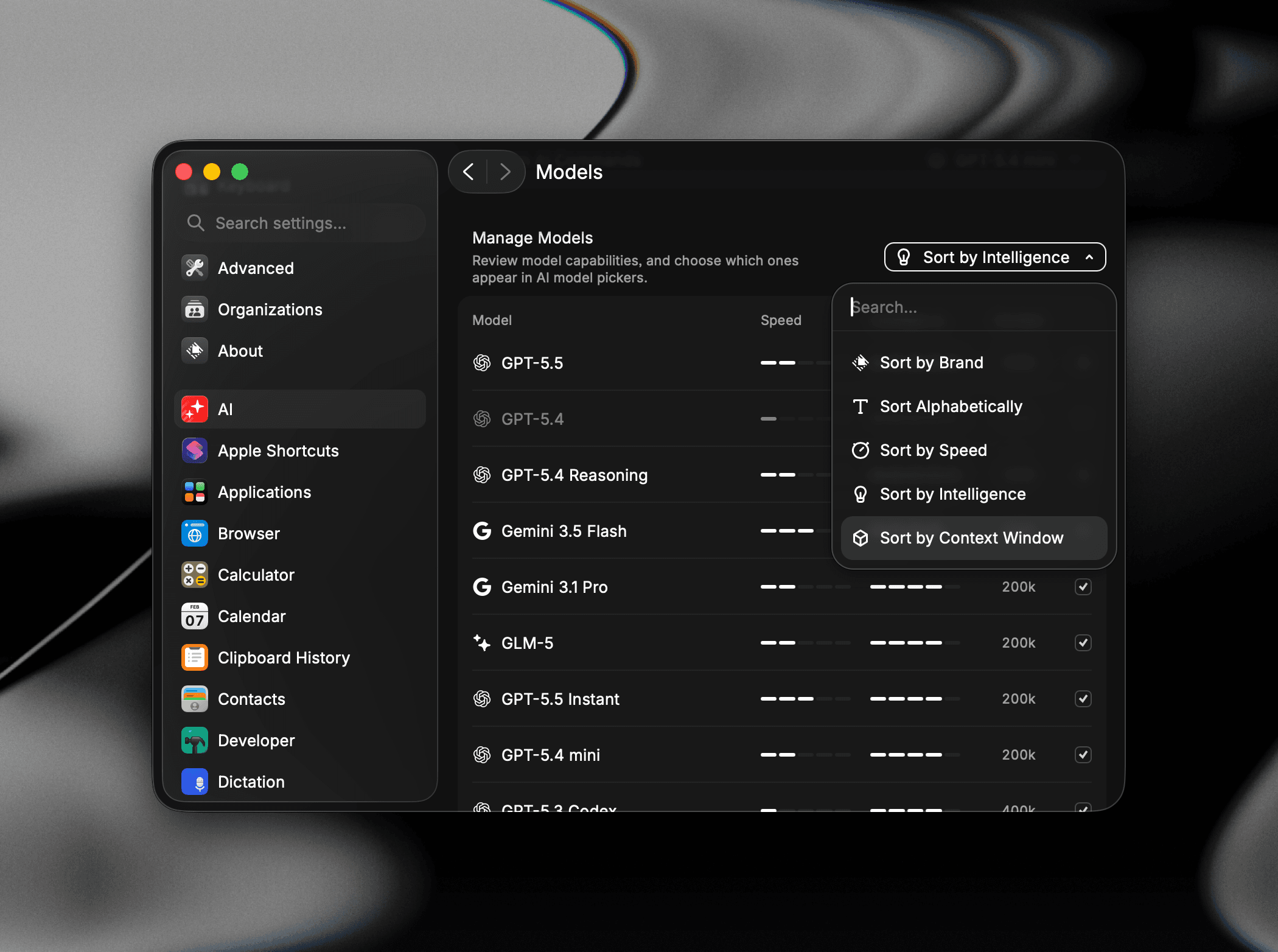
- Sort the list: Use the sort menu in the top-right to order models by Brand, Alphabetically, Speed, Intelligence, or Context Window.
Memory
Turn on Memory (in Settings → AI → Personalization → Memory) and AI Chat will remember durable facts across conversations: Your name, the projects you work on, the format you prefer answers in. The model writes to and reads from memory automatically as you chat. Learn more on the Personalization page.
Long Conversations
Every model has a fixed context window, and a long working session will eventually fill it. Rather than cutting the conversation off, Raycast summarizes the earlier part of it in the background and carries on from the summary. You'll see a Summarizing chat… step in the transcript that settles into Summarized chat when it's done, and you keep going in the same chat.
Oversized tool results and attachments work the same way: Raycast saves the full content to a file and gives the model the start of it plus the path, so something too big for the context window can still be worked with. There's nothing to configure.
Attach Context
Add context to your next message by clicking the attach button in the composer or typing @. AI Chat can pull in:
- Files: Documents, code, or images from your disk.
- Notes: Any of your Raycast Notes.
- Clipboard History: A recent item you've copied.
- Browser Tabs: Open tabs from supported browsers.
- Web Search: Live web results gathered while answering.
- Focused Window: A full Screen Awareness capture of the app in front of you, including its content, your selection, and a screenshot.
- Selected Text: Whatever you've highlighted in another app.
- Window…, Selected Area, or Entire Screen: A screenshot captured from your desktop.
- Calendar Events: Events from today or coming up.
Attachments are scoped to the message you send them with, but the model can keep referring back to them later in the chat.
Send to AI commands push content into your active chat instead of always starting a new one. The commands are Send Focused Window to AI, Send Selected Text to AI, Send Screen Area to AI, and Send Screen to AI. Learn more on the Screen Awareness page.
What happens depends on AI Chat's state:
- AI Chat open: The content goes straight to the active chat.
- AI Chat closed: Your Start new chat after inactivity setting decides: Within the window the active chat is reused; once it's elapsed, a new chat begins. Adjust it in Settings → AI → Chat → Start New Chat, or see Auto-new Chat.
- Mid-response: If you close AI Chat while the active chat is still streaming, that chat is always restored on next open, regardless of the timer.
Tool Use & Extensions
AI Chat can call tools: Run a web search, generate an image, execute a terminal command, invoke an AI Extension, or hand work off to an MCP-compatible server. Toggle which tools are available per chat from the Tools section of the settings sidebar. Learn more on the AI Extensions page and the Model Context Protocol page.
By default, AI Chat approves routine tool calls on its own and asks you about the rest. Change this per chat in the settings sidebar, or for every chat in Settings → AI → Tools. Learn more under Permissions on the AI Extensions page.
Generated images can be dragged and dropped straight from the chat into other apps.
Agents
Switch the chat to a saved Agent with the Change Agent action in the Action Panel. Agents set instructions, model, and AI Extensions for consistent results until you switch agents or choose Ask Anything. Learn more on the Agents page.
Skills
Author reusable knowledge for the model with plain SKILL.md files. Raycast discovers them automatically and loads them when they're relevant to your chat. Learn more on the Skills page.
Projects
Group related chats under shared instructions, a project memory, and a working directory, so every conversation in the project starts with the right context. Projects replace Folders from v1. Learn more on the Projects page.
Automations
Ask AI to run a prompt later or on a repeating schedule, with results in a new or existing chat. Learn more on the Automations page.
Manage Chats
The history sidebar lists every chat. Search at the top matches chat titles and message content. Hold ⌘ / Ctrl to see a number next to your first ten chats, and press ⌘1 / Ctrl1 to ⌘0 / Ctrl0 to jump to one.
Right-click a chat, or open the Action Panel with ⌘K / CtrlK, to:
- Pin important conversations to the top.
- Archive chats you're done with. Old chats archive automatically after the window you pick in Settings (or never).
- Delete a chat. It moves to Recently Deleted, where it stays for 60 days before it's removed for good.
- Delete All Chats to move every unpinned chat to Recently Deleted at once. Press ⌃⇧X / CtrlAltD. Pinned chats stay.
- Rename a chat to give it a title you'll recognize, instead of the auto-generated one. You can also rename the active chat inline by double-clicking its title in the AI Chat window's top bar — press ↵ to save or Esc to cancel.
- Copy Chat to copy the whole conversation as text, or Branch Chat to continue it in a new chat that keeps the history so far.
- Move: Drag a chat onto the Pinned section, a Project, or the Archived section to reorganize it instantly, without opening a menu, or use Move to Project from the Action Panel or right-click menu (⌃⌘M / AltShiftM). Dropping a pinned or project chat back onto Recent removes it from that pin or project.
Recently Deleted
Deleted chats aren't gone straight away. Choose Show Recently Deleted Chats from the Action Panel to see them. Select one to preview it read-only, then choose Restore Chat to bring it back, or Delete Chat Permanently to remove it. Empty Recently Deleted… removes every chat in the list. Anything left in Recently Deleted is removed automatically after 60 days. The deleted state syncs through Cloud Sync.
Always on Top
Toggle Always on Top from the Action Panel to keep AI Chat hovering over your other apps, handy while you're chatting about something on screen. You can also set this up in Settings → AI → Commands → AI Chat → Always on Top.
Background Notifications
Raycast can notify you when an AI Chat finishes responding in the background, so you don't have to keep watching the window. You'll get a notification when streaming finishes and the chat isn't in the foreground: You're viewing a different chat, or the window is blurred or minimized. It tells you why the chat finished (done, needs confirmation, failed, and so on), and clicking it takes you back to that chat.
Background notifications are off by default. The first time a chat finishes in the background, Raycast waits until you return, then shows a one-time alert (once per device):
- Enable, and Raycast turns on the toggle in Settings → AI. You'll also get the system permission prompt.
- Decline (or press Esc) and the feature stays off. The alert won't appear again.
You can turn the toggle on or off anytime in Settings. Turning it off silences only these notifications.
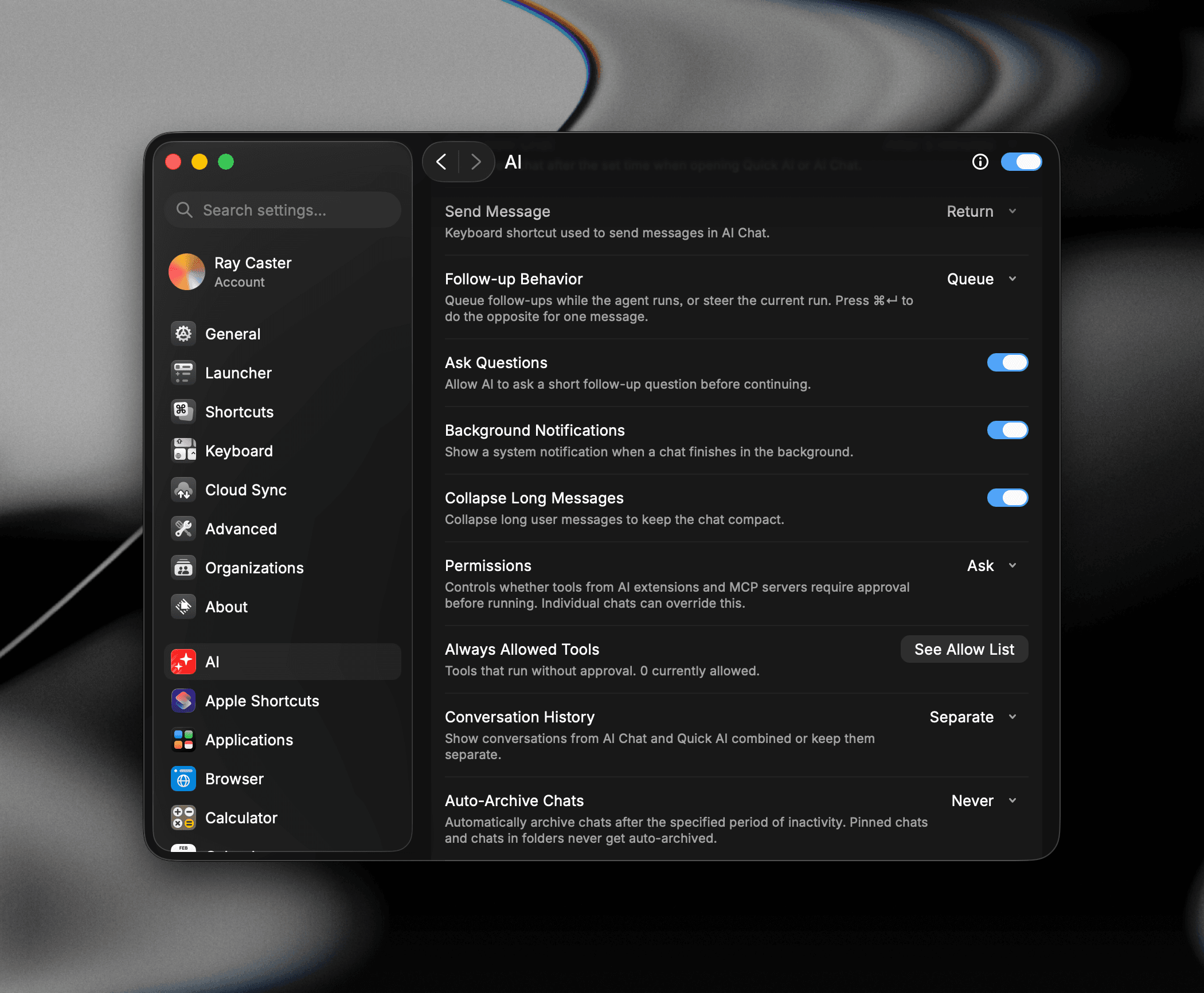
On macOS, Raycast also needs system permission. If you dismissed or denied the prompt, or notifications still don't appear, open System Settings → Notifications → Raycast and turn on Allow Notifications. The toggle syncs across devices, but permission is per Mac: If the feature is on without permission here, Settings offers a button to show the prompt or open System Settings.
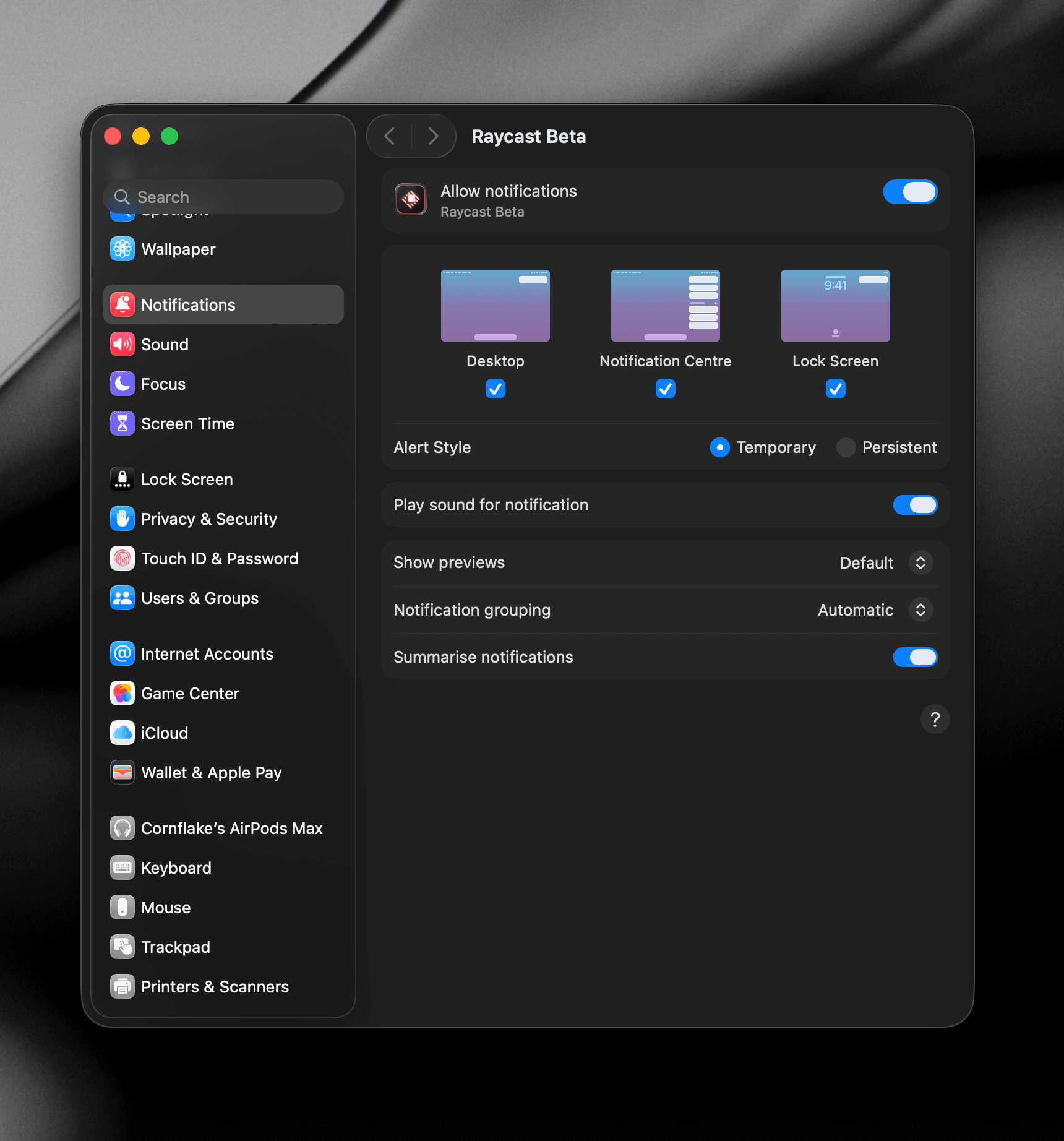
If permission is granted but notifications still aren't showing, check whether an active Focus is holding Raycast back in System Settings → Focus. macOS banners disappear after a few seconds: Set the alert style to persistent in System Settings → Notifications → Raycast to keep them on screen.
Continue from Quick AI
When a Quick AI question grows into something bigger, press ⌘J / CtrlJ to move it into AI Chat. The full history, model, and any attachments come with it. Learn more on the Quick AI page.
Settings
Tune AI Chat from Settings → AI:
- Start New Chat: How long a gap counts as a new conversation. It decides whether a Send to AI command reuses your active chat or starts a new one while AI Chat is closed, and when Quick AI begins a fresh chat.
- Send Message: Keyboard shortcut used to send messages in AI Chat (↵ or ⌘↵ / Ctrl↵).
- Conversation History: Show conversations from AI Chat and Quick AI combined or keep them separate.
- Auto-Archive Chats: Automatically archive chats after the specified period of inactivity.
- Always on Top (per-command, under AI Chat): Keep the AI Chat window above other windows.
- Zoom: Adjust the zoom level of the AI Chat window.
- Follow-up Behavior (Advanced): Queue follow-ups while the agent runs, or steer the current run. The alternate send shortcut does the opposite for one message.
- Prevent Sleep During AI Runs: Keep this computer awake while AI is working. Off by default.
- Permissions (under Tools): Whether tools need approval before they run. See Tool Use & Extensions.
Troubleshooting
AI Chat lets you talk to models from anywhere in Raycast. Most reports come down to model selection, window behavior, sync, or hitting a usage or context limit. Here are the common ones.