

Extensions Allow-List
Support for Enterprise features in Raycast for Windows has not yet been added. Contact us if you require these features in your organization.
Control which extensions from the Raycast Store your organization members can install and use, so only vetted and approved third-party integrations are available.
How Extensions Allow-List works:
- Only extensions on the allow-list are available to your organization members
- Extensions already installed but not on the allow-list stop working, whether they were installed before the allow-list was configured or later removed from it
When the allow-list is empty, all Store extensions are blocked for your organization.
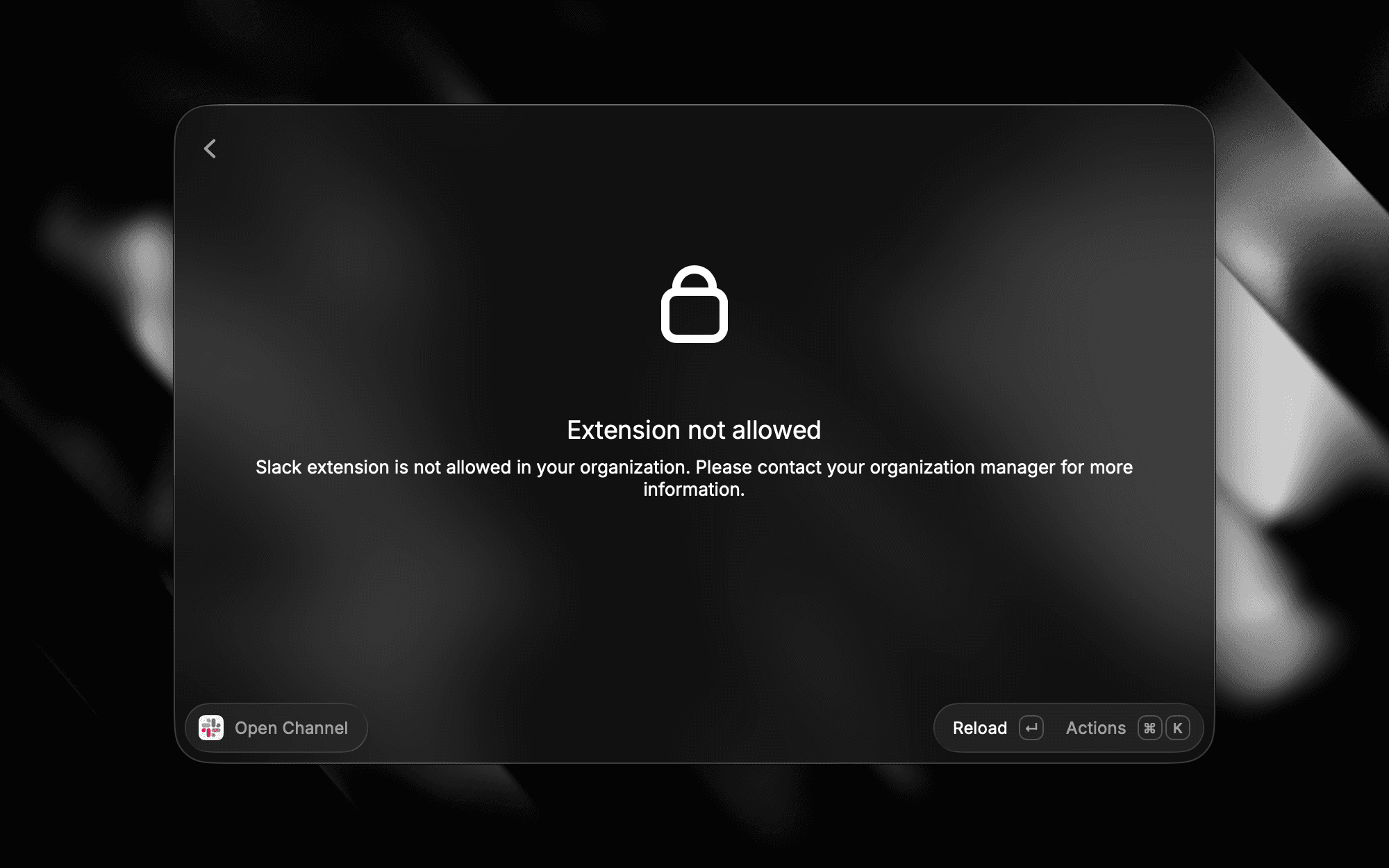
When a member opens an extension that is not allowed, they see an "Extension not allowed" message asking them to contact their organization manager (see image below).
Configure Extensions Allow-List
- In Raycast Account Settings, navigate to Organization → Manage Extensions Allow-List
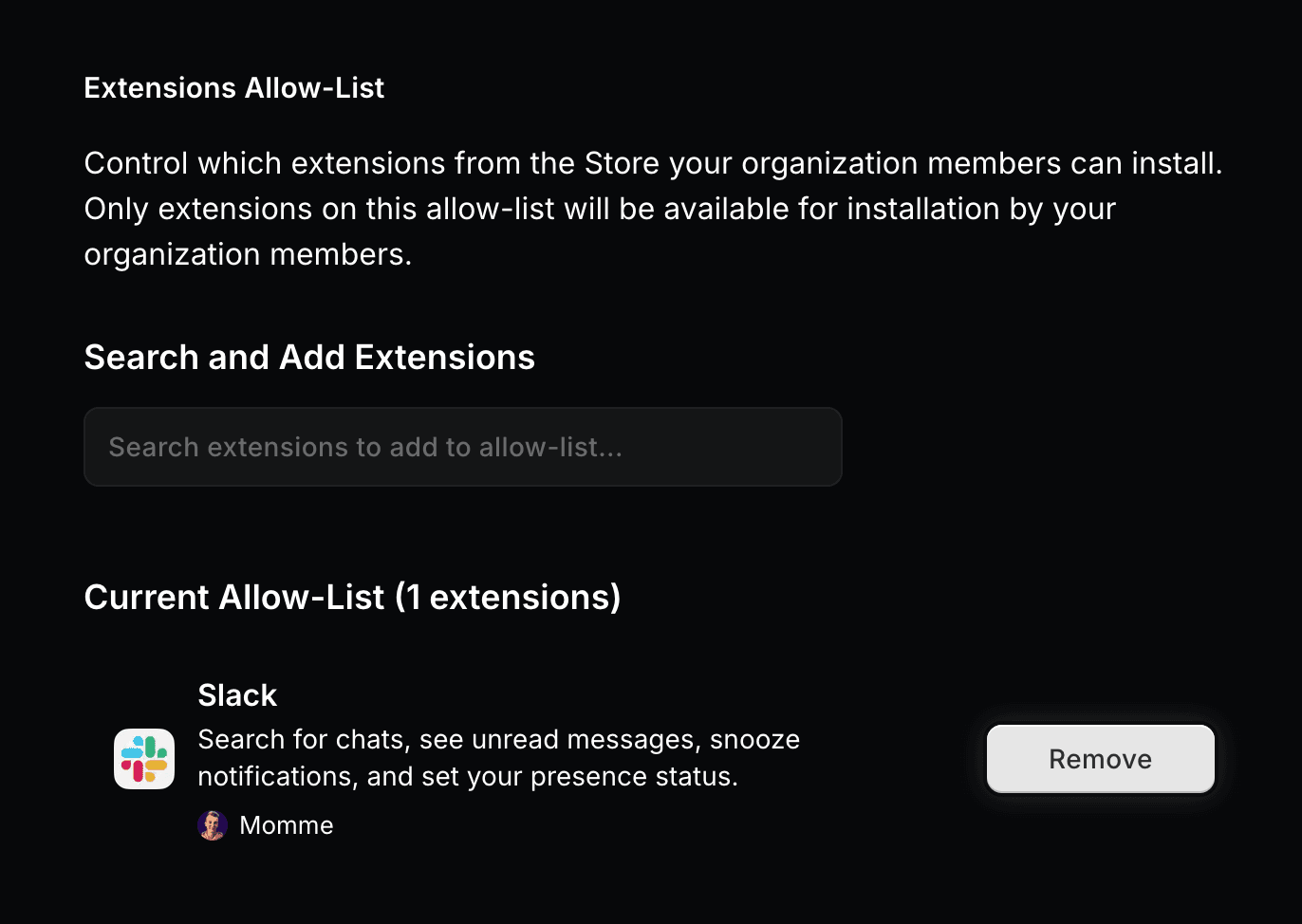
- In the search field below Search and Add Extensions, type the name of the extension you are looking for
- In the search results, click Add to Allow-List next to the extension you want to allow
- Once added, the extension appears under Current Allow-List
- To remove an extension, click Remove next to it in Current Allow-List
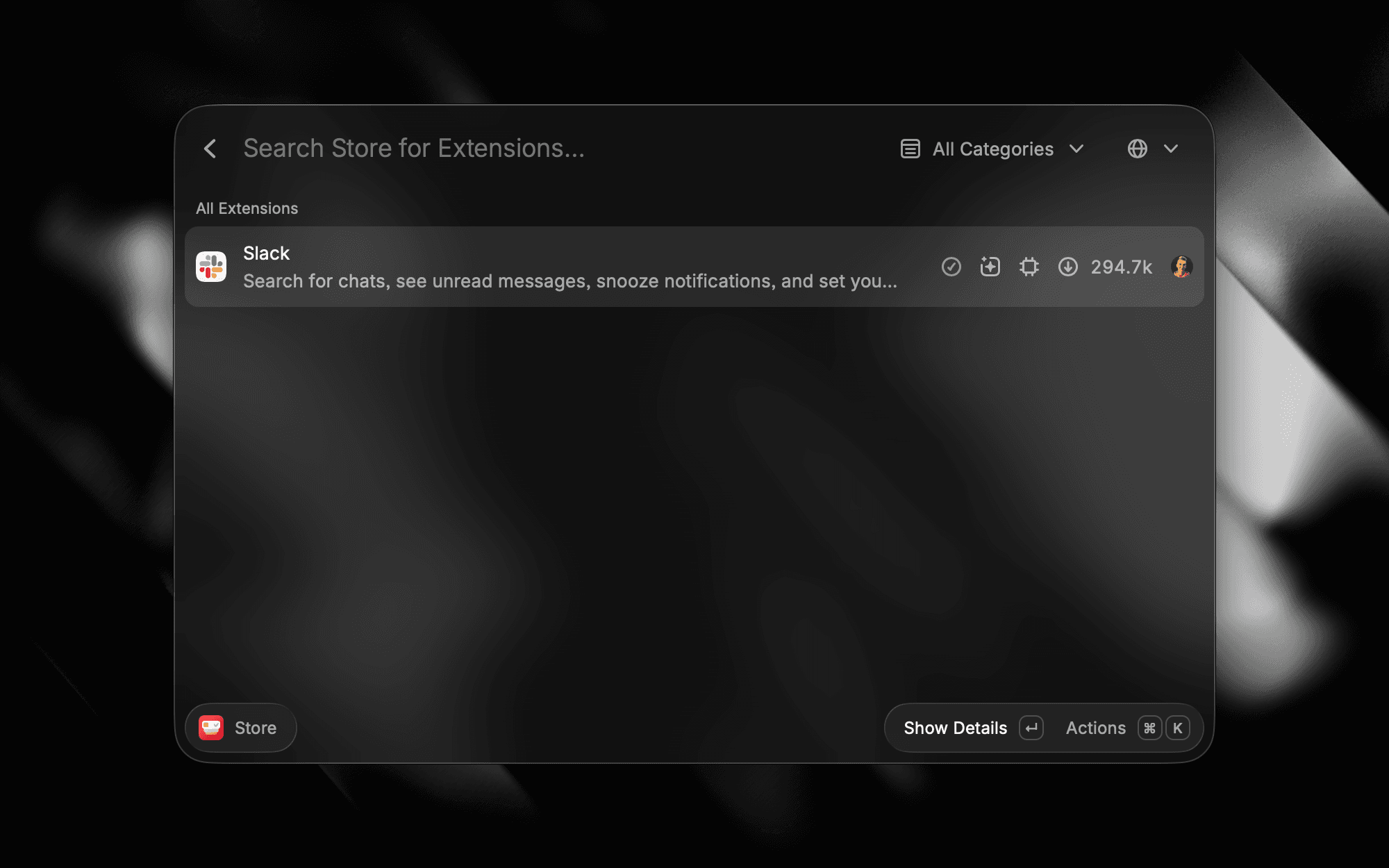
Only allowed extensions appear in the Store command in the Raycast client, and members can install only those (see image below).
Installing from the web Store is blocked as well. The extension opens in the Raycast client marked Managed by Organization, and the install fails with a "Could not install extension" message (see image below).