
Screen Awareness Control
Support for Enterprise features in Raycast for Windows has not yet been added. Contact us if you require these features in your organization.
Control whether Screen Awareness is available for your organization's members. Screen Awareness captures context from users' screens and sends it to AI, such as focused app, window content, screenshots, and selected text.
When disabled:
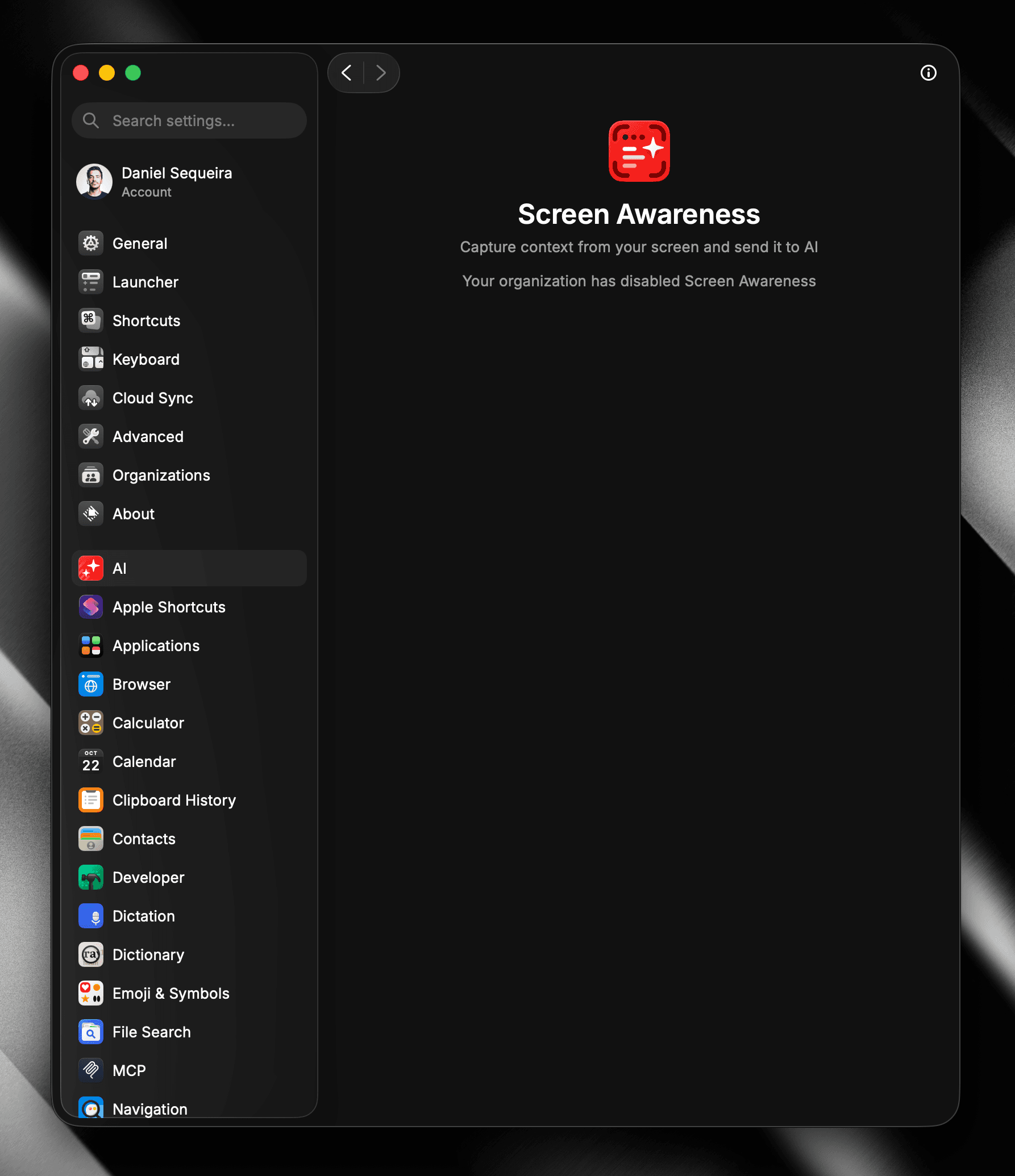
- The Screen Awareness section is disabled in the Raycast client settings (see image below)
- All Screen Awareness commands are unavailable in the Raycast client
Default: Enabled
Configure Screen Awareness Control
- In Raycast Account Settings, navigate to Organization → AI Control Center
- Click the toggle next to Screen Awareness to enable or disable it
- A message reading "Settings updated successfully" will appear, confirming the change
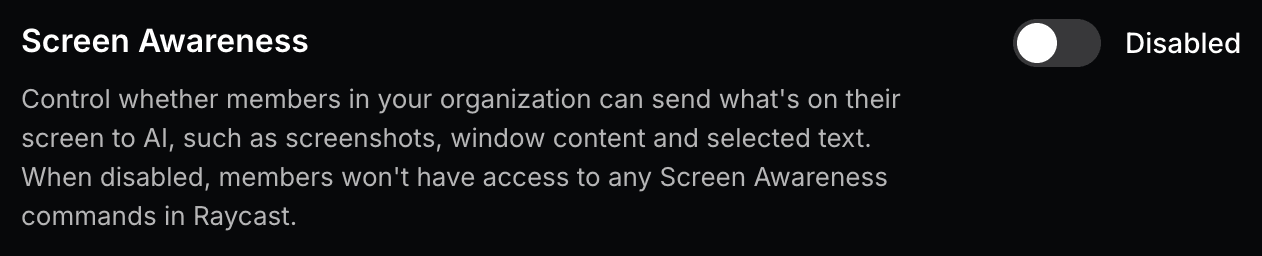
When disabled, members will not be able to enable this feature in their Raycast client settings and use it to capture context from their screens and use it with Raycast AI (see image below).