

Emoji & Symbols
Emoji & Symbols in Raycast lets you search for any emoji, flag, or Unicode symbol by name or description in natural language, then paste it directly into your active input field at lightning speed.
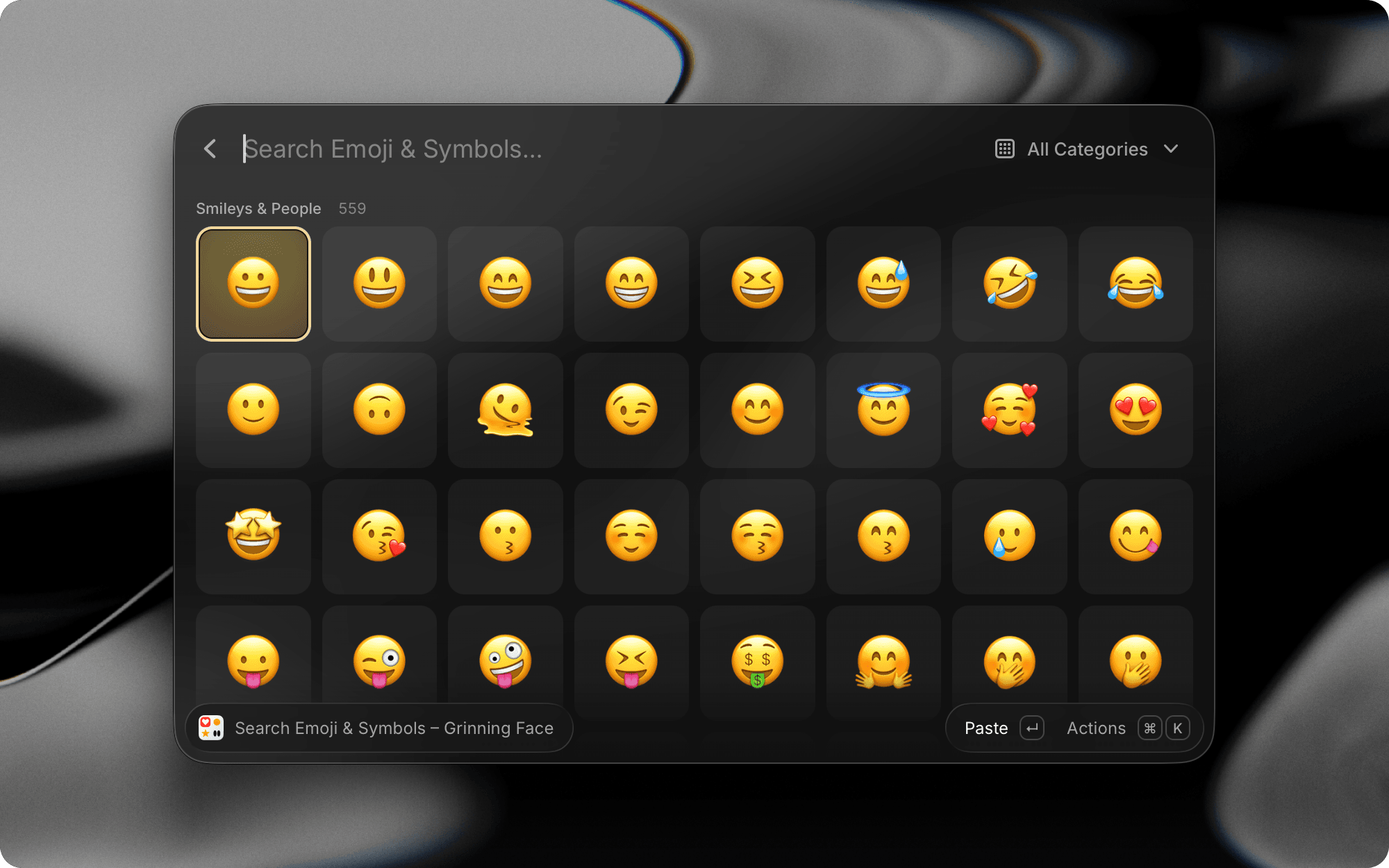

Start typing to search for emojis or symbols. Raycast matches against the symbol name, its category, and any custom keywords you've added. Use the category filters in the Navigation Bar to browse by group (Smileys & People, Symbols, Flags, and more).
Make the grid your own: adjust the number of columns in the Emoji view with ⌘- / Ctrl- / + (or press ⌘0 / Ctrl0 to return to the default), and choose the default skin tone for emojis that support skin tone modifiers. Both live in Settings → Emoji & Symbols.
AI Results
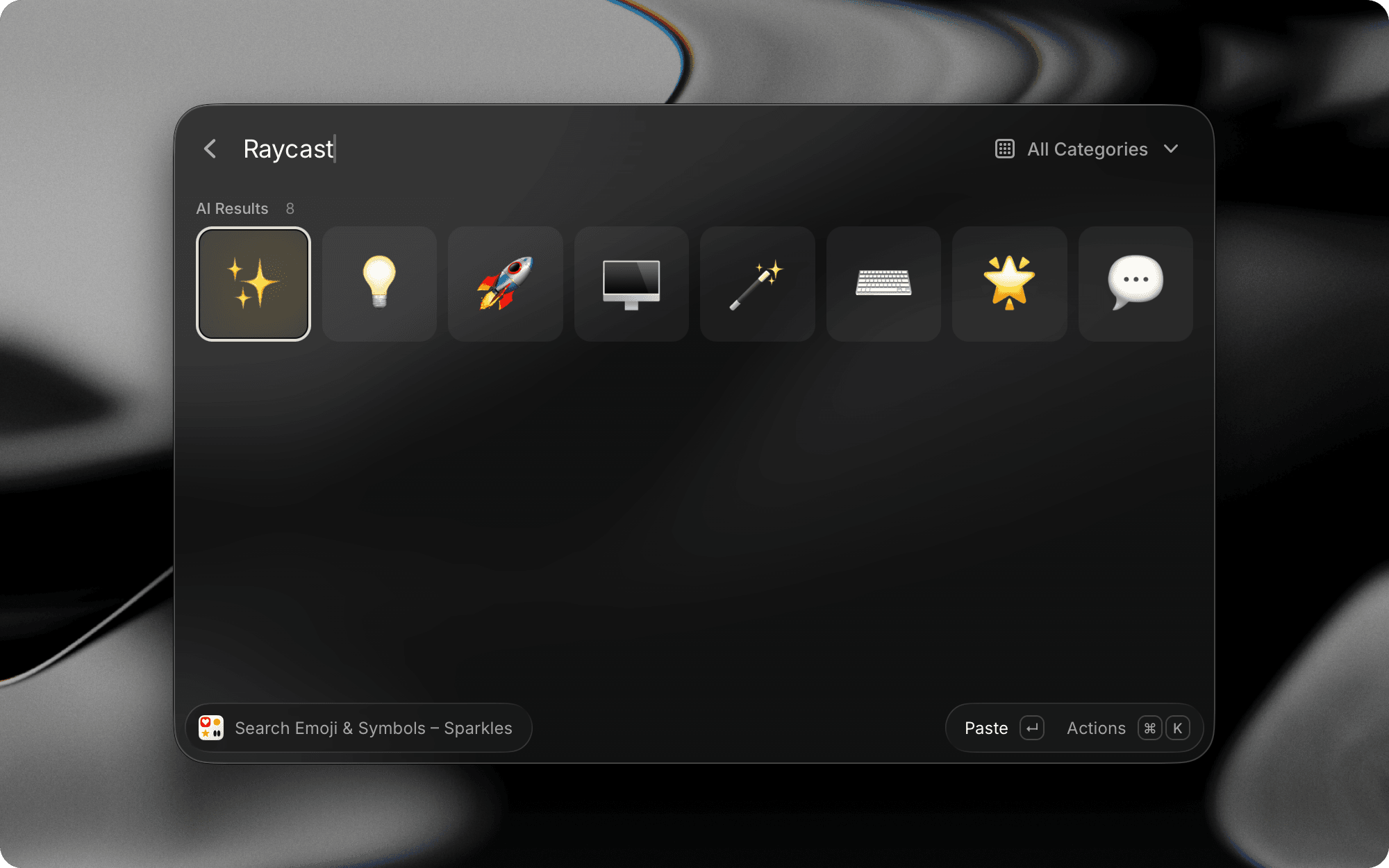
AI Results uses natural language understanding to find emojis based on meaning rather than keywords. AI Results automatically show when there are no matches, or you can press Tab on direct matches to show AI-suggested alternatives.

Custom Keywords
Assign custom keywords to any emoji or symbol so you find it faster next time. You can search by Unicode name and custom keywords interchangeably.
- Open the Search Emoji & Symbols command
- Highlight the emoji you'd like to edit, then use the Edit Custom Keywords action from the Action Panel
- Enter the custom keywords you'd like to assign to the emoji
- Save the updated emoji
Inline Autocomplete
Type : inside a Raycast text field to open an inline emoji suggestion menu, without opening the Search Emoji & Symbols command. Keep typing to search by name, then choose a result to insert the emoji right where you're writing.
Inline autocomplete works across Raycast's own text surfaces, including:
- Notes
- Snippet editor
- Quicklink editor
- AI Command editor
- AI Chat composer
- Standard Raycast text inputs and text areas
Results come from the same search that powers the Search Emoji & Symbols command, ordered by pinned emojis, frecency, and name matches. Suggestions also respect your default Emoji Skin Tone setting, so an inserted emoji uses the tone you've chosen in Settings → Emoji & Symbols.
Inline autocomplete is available inside Raycast's own UI surfaces only. It does not type into third-party apps such as Slack or Mail. To insert an emoji into another app, use the Search Emoji & Symbols command.
Actions
Pressing Enter will paste the highlighted emoji or symbol directly into your active input field. Emoji & Symbols also includes additional actions:
| Action | Mac | Windows |
|---|---|---|
| Copy to Clipboard | ⌘Enter | CtrlEnter |
| Paste and Keep Window Open | ⇧⌘↵ | CtrlShift↵ |
| Paste with Skin Tone… | ⌥⌘V | CtrlAltV |
| Copy with Skin Tone… | ⌥⌘C | CtrlAltC |
| Copy Unicode | ⌥⇧⌘C | CtrlAltShiftC |
| Pin/Unpin Emoji | ⌘. | Ctrl. |
| Assign Custom Keywords | ⌘E | CtrlE |
Skin Tones
The Paste with Skin Tone… and Copy with Skin Tone… actions appear only when the selected emoji supports skin tones. Each opens a submenu with a preview of the emoji at each of the six tones.
Use these actions to pick a tone for a single emoji without changing your default Emoji Skin Tone setting.
Settings
All Emoji & Symbols settings live under Settings -> Emoji & Symbols.
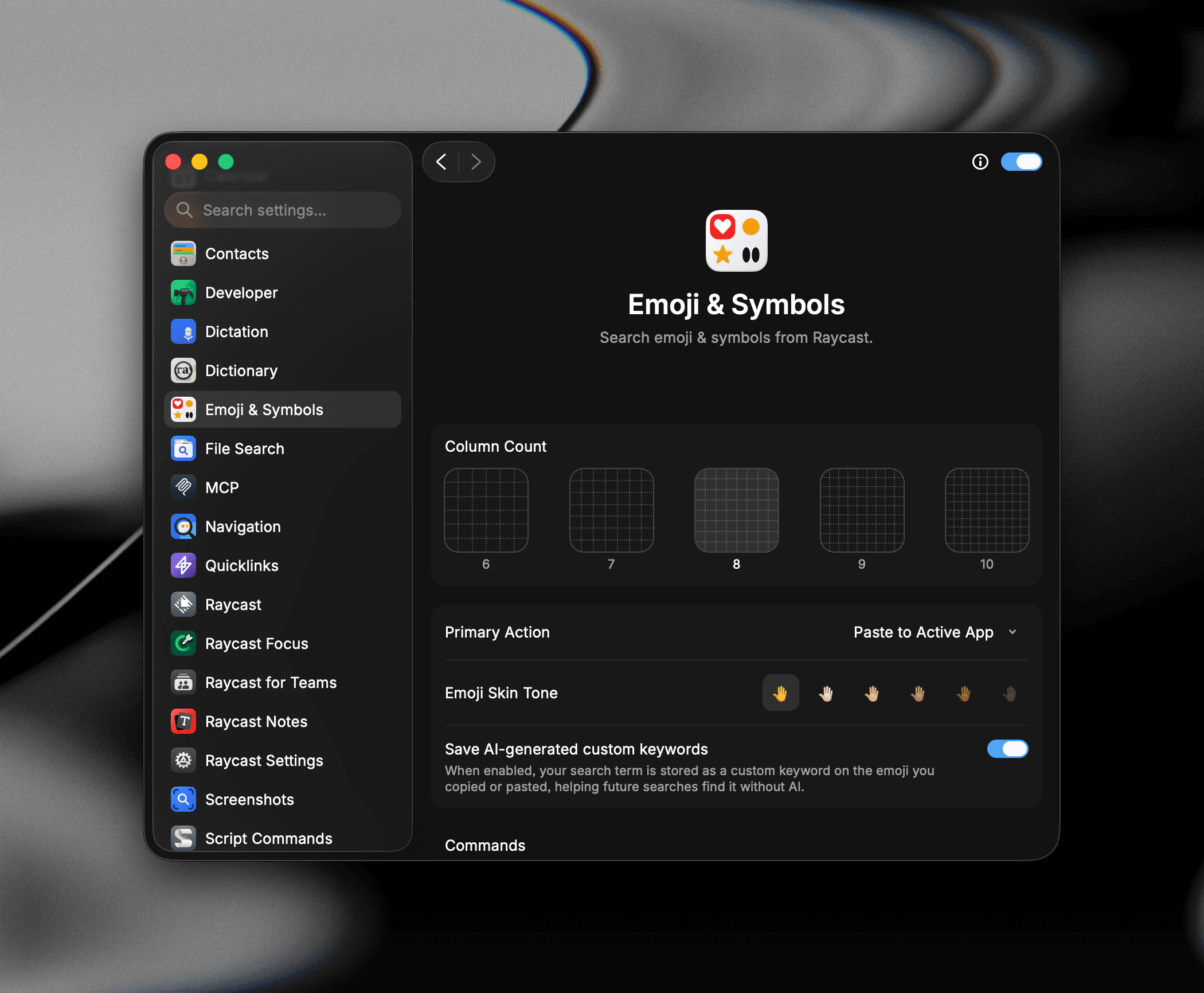
- Column Count: Customize how many emojis appear in the Search Emoji & Symbols command and choose between 6, 7, 8, 9, or 10 columns.
- Primary Action: Choose the primary action when pressing ⏎ in the Search Emoji & Symbols command.
- Emoji Skin Tone: Choose the default skin tone for emojis that support skin tone modifiers.
- Save AI-generated custom keywords: When enabled, your search term is stored as a custom keyword on the emoji you copied or pasted, helping future searches find it without AI.
Replace System Emoji Picker
You can replace the system emoji picker with the Emoji & Symbols extension in Raycast by setting a hotkey for the command.
- Open System Settings → Keyboard
- Select Keyboard Shortcuts
- Change "Press key to" to Nothing
- Open Settings → Emoji & Symbols
- Set the Search Emoji & Symbols command hotkey to
Tips
- Pin your favorites. Pinned emojis always appear at the top of the grid
- Use AI Results for discovery. Press Tab to see alternative emoji suggestions for any search
- Enable auto-save for AI keywords. Turn on Save AI-generated custom keywords in Settings to instantly surface repeated searches using the same keywords
- Set a global hotkey. Assign a keyboard shortcut in settings to open Emoji & Symbols from any app. You can even reassign the built-in emoji picker hotkey on macOS and Windows to Raycast's Emoji & Symbols instead