

Hyper Key
Hyper Key adds an extra modifier to your keyboard by remapping a key you don't use often. Once it's set, you can record shortcuts on top of it that won't overlap with existing system or app shortcuts. Choose from a left or right modifier, Caps Lock, or a function key.
Get Started
- Open Settings → Keyboard → Hyper Key.
- Pick the key you want to use — a left or right modifier, Caps Lock, or a function key.
- Assign Hyper Key shortcuts to your favorite commands. They appear in Raycast with the ✦ glyph.
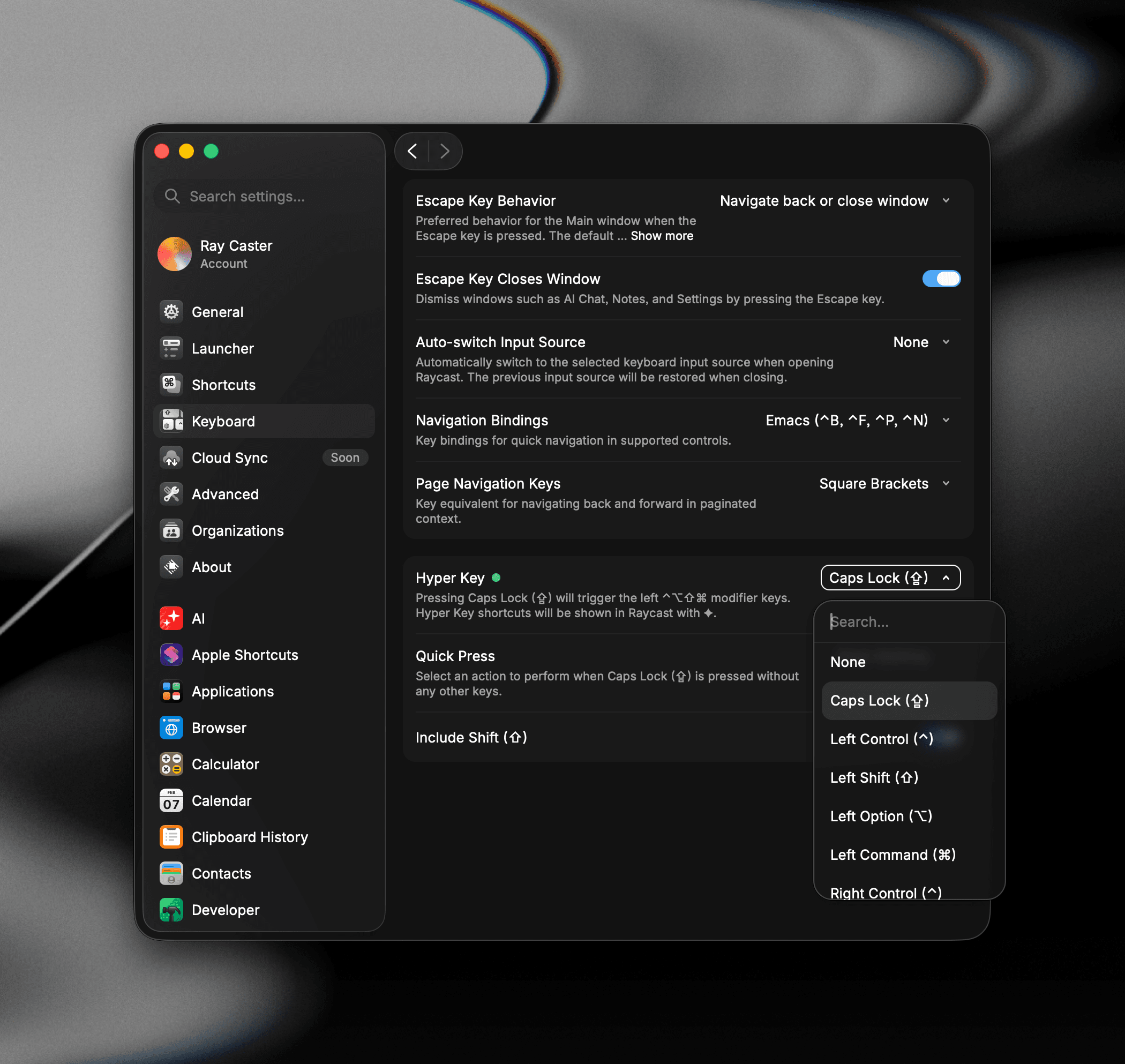

Settings
-
Hyper Key: The physical key remapped to the Hyper Key modifiers. Choose None to turn it off, Caps Lock (
⇪), any left or right modifier (⌃⌥⇧⌘, or CtrlAltShift on Windows), or a function key (F1–F12).- Hyper Key triggers ⌃⌥⌘
- Hyper Key triggers CtrlAlt
-
Include Shift (⇧): Adds Shift to the Hyper Key combo.
-
Quick Press: Available when your Hyper Key is a non-modifier (Caps Lock or a function key). Choose what a single tap does on its own — Does Nothing, Trigger the original key (for example, send a real Caps Lock), or Trigger Escape.
-
Replace ⌃⌥⌘ with ✦: Shown when no Hyper Key is set. Raycast still displays your existing ⌃⌥⌘ (or CtrlAlt) shortcuts using the
✦glyph in Root Search. -
Secure Input Compatibility : Some apps turn on macOS Secure Input (for example when you focus a password field), which normally blocks the Hyper Key from working until Secure Input is released. Turn this on to keep your Hyper Key shortcuts working in those contexts, without needing a keyboard driver like Karabiner. It's off by default because there are two tradeoffs:
- While it's on, Right Control (⌃⏵) is reserved for the Hyper Key, so you can't use Right Control in your own shortcuts.
- While Secure Input is active, only your Raycast Hyper Key shortcuts work — other apps' Hyper shortcuts won't fire until Secure Input is released.
If you frequently hit Secure Input issues with the Hyper Key, it's worth enabling. Otherwise, leave it off to keep Right Control free.
Troubleshooting
If your Hyper Key isn't firing, first make sure no other app is mapping the same physical key. Karabiner-Elements virtual keyboards, exclusive HID drivers, and other keyboard utilities can intercept the key before Raycast sees it. Turn these off and try again.
If an app is holding Secure Input and your Hyper Key stops working, you can either quit the app holding it, or turn on Secure Input Compatibility (in Settings) to keep your Raycast Hyper Key shortcuts working while Secure Input is active. Raycast also flags this automatically in Settings → About, covering both Hyper Key and Snippet Expansion.
With several keyboards connected, Hyper Key applies to each one independently, skipping any that can't be remapped, such as a keyboard shared over Universal Control. Turning it off restores Caps Lock on all of them.
Raycast includes a built-in diagnostic. From Settings → Keyboard with a Hyper Key configured, press the green dot to reveal the Hyper Key Diagnostic panel. It shows whether the Hyper Key is currently active, which key it's bound to, and any conflicts it detects, such as other apps, Karabiner, exclusive HID access, or Caps Lock mapping. Use the ↻ button next to Active to restart Hyper Key without quitting Raycast.