

Raycast Recipes
Anyone can boil an egg. The magic is in the combinations.
If you're new to Raycast, you might be using it for just one or two things: launching apps, doing quick sums. That's a great start. These recipes show you how to combine simple features so everyday tasks shrink down to a single keystroke. You don't need to be technical, and most recipes take under a minute to set up.
Stock your pantry first
A few ingredients show up again and again. Here's what they mean in plain terms:
- Hotkey: a keyboard shortcut that works anywhere on your Mac, even when Raycast is closed. Example: press Option + N to open Notes instantly.
- Alias: a short keyword you type into Raycast's search bar to jump straight to a command. Example: type tr to open Translate.
- Quicklink: a saved link, file, or app shortcut that opens in one step. Think of it as a smart bookmark.
- Snippet: a short keyword that expands into a longer piece of text as you type it, anywhere on your Mac.
- Clipboard History: Raycast remembers everything you copy, so you can go back and find it later.
You set most of these up in Settings, which you can always reach by opening Raycast and typing "Settings".
House Seasoning (Aliases)
A two-letter shortcut for any command.
What it does: Instead of typing a full command name, you type a tiny keyword you chose.
How to make it:
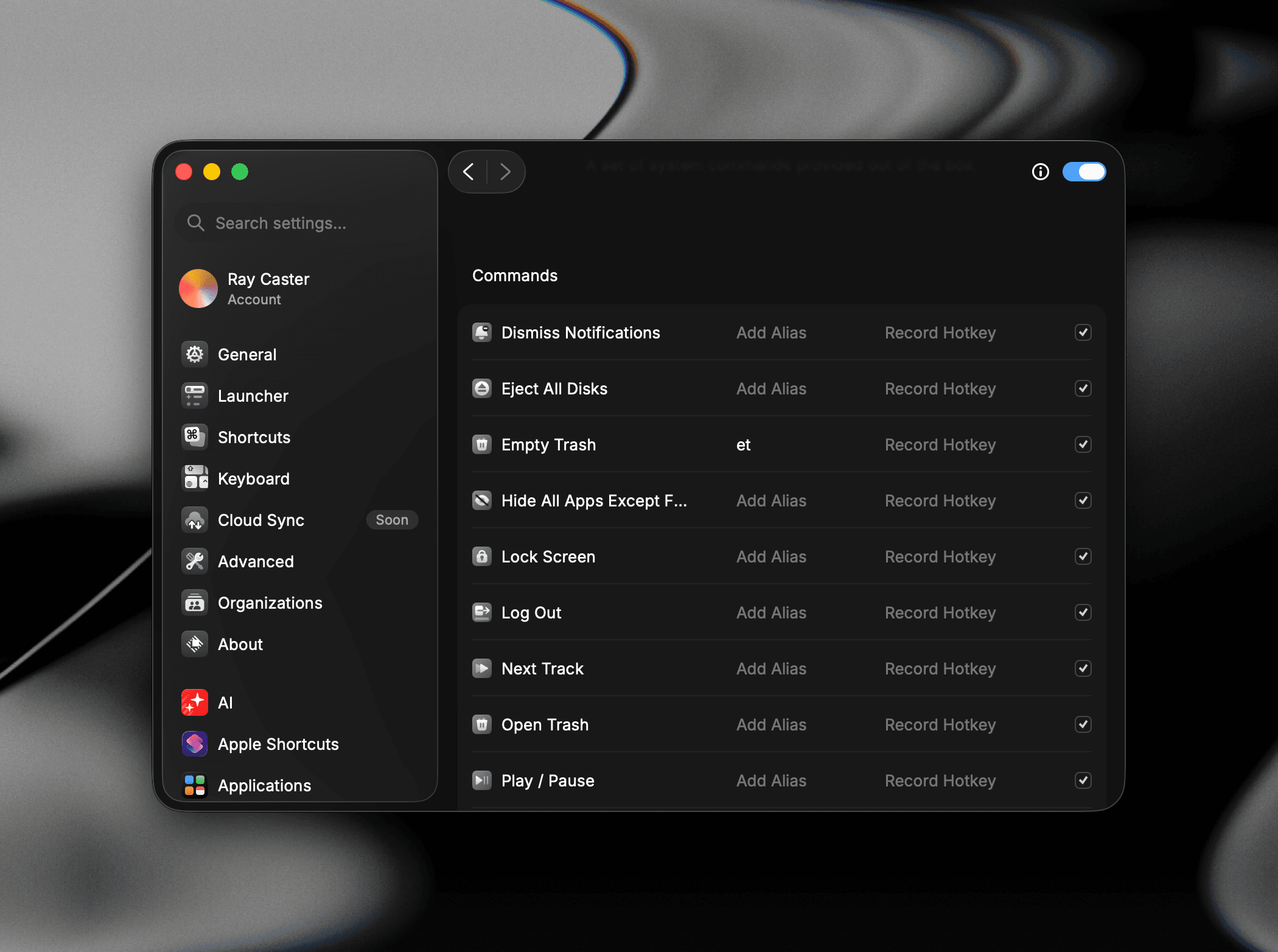
- In Raycast, find a command you use often.
- Press Command + K and choose "Add Alias" (or set it in Settings).
- Pick something short, like et for Empty Trash.
Why it helps: Your most-used commands become muscle memory, and your chosen keywords never clash with anything.
The Master Stock (Hyper Key)
One special key that powers all your shortcuts.
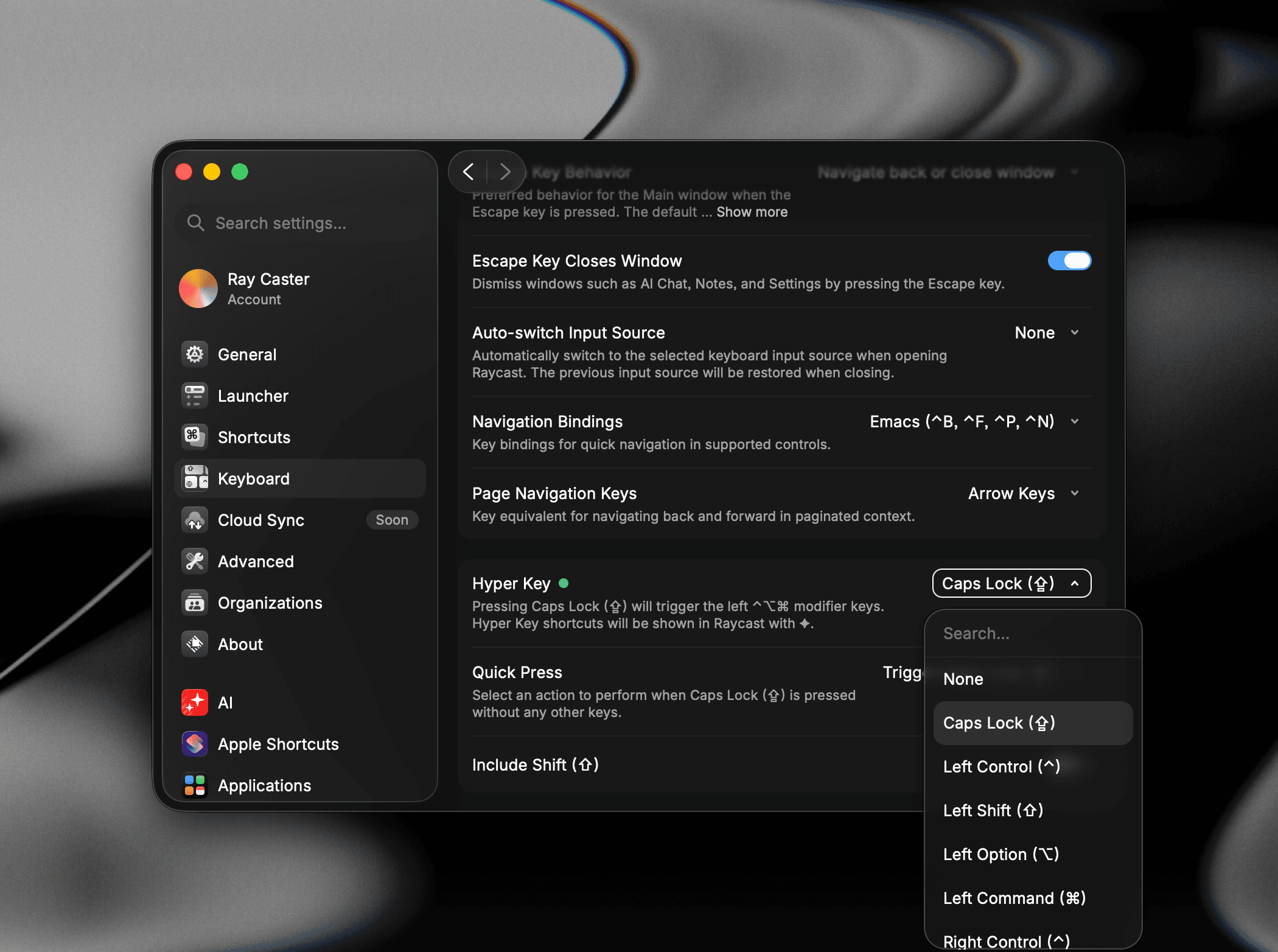
What it does: Hyper Key turns a key you rarely use (usually Caps Lock) into a single "super modifier" shown as ✦. It acts like holding Control, Option, Command, and Shift all at once.
How to make it:
- Go to Settings, then Keyboard, then Hyper Key.
- Turn it on and pick Caps Lock.
- Now set shortcuts like ✦ N for Notes or ✦ S for Slack.
Why it helps: These shortcuts never clash with other apps, because no app uses such an unusual combination. It's the foundation the other recipes sit on.
One-Press Lookup
Translate or search a word the instant you see it.
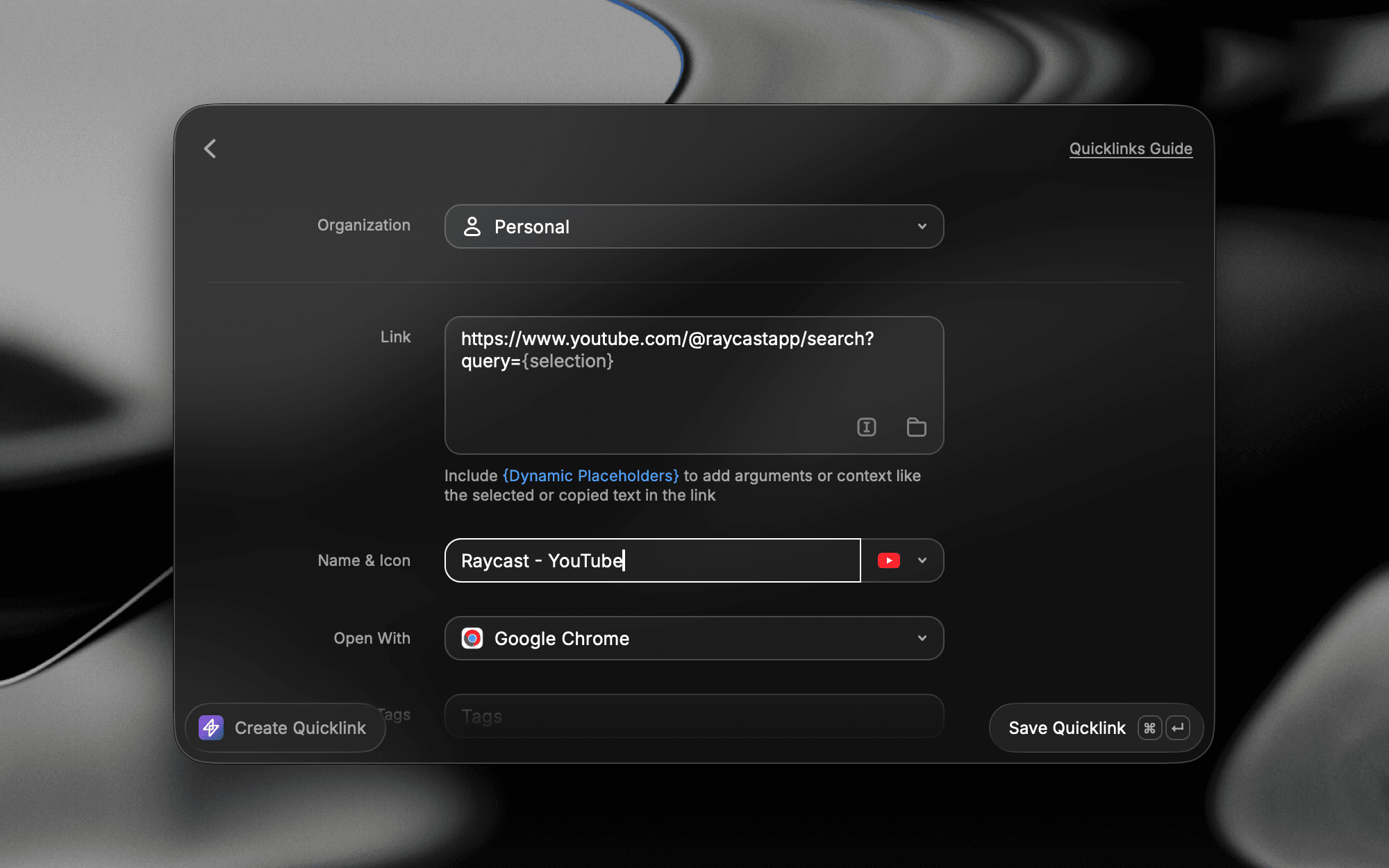
What it does: You highlight a word on your screen, press one key, and the translation or search result appears. No copying, no switching apps.
How to make it:
- Open Raycast and search for "Create Quicklink".
- Paste a search or translate URL (for example a dictionary or Google Translate link).
- Where the search term would go, choose "Selected Text" as the input.
- Give the quicklink a hotkey in its settings.
Why it helps: Looking something up usually means copy, switch app, paste, search. This turns all of that into a single press.
Copy-and-Go
Jump straight to a page using whatever you just copied.
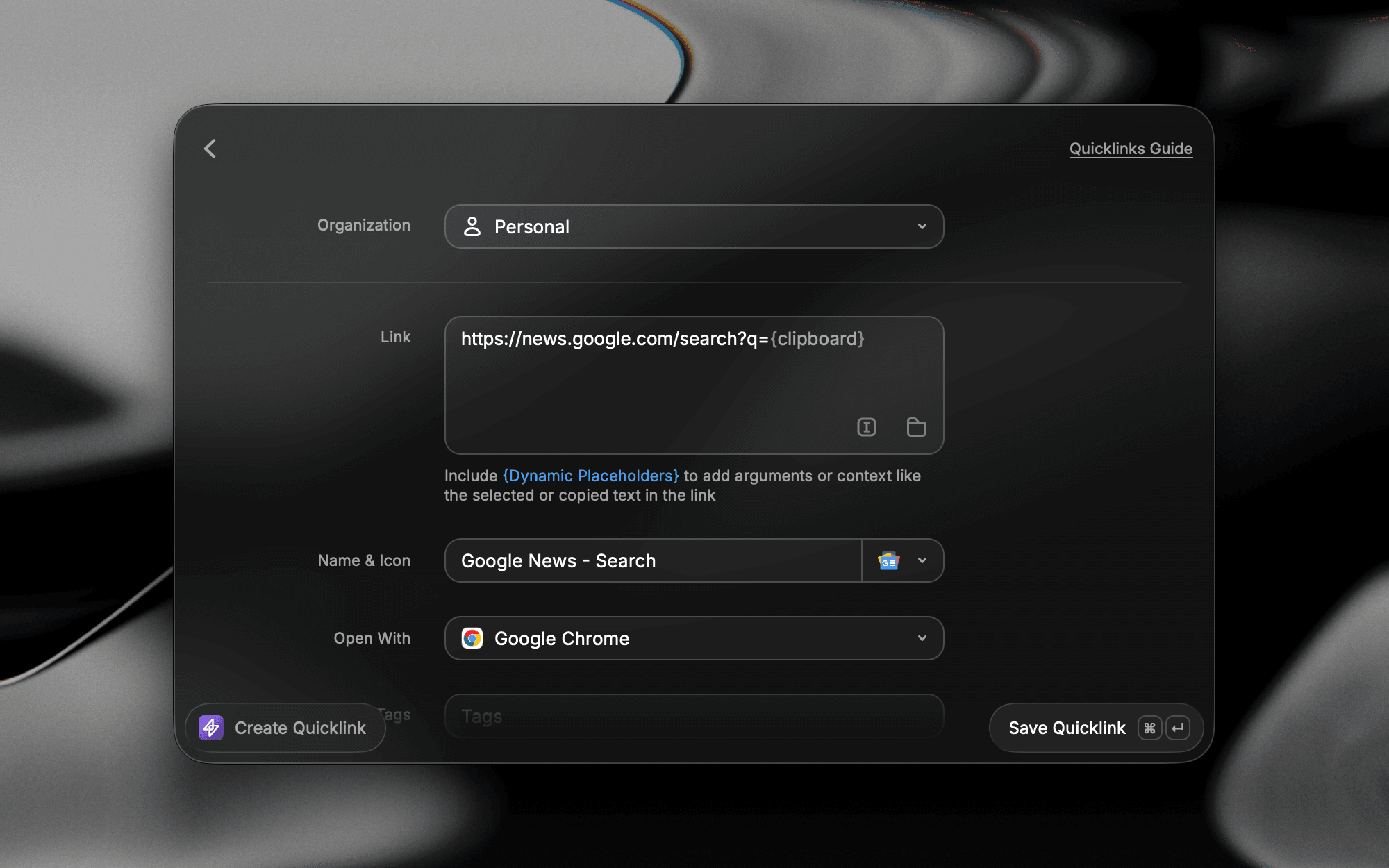
What it does: You copy something like a ticket number, press a hotkey, and Raycast builds the full web address for you and opens it.
How to make it:
- Create a Quicklink with the page's web address.
- In the spot where the unique part goes, type
{clipboard}. This tells Raycast to drop in whatever you last copied. - Add a hotkey.
Why it helps: You skip hunting for the right link. Copy, press the hotkey, and you're on the page.
Tiny Tool, Made to Order
Build a mini search tool in about thirty seconds, no code.
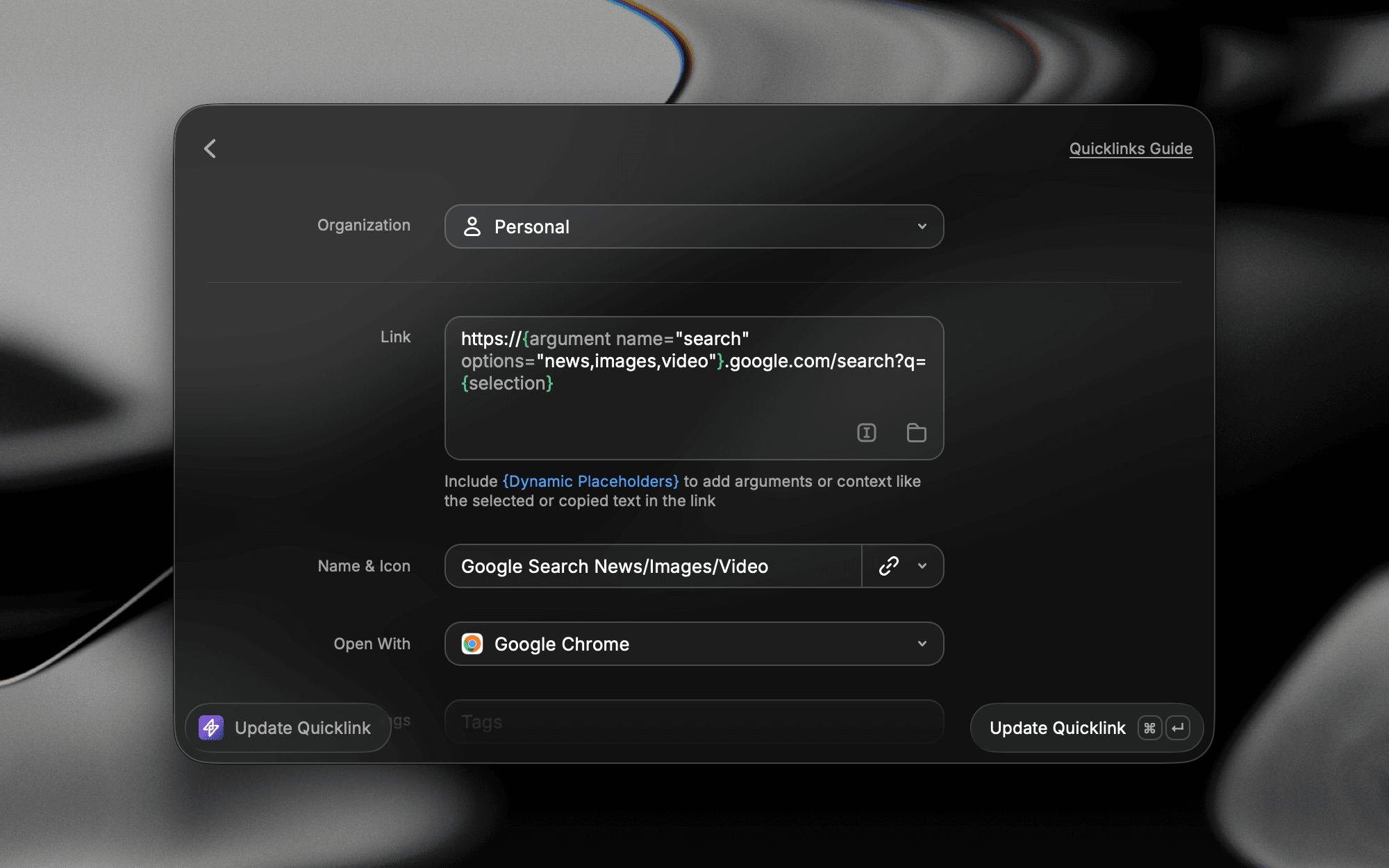
What it does: An "argument" just means the quicklink pauses to ask you for input before it opens, like a Translate that asks "which word?" and "which language?".
How to make it:
- Create a Quicklink.
- In the URL, add an argument placeholder where your input should go.
- Now whenever you run it, Raycast asks you what to fill in.
Why it helps: You get a custom, single-purpose tool without installing or building anything.
Snippets That Cook Themselves
Text that fills in the right details automatically.
What it does: A snippet expands short text into longer text. "Dynamic placeholders" are little tokens that get replaced with live info when the snippet expands.
How to make it:
- Open Settings and go to Snippets.
- Create a snippet and give it a keyword (the trigger you'll type).
- In the text, add placeholders like
{date offset="+7d"}for "a week from today",{clipboard}for what you just copied, or{cursor}to set where your cursor lands.
Why it helps: A reply like "we'll get back to you by {date offset="+7d"}" always shows the correct date, with no edits from you.
Let the Clipboard Do the Shopping
Turn things you copy often into reusable snippets.
What it does: Raycast notices you keep copying the same text, and lets you save it as a snippet in two steps.
How to make it:
- Open Clipboard History in Raycast.
- Select an item you copy often.
- Press Command + K to open the Action Panel, then choose "Save as Snippet".
Why it helps: If you paste the same thing twice a week, this saves you finding and copying it ever again.
Fill the Bento (Paste Sequentially)
Fill out a whole form from your clipboard in one pass.
What it does: You copy several things, then paste them one after another into different fields, in order.
How to make it:
- Copy each value you need, one at a time.
- In the form, use Raycast's "Paste Sequentially" action to drop them in field by field.
Why it helps: No more bouncing back and forth to copy each value separately.
Read the Label (OCR)
Pull text out of a screenshot or image.
What it does: "OCR" means reading text inside an image. Raycast can find images by the words inside them and let you copy that text out.
How to make it:
- Open Search Screenshots in Raycast.
- Search for a word you know is inside an image.
- Open the result and copy the text from it.
Why it helps: You can grab text from pictures, screenshots, or scans without retyping it.
The Slow Cooker (Pinned Calculator)
A live countdown that's always one search away.
What it does: Raycast's calculator handles more than maths. It does dates too, like "days until 1 Aug". Pin the result and it keeps updating.
How to make it:
- In Raycast, type something like
days until 1 Aug. - Open Calculator History and pin the result.
Why it helps: Your countdown stays live and visible, no need to recalculate it each time.
Same Recipe, New Pan
Use the lookup trick with apps from the Store.
What it does: Extensions are add-ons from the Raycast Store that connect Raycast to other apps (Linear, GitHub, Spotify, and more). They work just like built-in commands, so the same wiring applies.
How to make it:
- Install an extension from the Raycast Store.
- Give one of its commands a hotkey, and set it to use selected text as input.
Why it helps: Once you learn one combo, it works everywhere. Nothing new to learn for each app.
Hand the AI Your Knives
Let Raycast AI use your installed extensions for you.
What it does: In AI Chat, typing @ shows your extensions as tools the AI can use, like @calendar or @linear.
How to make it:
- Open AI Chat in Raycast.
- Type @ and pick an extension.
- Ask in plain language, for example "add lunch to my calendar tomorrow at noon".
Why it helps: You describe what you want in normal words, and the AI handles the steps.
AI features may require a paid plan, though you can bring your own API key.
Write Down the Family Recipe (Skills)
Teach the AI how you like things done.
What it does: A "Skill" is a short text file (SKILL.md) where you write your preferences and conventions. Raycast loads it automatically when it's relevant.
How to make it:
- Create a folder with a SKILL.md file inside.
- Write down how you like a task done (your style, your rules).
Why it helps: The extension lets the AI do something; the skill makes sure it does it your way, without you re-explaining each time.
This one is more advanced, so save it for when you're comfortable with the basics.
Start small. Pick one thing you do with your mouse five times a day, and turn it into a single keystroke using one recipe above. Once that feels natural, add another. Bit by bit, Raycast goes from "the app I open to launch things" to "how I run my whole day".