

Clipboard History
Ever had the situation that you wanted to find something that you copied earlier? Raycast has a built-in Clipboard History for that. The command keeps track of all copied text, images, files, links, emails, and even colors.
To access it, find the Clipboard History command in Root Search. We recommend setting a custom Alias or Hotkey through the Shortcuts or Clipboard History tab in Settings (⌘, / Ctrl,) in order to have direct access at all times.
- Raycast saves every original format you copied. Use Paste as… to switch between rich text, plain text, RTF, HTML, and any other format the source provided, so what you paste always matches what you copied.
- When you copy multiple files or pieces of content at once, they're grouped together as a single clipboard entry instead of being split apart.
- Rename clipboard entries to make them easier to find later.
- Enable Prefer pasting as plain text in settings to automatically strip rich formatting on every paste.
- Use Copy Text from QR Code to extract the encoded text or link from a QR code in an image in your history.
Actions
Within the Clipboard History command, you can search through your entries by name, or hit ⌘P / CtrlP to filter them by type: Text, Images, Files, Links, Emails, or Colors.
With a clipboard entry highlighted, you can either hit ↵ to paste it into your active input field, or hit ⌘K / CtrlK to access additional options in the Action Panel, such as:
- Paste as Plain Text: strip formatting before pasting
- Paste as PNG: paste an image entry that was only copied as TIFF as a PNG instead
- Copy to Clipboard (⌘↵ / Ctrl↵)
- Share…: send the entry through your system's share options, for text, links, email addresses, images, and multiple files
- Copy Text from Image: extract text from a screenshot or photo via on-device text recognition
- Copy Text from QR Code: extract the encoded text or link from a QR code in an image
- Send to AI Chat: open a new AI Chat with the entry as context (or Attach to AI Chat for files and images)
- Edit Content: make quick edits to text, links, or colors before pasting
- Save as Snippet: turn a frequently used entry into a Raycast Snippet
- Rename Entry (⌘E / CtrlE)
- Pin Entry (⌘. / Ctrl.)
- Delete Entry (⌘X / CtrlX)
- Delete Entries…: bulk-delete by time window (last 5, 15, or 30 minutes, or last 1 or 24 hours) (⇧⌘X / CtrlShiftX)
- Delete All Entries (⇧⌘X / CtrlShiftX)
Settings
Open Settings (⌘, / Ctrl,) and select Clipboard History from the sidebar to configure how Raycast records, retains, and pastes your clipboard items. Use the toggle in the top-right corner to enable or disable Clipboard History entirely.
History
Keep history for: Choose how long Raycast retains each clipboard item before it's deleted. Options include:
- 1 Day
- 1 Week
- 1 Month
- 3 Months
- 6 Months (Pro)
- 1 Year (Pro)
- Unlimited (Pro)
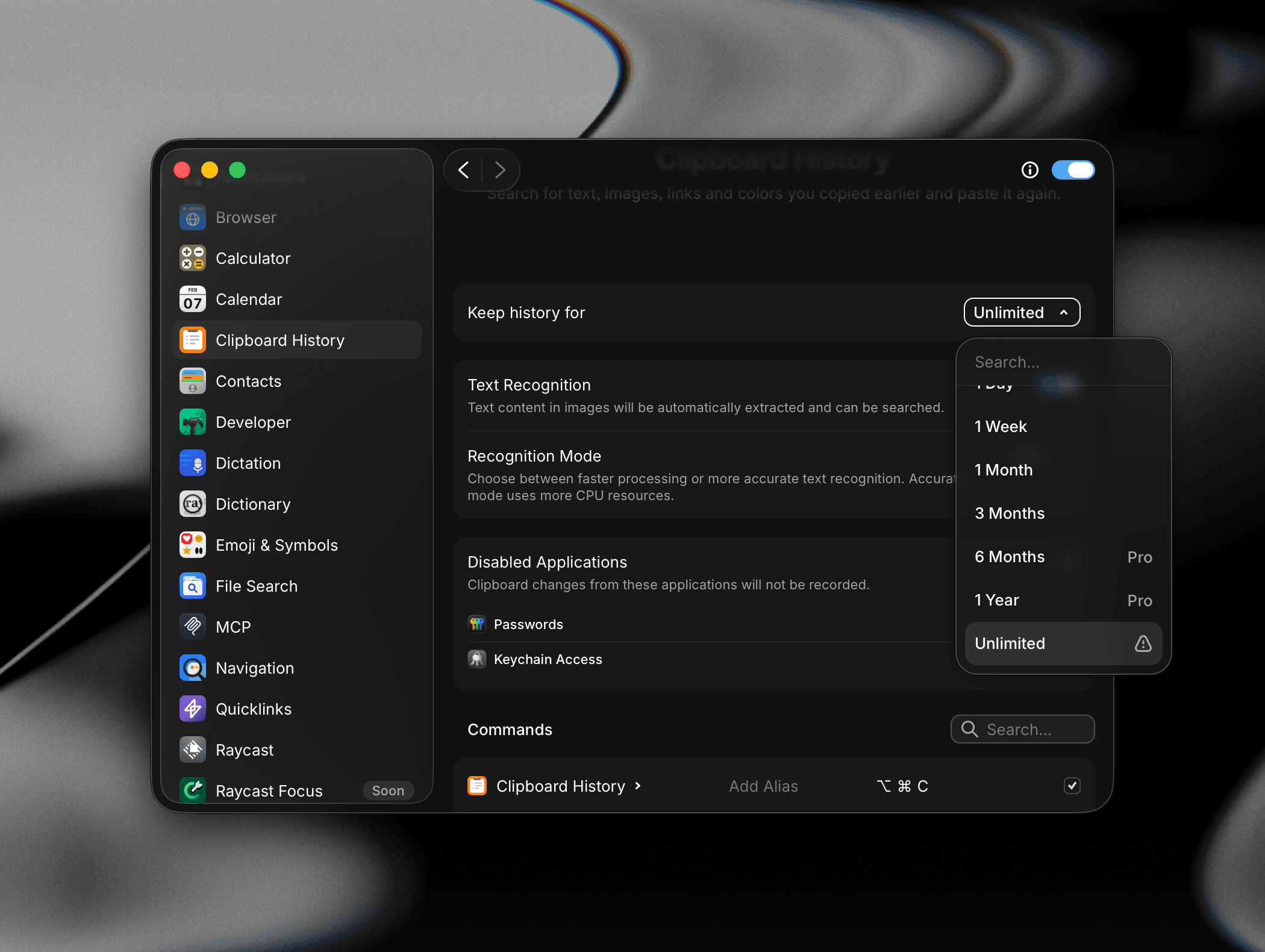
On Raycast Pro? Longer retention isn't enabled automatically. Open Settings → Clipboard History → Keep history for and pick Unlimited (or 6 Months / 1 Year) to use it.
Text Recognition
- Text Recognition: When enabled, Raycast automatically extracts text from images you copy so they can be searched alongside regular text entries. Helpful for quickly grabbing text from screenshots without an OCR step.
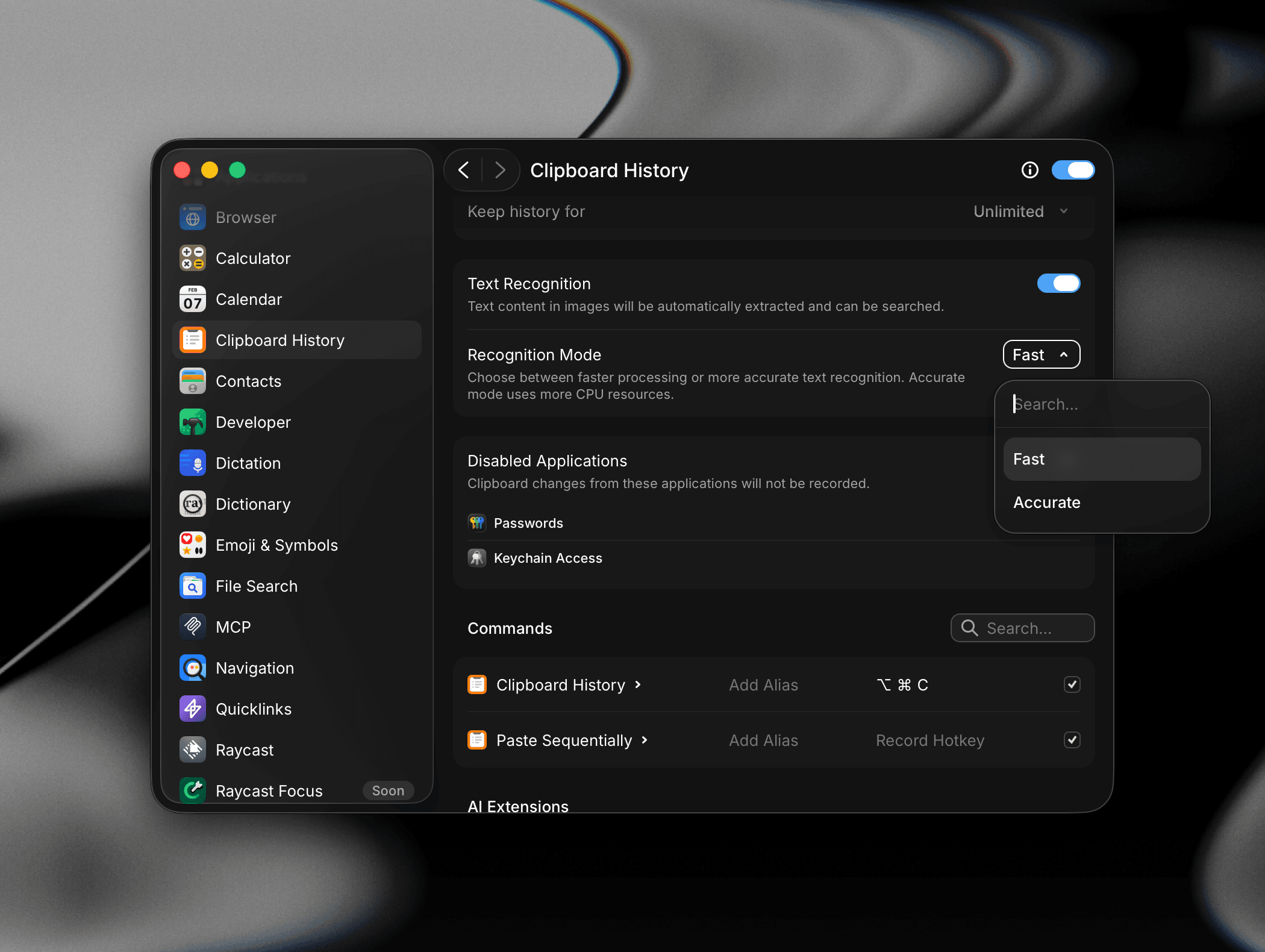
- Recognition Mode: Choose between faster processing or more accurate text extraction:
- Fast: Lower CPU usage, suitable for most everyday screenshots.
- Accurate: Better recognition for small text, mixed fonts, or low-contrast images, at the cost of higher CPU usage.
Universal Clipboard
With Universal Clipboard, you can copy on your iPhone, iPad, or another Mac and paste on this Mac. By default, Raycast saves these items to Clipboard History only after you paste them.
- Save Universal Clipboard Items Immediately: When enabled, items copied on your other Apple devices are saved to Clipboard History as soon as they arrive, even if you never paste them. Raycast saves their text, links, and one image format per item. Large items such as photos can take time to download. The setting is off by default and stored locally, so it doesn't sync to your other Macs.
Disabled Applications
Add applications where clipboard changes should not be recorded. Common examples like Passwords and Keychain Access are included to prevent sensitive values from ending up in your history. Click the + button to add more, for example password managers or banking apps.
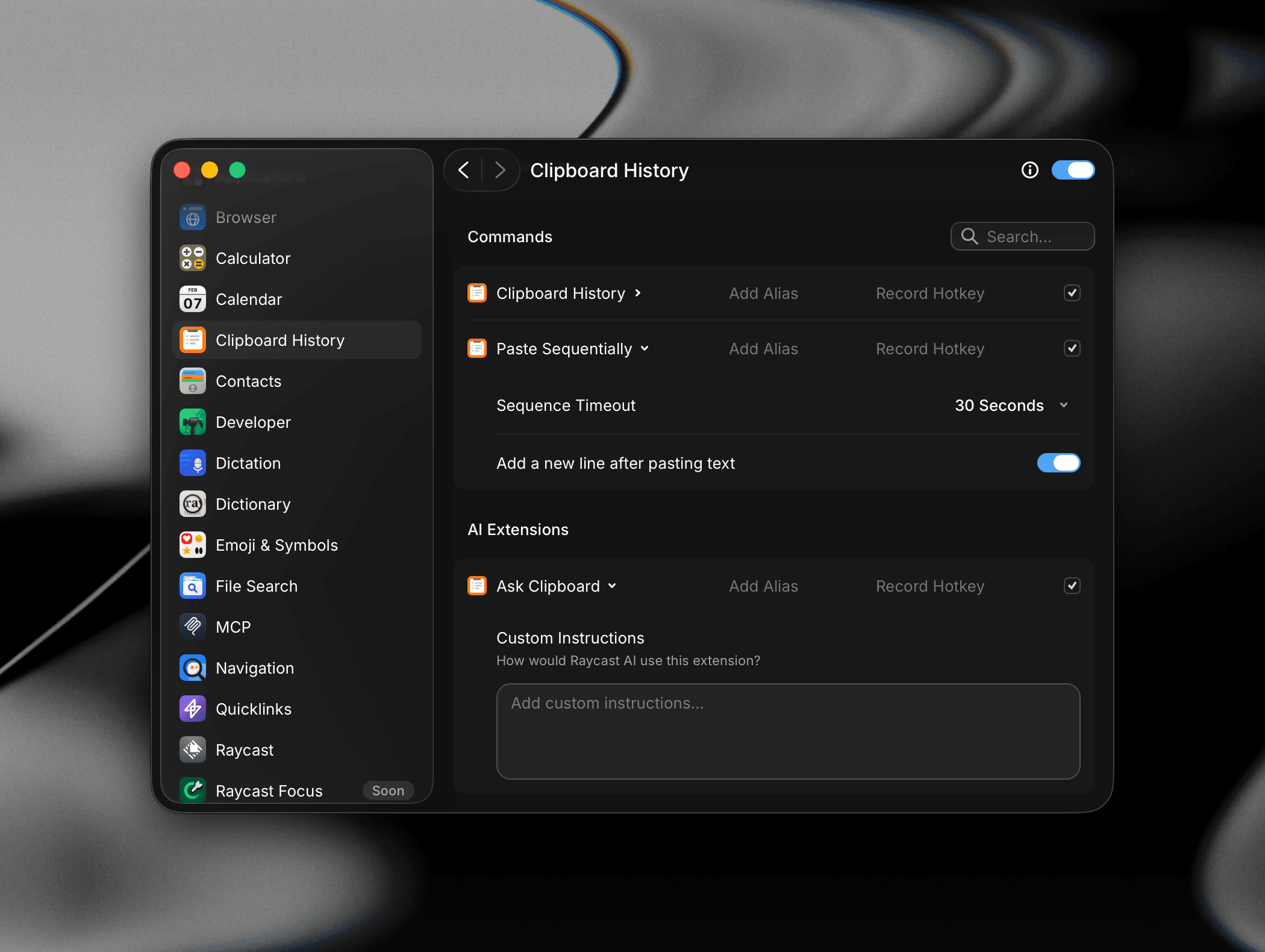
Commands
Assign aliases and hotkeys to the Clipboard History commands you use most:
-
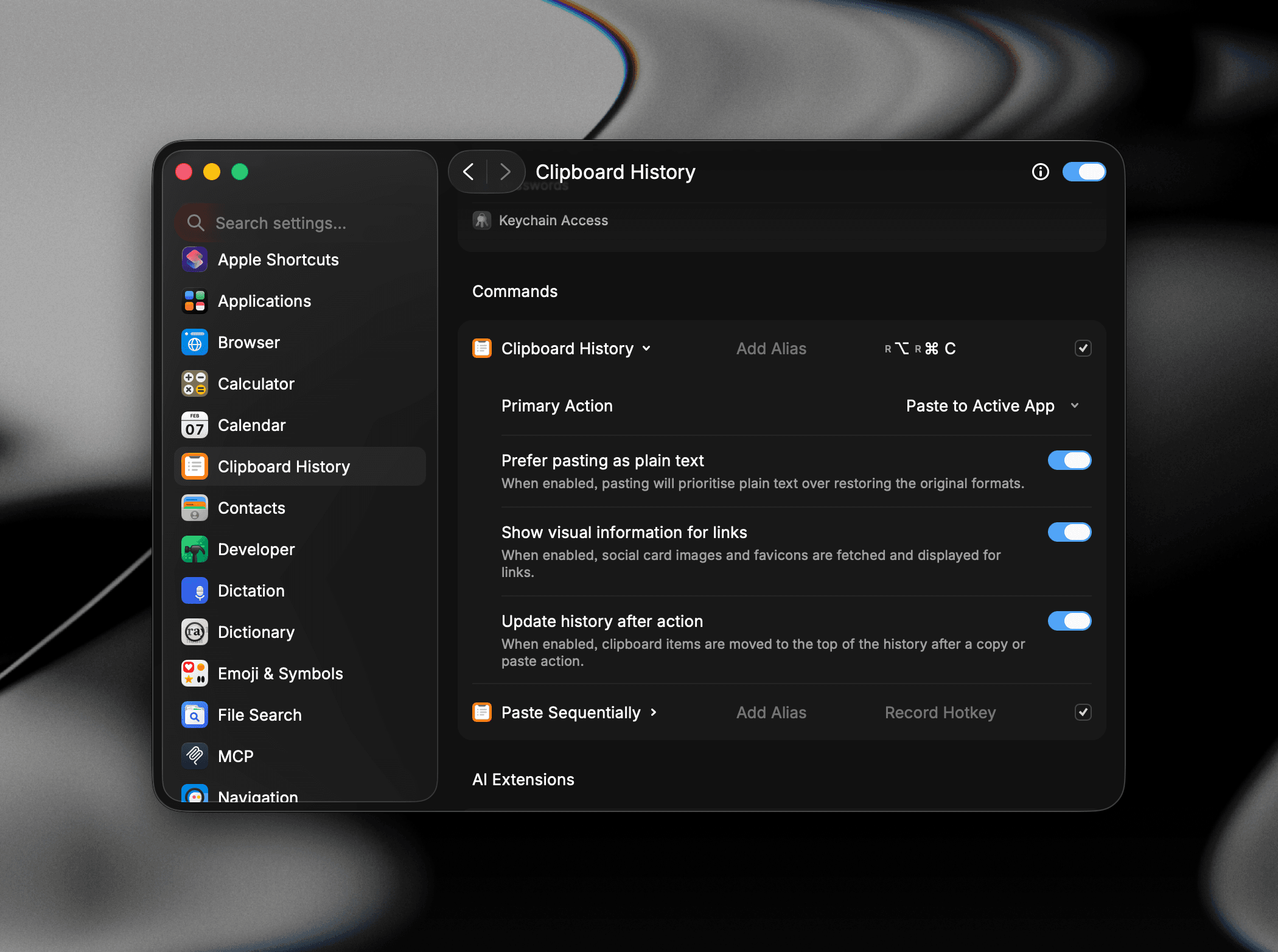
Clipboard History: Open the searchable history list to paste a previous item. Expand the command to access these options:
- Primary Action: Choose what pressing Return does on a selected entry. Paste to Active App inserts the item into the focused app, while Copy to Clipboard puts it back at the top of your clipboard.
- Prefer pasting as plain text: When enabled, pasting prioritizes plain text over restoring the original copied formats.
- Show visual information for links: When enabled, social card images and favicons are fetched and displayed for link entries, making them easier to identify at a glance.
- Update history after action: When enabled, clipboard items are moved to the top of the list after a copy or paste action, so your most recently used items stay easy to find.
-
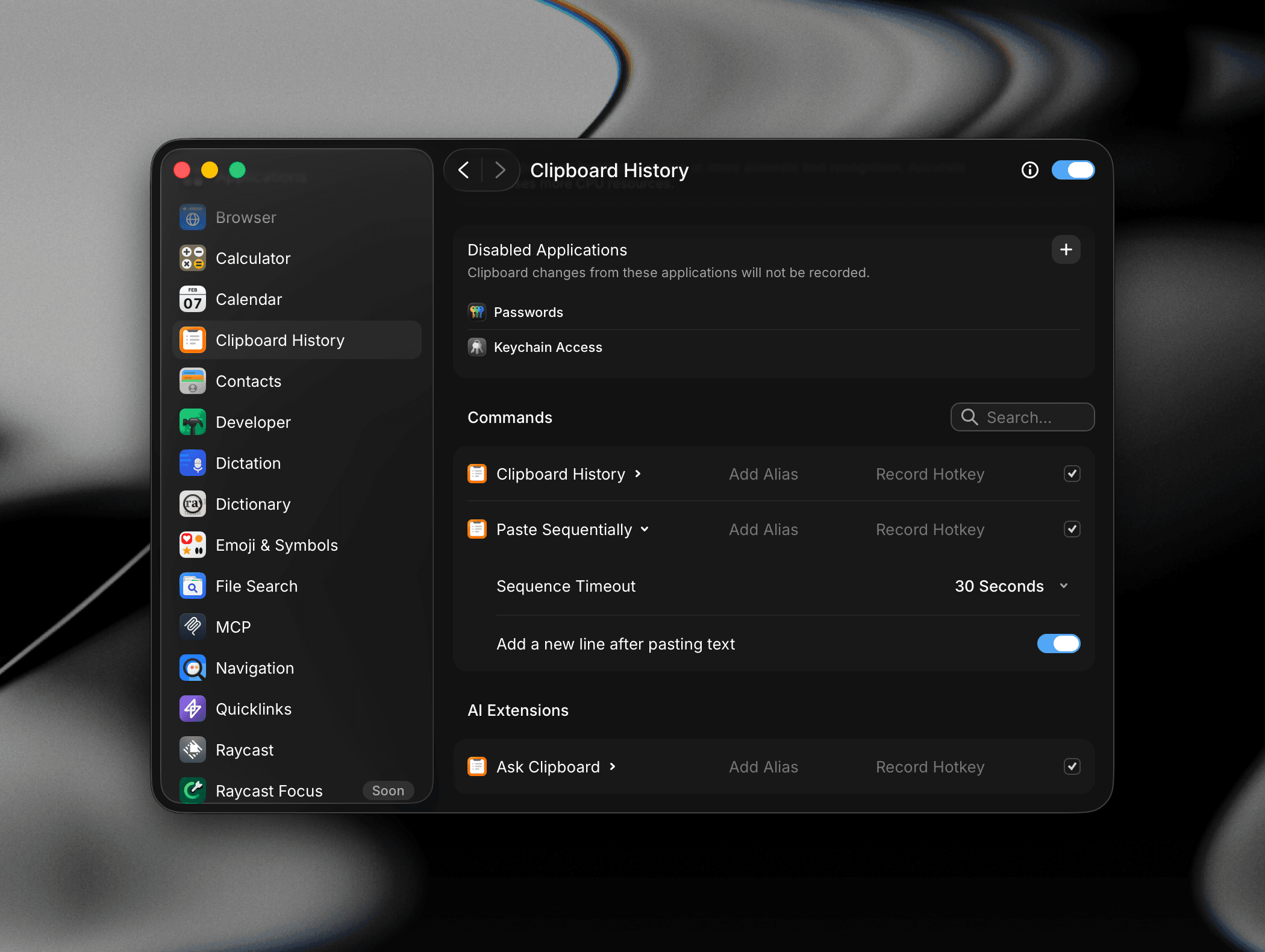
Paste Sequentially: Paste multiple clipboard items one after another in sequence. Each time you run it, Raycast pastes the next item back through your history (most recent first, then the one before it), advancing a cursor as it goes. The cursor resets automatically once the Sequence Timeout elapses or your most recent clipboard item changes. Expand the command to access these options:
- Sequence Timeout: How long Raycast waits between pastes before resetting the sequence. The default selection of 30 Seconds works well for filling out forms across fields.
- Add a new line after pasting text: When enabled, Raycast inserts a line break after each pasted item, useful for pasting lists or filling multi-line text areas.
-
Reset Paste Sequence: Reset the paste sequence to start again from the most recent clipboard item. Running it moves the cursor back to the top and shows a HUD confirming Paste sequence reset, so you can restart a sequence right away — for example after a mistake or a context switch — without waiting for the Sequence Timeout to lapse. No hotkey is assigned by default; add an alias or hotkey from Settings → Shortcuts if you use it often.
Ask Clipboard
Ask Clipboard is a built-in AI Extension that lets you act on your clipboard history through natural language (for example, "summarize what I just copied" or "find the link I copied yesterday"). It searches your full history by text, title, recognized text, or category, reads a specific entry, and can replace an entry's content with new plain text. Assign an alias or hotkey to make it easier to invoke.
Troubleshooting
Clipboard History keeps a searchable record of what you copy. Most reports come down to history not recording, images not being captured, paste formatting, or the hotkey not opening the window. Here are the common ones.