Raycast Manual
Raycast Manual
AI

AI

icon
Anyone can try AI with a limited number of free messages. To use Raycast AI with unlimited messages (subject to Raycast’s Request limits), it requires an active Pro subscription → upgrade here!
icon
Read our AI Privacy and Security statement.

Welcome to the Raycast AI Manual! This doc should help to familiarize you with the different features Raycast AI offers and how to get started using them. Here you’ll also find our approach to AI Privacy and Security, usage and request limits, and FAQs.

Table of Contents

  • Raycast AI
  • Quick AI
  • AI Chat
  • AI Commands
  • 1. Built-in: Explain Words
  • 2. Built-in: Improved Writing
  • 3. Customize a built-in AI Command
  • 4. Custom AI Command: Translate Text
  • 5. Custom AI Command: Translate Text to Any Language
  • Placeholders
  • AI Extensions [Beta]
  • MCP: Model Context Protocol
  • Bring Your Own Key (BYOK)
  • OpenRouter
  • Anthropic, Google and OpenAI
  • Local Models
  • How to install and use
  • Manage models
  • Other AI features
  • Image Generation
  • Attachments in AI Chat
  • Chat Branching [experimental]
  • AI Settings
  • AI Feedback and Reliability
  • Experimental features
  • MCP HTTP Servers
  • AI Extensions for Ollama Models
  • Custom Providers (Bring Your Own Models)
  • Auto Model
  • Usage Limits
  • Free messages for every user
  • Request limits
  • Raycast Pro models:
  • Advanced AI models(*):
  • Raycast AI FAQ
  • Local Models FAQ

Raycast AI

These are the main ways to interact with AI in Raycast.

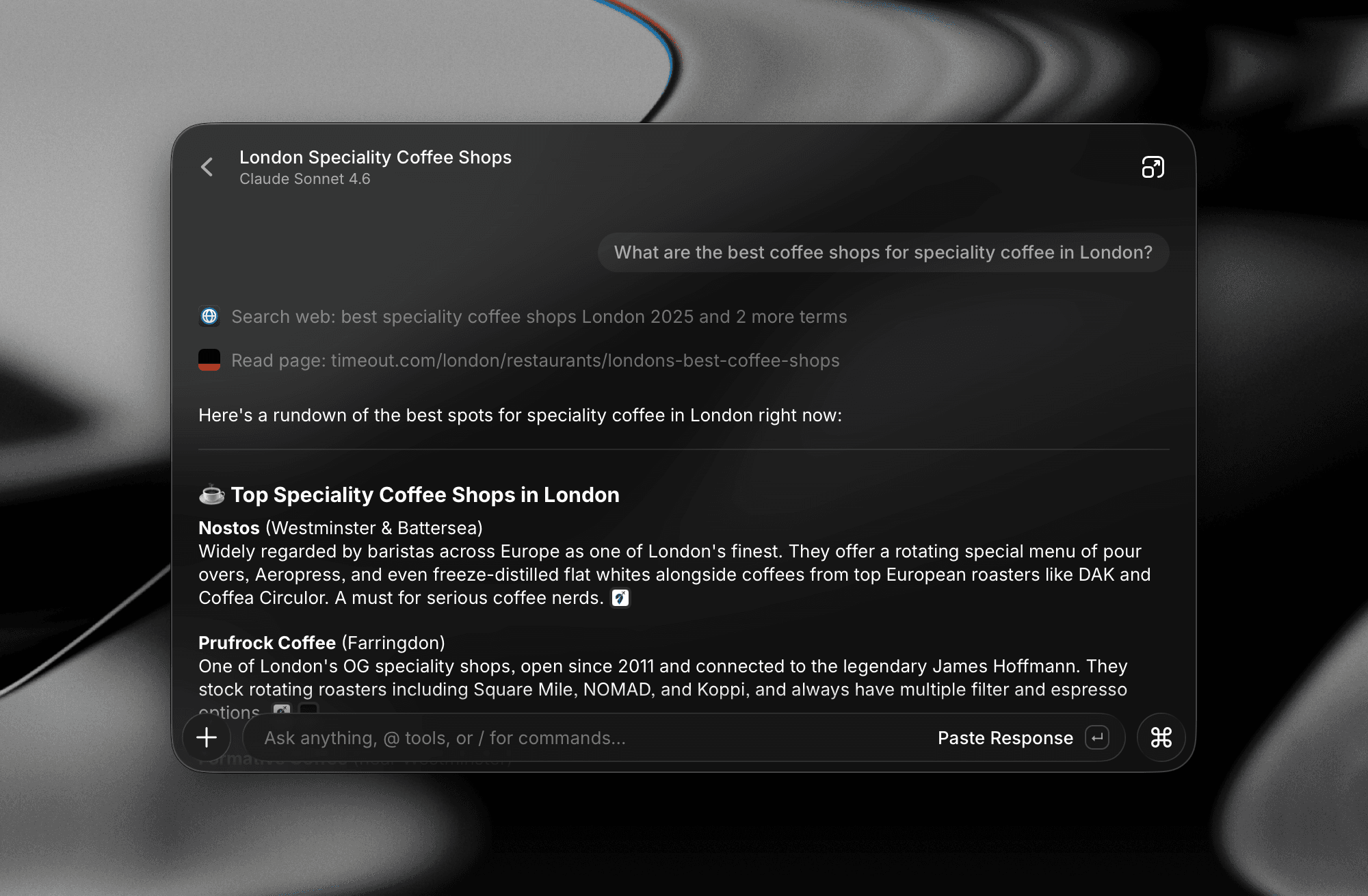
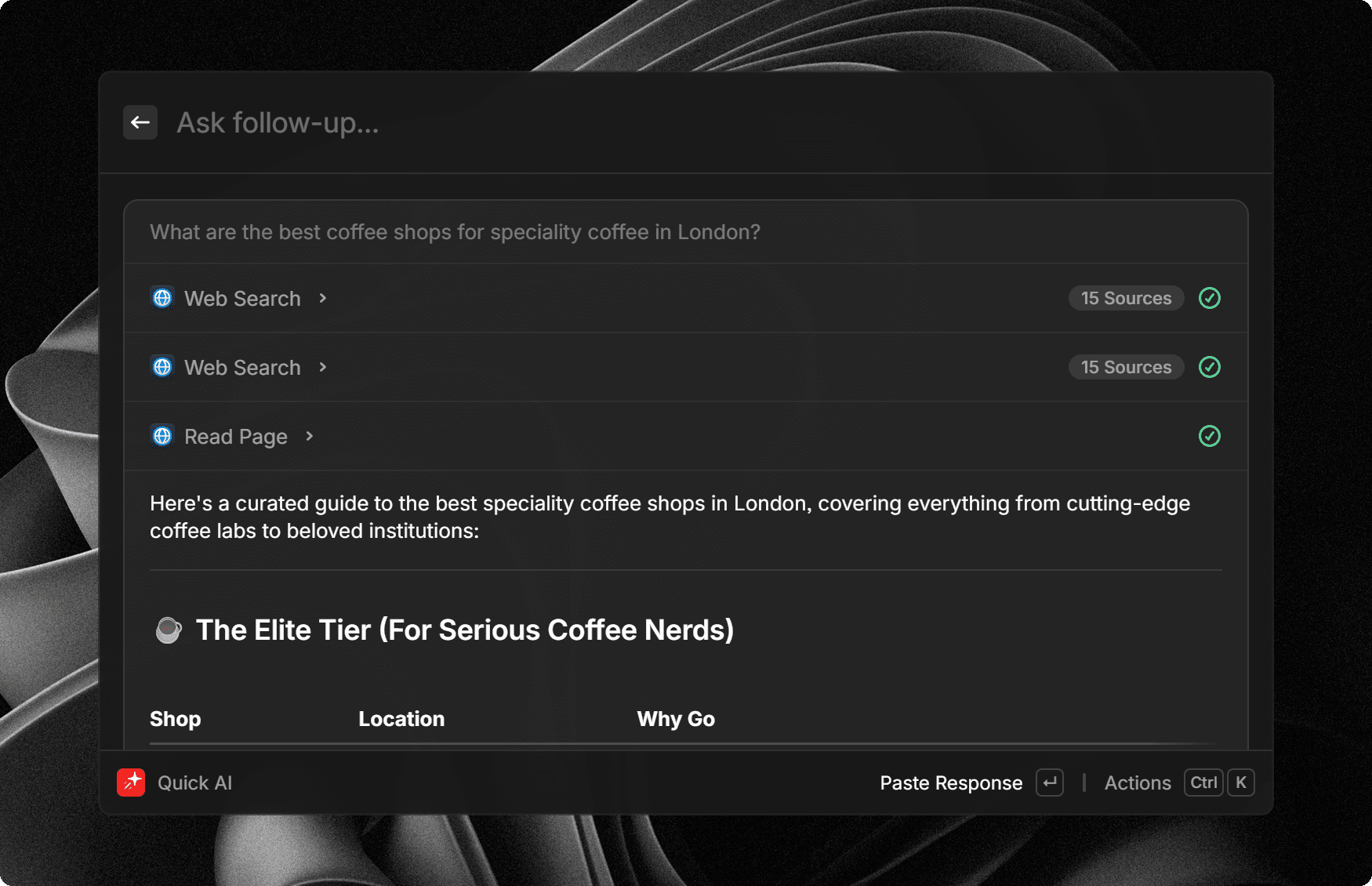
  • Quick AI: It’s the fastest way to get answers to your questions directly from within Raycast. Ideal for one-off questions. Here’s a video to see it in action.
  • AI Chat: A standalone chat window to ask AI anything. Ideal as an assistant during your workday.
  • AI Commands: Built-in or custom prompts, ideal for common tasks such as improving your writing.
  • AI Extensions: Include an @-mention to ask any extension a question or help you with your daily workflow. Check out the guide linked below or watch the video to learn more.

Quick AI

image

Follow the steps to ask AI anything:

  1. Open Raycast
  2. Type your question, f.e. “What were the specs of the first Macintosh?”
  3. Press Tab to switch to Quick AI
  4. Perform your next action, e.g. press ⌘ J to continue the conversation in the AI Chat

Some more noteworthy features:

  • You can press Tab after opening Raycast to switch to Quick AI. This way you can access your previous question.
  • Quick AI is only for one-off questions. If you want to ask a follow up question, continue in the chat.
  • You can hide the Ask AI Tab hint via Settings → Extensions → Raycast AI. The Tab key still works.

AI Chat

image

Follow the steps to interact with the AI Chat:

  1. Open Raycast
  2. Search for “AI Chat” to open the separate chat window
  3. Type in any question you want to start a conversation
  4. Continue the conversation with follow up questions
  5. Press ⌘ K, select “Ask AI” and search for “Make Shorter”
  6. Raycast applies the AI Command to shorten the previous message
icon
Pro Tip: Assign a global hotkey (e.g. ⌥ J) via Preferences → Extensions → Raycast AI → AI Chat to open the chat quicker.

AI Commands

1. Built-in: Explain Words

image
  1. Select the word “philosophy”
  2. Open Raycast and search for “Explain This in Simple Terms”
  3. Raycast AI responds with the definition of the word “philosophy”

2. Built-in: Improved Writing

image
  1. Select a sentence, paragraph, or more text
  2. Open Raycast and search for “Improve Writing”
  3. Raycast AI responds with a text improved for grammar and style

3. Customize a built-in AI Command

image

To add a customized AI Command to your Raycast Root Search, continue with these steps:

  1. Go to “Search AI Commands” and find for example “Improve Writing”
  2. Press ⌘ D to duplicate the AI Command
  3. Give it a new title, for example “Improve Writing in My Personal Style”, change the icon to Person Lines, and the creativity to low
  4. Tweak the Prompt, and define some rules that describe how you tend to write, for example: keep everything lowercase.
  5. Press ⌘ ↵ to update the AI Command
  6. Now you can use the AI Command from your Root Search

4. Custom AI Command: Translate Text

image

Follow the steps to create a new AI Command that translates selected text to any language:

  1. Open Raycast, search for “Create AI Command”
  2. Give it a Title like “Translate Selected Text to English”
  3. Type in the Prompt field “Translate {selection} to English” (or any other language) and hit ⌘ ↵ to save
  4. When you execute the AI Command, Raycast instantly shows a window with the translation of the selected text

5. Custom AI Command: Translate Text to Any Language

image

Follow the steps to create a new AI Command that translates selected text to any language:

  1. Create a new AI Command, or edit the one we just made by finding it and hitting ⌘ E.
  2. Name the Title something like: “Translate Selected Text to…”
  3. Change the prompt to use an Argument with a dynamic placeholder. Example: Translate {selection} to {argument name="Language"}
  4. Press ⌘ ↵ to update the AI Command
  5. Now any time you execute the AI Command, you can define the language you want.

Dynamic Placeholders can be even more powerful. Learn more about them in the next section.

Placeholders

You can make your AI Commands dynamic with Dynamic PlaceholdersDynamic Placeholders.

⬇️How to import AI Commands⬇️How to import AI Chat Presets

AI Extensions [Beta]

Raycast AI Extensions let you interact and instruct using natural language. Describe what you want to do, add the relevant AI Extensions to your message or chat, and let AI do the hard work.

Learn more AI ExtensionsAI Extensions

image

AI Extensions Include an @-mention to ask any extension a question or help you with your daily workflow. Check out the guide linked below or watch the video to learn more.

MCP: Model Context Protocol

Model Context Protocol or in short MCP is an open protocol that standardizes how applications provide context to LLMs. You can use MCP servers within Raycast to extend AI even further. MCP servers work and behave similar to our AI Extensions. After installation, you can @-mention MCP servers in the root search, AI Commands, AI Chat, and Presets.

ℹ️

Only AI models that display AI Extensions support in their AI model card in the AI model selector will work with MCP.

Learn more Model Context ProtocolModel Context Protocol

Bring Your Own Key (BYOK)

With BYOK you can now use Raycast AI with your own API Key from your AI provider accounts. We currently support: Anthropic, Google, OpenAI, and OpenRouter. This allows you to enjoy all of Raycast’s powerful AI features, and send as many AI messages as you want at your own cost without a Pro subscription.

  1. Go to Raycast AI Settings and find the section called Custom API Keys.
    1. Create and copy an API Key from your AI Provider’s settings dashboard.
  2. Add your API Key per AI Provider in Raycast Settings.
  3. Validate the Key
  4. From now on when you select a model from the AI Provider, it uses your API Key. You can see a small key icon in the model picker.

OpenRouter

All models via OpenRouter are supported and available as models via BYOK. Requests are sent directly to OpenRouter's servers.

Note: Chats do not support remote tools, and may not include web search

Anthropic, Google and OpenAI

Note: Only models we support via Raycast AI will be available as models via BYOK.

icon

Any message you send incurs cost via your AI provider. This can amount to more than a Raycast Pro subscription. Be sure to keep an eye on the provider’s API dashboard to prevent costly surprises.

icon

If using BYOK (excluding OpenRouter), requests are processed through our servers in order to unify the model APIs, integrate fallback behaviors, and do some final prompt management. To learn more about how we handle BYOK and privacy 👉 AI Privacy + Security.

image
image

Local Models

Local models allow you to run nearly any LLM locally, on your machine. This is possible through our integration with Ollama — giving you access to over 100 AI models from various providers like Google, Meta, Microsoft, and others, ranging from small 135M to massive 671B parameter models.

Learn more → Local Models FAQ

How to install and use

  1. Download and install Ollama. Make sure to move the app to your Applications folder. ollama.com/download
  2. Install local models offered through Ollama
    • Explore models via: ollama.com/search
    • Install them via:
      • Ollama in a terminal or,
      • Raycast AI Settings and type the model name in the “Add Ollama Model” input field.
        • By default, the :latest version available gets downloaded. You can opt to get a specific version of the model by appending a colon : followed by the parameter, e.g. e.g qwen3:4b.
  3. Choose your local model from the model picker, like you would any other model in Raycast

If you want to see which models are installed, you can run ollama list in a terminal.

icon

Note: Some local models are very large and can take up hundreds of gigabytes of space on your hard drive. Also, depending on your machines’ hardware, they can quickly become noticeably slower than what you’re used to with cloud provided LLMs.

image
image
image
image
image

Manage models

With the ever-growing selection of AI Models from various providers, you might want to control which ones are available to you, and which get hidden in the model pickers. With the “Manage Models” command you can do exactly that. Find the ones you won’t use, and disable them by hitting Return ⏎.

Tip: This command supports multi-select. You can ⌘ + Click on multiple rows, or use ⇧ + ↑ / ↓, just like selecting multiple items in Finder, and enable or disable multiple models in one go.

image

Other AI features

Image Generation

OpenAI models allow you to generate images using DALL·E 2 or DALL·E 3. You can also use Stable Diffusion and Flux by finding them in Root search or including them in a prompt via an @-mention. See AI Extensions to learn more.

🖼️Image Generation

Attachments in AI Chat

Provide more context in your chats using attachments.

📎Attachments in AI Chat

Chat Branching [experimental]

Create alternate conversation paths from any point in your chat history. Think of it as a "save point" where you can explore different directions without losing your original conversation.

To branch a chat: Simply press CMD + Shift + B to create a new branched chat. Alternatively, you can right click on a chat in the sidebar, and select Branch Chat.

To navigate back to a parent chat: Simply press CMD + Option + ↑ to jump back to the parent chat. Alternatively you can right click on a chat in the sidebar, and select Go to Parent Chat.

image

AI Settings

Open Raycast Settings → AI Tab, and customize your experience: pick your favorite model for Quick AI, set the behavior of the AI Chat window, or set up a hotkey for Chat. You can also completely turn off and hide AI across Raycast with the big switch on the left side.

image

To completely turn off and hide AI across Raycast:

  1. Open Raycast Settings → AI Tab
  2. Use the big toggle switch on the left side

Or simply open the following deeplinks:

  • Disable: raycast://ai/settings/disable
  • Enable: raycast://ai/settings/enable

AI Feedback and Reliability

As with all things AI, reliability is a tricky thing to get right. In order to improve and continually make Raycast AI more reliably and useful, we need to understand what works and what doesn’t.

Providing feedback— the good and the bad - helps us to do this.

If you come across examples that do what you intended particularly well, or that missed the mark, you can report them to us by hitting the 👍 or 👎 button on the message.

Feedback buttons show when hovering any message
A feedback prompt will show after each message with an AI Extension
🔐

If you choose to report feedback, the full chat thread — including AI Extension tool calls and results — will be sent to us. This is entirely opt-in and you must give explicit consent before any data is sent. Please be mindful of any sensitive data the thread might contain. We may use this information to improve the reliability of our AI System.

We handle this data with the same privacy and security as outlined in our ToS and Privacy Policy.

If you choose to submit feedback about an AI-generated message (thumbs up/down), we will prompt you to explain that you are sharing the content of the chat with us and require your consent beforehand.

Experimental features

Some AI features are more experimental in nature - whether it be something we’re testing out to collect feedback on, some functionality that might not yet be reliable, or even features that are still in development. Rather than building these behind closed doors, we want to share them so we can learn and build alongside those of you who are interested in trying out the bleeding edge of our AI features.

You can access and control these at the bottom of the Raycast AI Settings screen. Find the “Experiments” section.

Join the conversation and share your feedback about these features in our Slack Community #ai-experiments channel 🎉

image

MCP HTTP Servers

Enable HTTP MCP servers using the Server Sent Events (SSE) and Streamable protocols. This makes it easier to use, as you can just connect to a remote MCP server and the server itself is managed by the host. You no longer have to worry about any complex steps, like running a local Node process. You can try it with e.g. https://mcp.linear.app

AI Extensions for Ollama Models

If you’ve got Ollama installed, you can try out tool calling with local models. Enabling this feature allows you to use any AI Extension in a chat with a local model.

Tool choice and streaming for tool calls aren’t supported by Ollama just yet. Meaning this can be a bit unreliable — which is why we decided to make it available as an Experimental feature.

Custom Providers (Bring Your Own Models)

For advanced users you can now add any OpenAI compatible LLM provider to Raycast AI.

Custom providers are defined in a providers.yaml configuration file. Go to Settings → AI → Custom Providers and click the Reveal Providers Config button to open the file in the Finder. A template is created containing an example configuration.

You can find the configuration file here as an example:

ai-providers.template.yaml3.6 KiB

Auto Model

To make it easier to choose the best model, we’ve introduced Raycast Auto model that, under the hood, selects the best provider and model for your request: it chooses a fast model for simple requests, a reasoning model for sophisticated tasks, the best coding model for programming requests, or a web-search model if it requires access to real-time data.

Usage Limits

Free messages for every user

We provide 50 free messages to any user to give AI a try across Raycast. Every single message you send counts as one. Select from any of the AI models available in our Pro plan. Find your current usage in Raycast Settings. Once you run out of messages, you can upgrade to a Pro plan which comes with a 14-day free trial.

image

Request limits

To prevent abuse, request limits for Pro plans apply. These limits are shared by all models in their respective group. This is a quickly moving space - we regularly review the limits we offer and reserve the right to update these at any time.

Raycast Pro models:

  • 50 requests per minute
  • 300 requests per hour

Exception(*):

  • o3-mini: 150 requests per 24 hours
  • o4-mini: 150 requests per 24 hours

Advanced AI models(*):

Same as Pro, plus:

  • 75 requests per 3 hours
  • 150 requests per 24 hours

Exception(*):

  • o1, Claude 4 Opus, Claude 4.1 Opus, Claude 4.5 Opus, Claude 4.6 Opus: 50 requests per week per model

More info about all the models and their context limits here.

Note: Context size varies for each model and can be verified in the model selector, which is available in the AI settings and AI Chat.

Note: “Submit Without Generating” does not count towards your request or free message limits.

(*) Do not apply to BYOK requests

Raycast AI FAQ

‣
Is AI active all the time?
‣
Can I disable AI across Raycast?
‣
If I disable AI, can I get a discount on the Pro plan?
‣
How many free messages do I get with Raycast AI?
‣
What counts as a message?
‣
When do the free messages expire?
‣
Are free messages shared across Macs?
‣
Are free messages shared across platforms like Mac, iOS and Web?
‣
I ran out of messages, can I buy more?
‣
Do I need a paid plan to use Local Models or BYOK?
‣
Are my AI Chats synced across devices?
‣
Can I open multiple chats at the same time?
‣
What is Raycast AI Lite?
‣

Local Models FAQ

SlackXInstagram